

Founded in 1983, IMSI is a leader in feature-rich, yet affordable, general-purpose CAD (Computer Aided Design) and home design desktop software, and a pioneer in mobile solutions for the AEC (Architectural, Engineering, and Construction) industry.


Bringing your designs to life is now faster and more intuitive with Copilot Render. This powerful feature generates conceptual visualizations directly from your CAD drawings using natural language prompts. Simply describe the style, materials, lighting, or environment you envision, and Copilot Render creates a concept image that overlays your existing drawing.
Because the underlying geometry remains unchanged, you can continue refining your design while exploring different visual directions and presentation styles.
Transform Ideas into Visual Concepts
Copilot Render works seamlessly with both 3D models and 2D drawings, making it a versatile tool for designers, engineers, architects, and product developers. Whether you're creating early-stage design concepts, preparing for client reviews, or developing presentation materials, Copilot Render helps communicate design intent quickly and effectively.
You can also use reference images to guide the rendering process. These references can influence materials, textures, color palettes, environments, and overall visual style, helping you achieve results that closely align with your vision.
Flexible Creative Control
Beyond simple text prompts, Copilot Render offers additional controls that provide greater influence over the generated results.
You can:
These capabilities make it easy to explore a wide range of visual styles—from photorealistic product renders and architectural visualizations to sketch-style concepts, material studies, and creative design explorations.
Getting Started with Copilot Render
Follow these simple steps to generate conceptual visualizations from your TurboCAD project.
Step 1: Open the Copilot Palette
From the Tools menu, open the Palettes menu and select Copilot Palette.
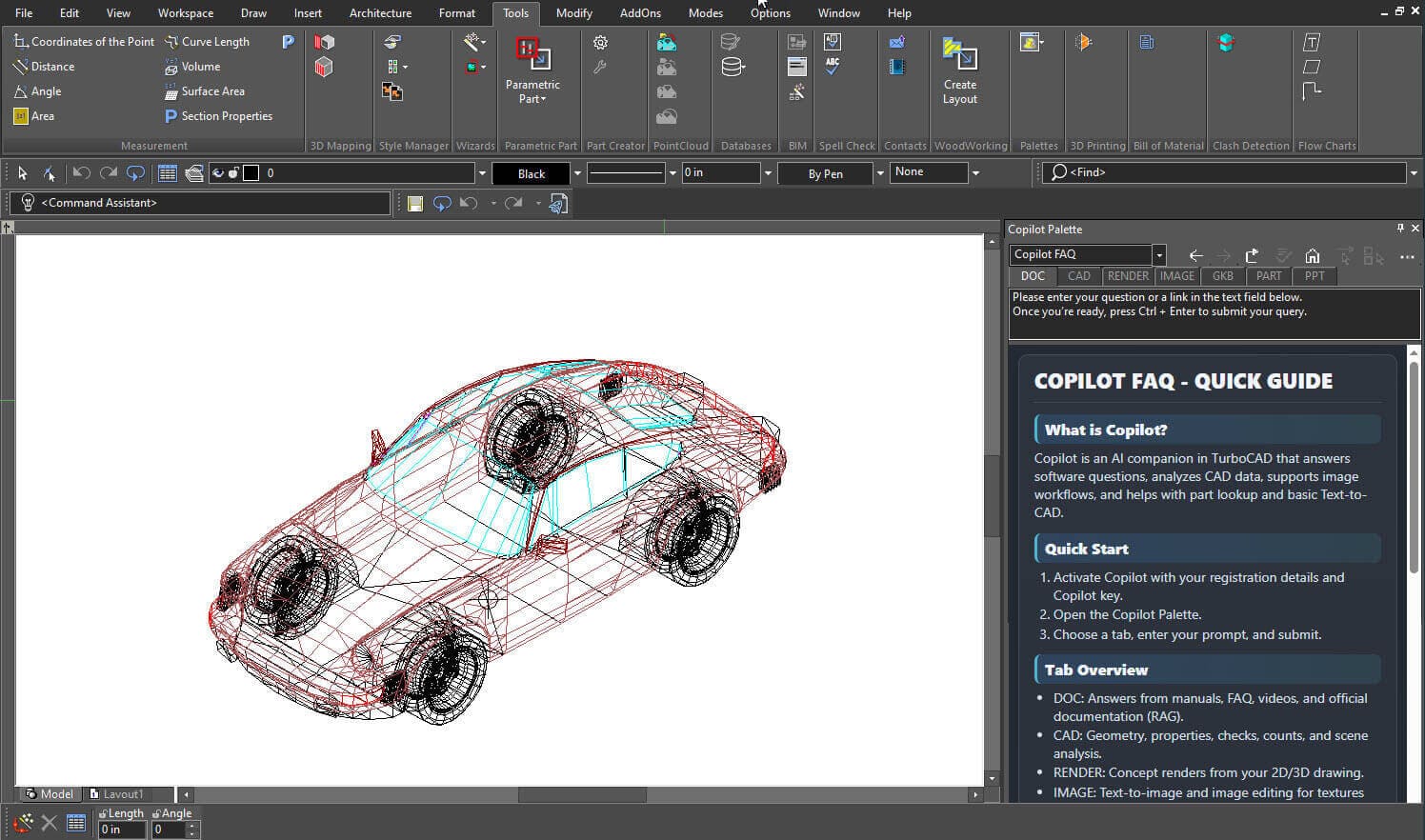
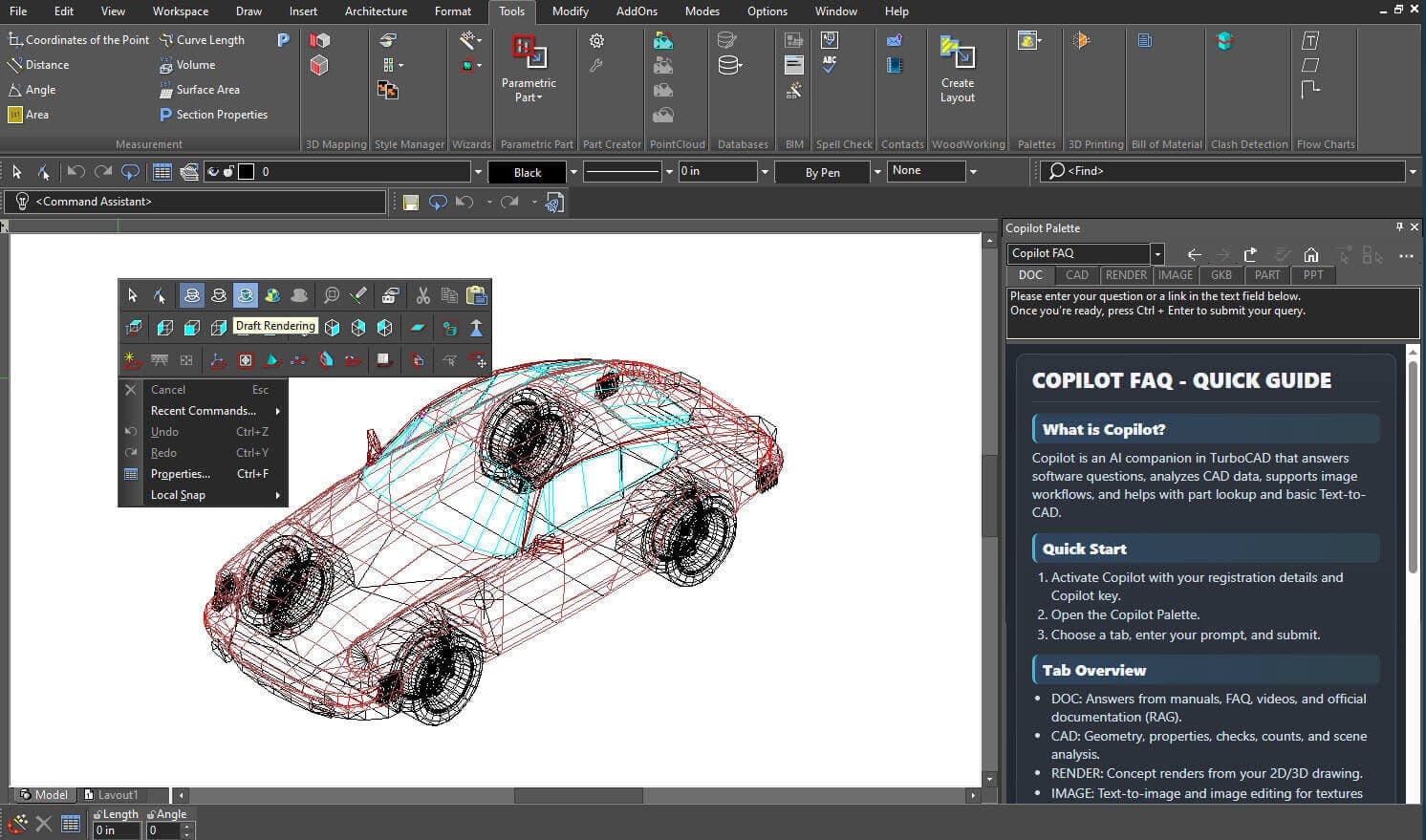
Step 2: Create a Draft Rendering
Right-click anywhere on the drawing canvas and select Draft Rendering.
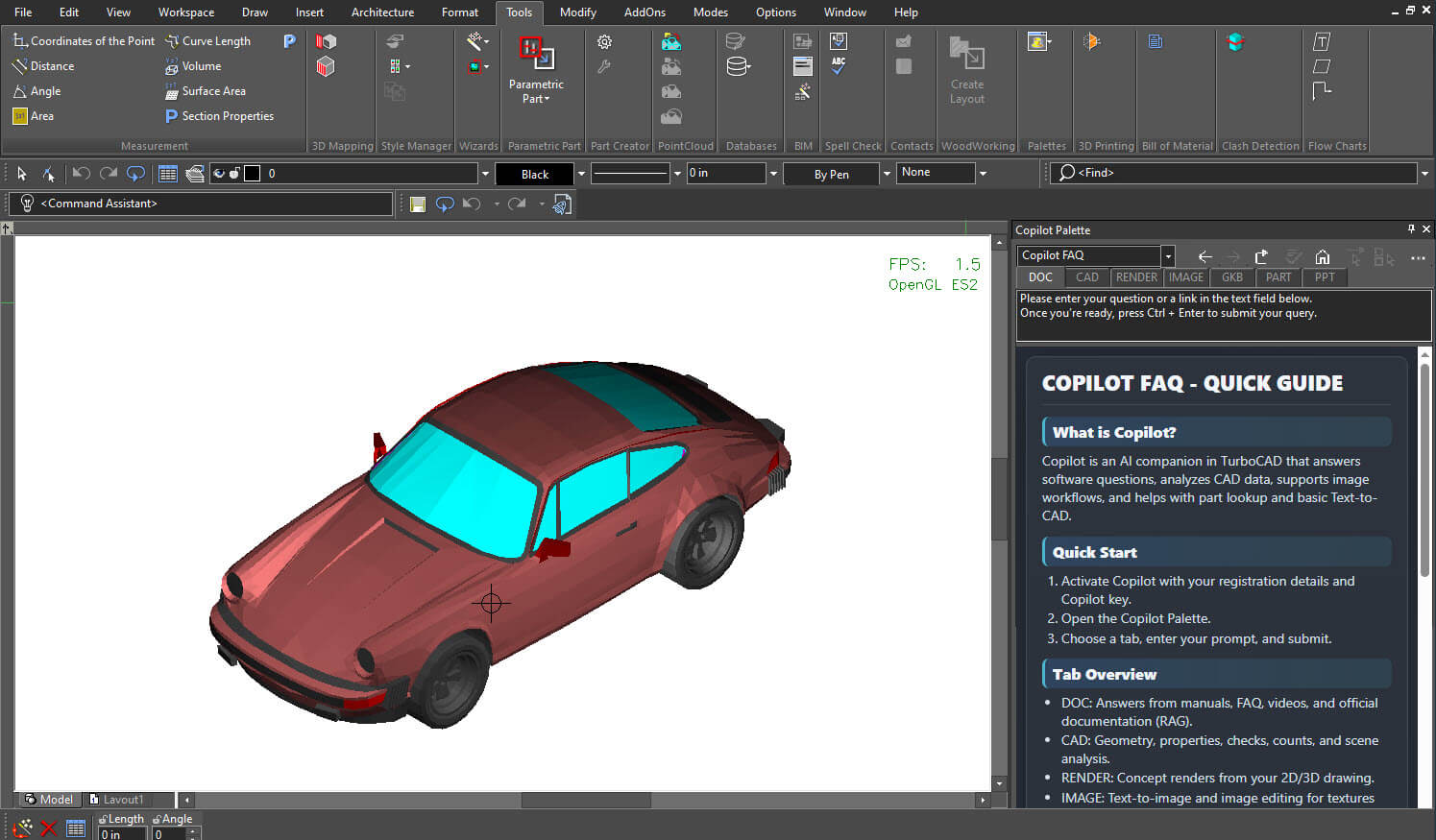
After a few moments, TurboCAD will generate a draft rendering of your project.
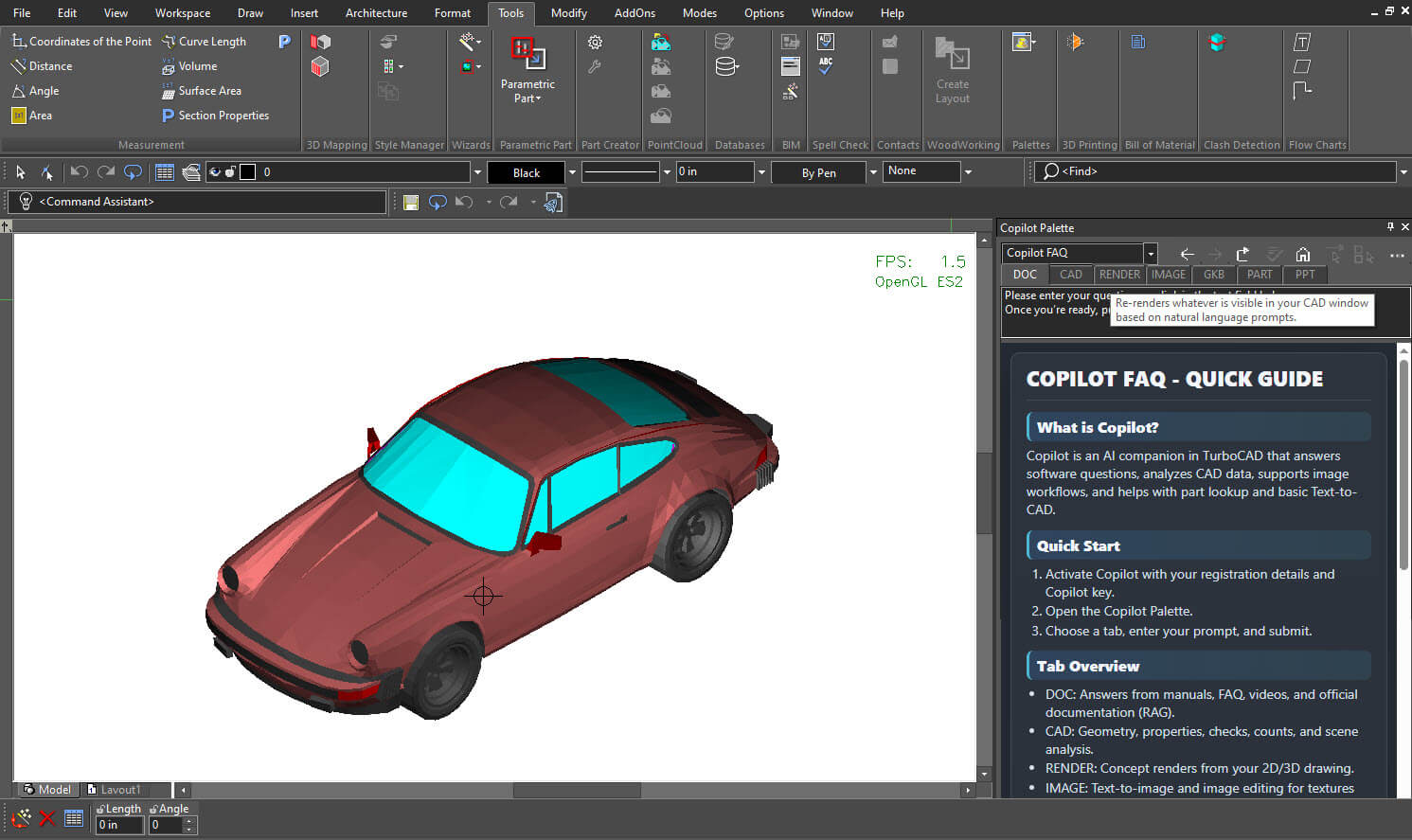
Step 3: Open the Render Tab
Within the Copilot Palette, click the Render tab.
Step 4: View Render Overview and Examples
Click the mouse scroll wheel while the Render tab is active to access the Copilot Render Overview and Examples. These examples can help you create more effective prompts and achieve better rendering results.
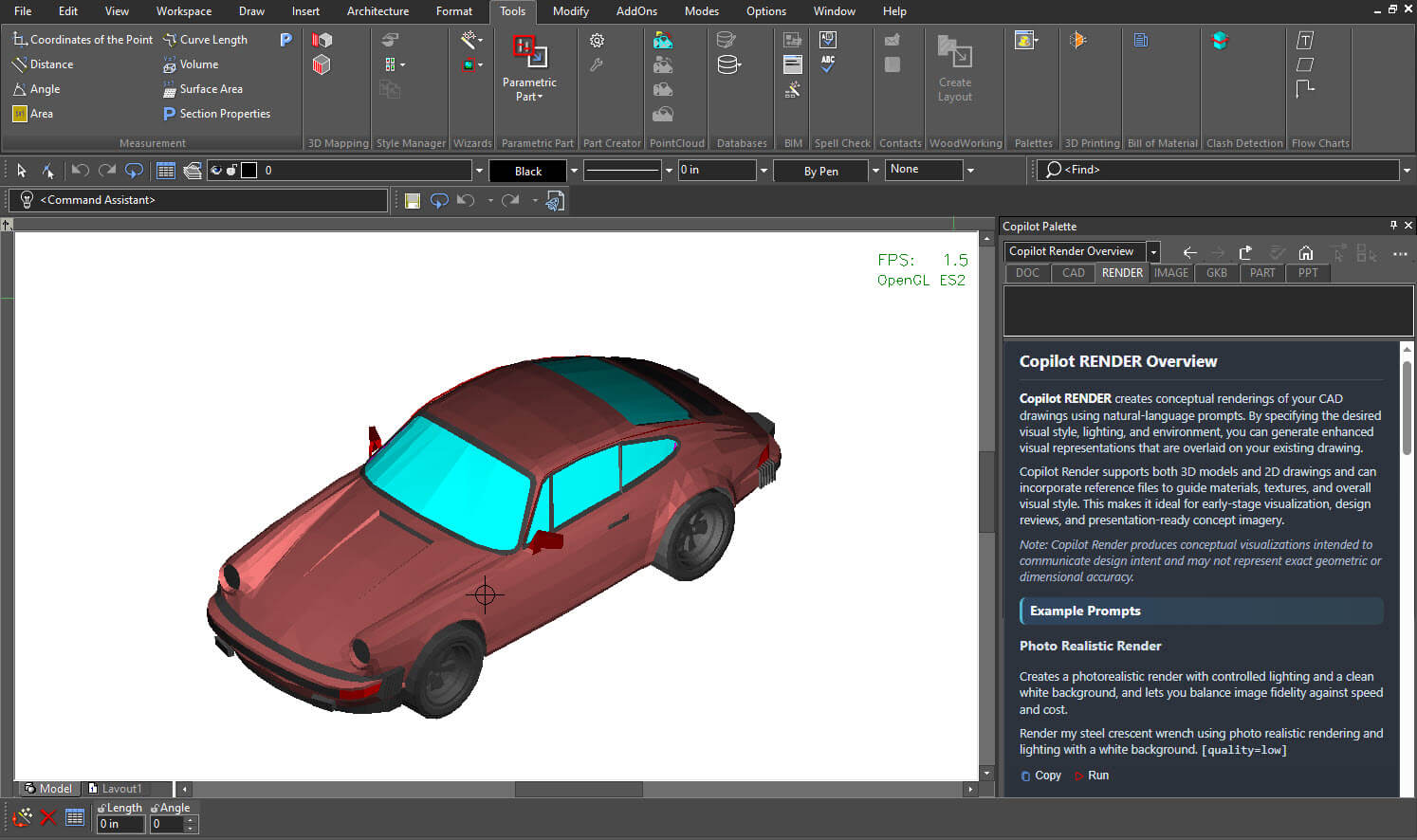
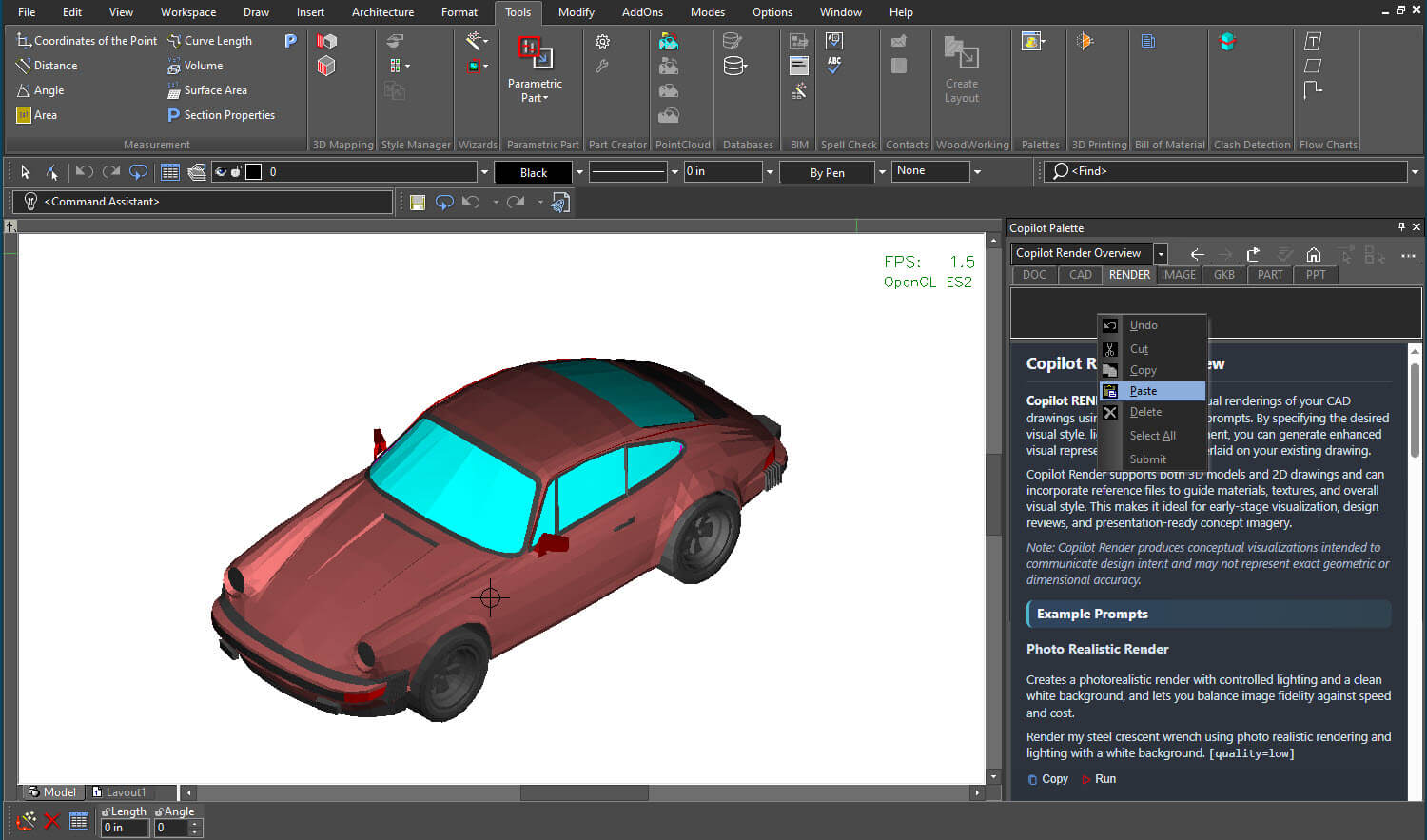
Step 5: Enter Your Prompt
Type or paste your desired rendering prompt into the prompt field and click Submit.
For example:
"Photorealistic render of a luxury sports car with deep metallic burgundy paint, studio lighting, realistic reflections, and premium materials."
Step 6: Wait for Processing
Copilot Render will process your request and generate the visualization based on your prompt.
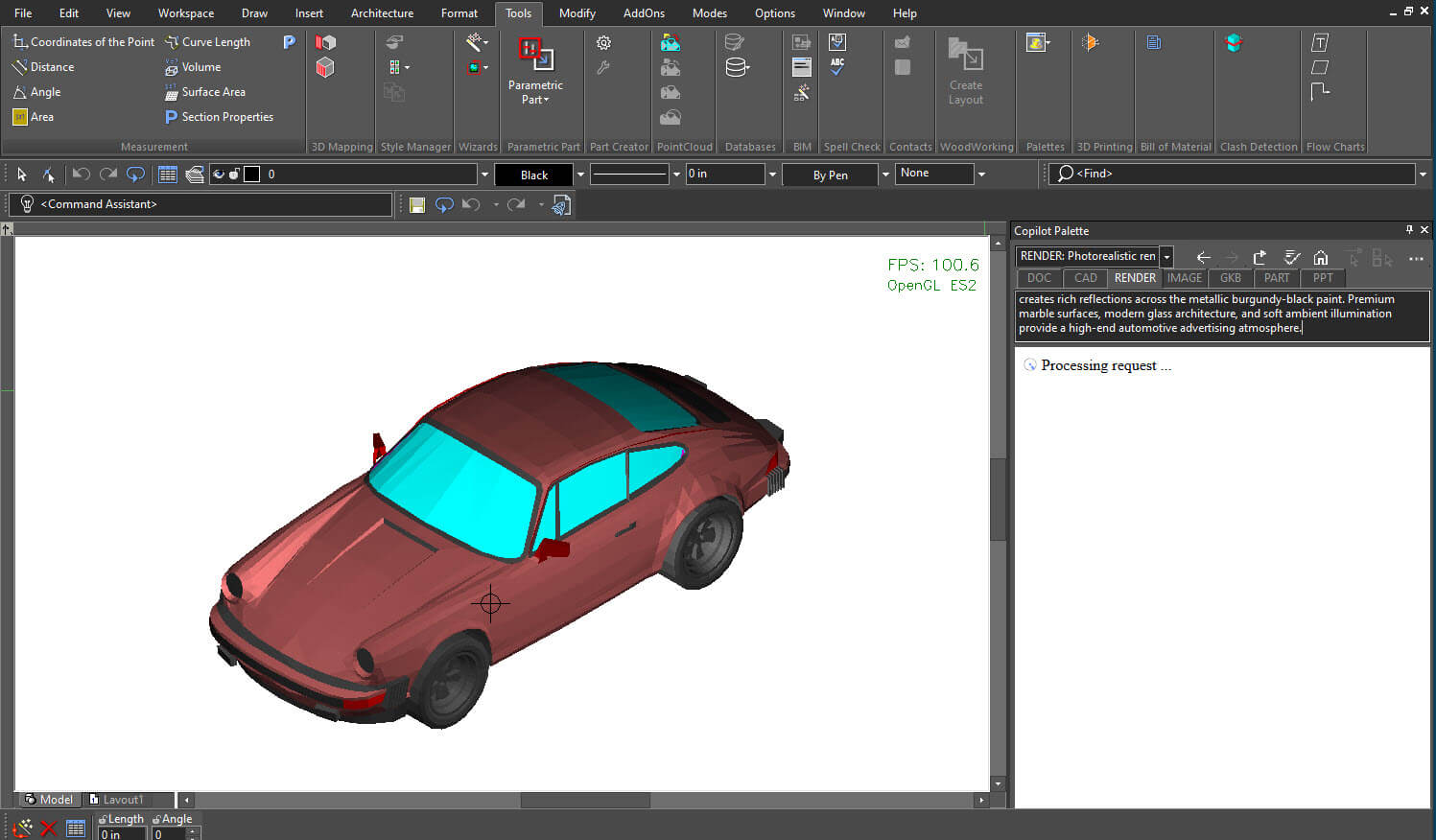
Processing time may vary depending on project complexity and render settings.
Step 7: Review the Rendered Result
Once rendering is complete, the generated visualization will appear directly on the TurboCAD canvas.
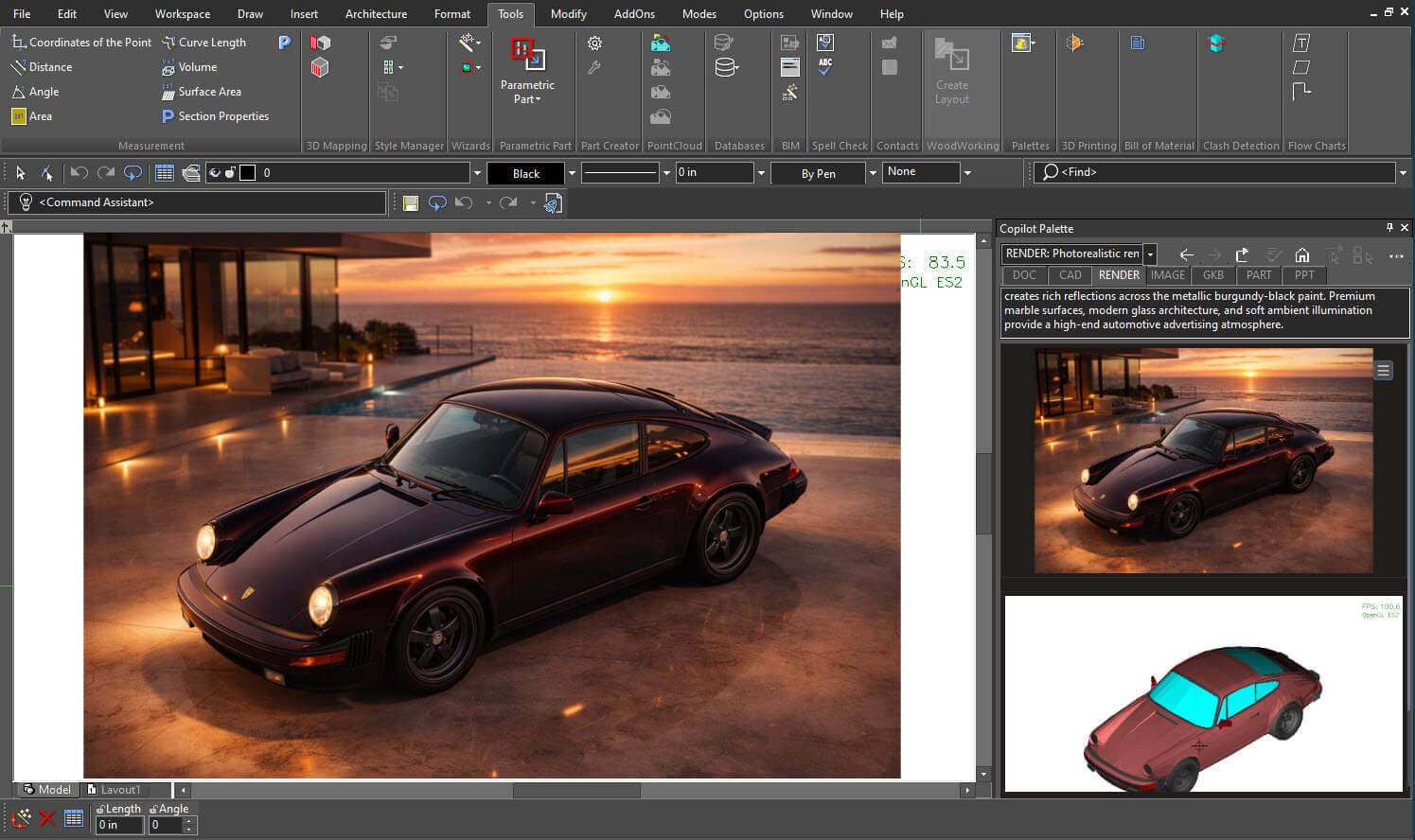
Step 8: Explore Project Details
Additional project and rendering information can be viewed through the Toggle Panel View, allowing you to review render details and manage generated content.
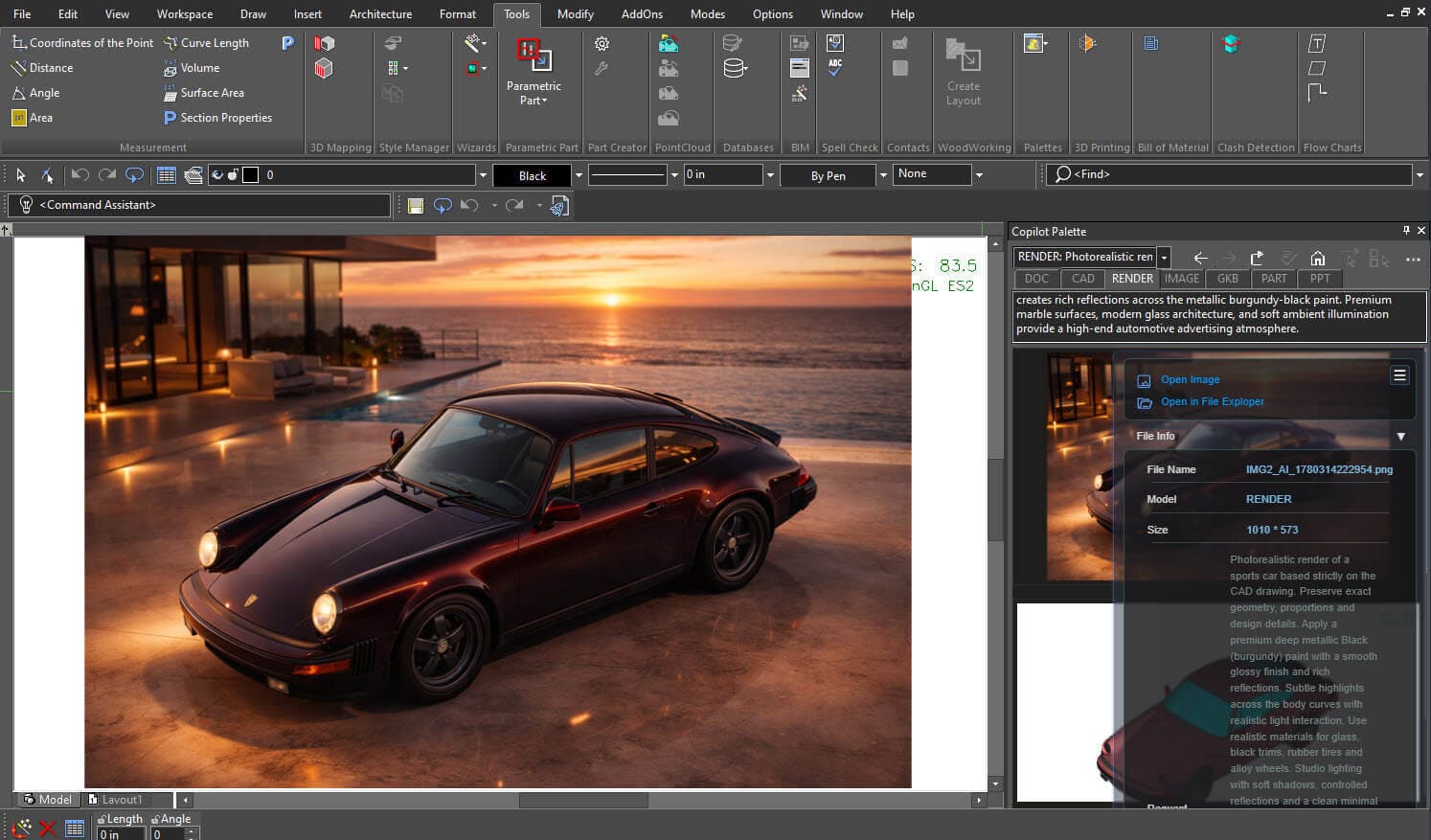
Copilot Render makes it easier to transform CAD designs into compelling visual concepts without disrupting your workflow. By combining AI-powered rendering with natural language prompts, you can quickly explore different styles, materials, and environments directly within TurboCAD. Whether you're refining ideas, presenting concepts, or gathering feedback, Copilot Render helps bring your vision to life faster and more effectively.
Redesigning a living space is more than just changing furniture or colors - it is about creating an environment that feels elegant, attractive, and welcoming at the same time. With the right balance of colors, lighting, textures, and decor, any room can be transformed into a space that reflects style, comfort, and personality. Small, thoughtful design choices often make the biggest impact, proving that elegance does not always require a large budget. A well-designed living space not only enhances the beauty of a home but also improves the way people relax, connect, and enjoy everyday moments.
In a living space, there are many elements to consider, such as the sofa, table, curtains, door and window designs, carpet, wall decor accessories, modular media storage, and floor lighting. Choosing the right items for your living room can make it look more attractive and well-designed.
When it comes to selecting the right objects for your living room, you can find many options in the default item library as well as in the downloaded library items. If you want even more choices, you may need to purchase additional power packs for this application.
For example, we started with a basic living space that didn’t have any furniture or decor.
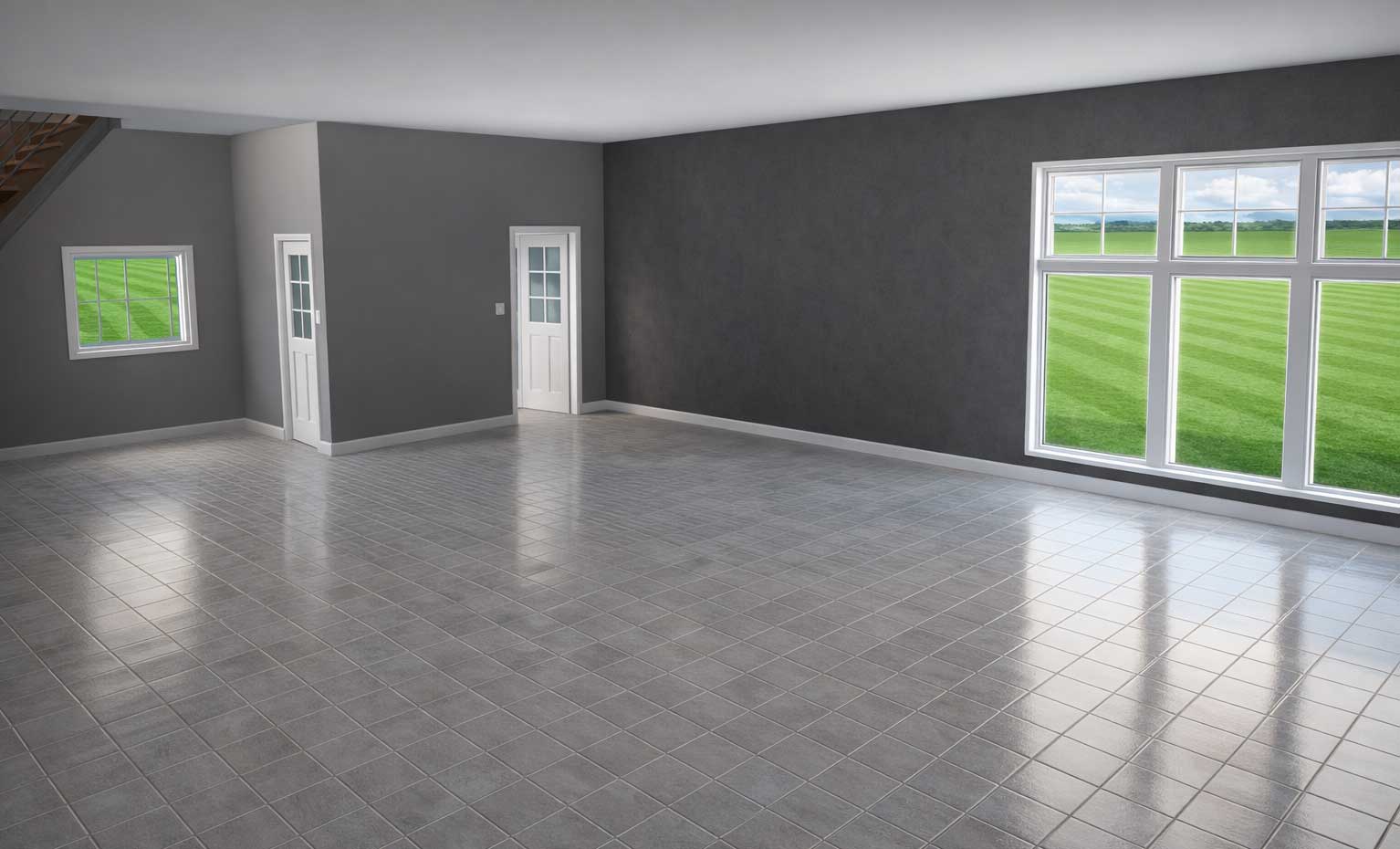
Now it’s time to make our living space more attractive and visually appealing. To do this, we will use the default libraries.
Where we can find default libraries?
You can find the default library items under Content. To do this, first launch the application and then click on the highlighted icon.
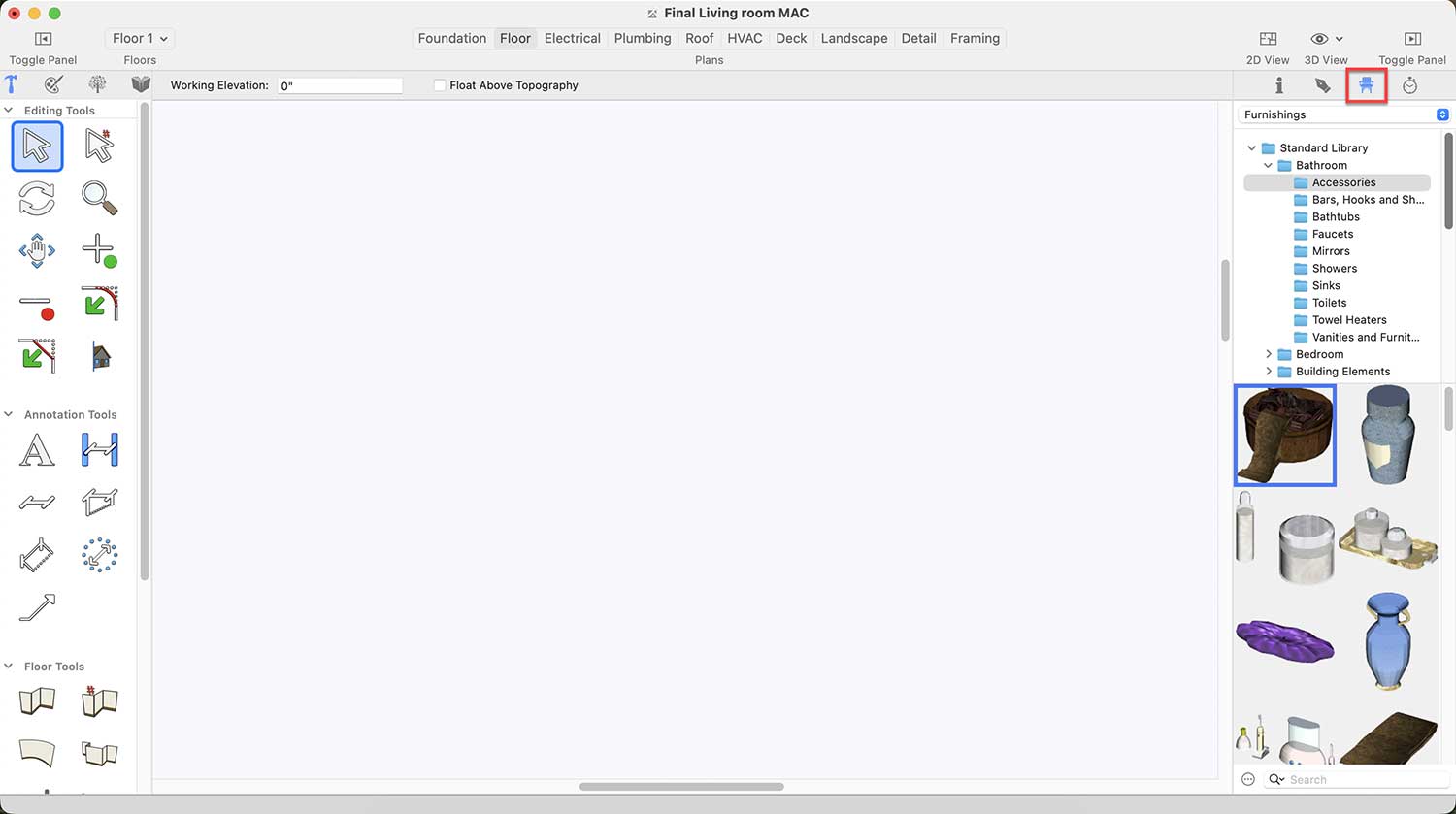
In the Standard Library under Content, you will find some Home Theater Furniture but you may create your own Modular Media Storage for your LED TV. For this you will need to access the Furniture under Office. You may find these under Standard Library > Office > Furniture
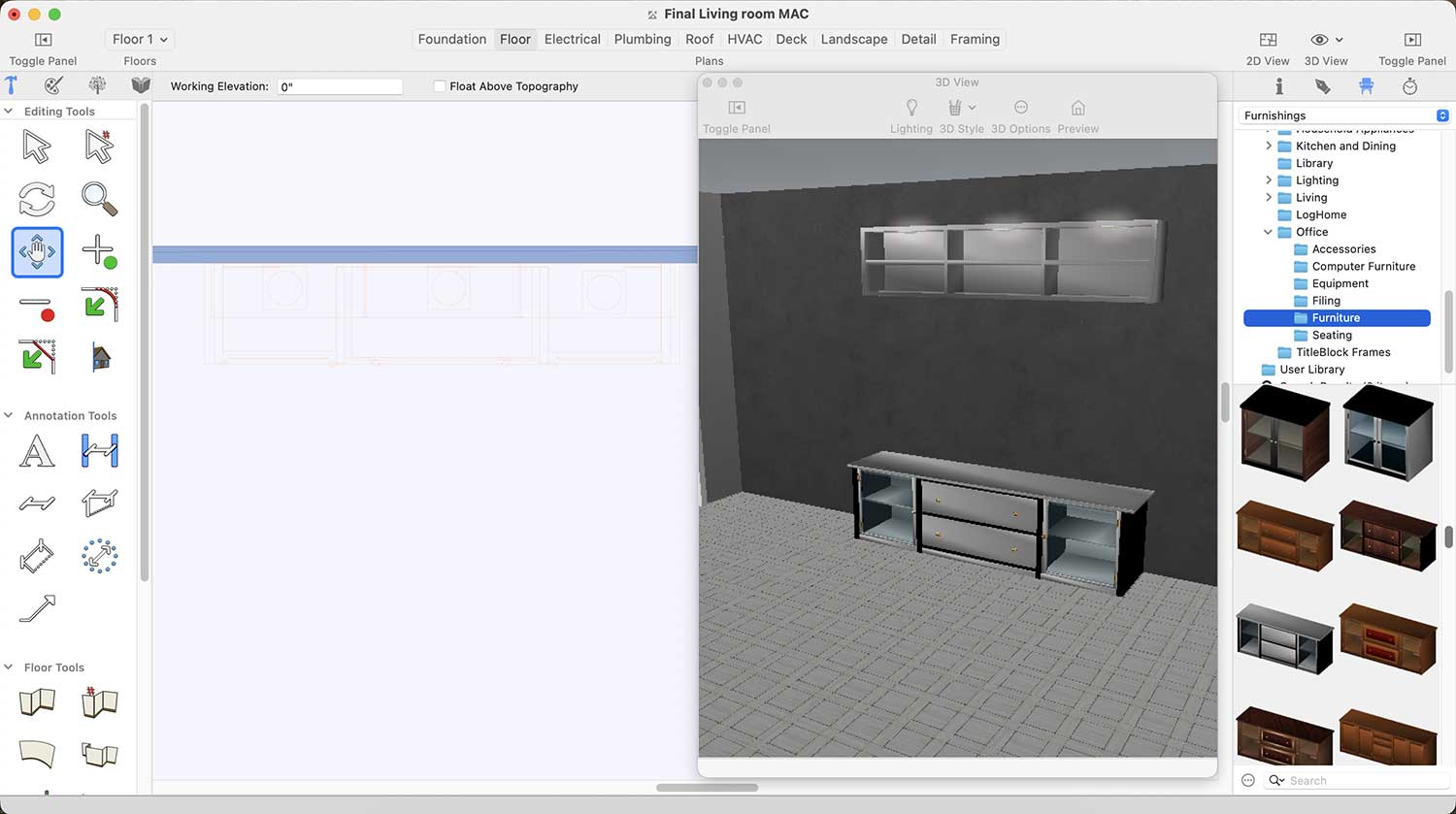
LED Furniture Designs for Living room
This application offers a wide variety of window designs, and you can choose any one according to your preference for your living room. To place a window in your Living Room you will need to pick the Window icon under Floor tab. After selecting the windows icon when you will simply click on the wall where you want to place the window, it will appear. If you later decide to change the window design, simply click on the added window, and you will see different design options displayed on the right side.
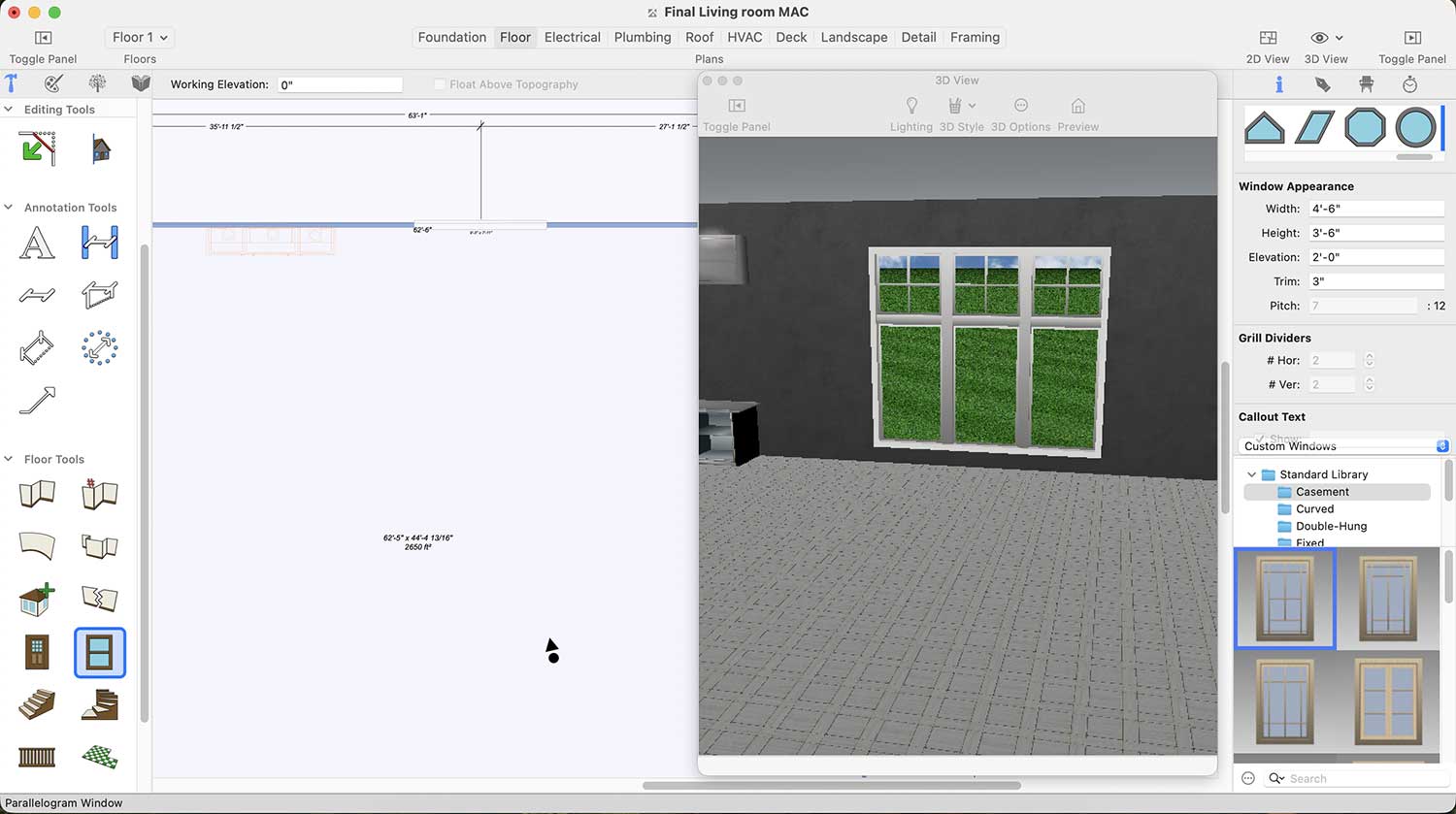
Window Designs for Living room
Similarly, this application offers a wide variety of door designs. you can choose any one according to your preference for your living room. To place a door in your Living Room you will need to pick the Door icon under Floor tab.
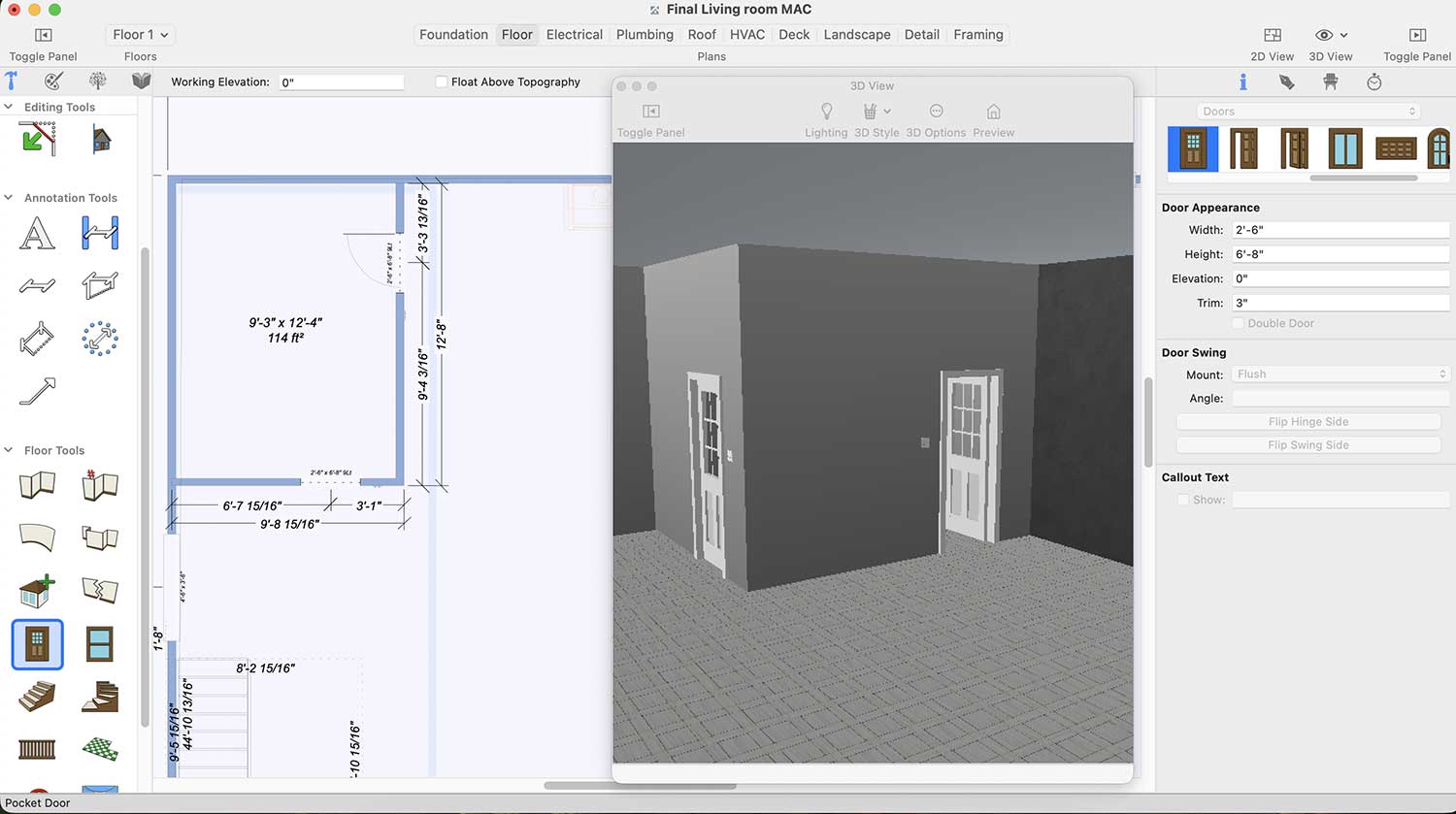
If you decide to change the door design later, simply click on the added door, and the available options will appear on the right side, now when you drag the scroller button left-right, the different door designs will appear.
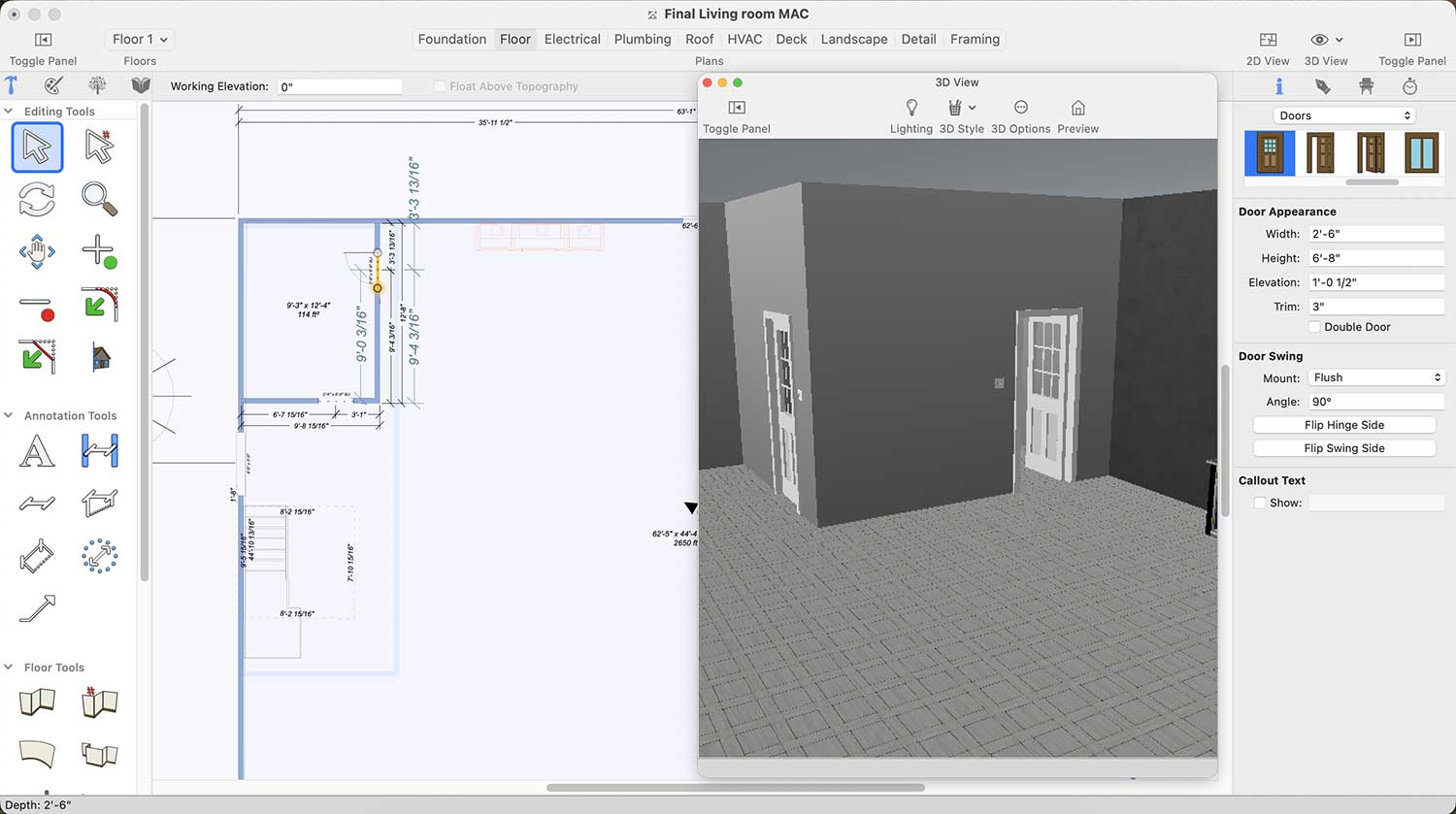
Door Designs for Living room
Wall clocks play a vital role in the overall appearance of the living room. Clocks for Living Room can be found under Standard Library > Decoration > Clocks.
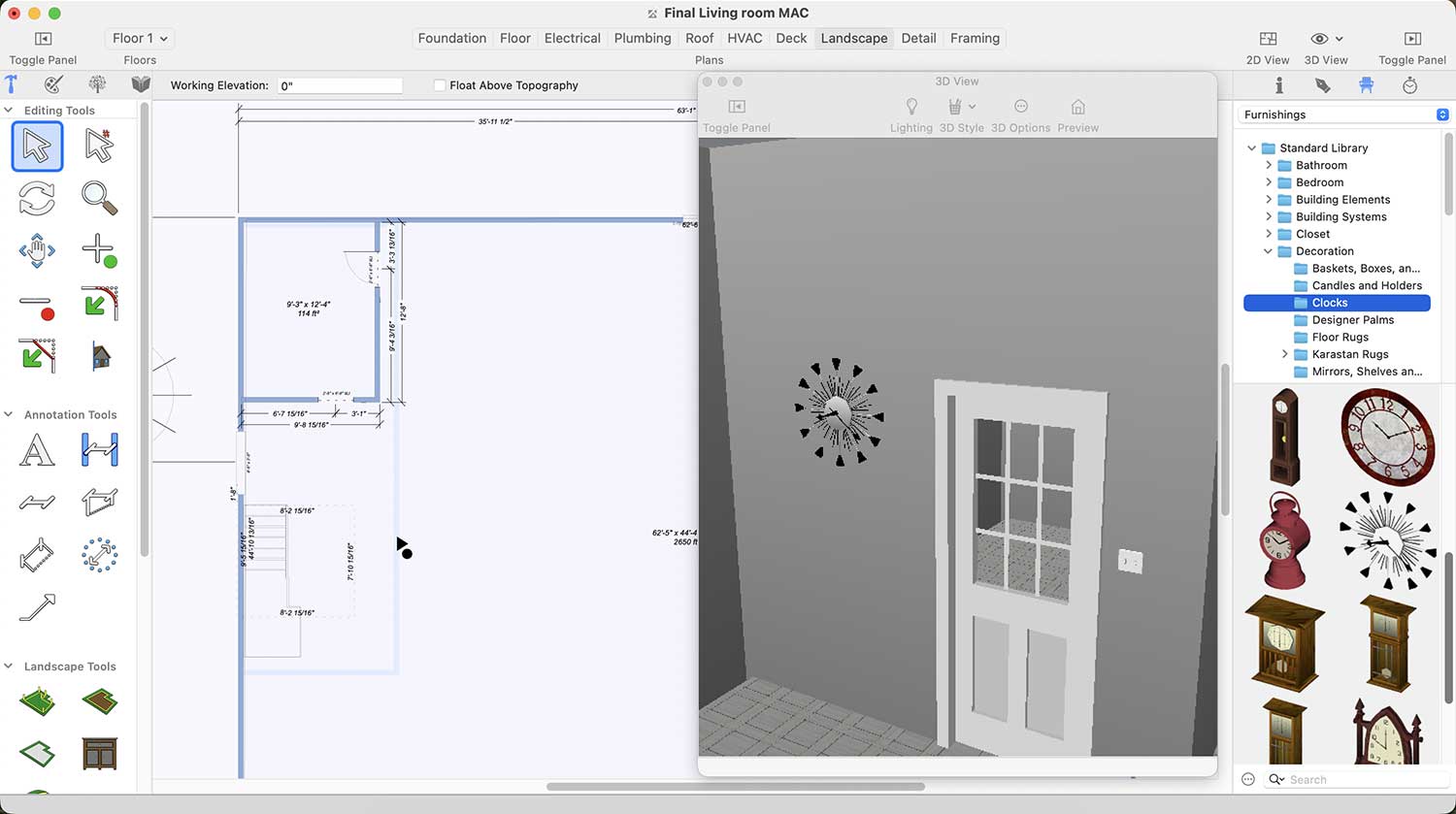
Wall Clocks Collection for Living room
Similarly, floor decoration pieces greatly enhance the overall look of the living room. You may find Floor Decoration Pieces under Standard Library > Lighting > Floor.
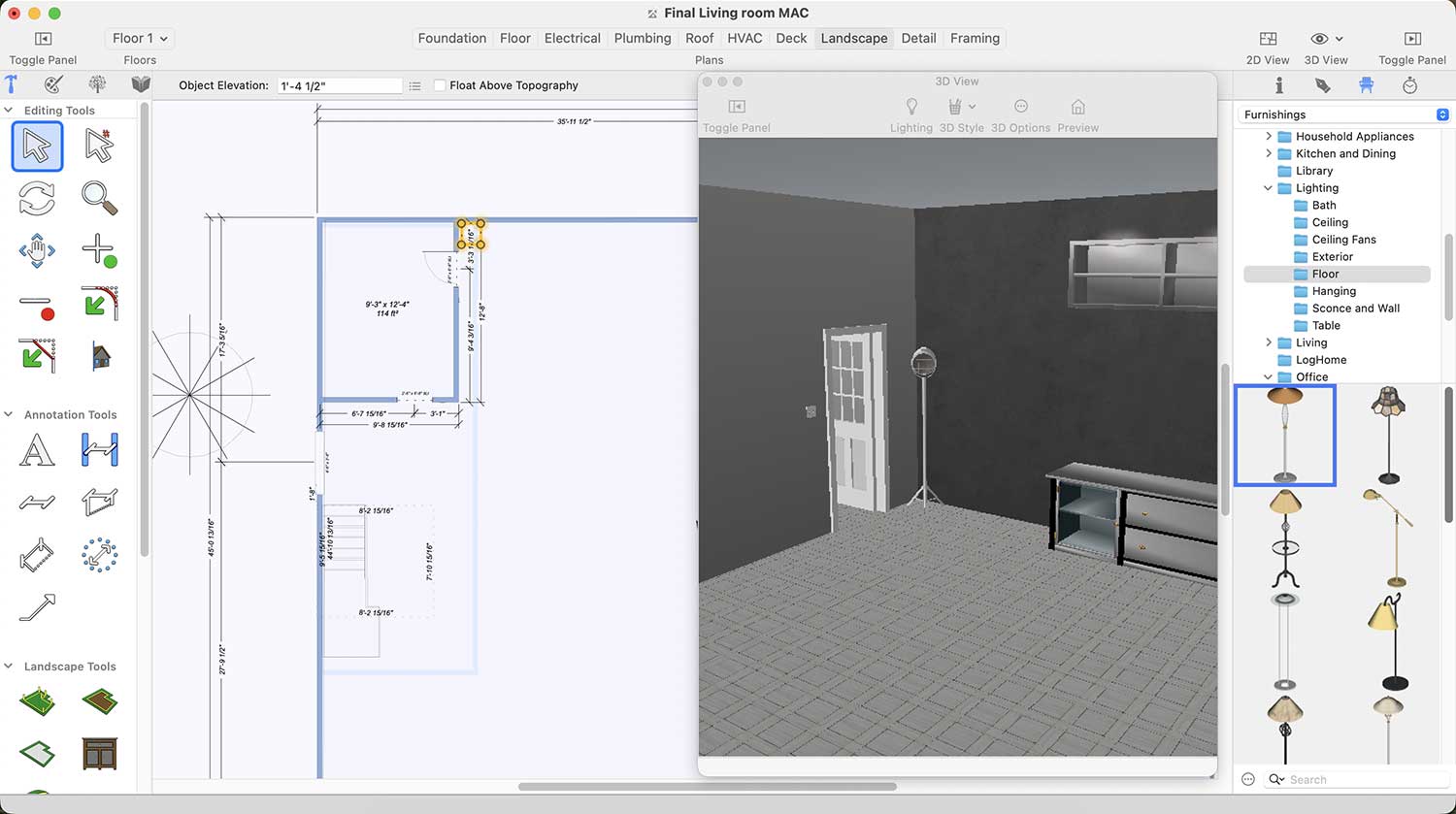
Floor decoration pieces Collection for Living room
A living room feels incomplete without a carpet. You may find different collection of carpet under Standard Library > Decoration > Karastan Rugs.
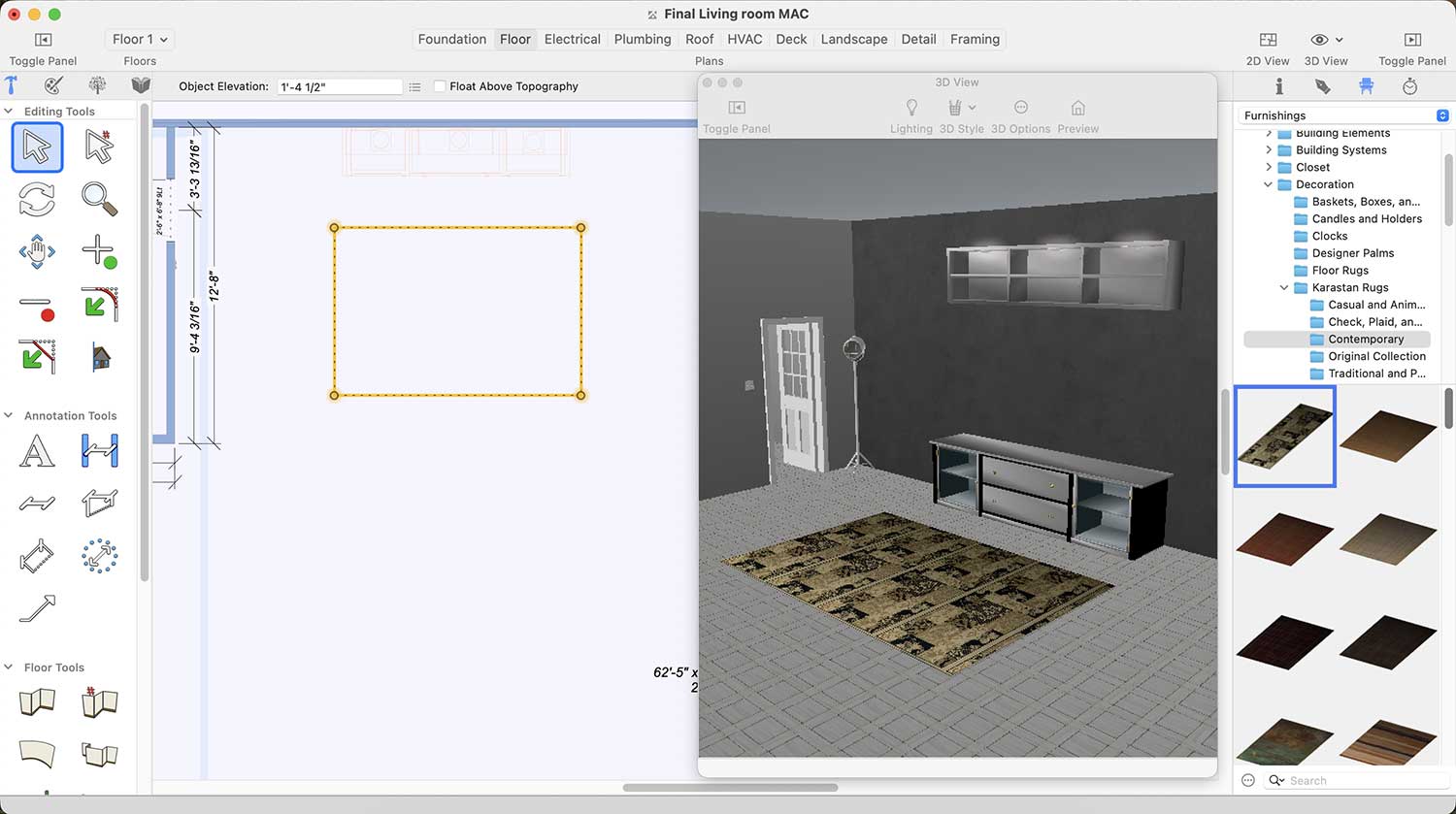
More Designs of Carpets for Living room
If you want to add furniture, such as a sofa set, to your living room, this application offers a wide variety of designs. You can find them under Standard Library > Living > Sofas and Loveseats.
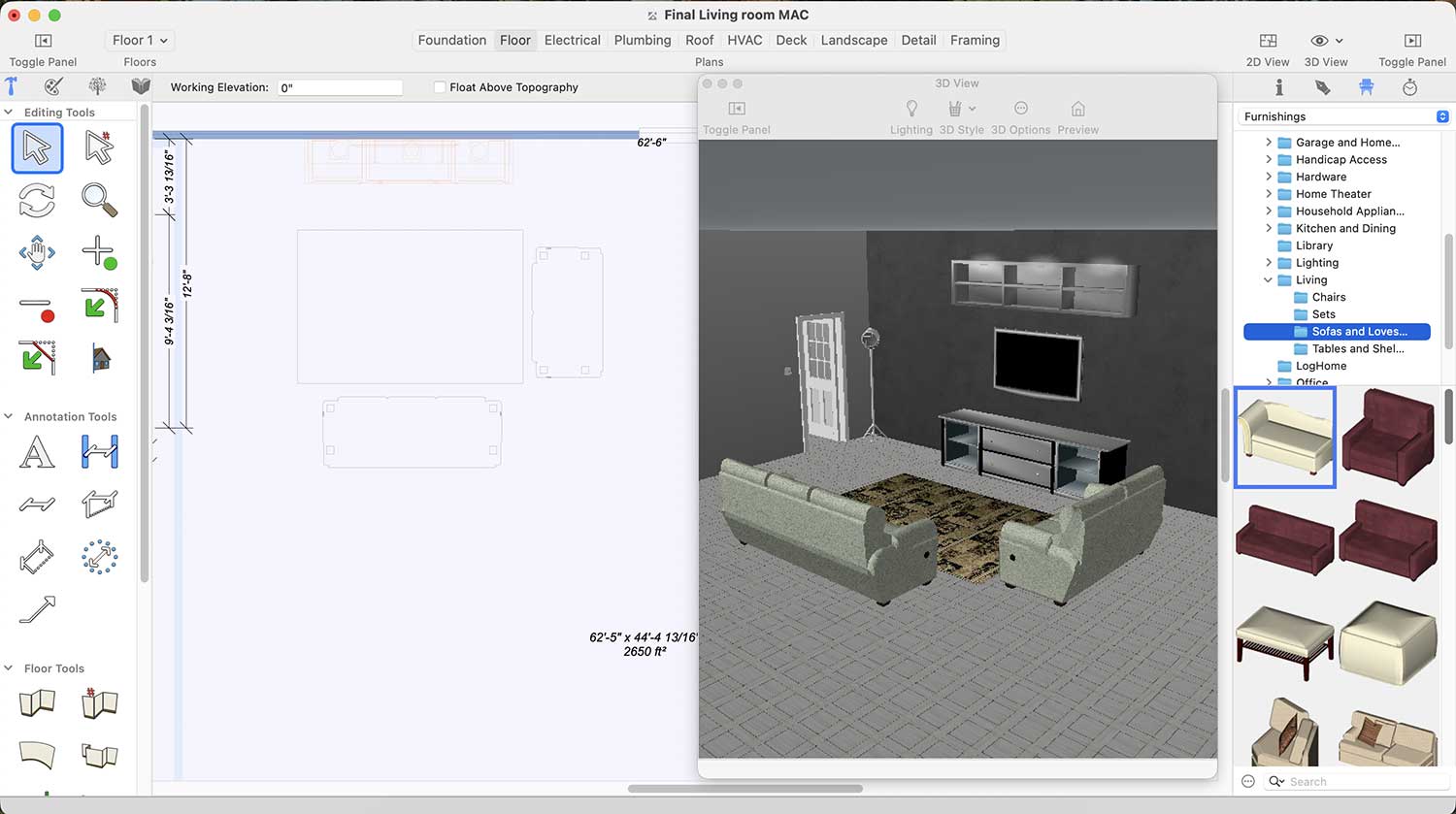
More Designs of Safa set
Similarly, if you want to add a table to your living room, there are many tables designs available in this application. You can find them under Standard Library > Living > Tables and Shelving
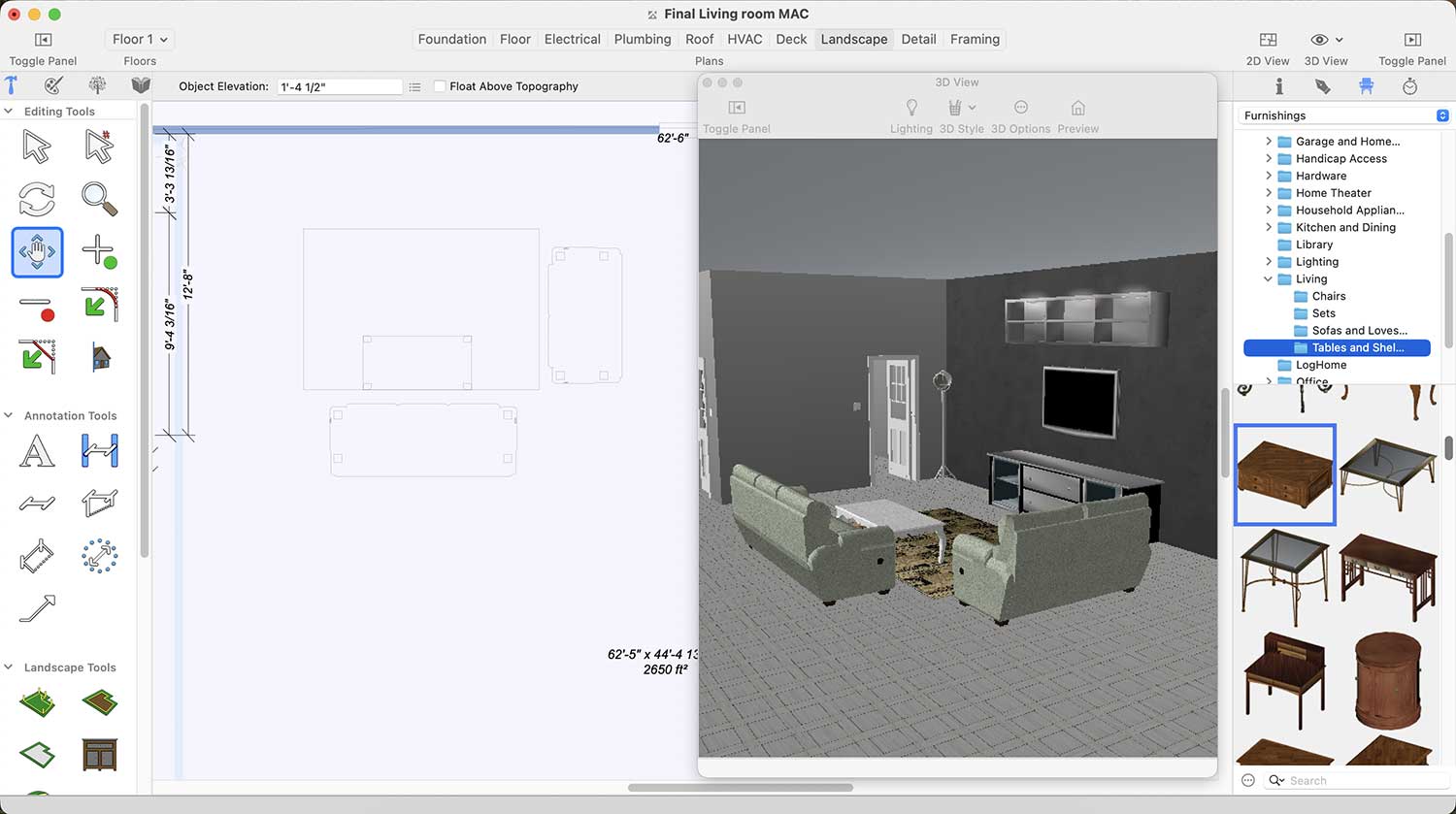
More Designs of Tables for Living room
Framed images on the walls contribute to a modern Living Room. To place them, go to Standard Library > Decoration > Mirrors, Shelves, and Frames.
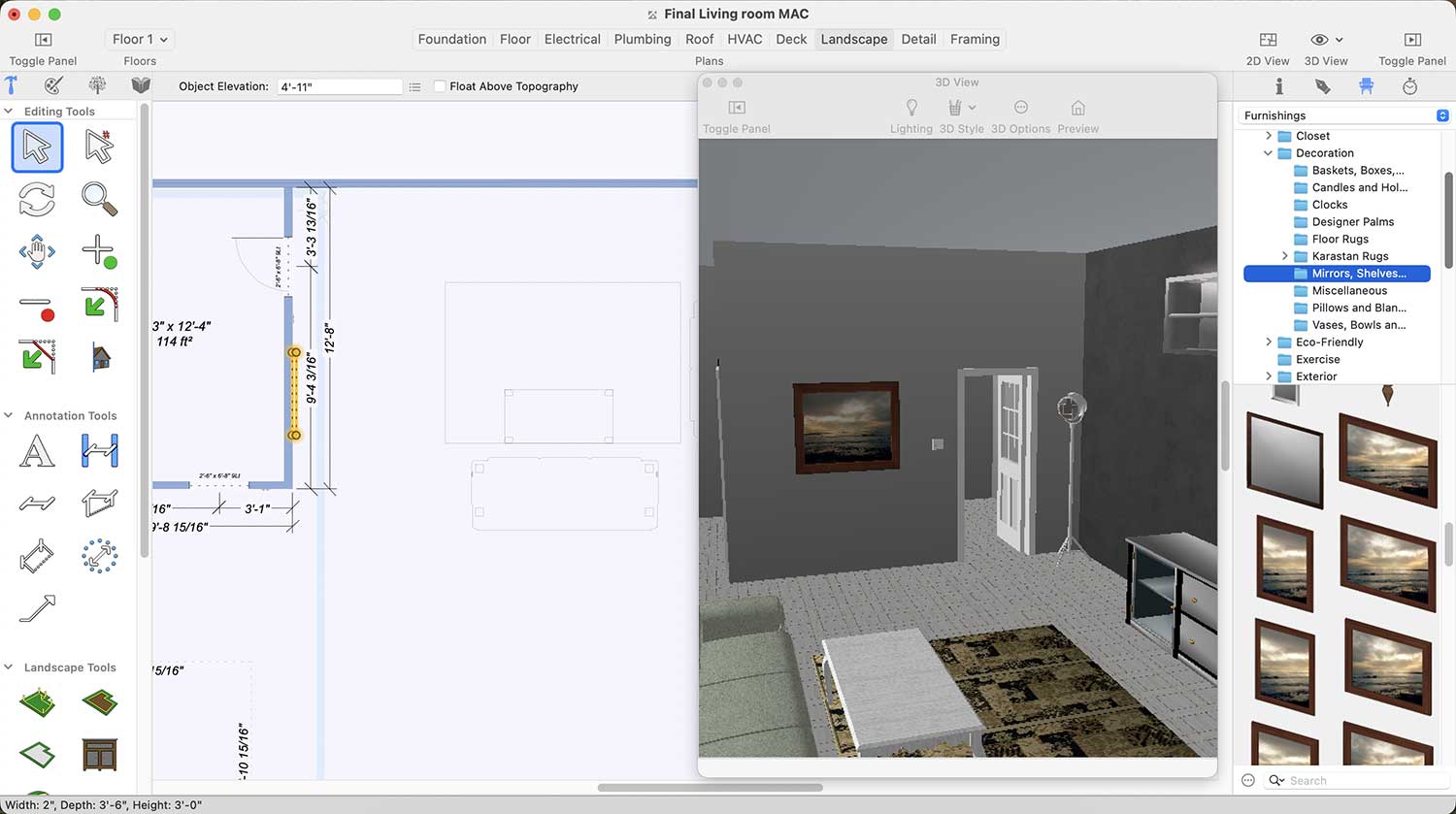
Framed Image Collection for Living room
Similarly, Fancy lights also play an important role in a modern look to your Living Room. To please a Fancy light on wall go to Standard Library > Lighting > Sconce and Wall.
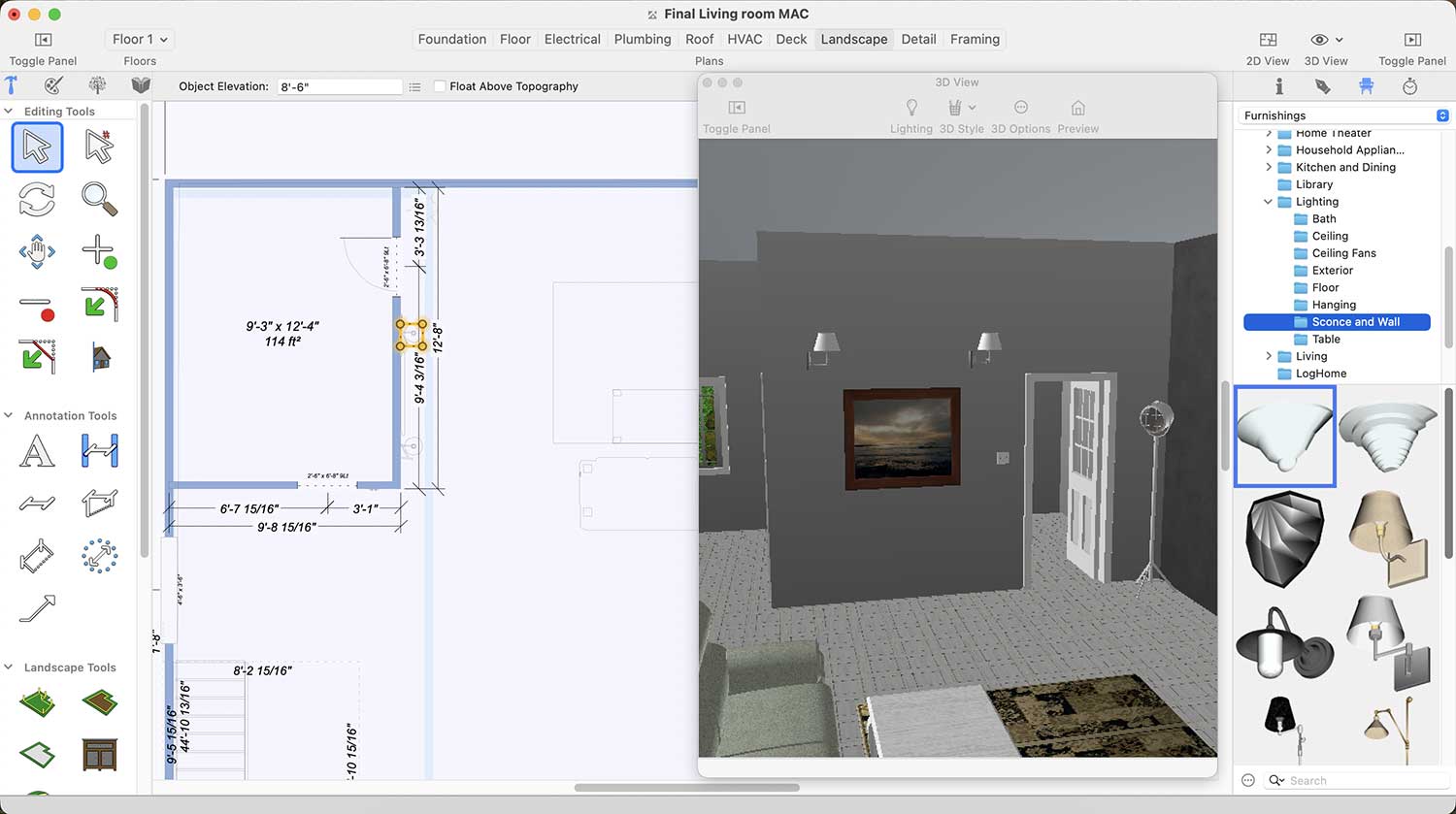
Wall Light Collection for Living room
After placing all the accessories in the living room, you will need to render it to see the final results.
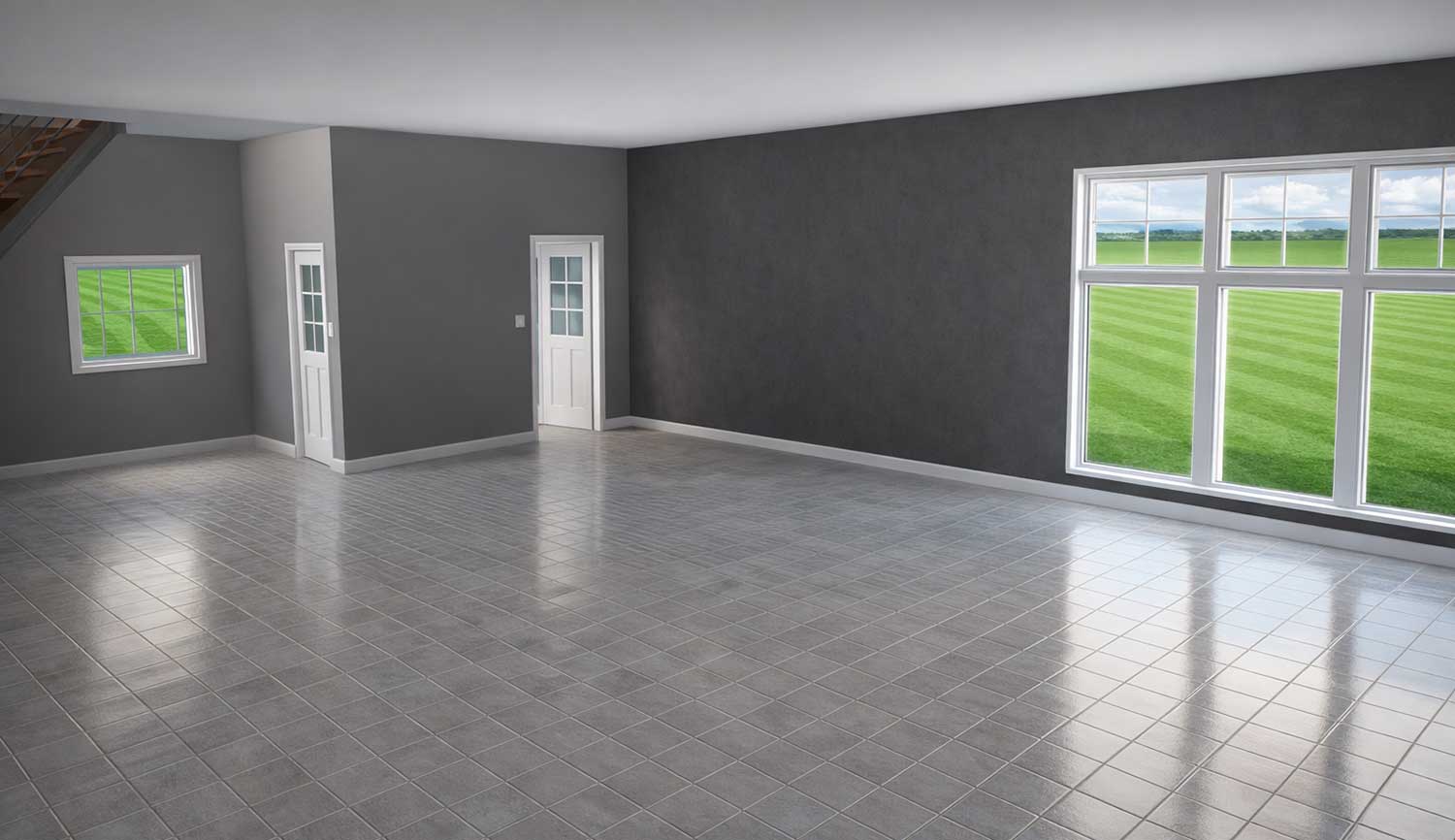
Before renovating the look of the Living room
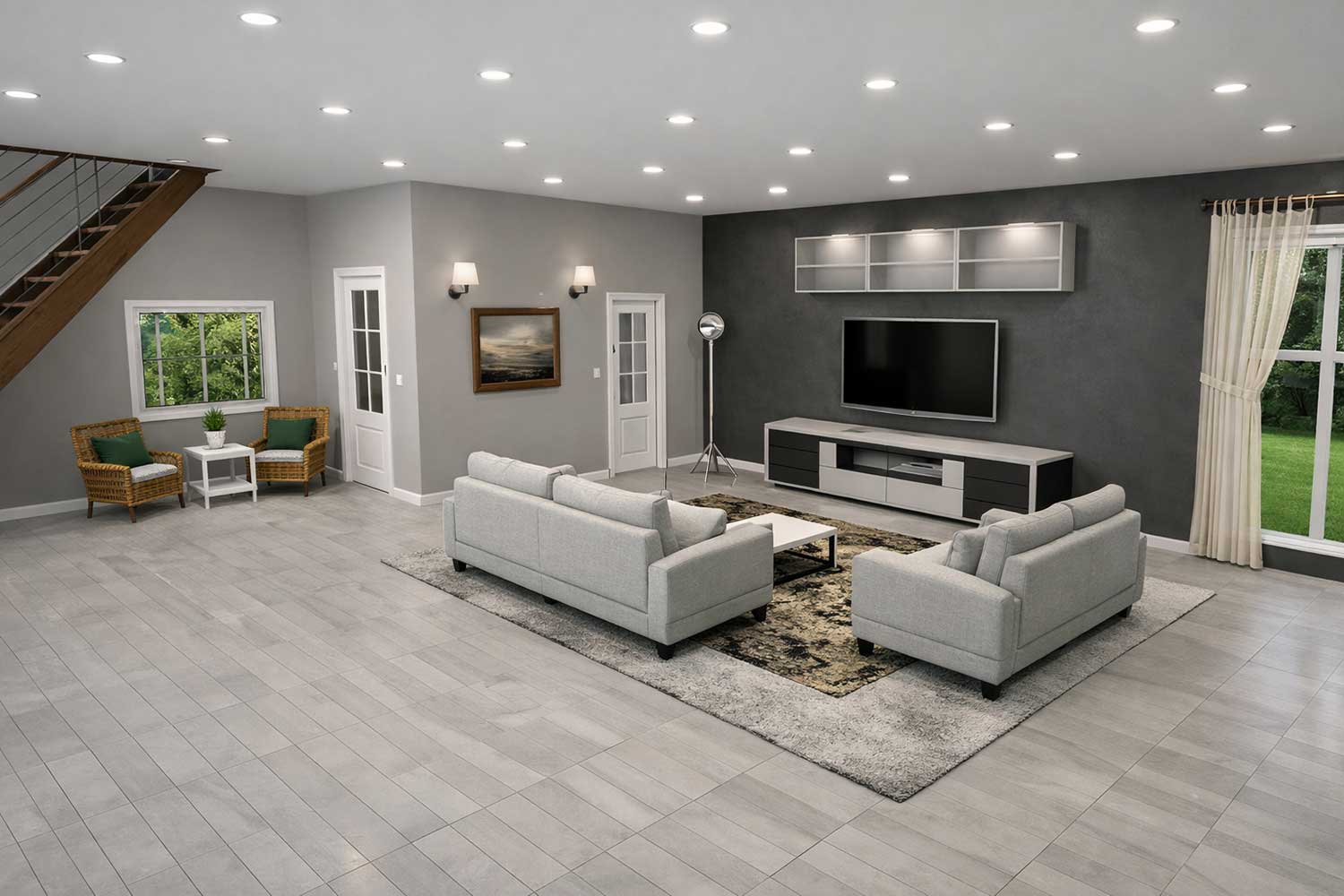
After renovating the look of the Living room
Designing a living space using the right tools and decorative elements makes the entire process creative, flexible, and enjoyable. From selecting furniture, carpets, doors, and windows to adding wall accessories, lighting, and modular storage, each element plays an important role in creating an elegant and attractive living area. The use of default and downloaded libraries provides a wide range of design options, making it easier to customize the space according to personal preferences. The final rendered view clearly shows how thoughtful selection and proper placement of accessories can completely transform a living space into a well-balanced, stylish, and welcoming environment.
Now it’s your turn: to redesign your space and enjoy the beauty of your efforts every day.
A well-organized kitchen is essential for creating a modern and stylish home. When items are properly arranged and clutter is reduced, the kitchen feels more open, calm, and visually appealing. Modern kitchen organization focuses on simplicity, functionality, and clean design, helping the space look elegant while remaining practical for everyday use.
Minimalism plays a key role in achieving a modern kitchen look. Keeping countertops clear and storing unnecessary items inside cabinets instantly improves the appearance of the space. Smart storage solutions such as drawer dividers, pull-out shelves, and organized cabinets make it easier to access kitchen essentials while maintaining a neat and seamless design.
Using coordinated storage, neutral colors, and proper lighting further enhances the modern feel of the kitchen. Matching containers, labeled jars, and consistent materials create visual harmony, while good lighting highlights clean surfaces and organized areas. With thoughtful planning and organization, any kitchen can be transformed into a clean, modern, and functional space.
For example, we began with a basic kitchen layout that had no essential equipment. There were no oven, sink, refrigerator, or built-in appliances, giving us a blank space to design and organize from scratch.
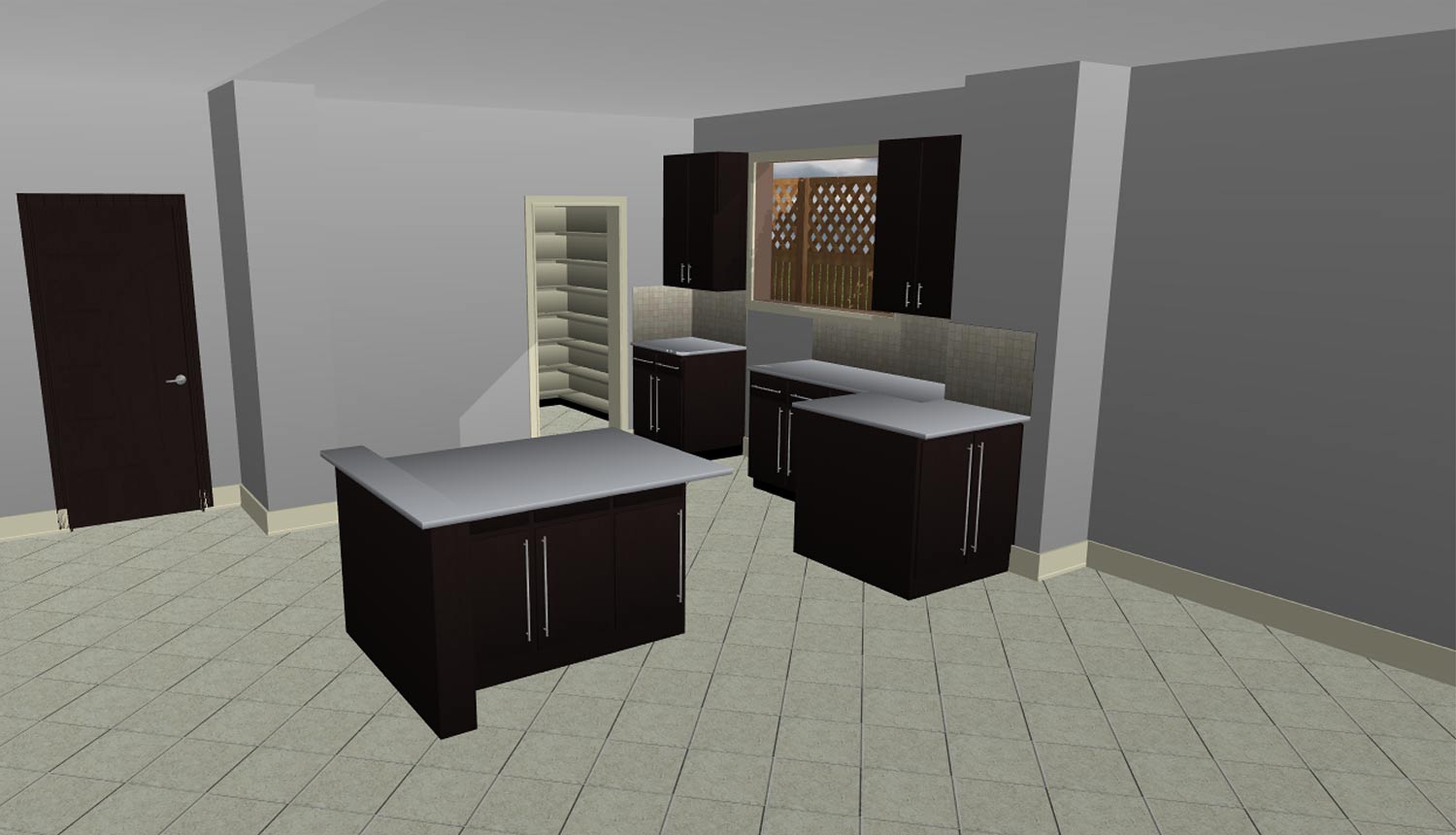
Now, step by step, we will transform our kitchen into a modern space after installing all the essential kitchen equipment.
First, we will place the base cabinet. To do this, click on the Cabinet icon after choosing the Floor tab.
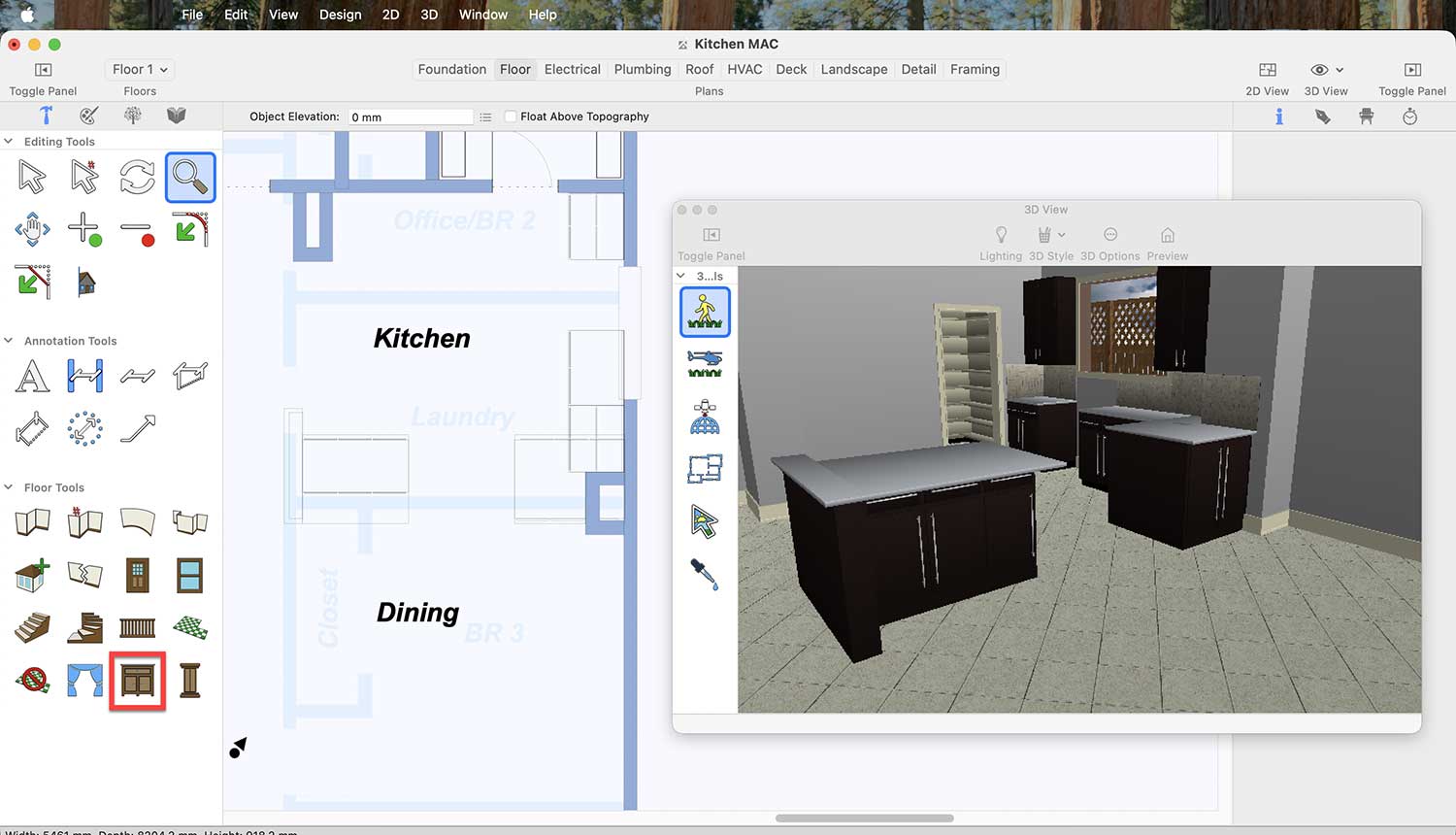
After clicking the Cabinet icon, the cabinet-related options will appear on the right side. Simply click the Cabinet Type scroll bar button to explore the available options.
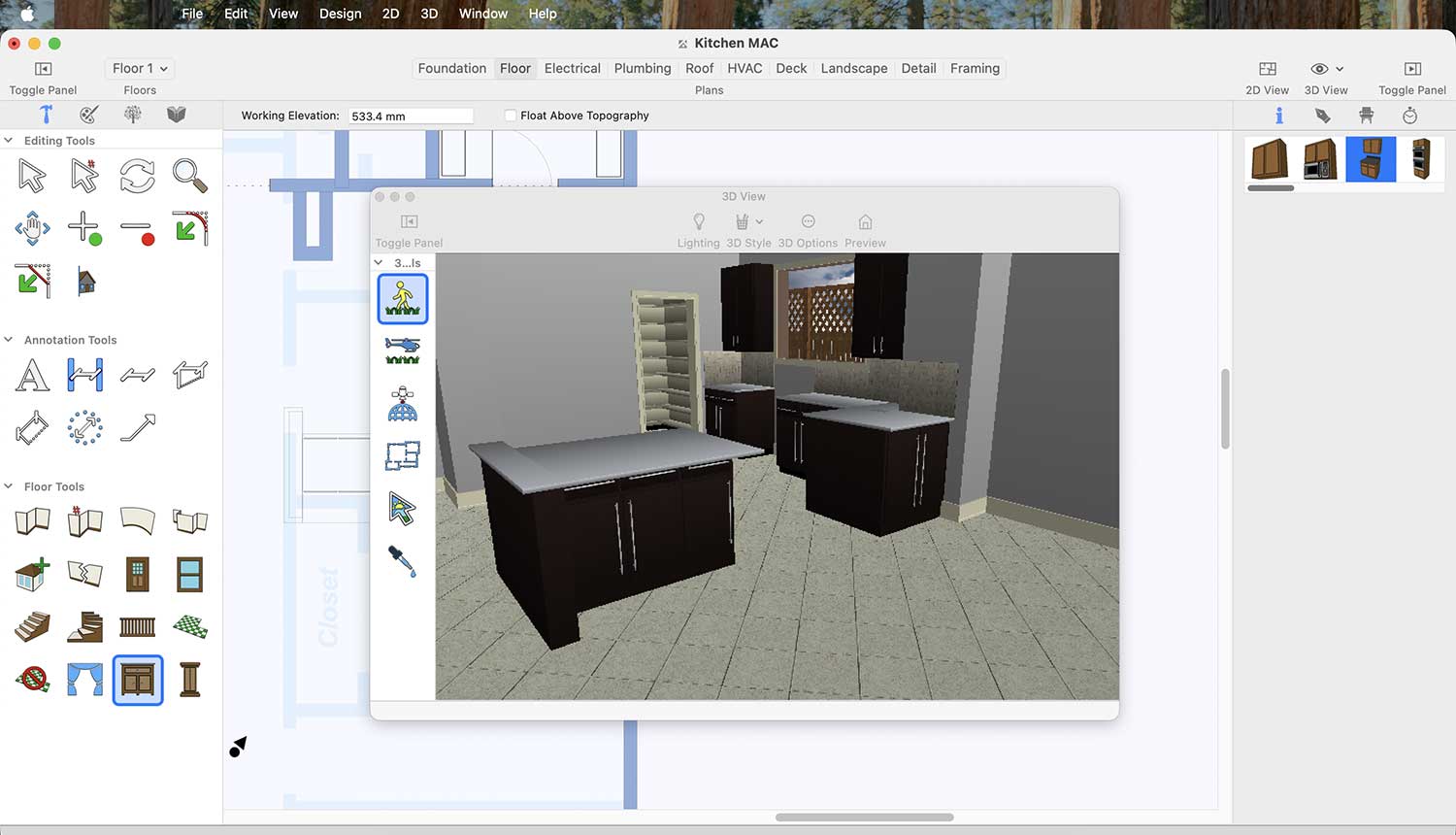
After scrolling the cabinet type, you will see lot of cabinet options—choose the one that best suits your kitchen space and design.
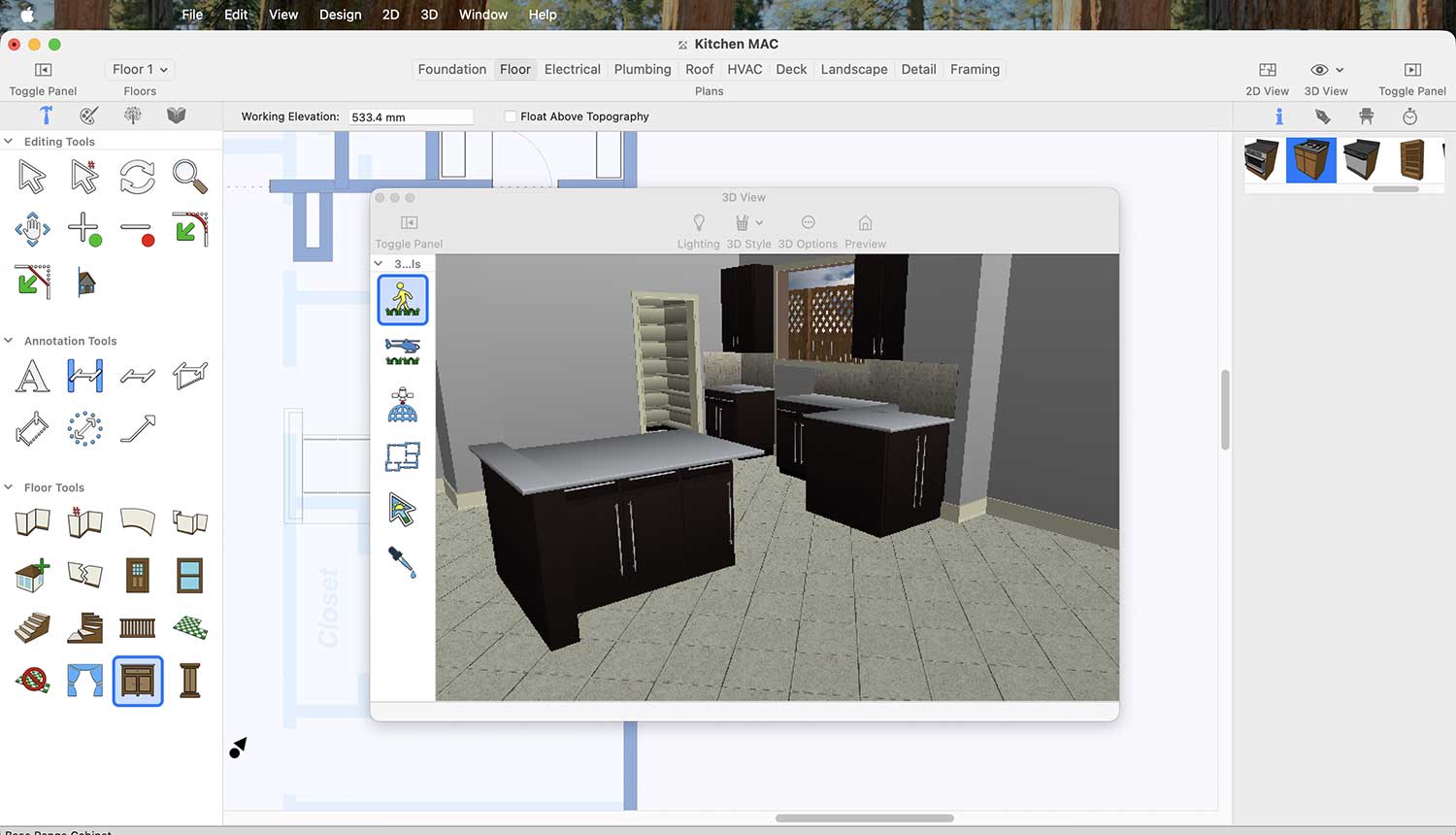
Range Cabinet Collection for the Kitchen
After selecting a cabinet for your kitchen, it will appear in the area where you place it.
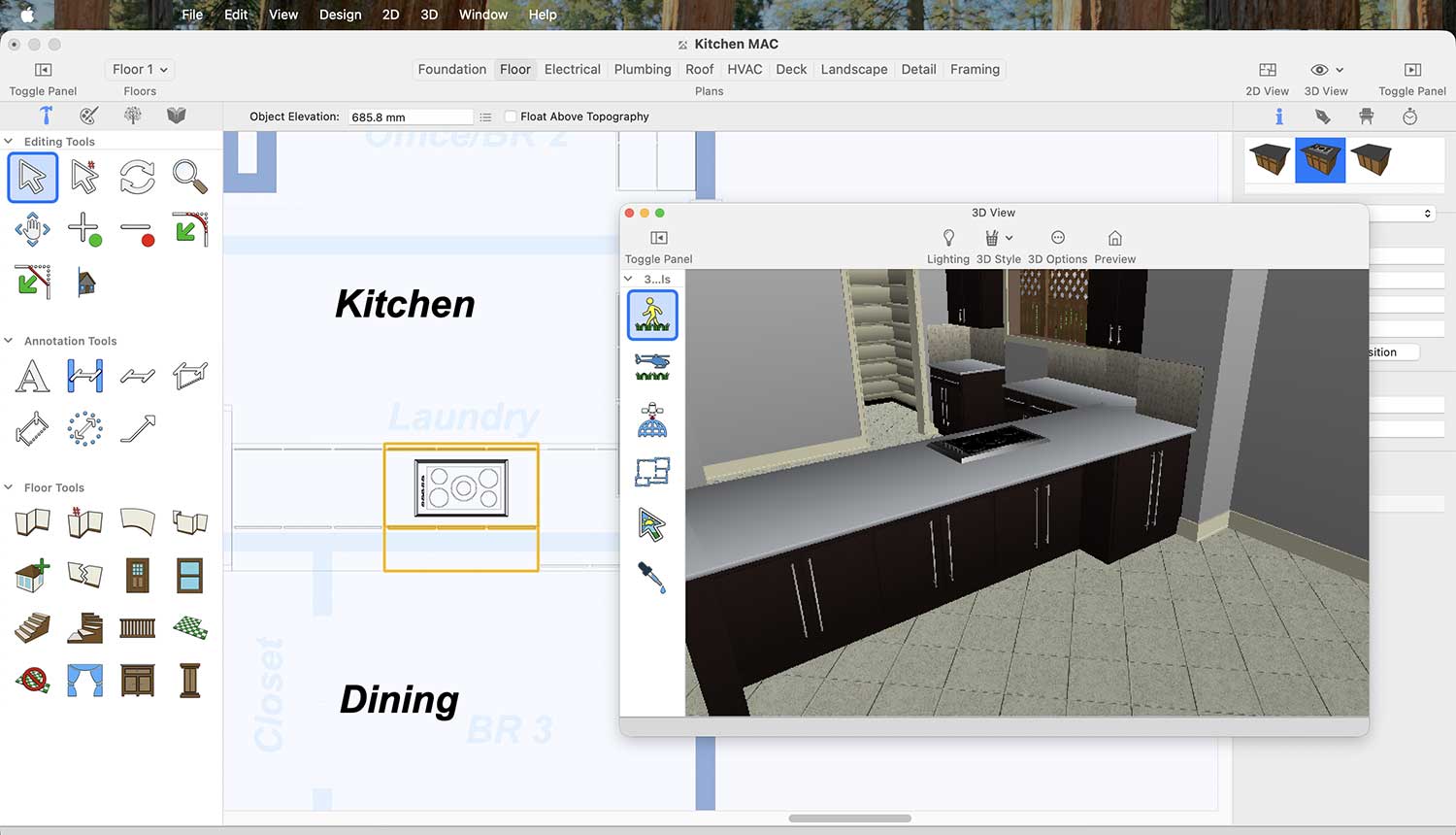
Now it’s time to place the range hood above the cooking range. To do this, go to Display Stock Library Items > Kitchen and Dining > Appliances > Range Hoods.
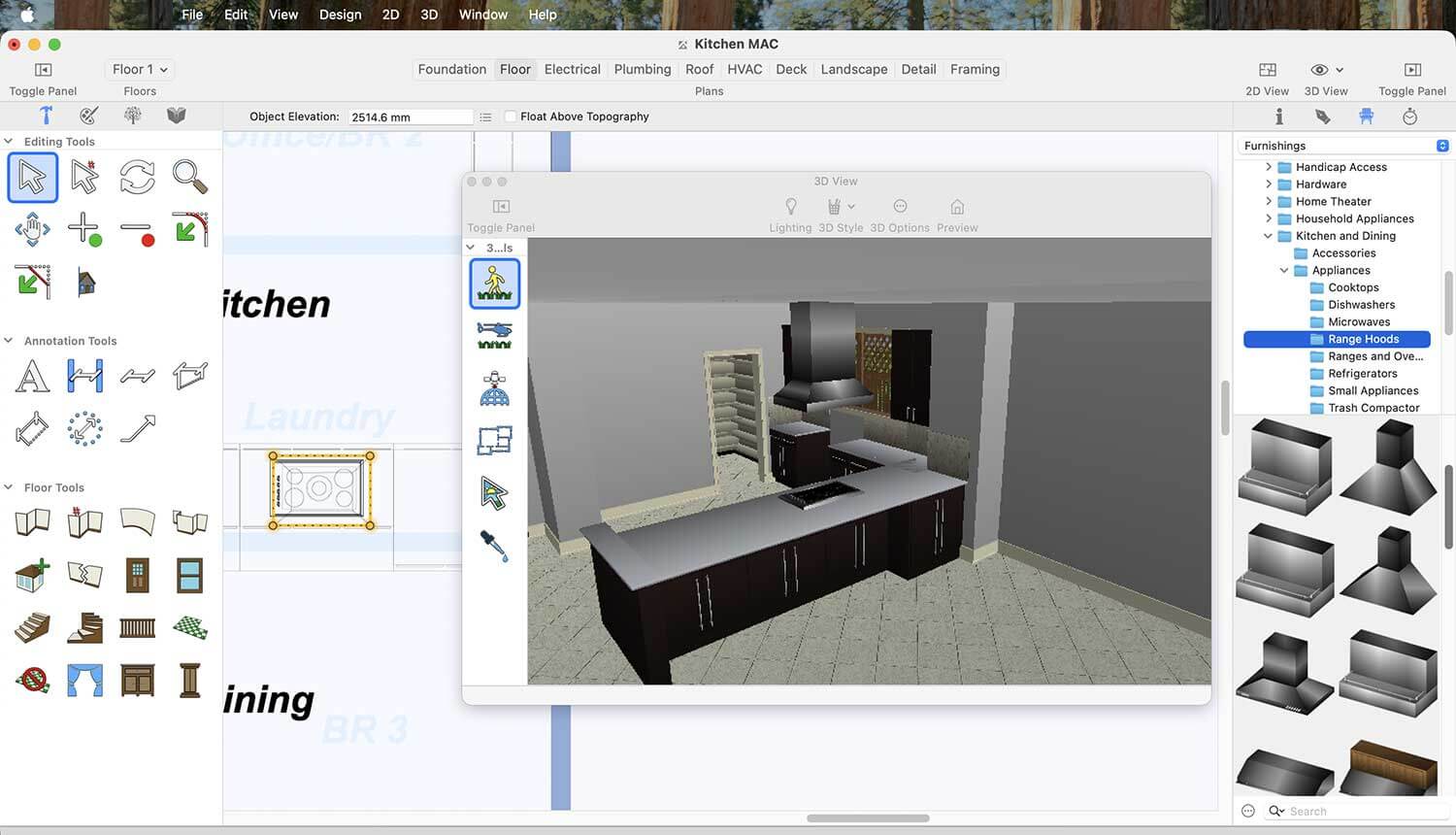
Range Hoods Collection for the Kitchen
In the same way, we can place an oven in our kitchen. For this, go to Display Stock Library Items > Kitchen and Dining > Appliances > Ranges and Ovens.
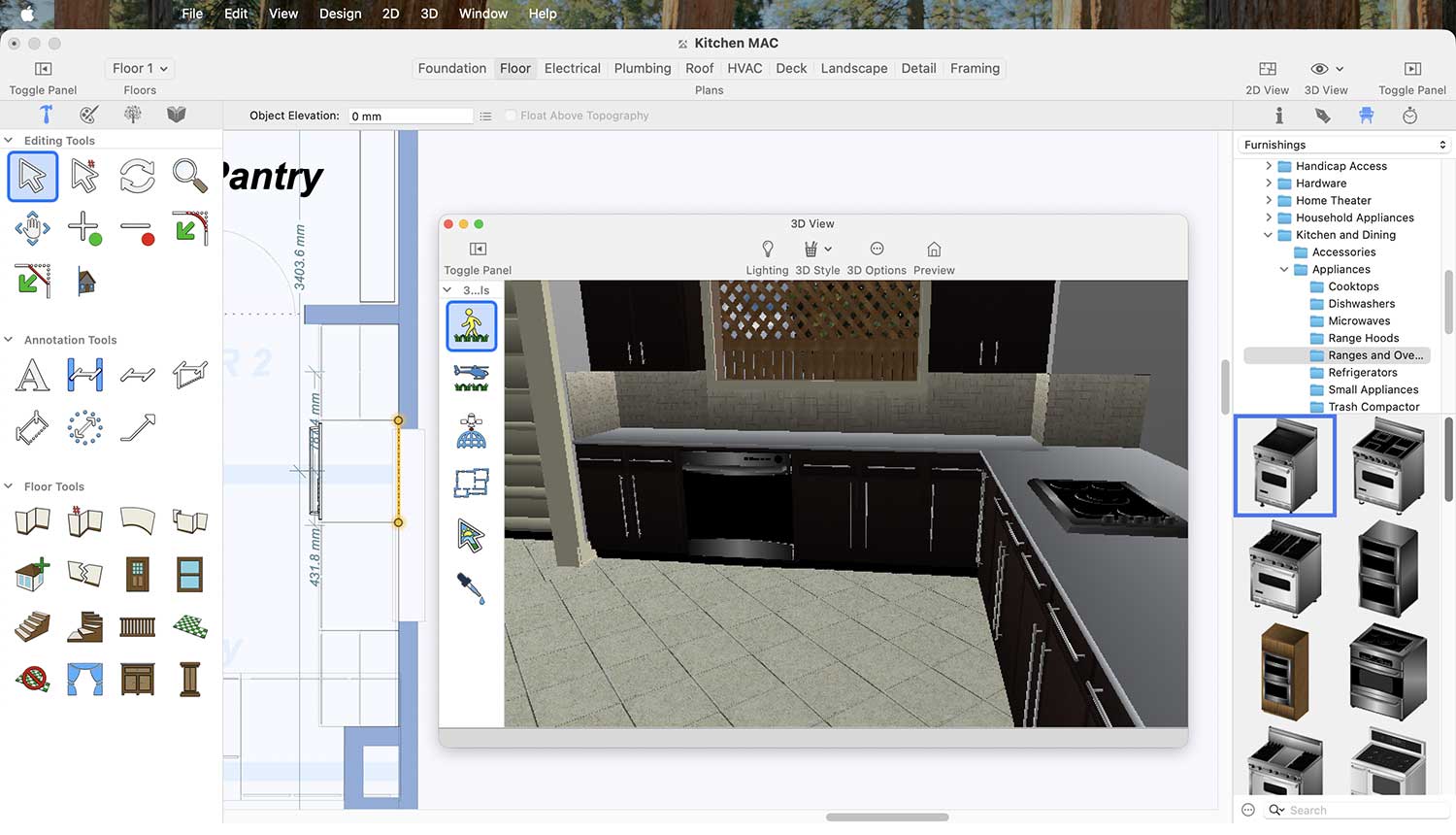
Range and Oven Collection for the Kitchen
A modern kitchen is incomplete without a refrigerator. To place one, go to Display Stock Library Items > Kitchen and Dining > Appliances > Refrigerators.
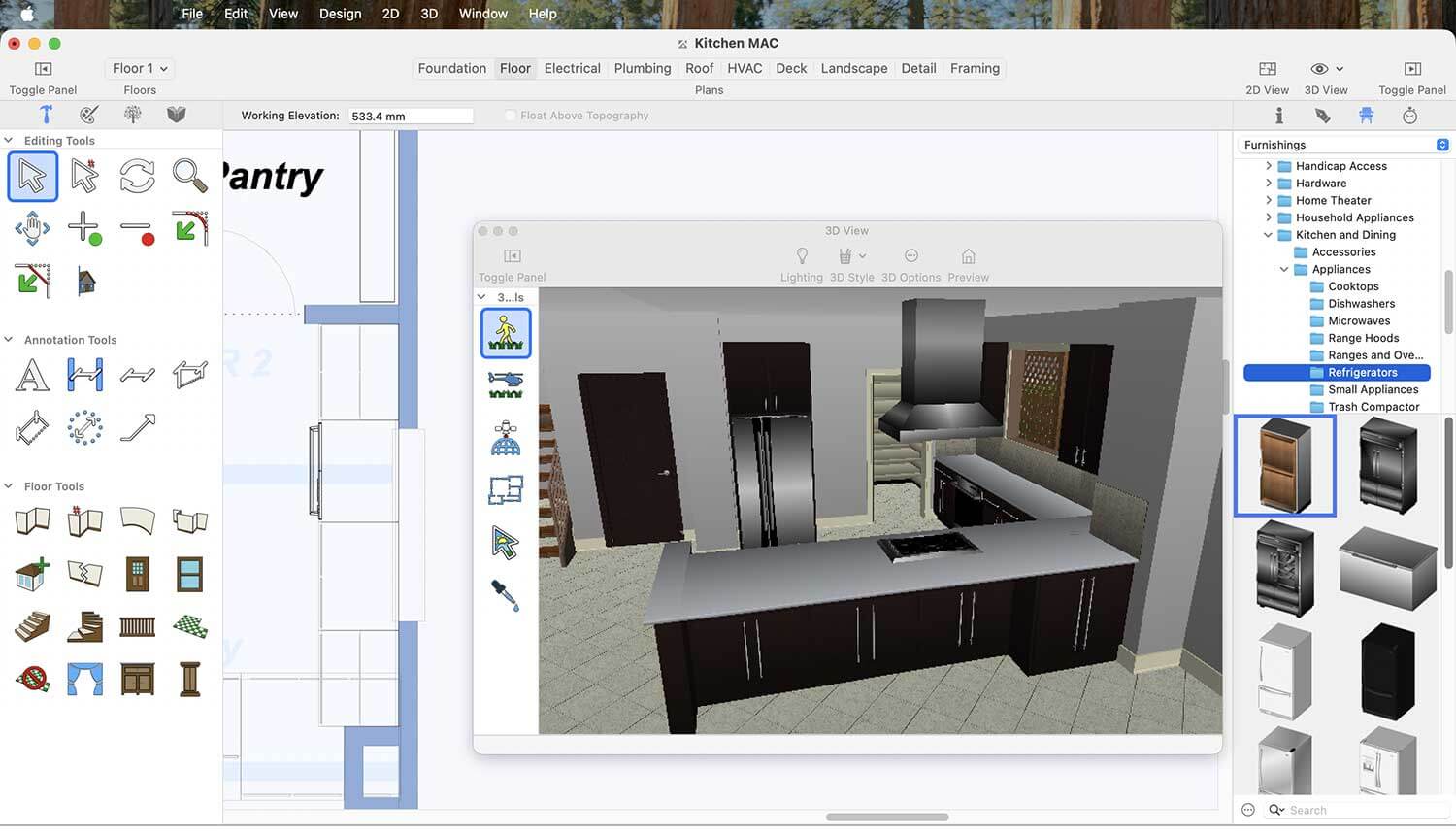
Kitchen Refrigerator Collection for the Kitchen
Now, to place a cabinet oven in your kitchen, first go to the Cabinet option in the Floor tab.
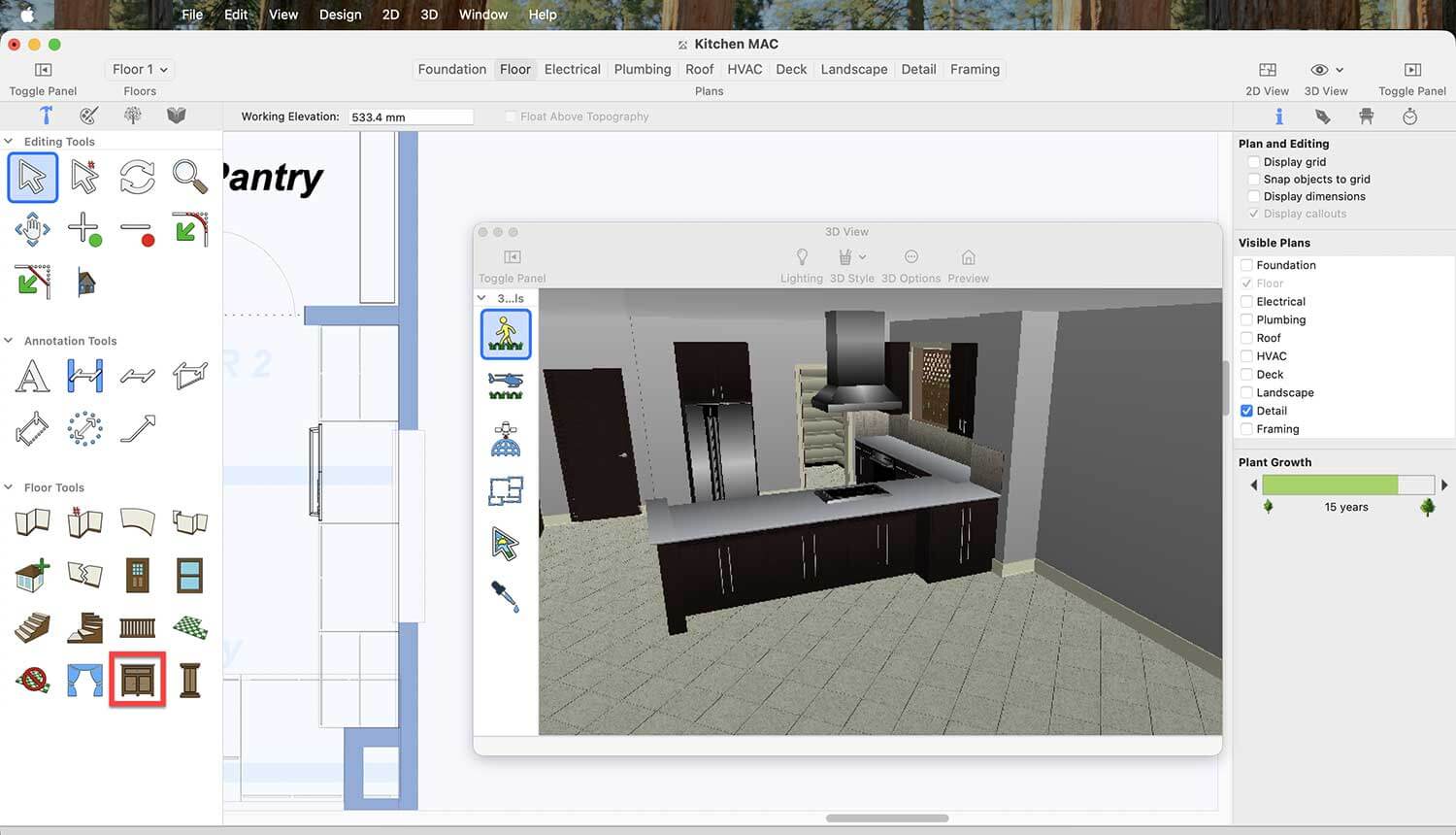
After clicking on the cabinet type, a list of cabinet ovens will appear—choose the one that best fits your kitchen space and design.
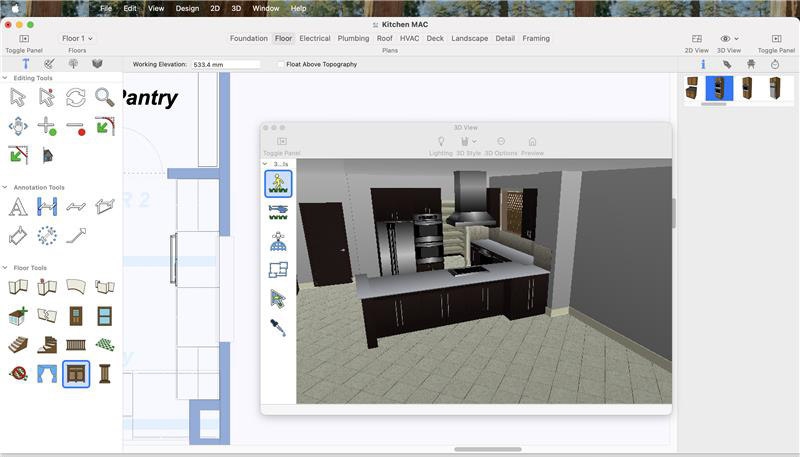
Cabinet Oven Collection for the Kitchen
Lighting is essential in a modern kitchen. To add modern lights, go to Display Stock Library Items > Lighting > Hanging.
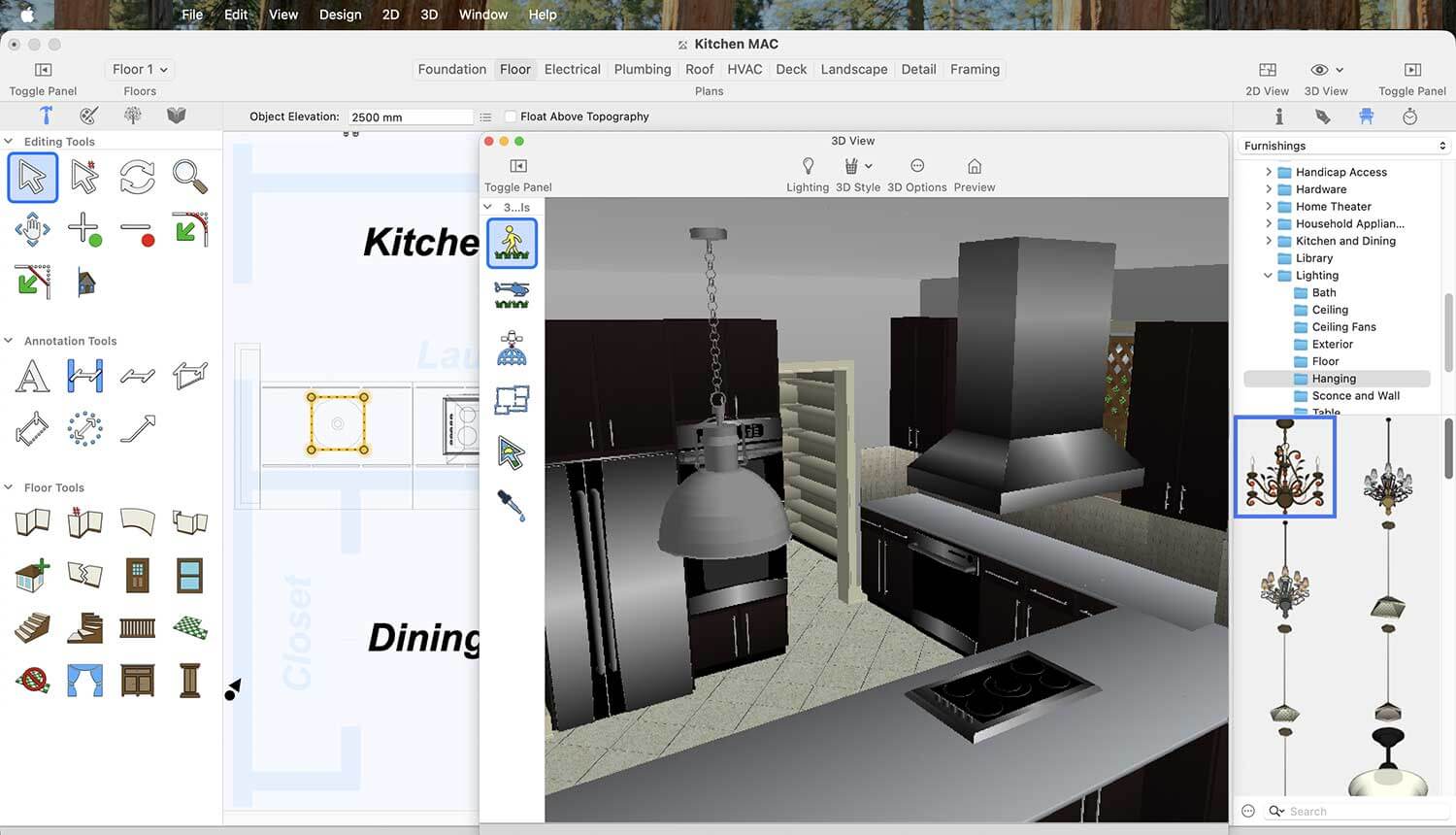
Kitchen Hanging Light Collection for the Kitchen
A modern kitchen is incomplete without a stylish sink. To place one, go to Display Stock Library Items > Kitchen and Dining > Sinks.
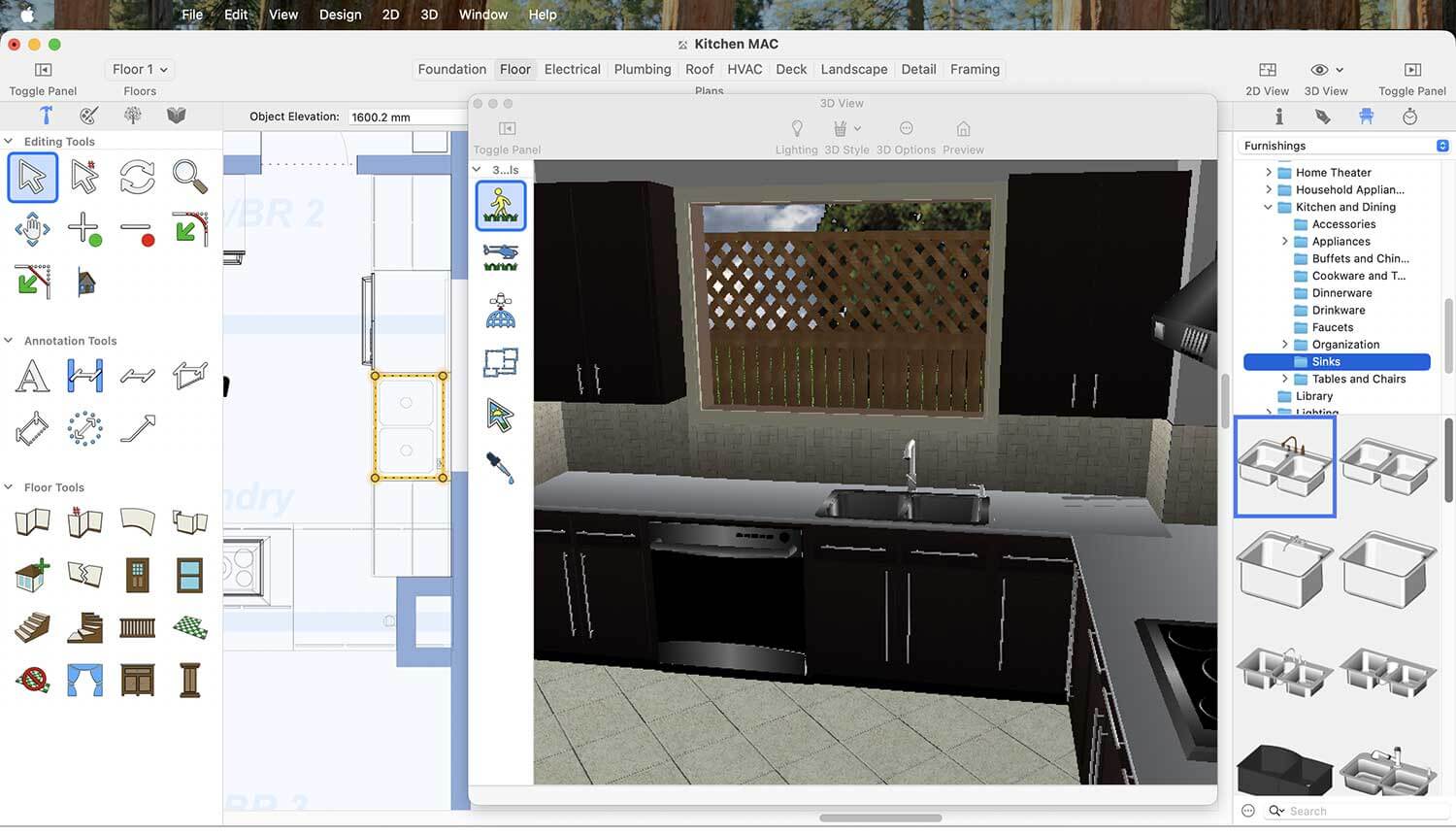
Kitchen Sink Collection for the Kitchen
Furniture is also an important element in a modern kitchen. To add modern pieces like chairs, go to Display Stock Library Items > Kitchen and Dining > Tables and Chairs > Chairs.
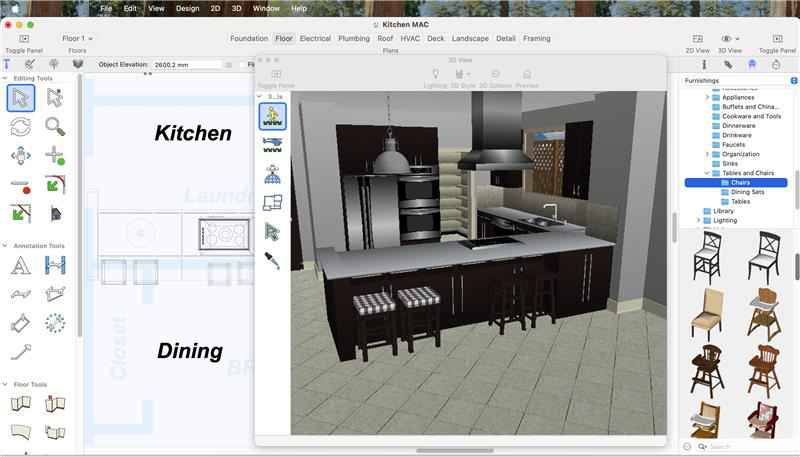
Kitchen Chairs Collection for the Kitchen
Adding a carpet can enhance the appeal of your kitchen. To place one, go to Display Stock Library Items > Decoration > Karastan Rugs.
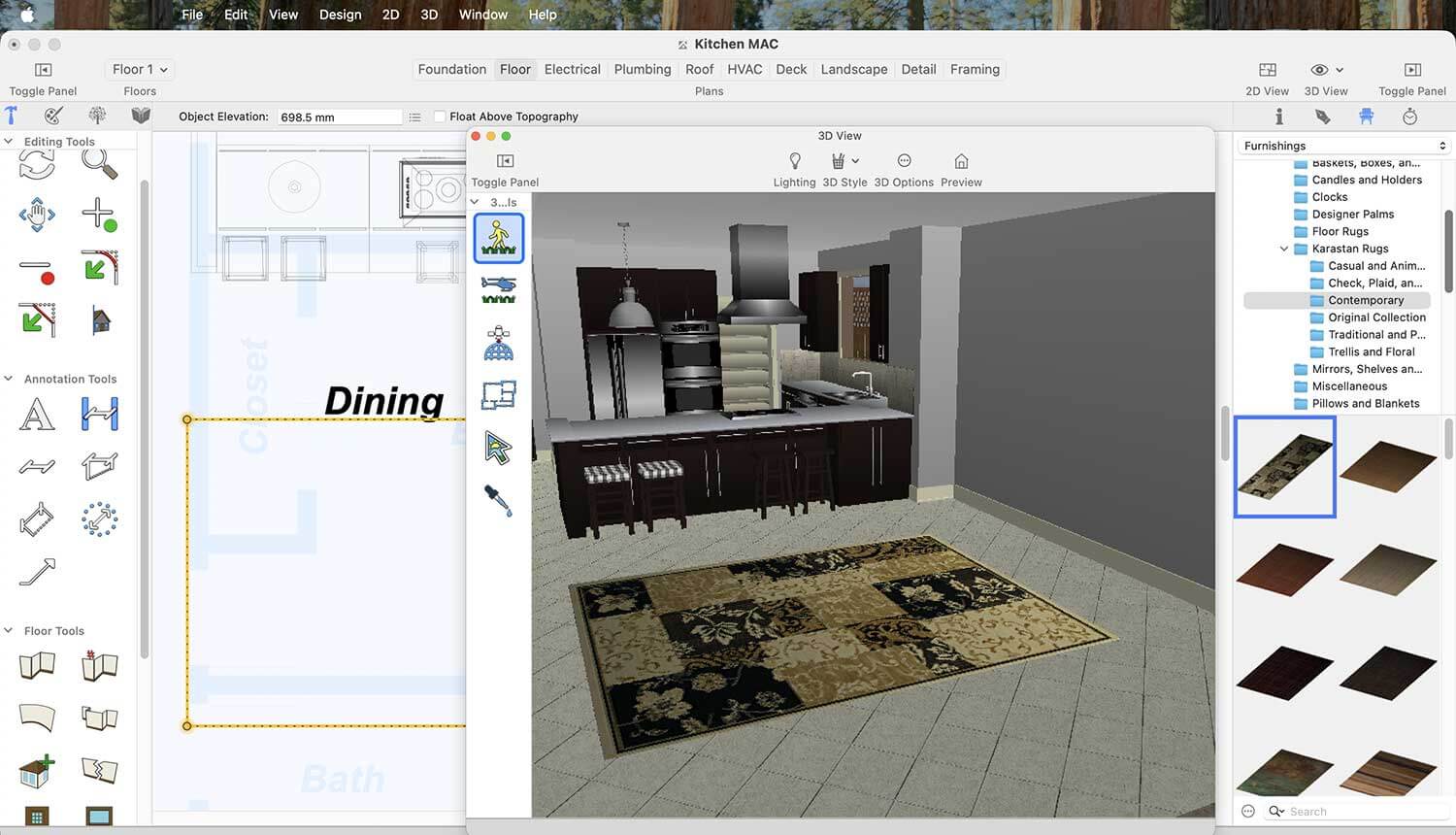
More Designs of Carpets for the Kitchen
Fancy wall lights also play an important role in giving a modern look to your kitchen. To place them, go to Display Stock Library Items > Lighting > Sconce and Wall.
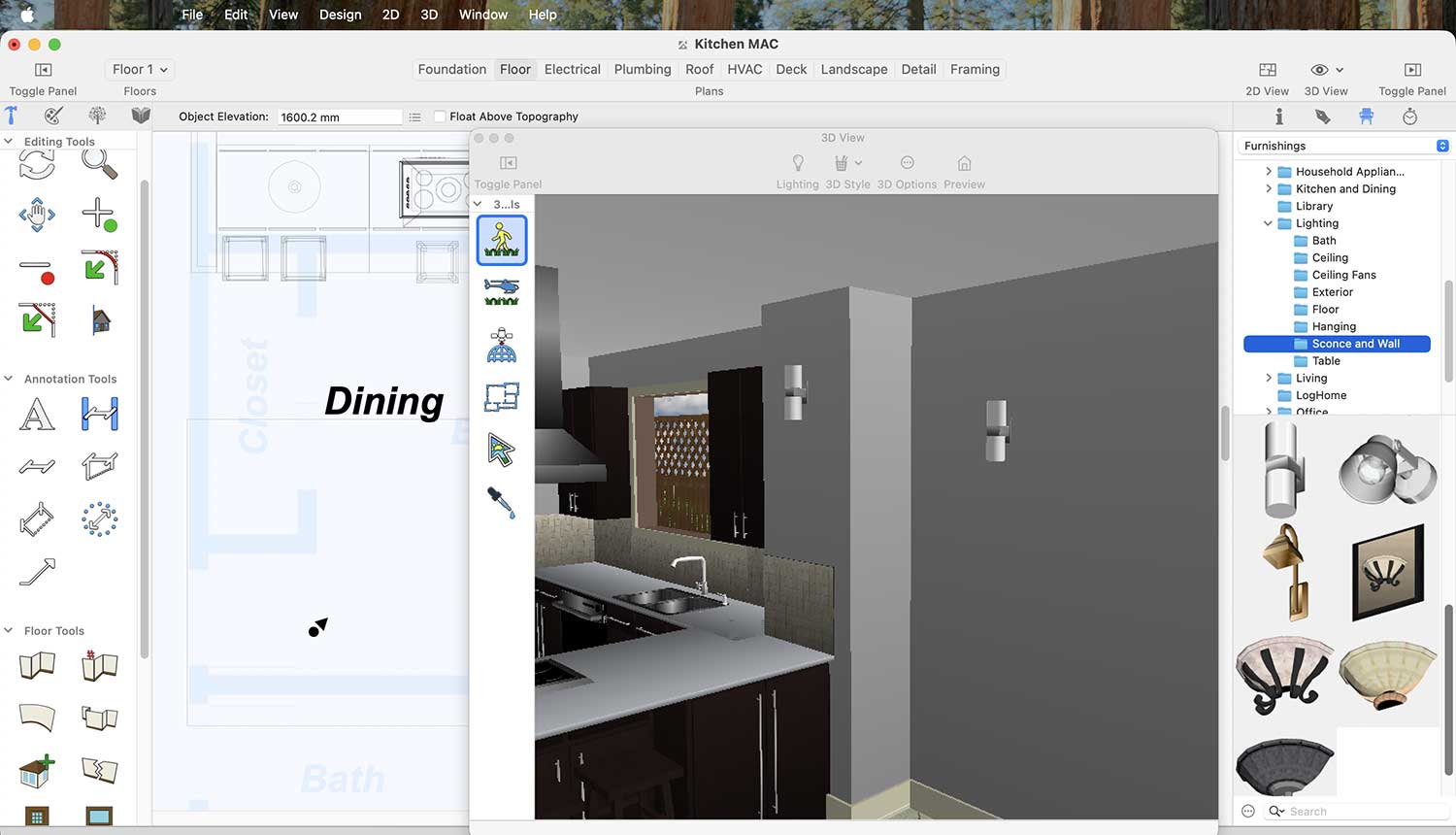
Wall Light Collection for the Kitchen
Similarly, framed images on the walls contribute to a modern kitchen look. To place them, go to Display Stock Library Items > Decoration > Mirrors, Shelves, and Frames.
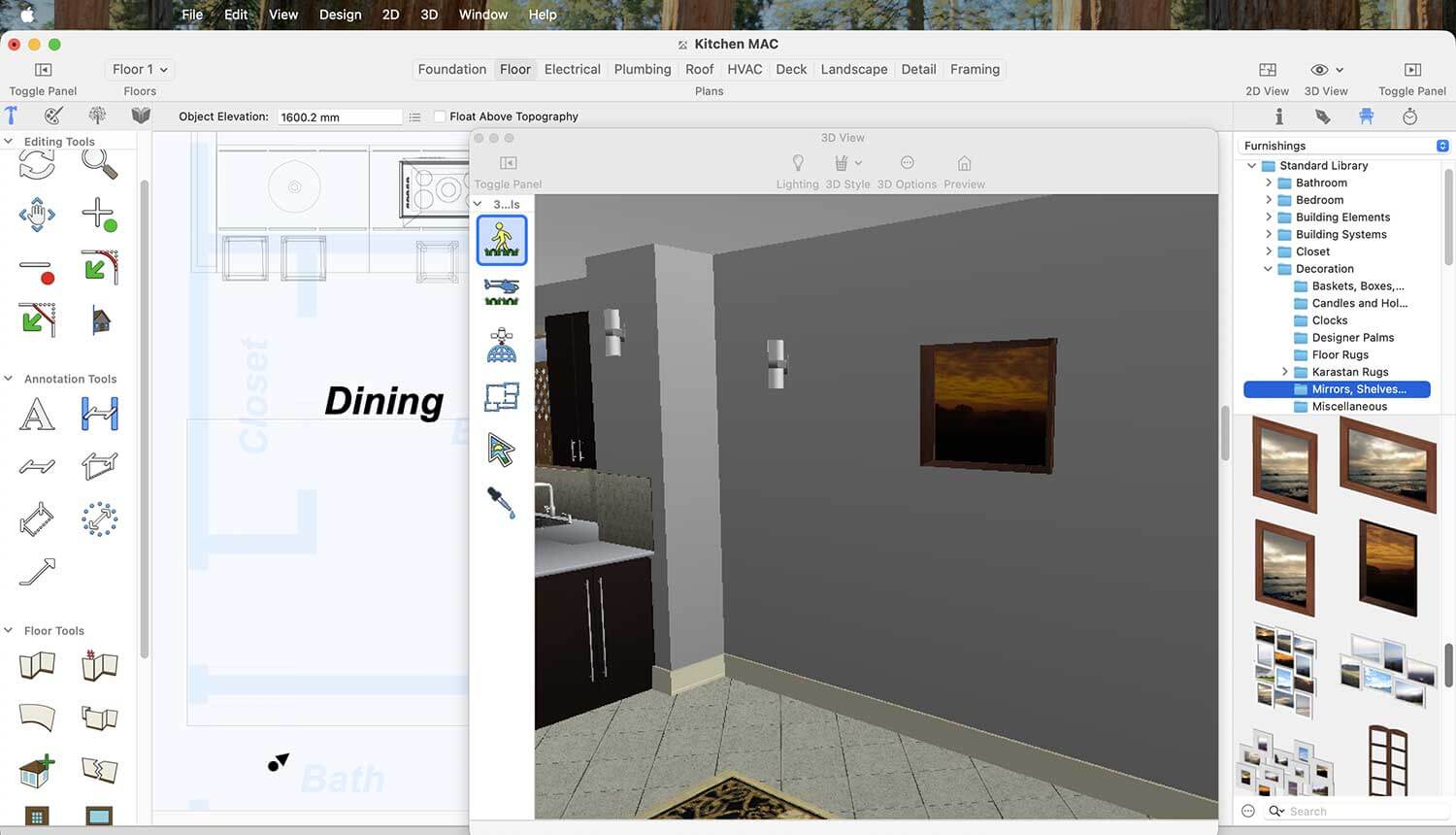
Framed Image collection for the Kitchen
After placing all the equipment in the kitchen, you need to render it to see the final results.
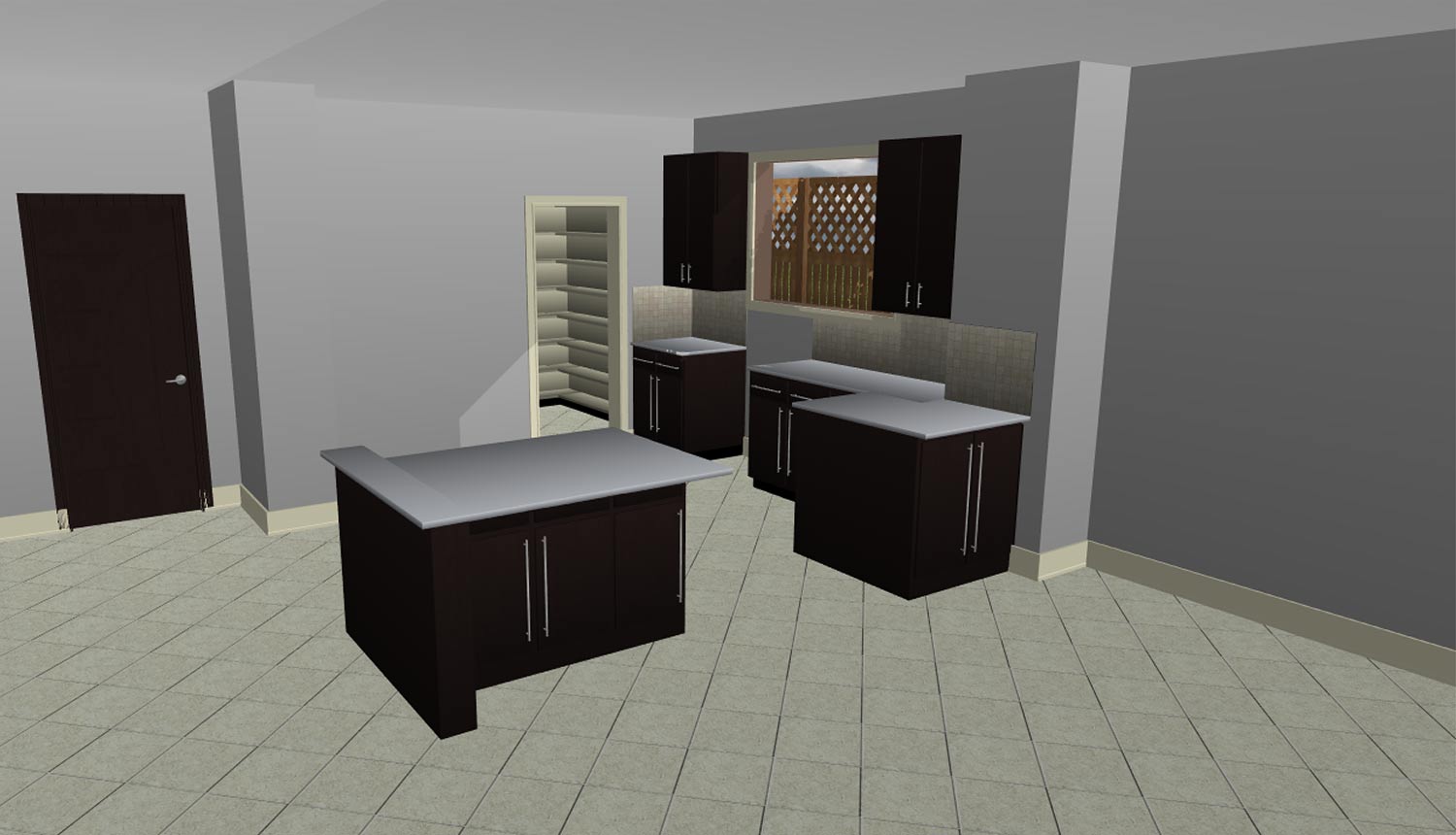
Before adding equipment, the look of the Kitchen
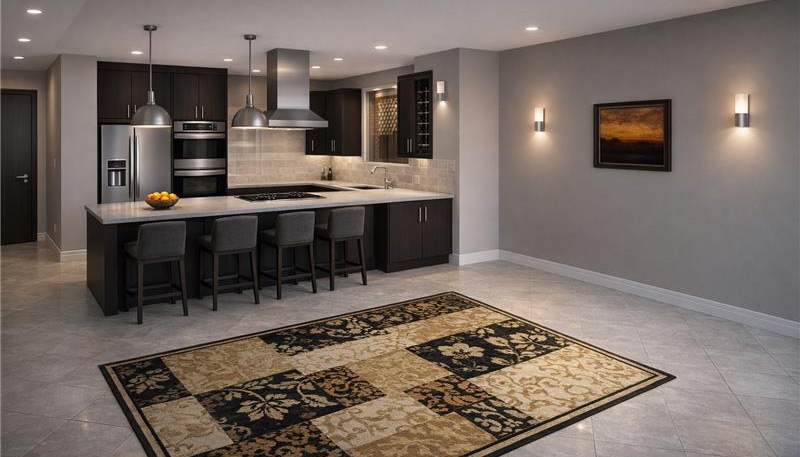
After adding equipment, the look of the Kitchen
Designing a kitchen using the right tools and essential elements makes the entire process creative, flexible, and enjoyable. From selecting cabinets, countertops, appliances, doors, and windows to adding lighting, backsplashes, and smart storage solutions, each detail plays an important role in creating a functional and attractive kitchen. The use of default and downloaded libraries offers a wide range of design options, making it easy to customize the space to suit personal preferences. The final rendered view clearly demonstrates how thoughtful choices and proper placement can transform a kitchen into a well-organized, stylish, and welcoming space.
Now it’s your turn: to redesign your kitchen and enjoy the results every day.
TurboCAD Workspaces provide a structured way to organize commands, toolbars, menus, palettes, and other interface elements based on the type of design work being performed. Selecting an appropriate workspace helps users access relevant tools more efficiently while reducing unnecessary interface clutter.
TurboCAD provides seven main workspace categories:
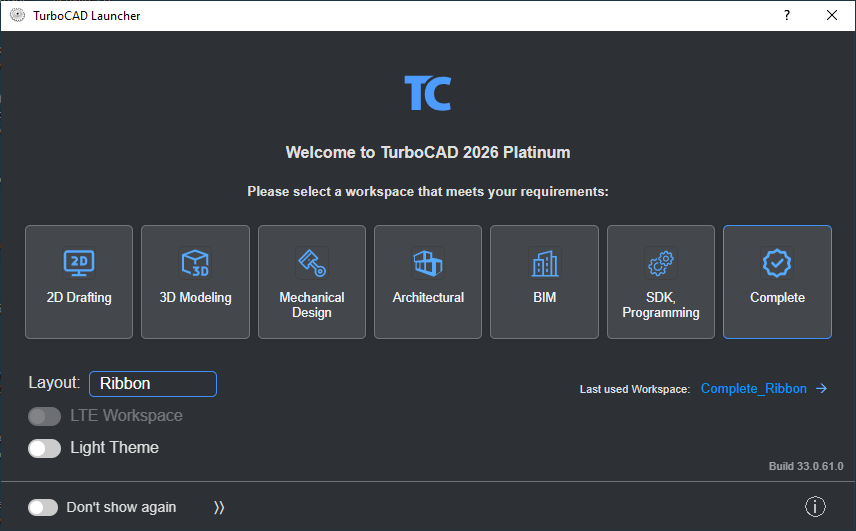
Note: The availability of workspaces depends on the TurboCAD variant being used. Some editions include the full set of workspace configurations, while others provide only a subset.
TurboCAD Launcher Workspaces are default, pre‑configured layouts. When you select one from the Launcher, TurboCAD always opens with that default configuration — your customized workspaces are not loaded automatically.
To reopen your previous environment, select Last used Workspace in the Launcher.
To open or save personalized workspace configurations, use the customization options inside TurboCAD.
Choosing a workspace that matches your current design requirements can provide:
For example, architectural designers can use the Architectural workspace, while mechanical designers can select the Mechanical Design workspace.
In the TurboCAD Launcher, the Workspace section allows users to choose both their preferred workspace and the interface layout used to display its tools. The layout is selected under Layout and determines whether TurboCAD loads the Ribbon interface or the traditional Toolbars.
The workspace defines which tools and commands are available, while the layout determines how those commands are organized and accessed.
Examples:
This separation gives users flexibility to combine the toolset they need with the interface style they prefer, creating an environment that fits both their workflow and personal working habits.
The Default Workspace uses TurboCAD’s standard interface and layout, including the familiar arrangement of menus, toolbars, palettes, and other interface elements.
The LTE Workspace provides an AutoCAD‑style drafting environment. It includes features such as:
This workspace is designed for users who prefer a command‑driven workflow similar to AutoCAD’s LTE mode, offering a more keyboard‑focused drafting experience.
TurboCAD allows users to load, save, browse, and manage workspace configurations.
To open the Customize dialog:

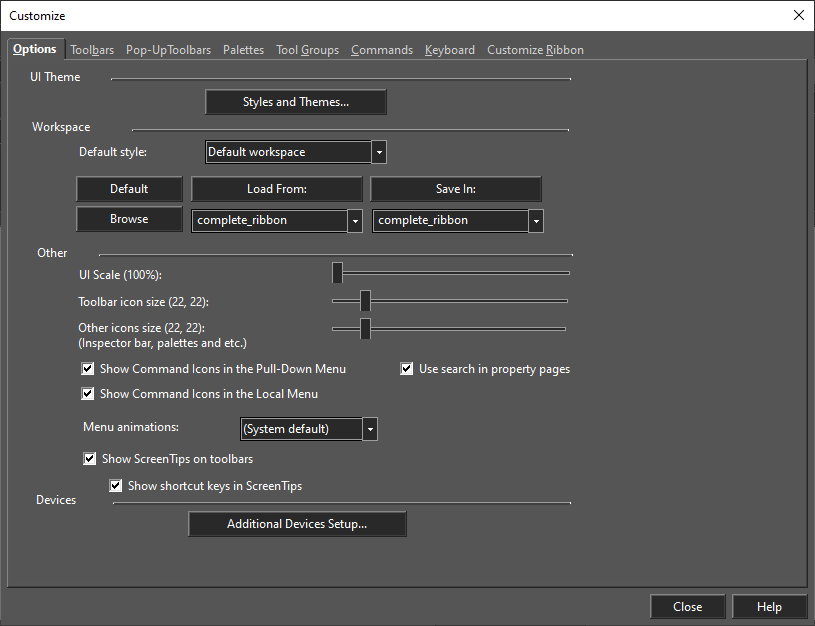
Alternatively, right-click any blank area of a toolbar to open the Customize dialog.
You can save your customized workspace configuration for future use.
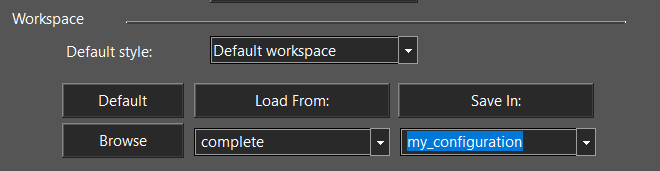
To open your saved custom workspace, do not use the TurboCAD Launcher. Instead, open TurboCAD first, then load your saved configuration from the Customize dialog.
If you have an existing workspace configuration saved, you can load it into TurboCAD.
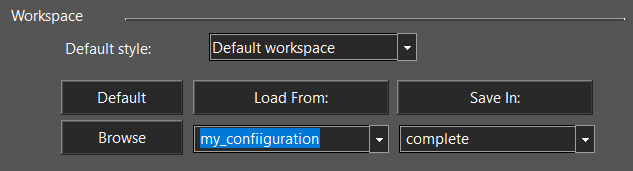
Loading a saved configuration is useful when switching between different working environments or restoring a previously saved interface setup.
TurboCAD provides an option to locate the configuration files stored on your system.
This option is helpful for locating, managing, or backing up configuration files.
If a customized workspace is no longer suitable or a workspace configuration issue occurs, you can restore the standard TurboCAD configuration.
This provides a quick way to return to the default interface without manually resetting individual settings.
Workspaces selected from the TurboCAD Launcher always load the default configuration for that workspace. To save and reopen your own customized workspace layouts, use the options described in the Access the Workspace Customization Options section.
TurboCAD provides comprehensive tools to load, save, browse, and restore workspace configurations, allowing users to personalize their interface and switch easily between different working environments.
Spring is the ideal season to breathe new life into your garden. With warmer temperatures and longer days, it’s the perfect time to design layouts, choose plants, and refresh your outdoor space. Whether you’re envisioning a vibrant flower bed, a fresh vegetable patch, or a peaceful retreat, thoughtful spring planning lays the foundation for a garden that thrives all year. With the right mix of creativity and preparation, your outdoor space can truly flourish.
Designing a Flower Bed – Color for Every Season
Use the Ground Fill Region tool in the Landscape tab to define your flower bed. Plants, trees, and shrubs can be added easily via drag-and-drop. With the Visual Array feature, you can place multiple elements at once—far more efficient than adding them individually.
First, drag the Ground Fill Region into the workspace.
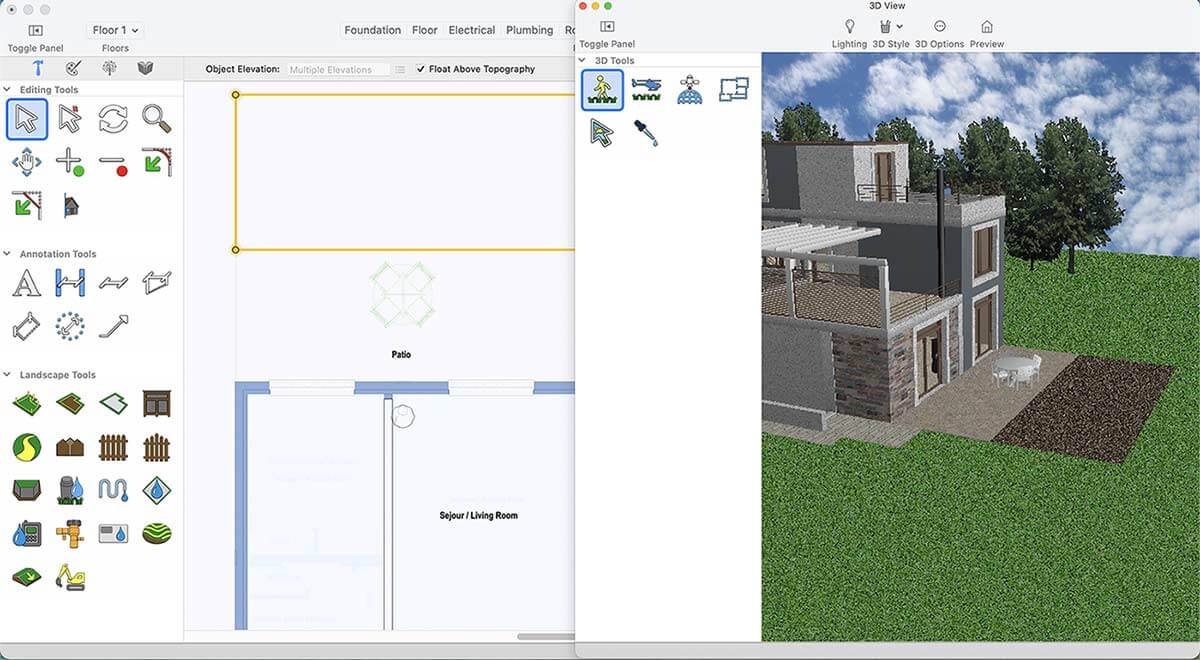
Select the plant you want.
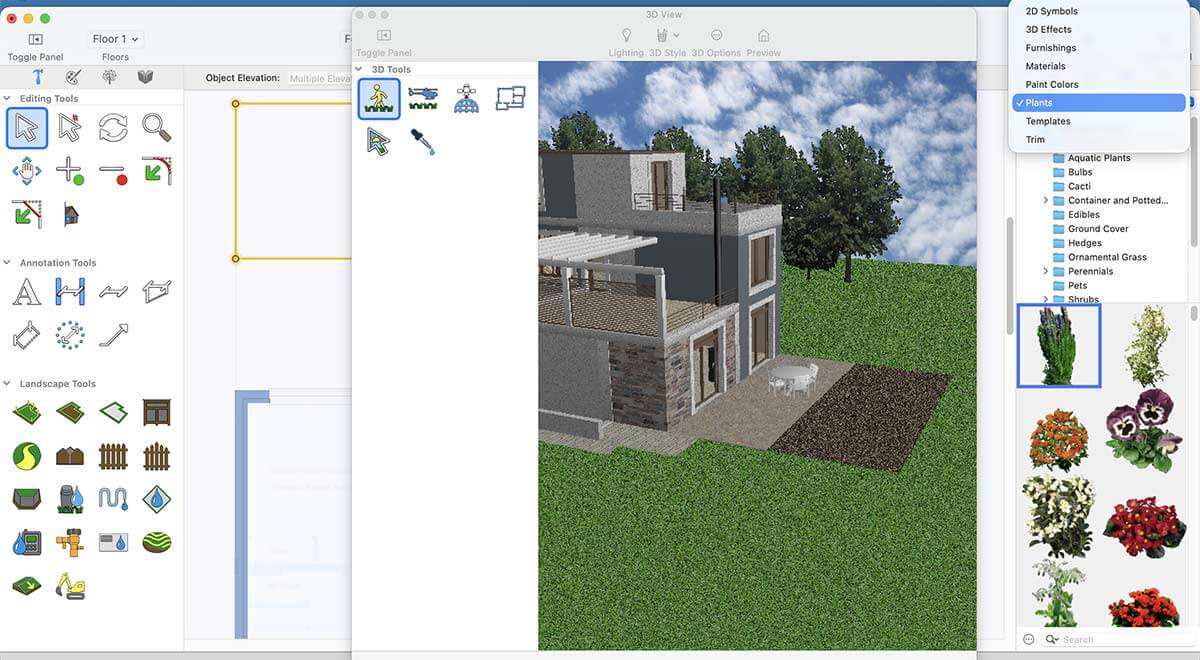
Drag and drop the plant to the Ground Fill Region, and it will appear instantly.
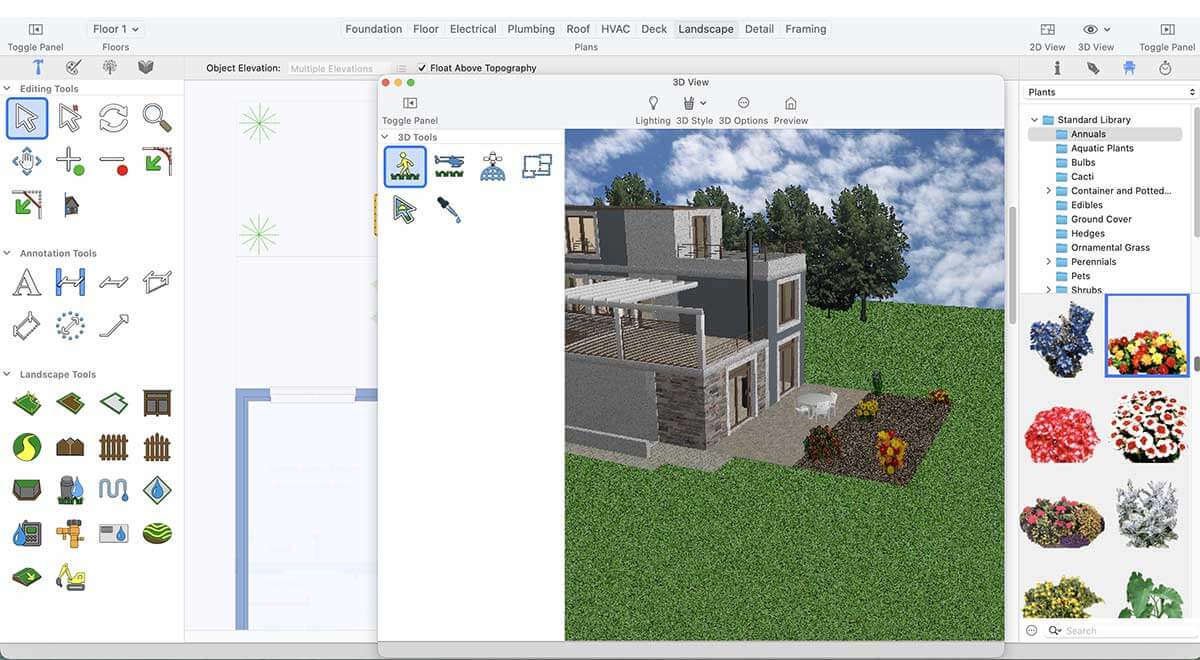
You can use trees and shrubs in the same way in your Ground Fill Region to achieve a more appealing design.
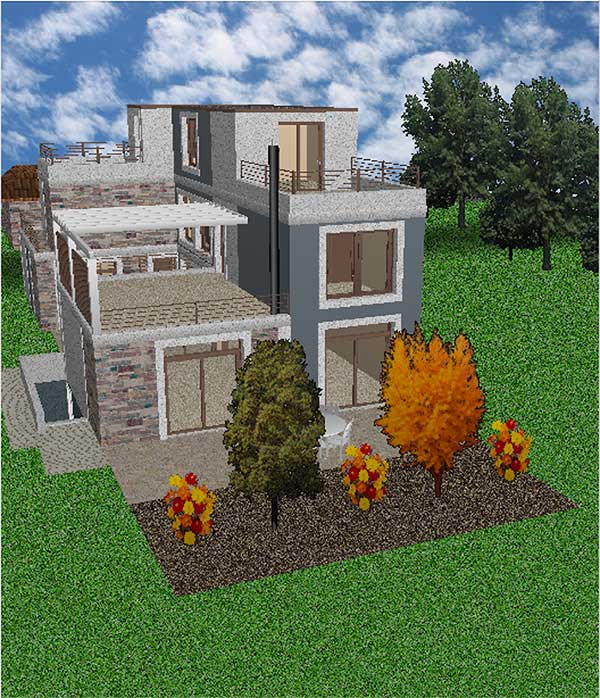
Inserting Trees and Shrubs
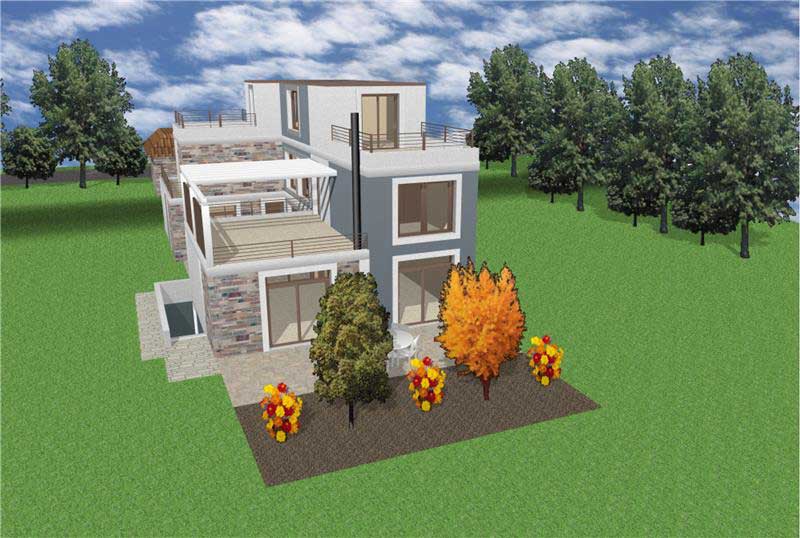
Final Result After Rendering
Planning Your Deck – A New Favorite Spot Outdoors
A deck is one of the most impactful upgrades: it increases property value, extends your living space, and creates room to relax, entertain, and enjoy nature.
Our powerful deck-design tools make the process simple and enjoyable. Create stunning decks with or without railings, trace outlines instantly with the smart auto-design feature, and customize every detail with railing and step options.
Select the Deck Tool and place the deck in your desired area.
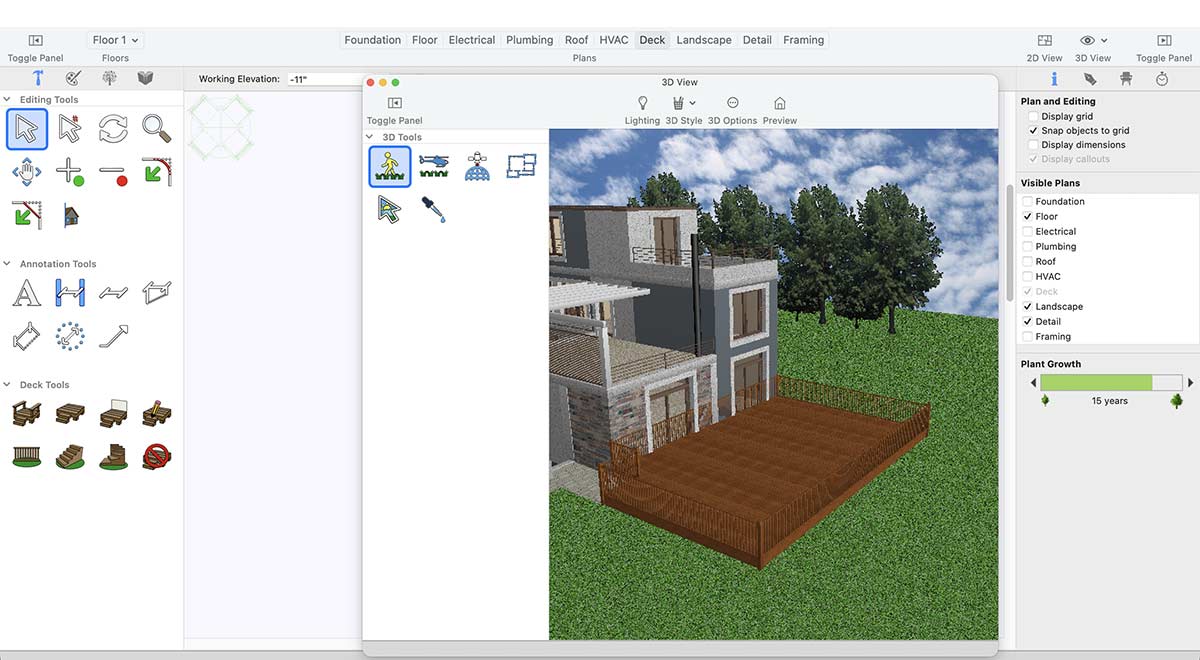
Adjust the design of Deck with the help of Adjust Curvature.
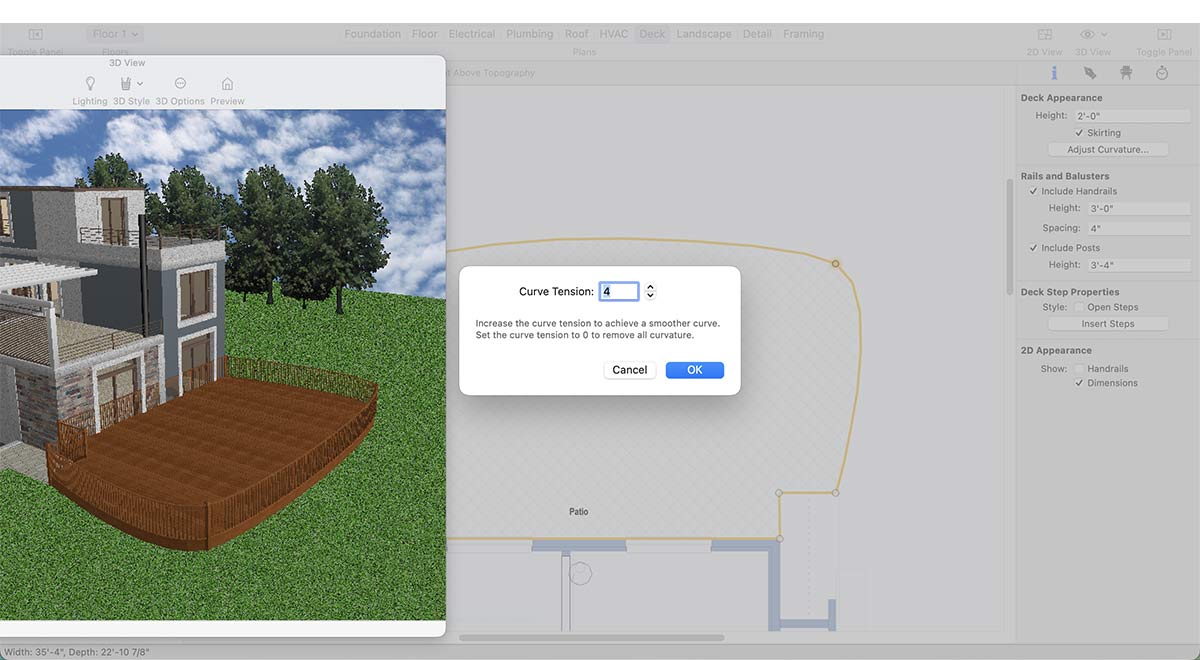
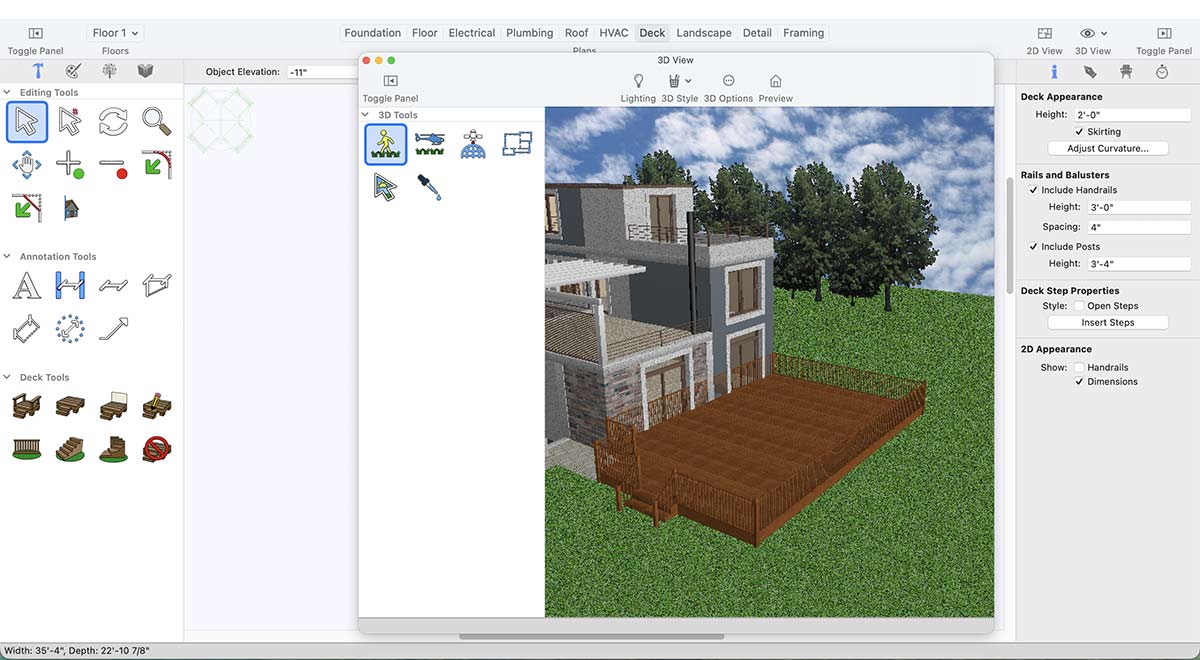
You may also put the steps or railings to your Deck.
You may place outdoor furniture to complete the inviting look.
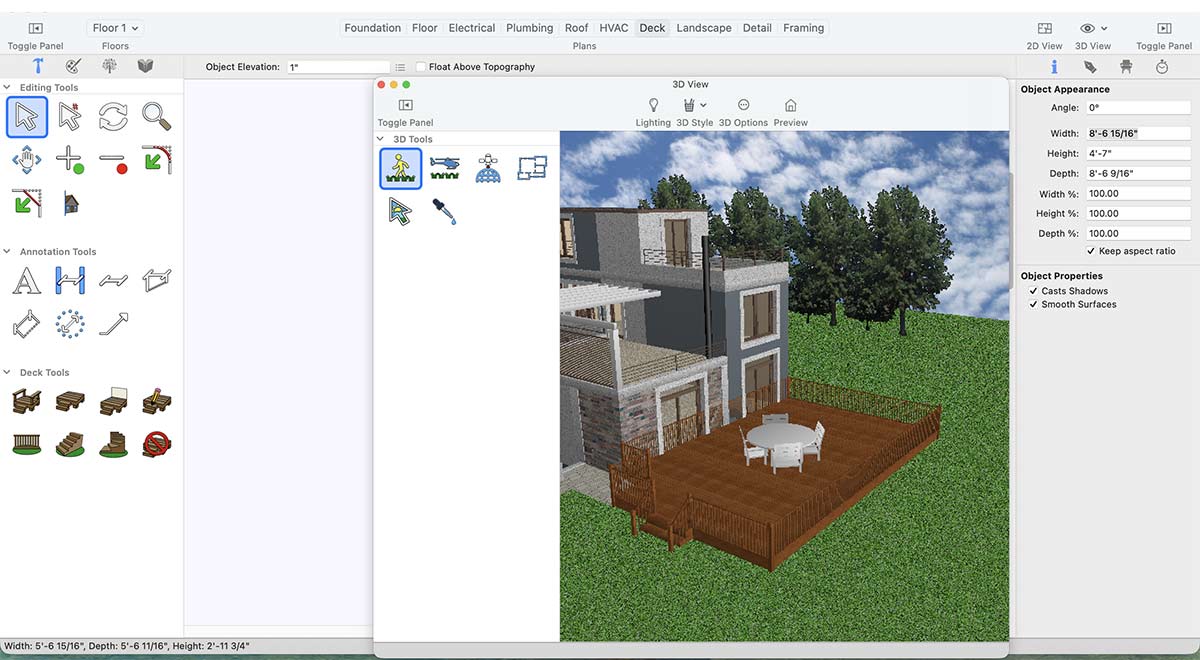
Inserting Outdoor Furniture
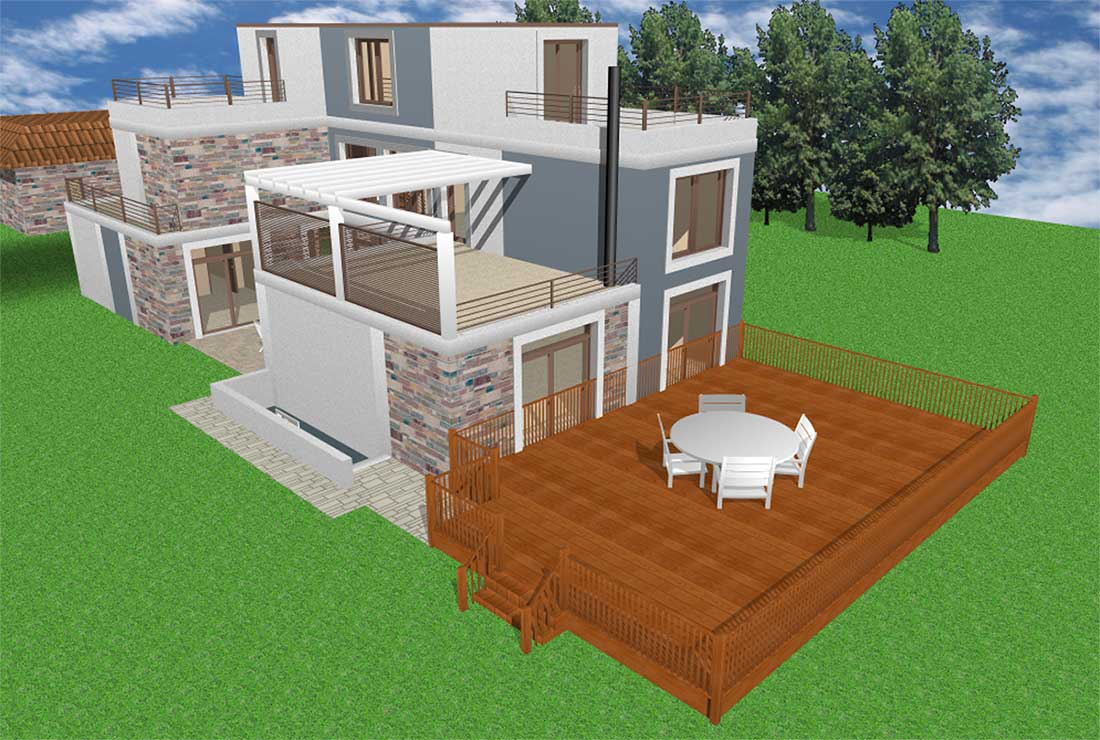
Rendering result: A stylish, functional deck that blends seamlessly with your home.
Setting Up an Outdoor Kitchen – Dining Under the Open Sky
An outdoor kitchen transforms your backyard into a functional, inviting living space. Cooking, dining, and entertaining merge in one open-air environment, letting you enjoy fresh air while preparing meals. With features like a built-in grill, countertop space, and weather-resistant materials, it adds both convenience and style.
This application offers a wide range of BBQ equipment that can enhance the functionality and visual appeal of any outdoor kitchen.
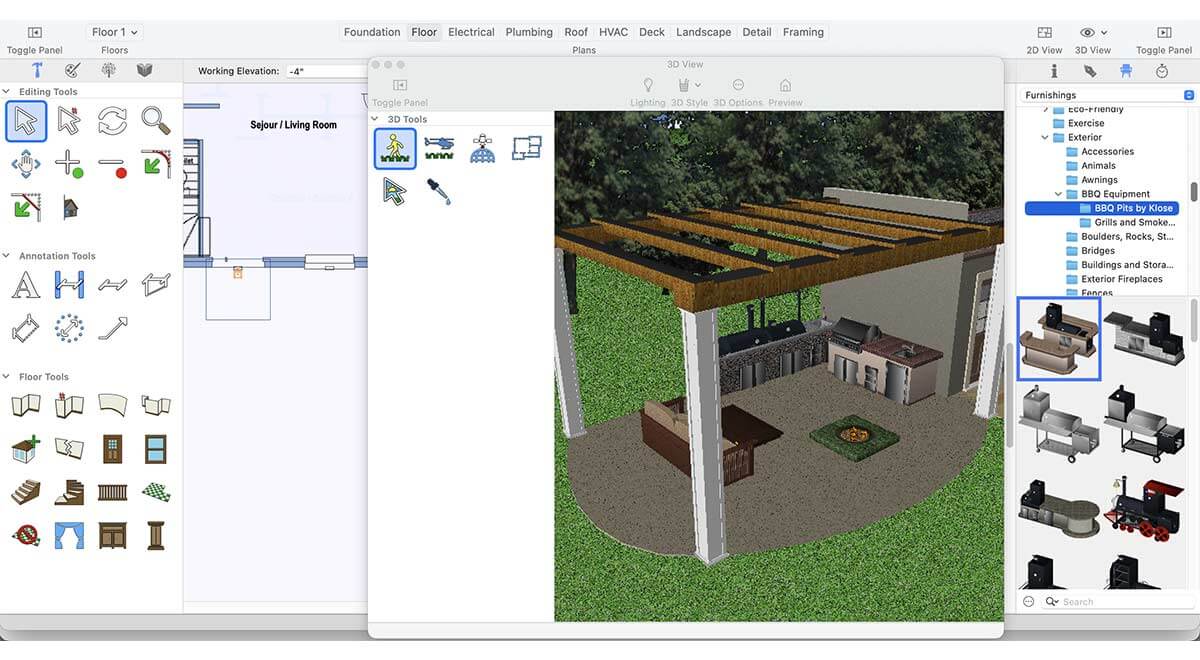
Similarly, the application includes a wide selection of exterior fireplaces that can elevate the atmosphere of your outdoor kitchen, making the space warmer, more inviting, and visually appealing.
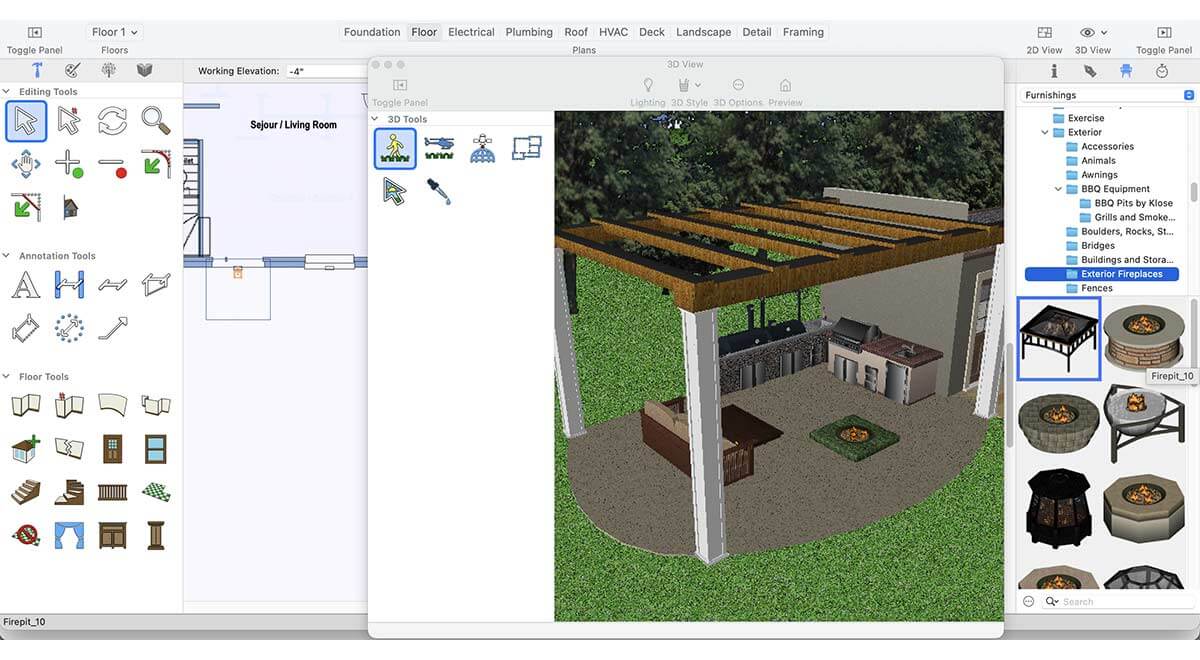
One of the key elements of a great outdoor kitchen is having a well-designed, premade setup. This application offers a range of ready-made outdoor kitchen designs that can instantly enhance the look, functionality, and overall appeal of your outdoor space.
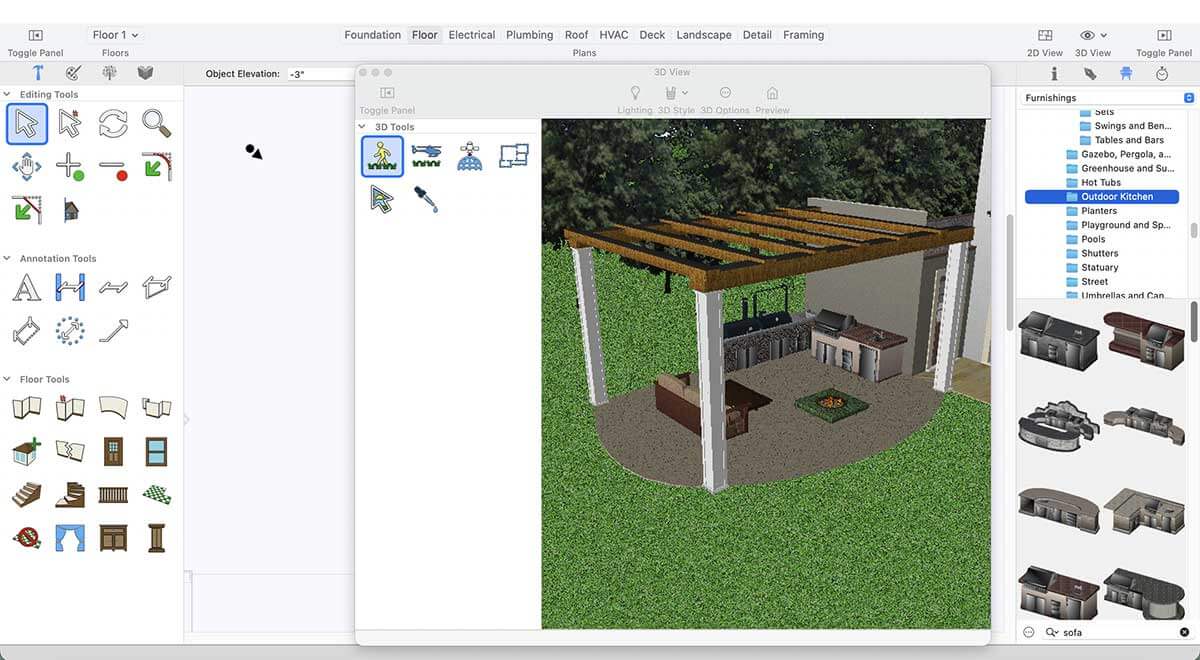
When designing an outdoor kitchen, a full roof covering the entire area can sometimes feel bulky or out of place. In many cases, exposed beams create a more open, stylish, and natural look. This application offers a variety of roofing options - including beams and trusses - that help us to build a beautiful and well-structured cover for our outdoor kitchen.
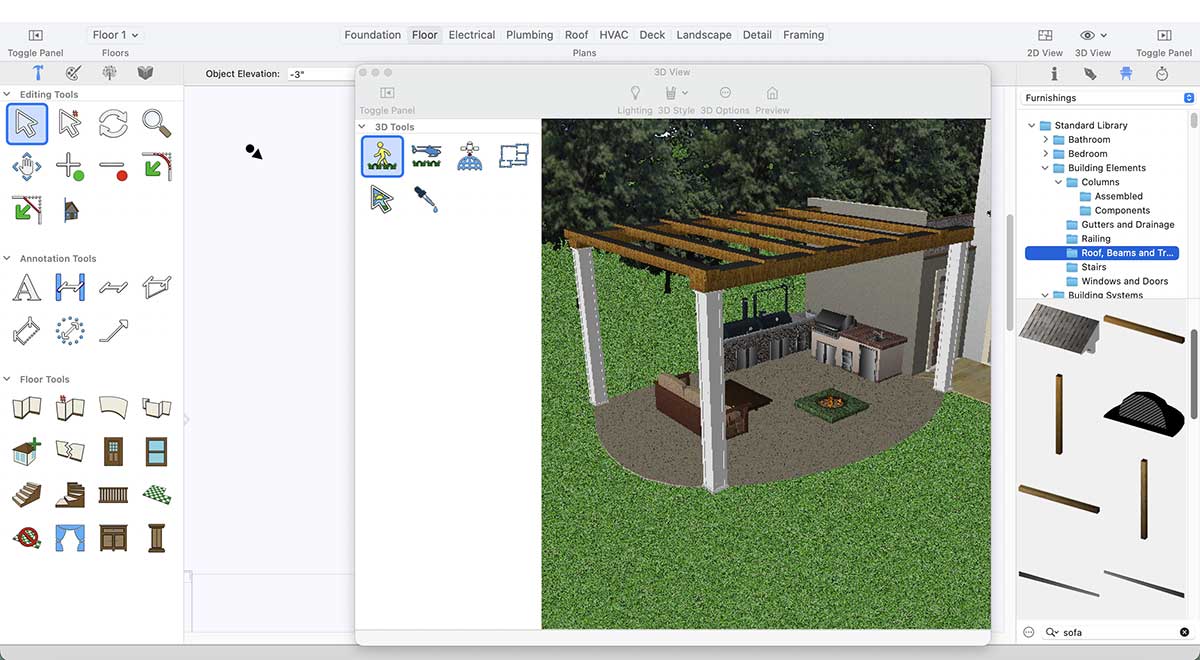
Once we add beams as the roof for our outdoor kitchen, the space immediately feels more open, stylish, and naturally integrated with the outdoor environment.
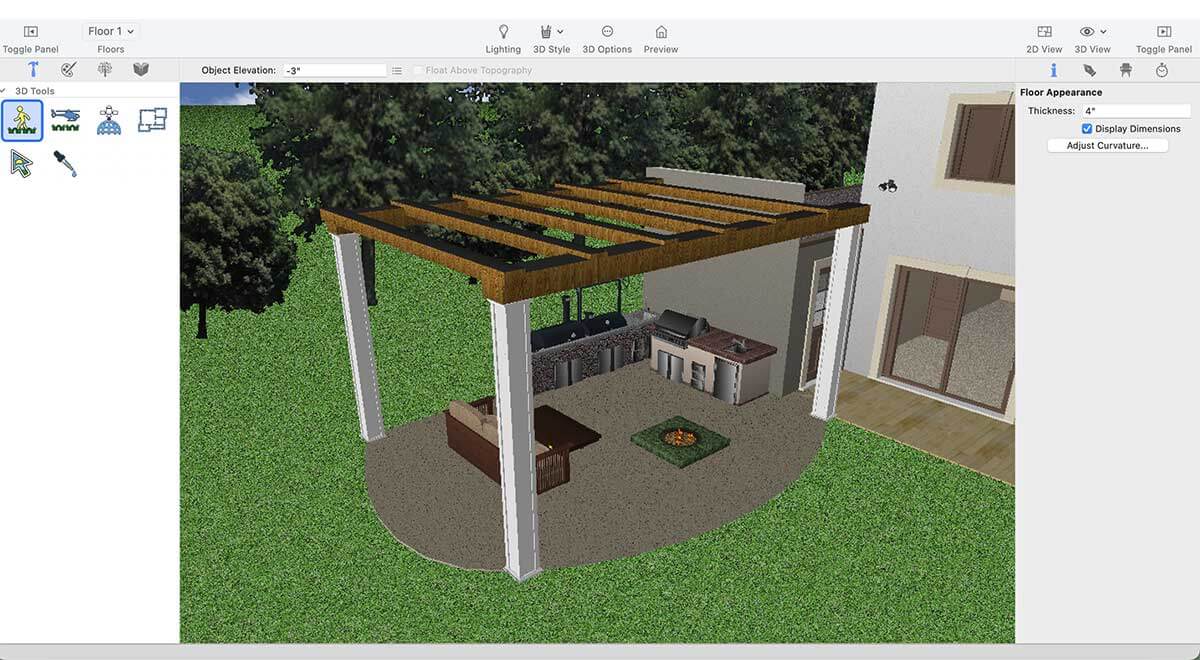
Here is the final look after rendering the project, showcasing the complete outdoor kitchen design in its finished form.
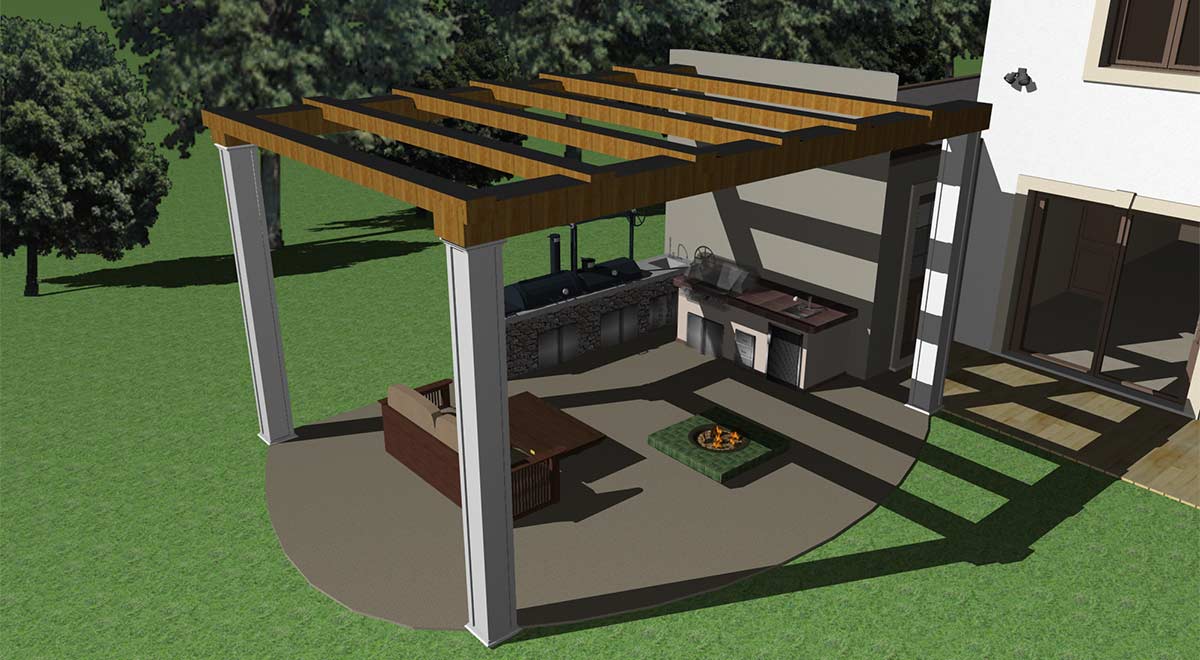
Rendering result: A complete outdoor kitchen design, open,
stylish, and ready for gatherings
Whether it’s a flower bed, deck, or outdoor kitchen, the right tools and creative ideas help you transform your outdoor space step by step into a harmonious, functional, and inspiring paradise. Spring is the perfect opportunity to try new designs and refresh existing areas.
With every plant, detail, and design choice, your garden becomes a reflection of your personality—a place to relax, enjoy, and share with others all year long.
Now it’s your turn: bring your green paradise to life and enjoy the rewards of your planning in every season.
Perfect placement of bathroom accessories is a defining element in creating a beautiful, luxurious, and well-organized bathroom. When accessories such as towel holders, soap dispensers, shelves, robe hooks, and mirrors are positioned with thoughtful planning, they enhance both functionality and visual appeal. Proper height placement and balanced spacing ensure ease of use while preventing clutter, allowing the bathroom to feel open, refined, and comfortable for everyday use.
Each accessory should complement the overall design theme and align seamlessly with the vanity, sanitary fittings, and finishes. Well-placed mirrors enhance both natural and artificial lighting, making the space appear brighter and more spacious. Coordinated wall accessories contribute to a clean, polished look while adding subtle elegance and practicality to the bathroom layout.
Attention to detail in accessory placement elevates the overall ambiance of the space. A well-arranged bathroom not only improves convenience and safety but also creates a calm, sophisticated environment. With harmonious positioning and refined design choices, bathroom accessories transform the space into an inviting retreat that reflects timeless style and thoughtful craftsmanship.
For example, we started with a basic bathroom without ceiling lighting or thoughtfully placed accessories, which limited its ability to feel attractive, welcoming, or well-designed.
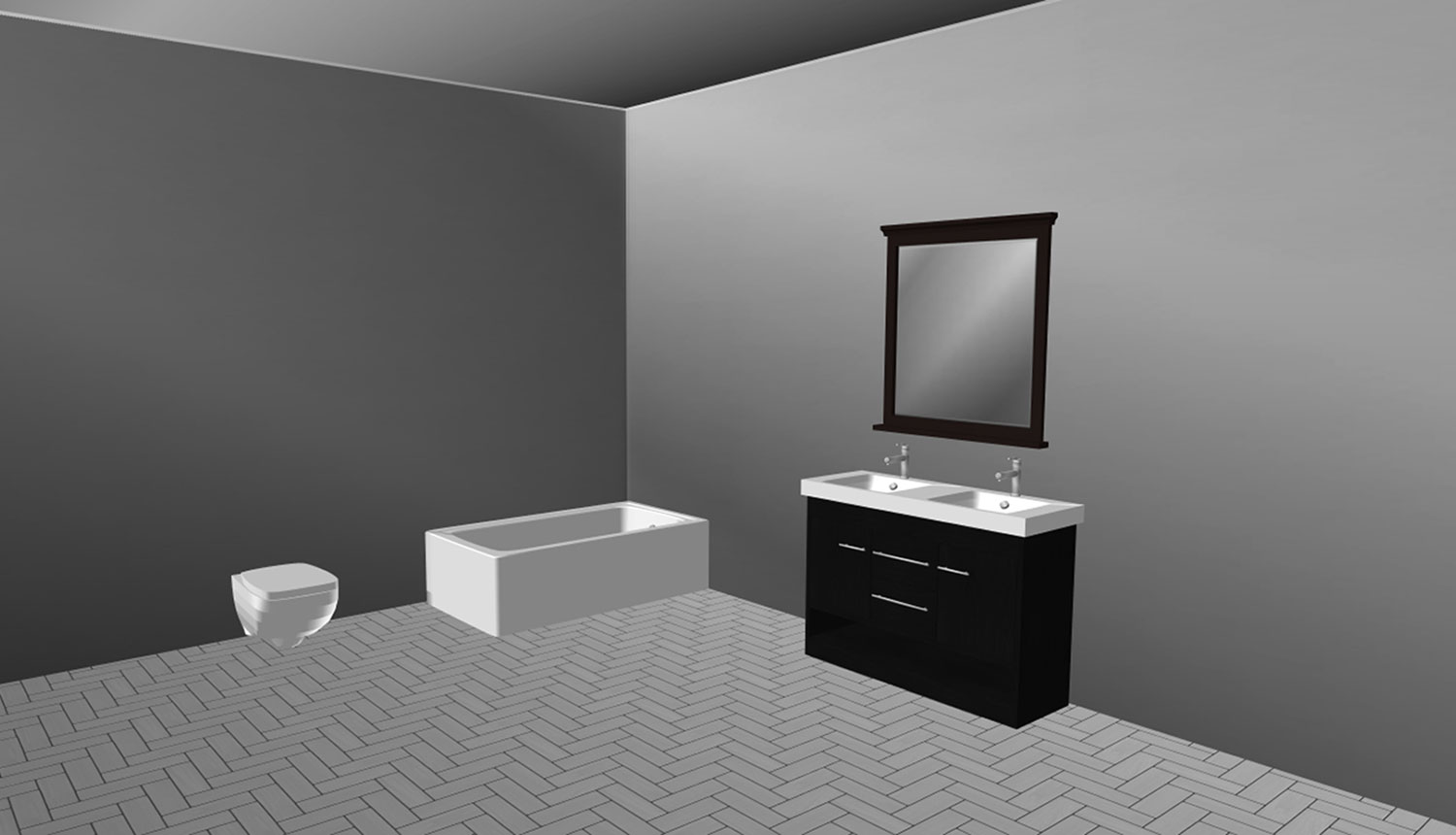
Now it’s time to enhance our bathroom space and make it more attractive and visually appealing by thoughtfully incorporating essential fittings, lighting, and accessories. To do this, we will use the default libraries.
Where can the default libraries be found?
You can find the default library items under the Content section. To access it, first launch the application, then click on the highlighted icon.
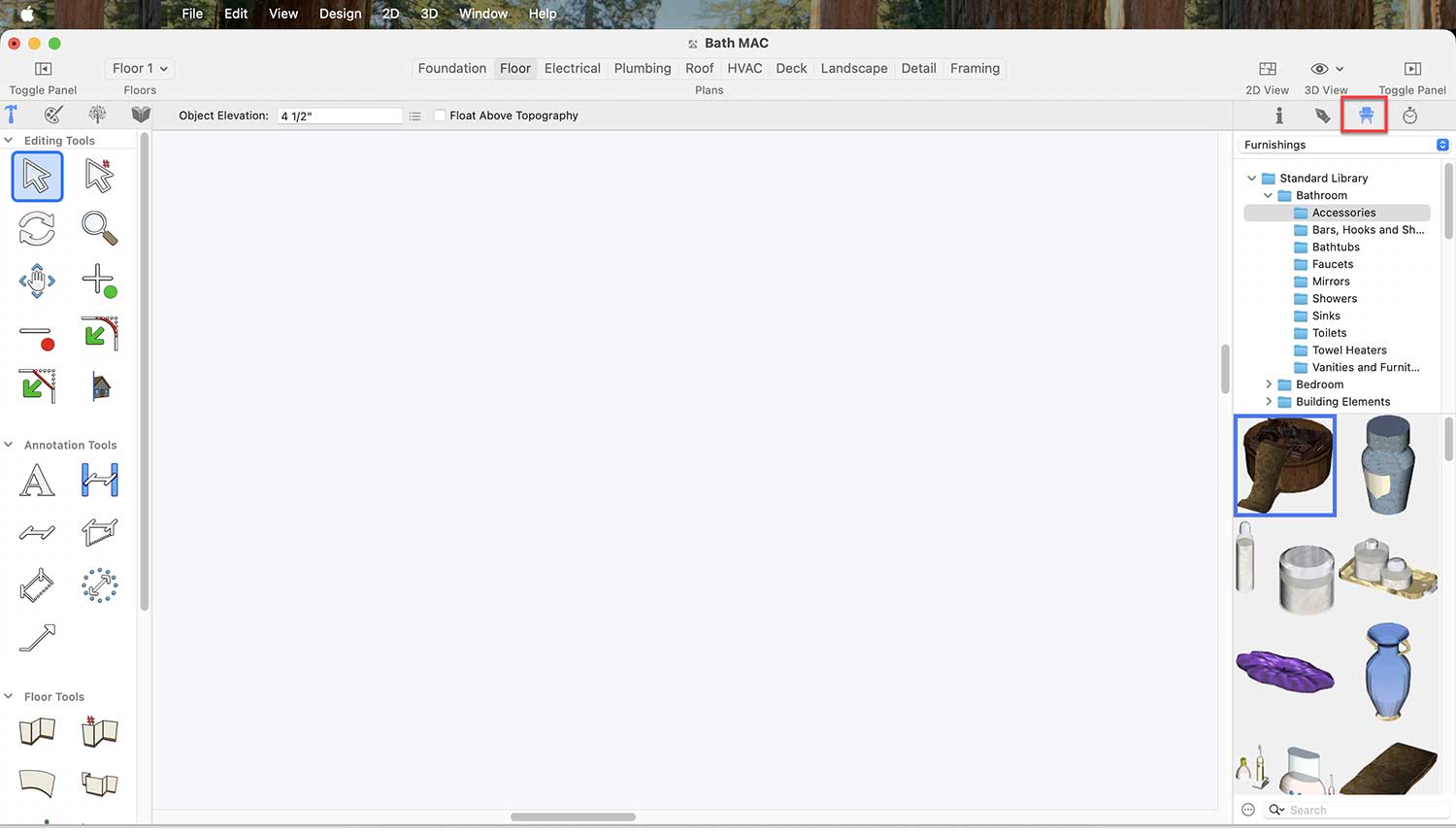
In the Content section, you will find a wide variety of bathtubs for your bathroom. You can choose any one of them based on your bathroom’s design and layout. Bathtubs can be found under Standard Library > Bathroom > Bathtubs.
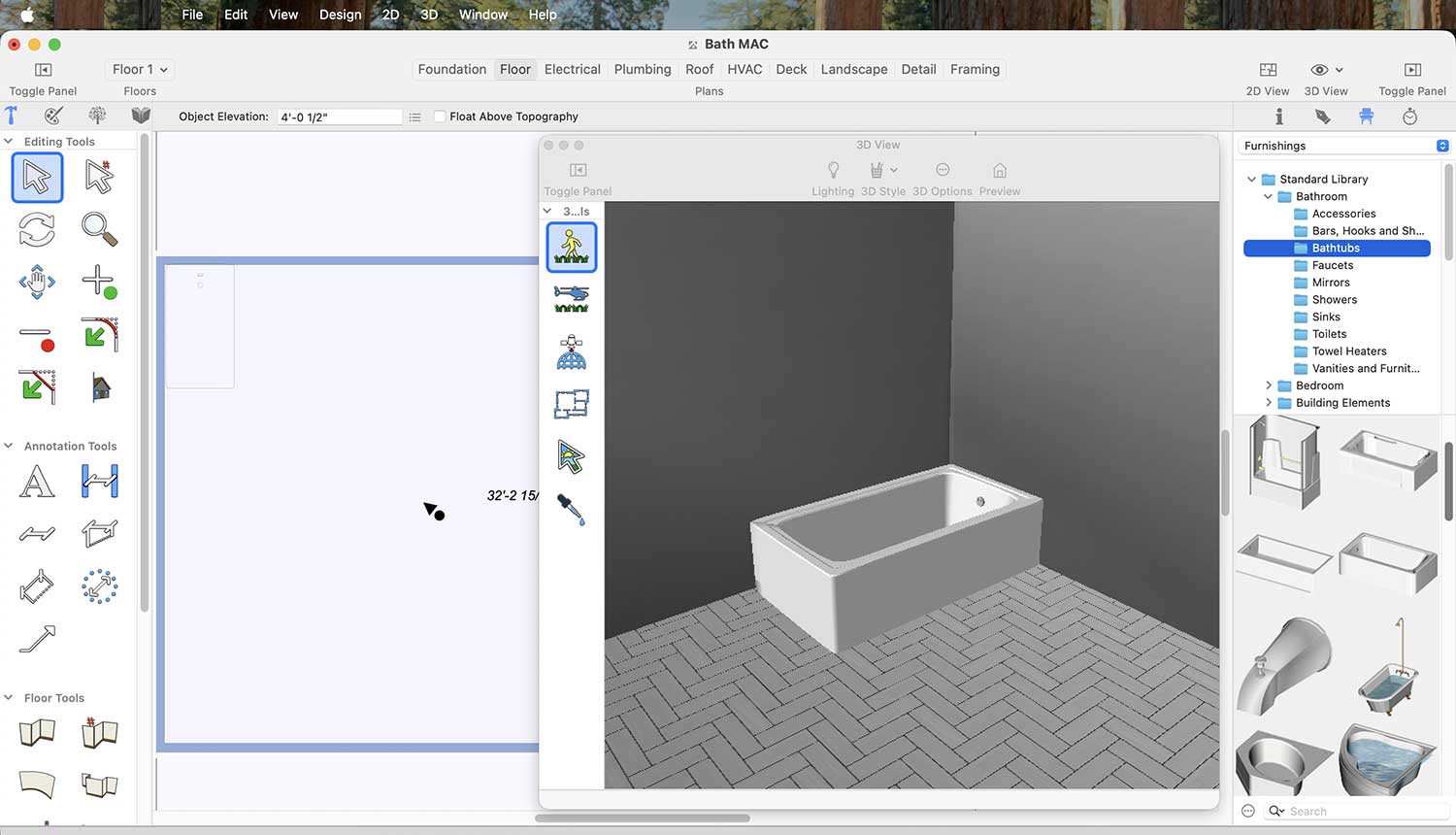
Bathtub Collection for the Bathroom
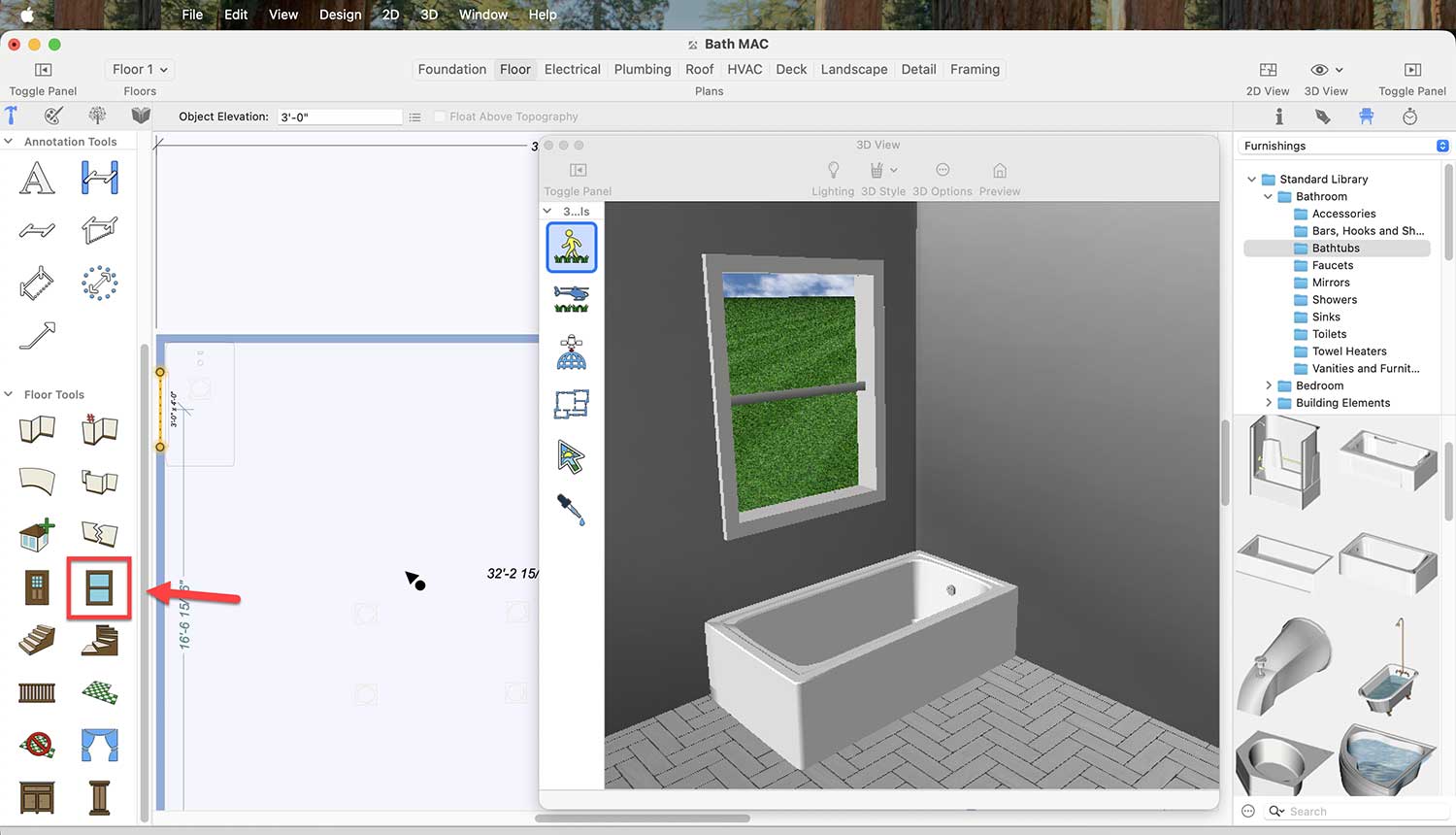
If you want to place a window in your bathroom, click on the Window icon, then simply click on the wall where you want to place the window.
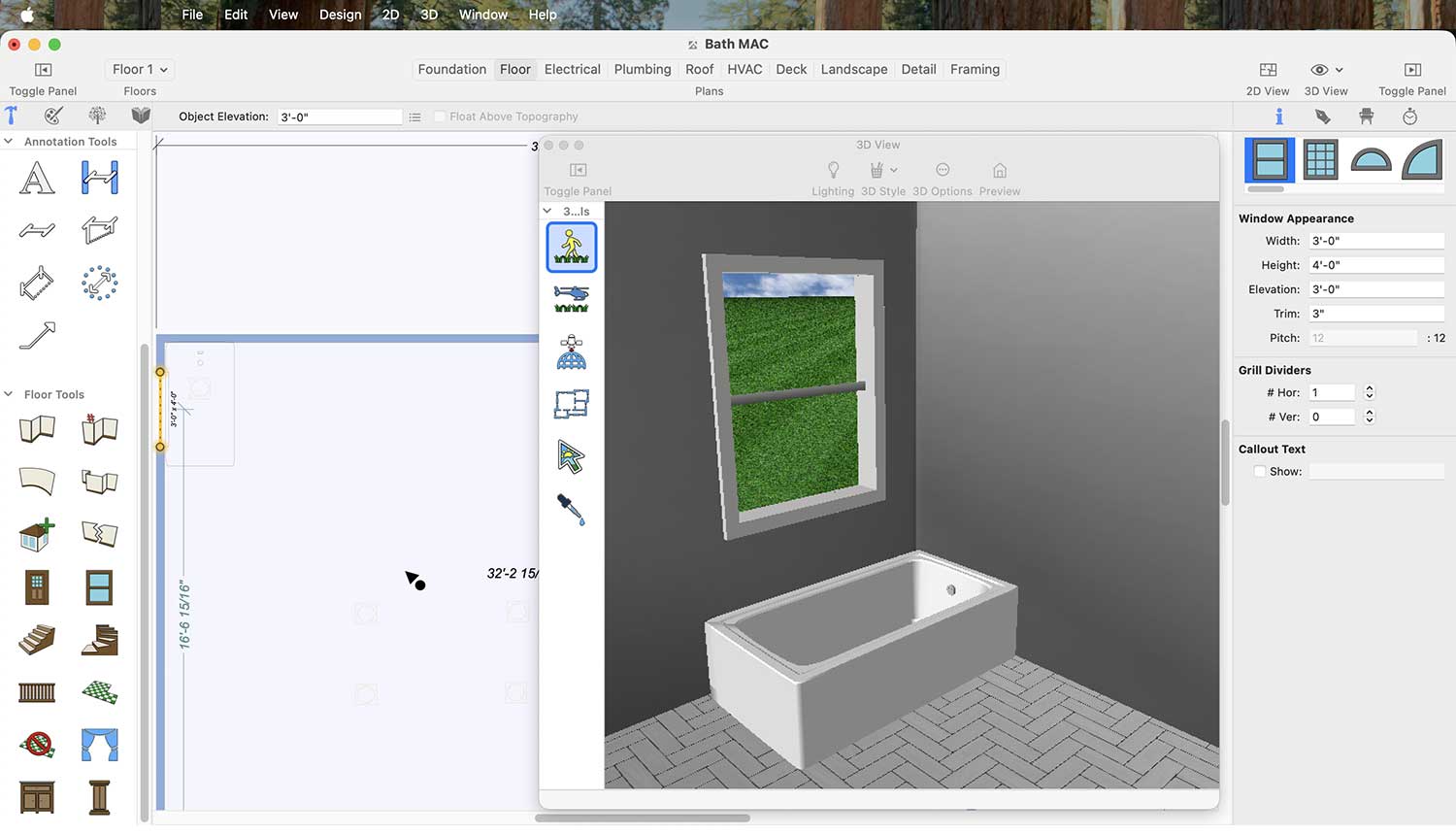
If you want to change the design of the window, first select the window. Once you click on the window in the 2D canvas, different window styles will appear on the right side.
In the same way, you will find many wall clocks for the bathroom in the Content section.
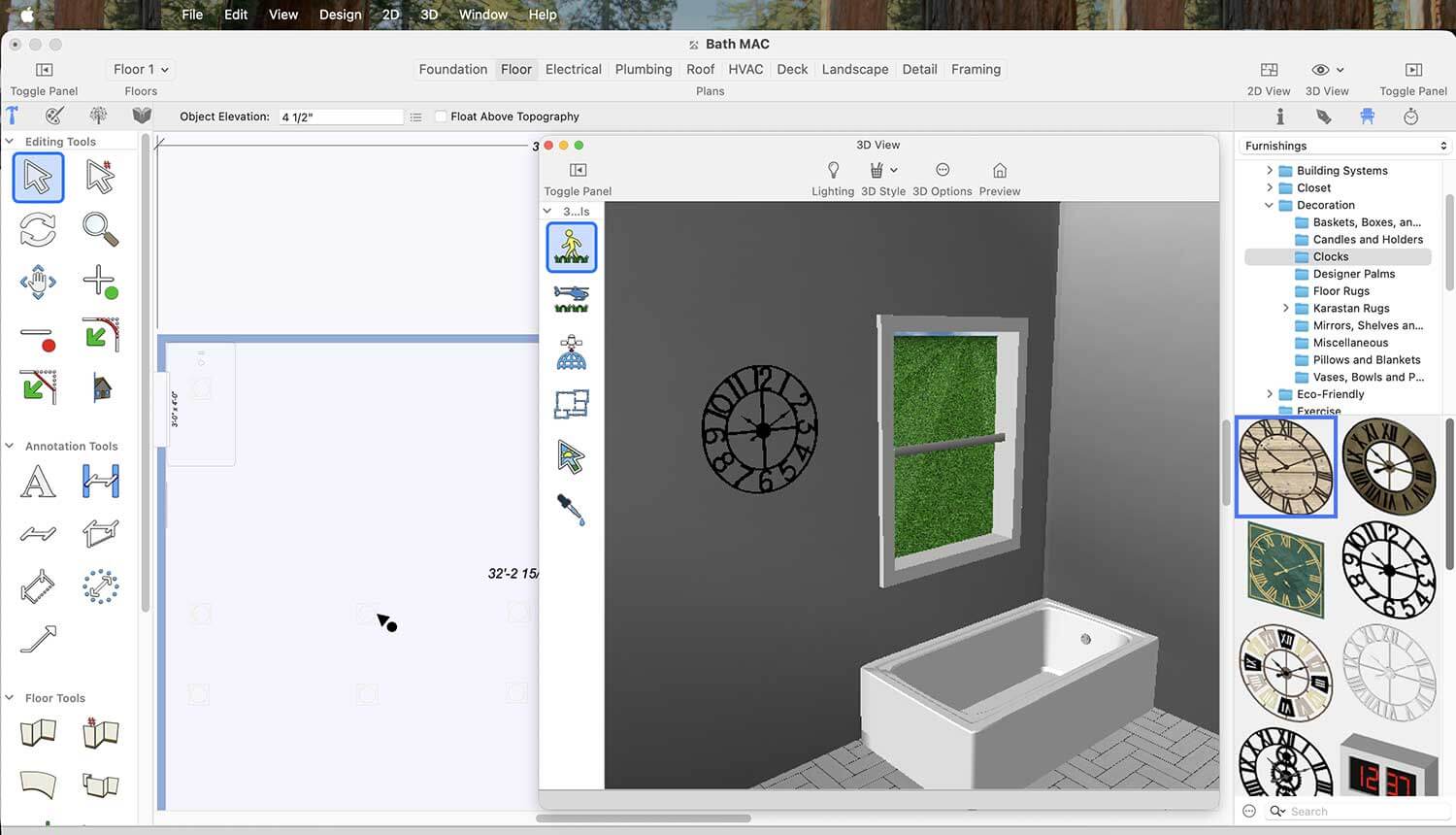
Wall Clocks Collection for the Bathroom
Now it’s time to place the toilets in your bathroom.
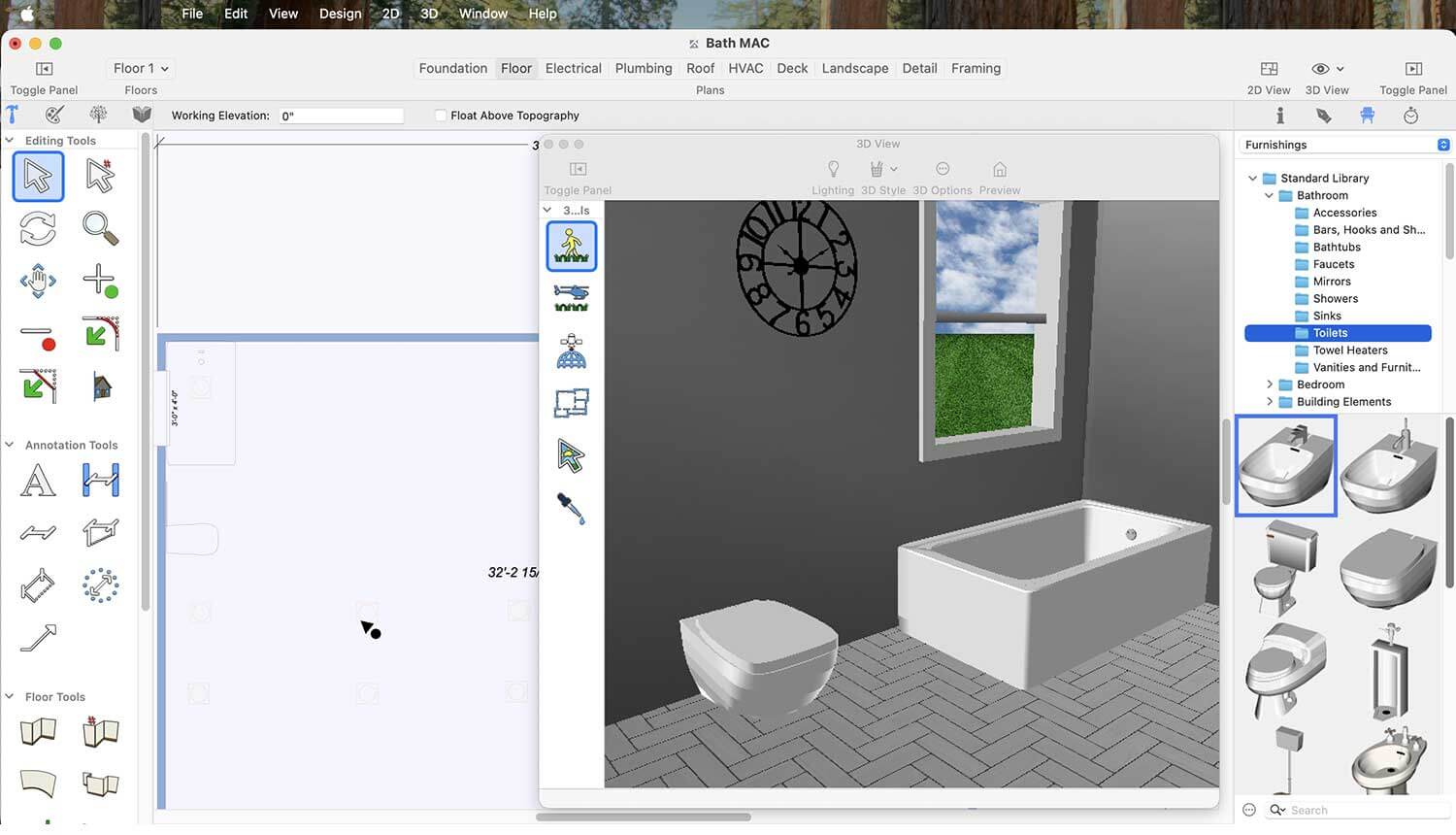
More Toilet Designs for the Bathroom
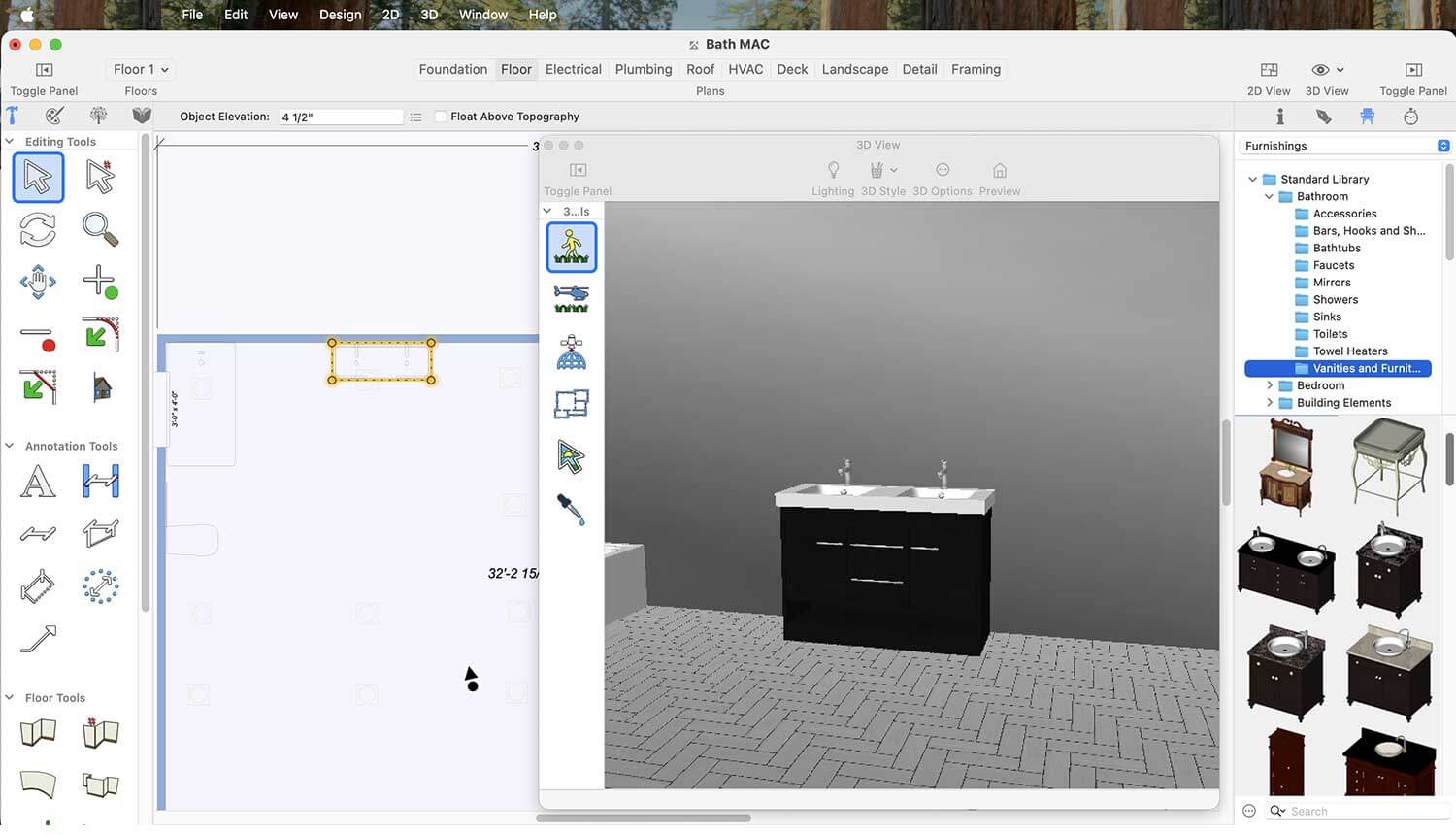
More Bathroom Vanity Designs
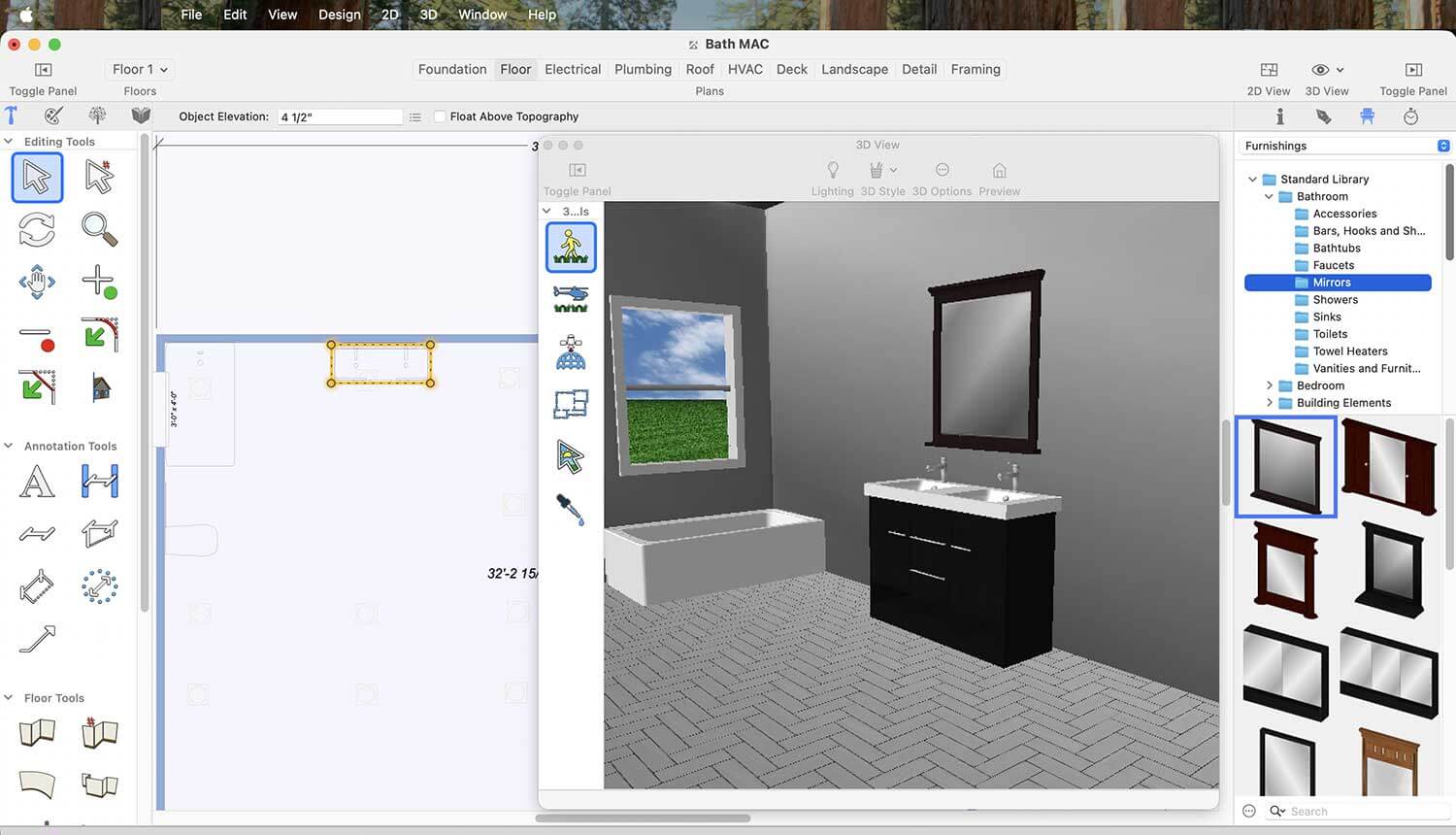
More Mirror Designs
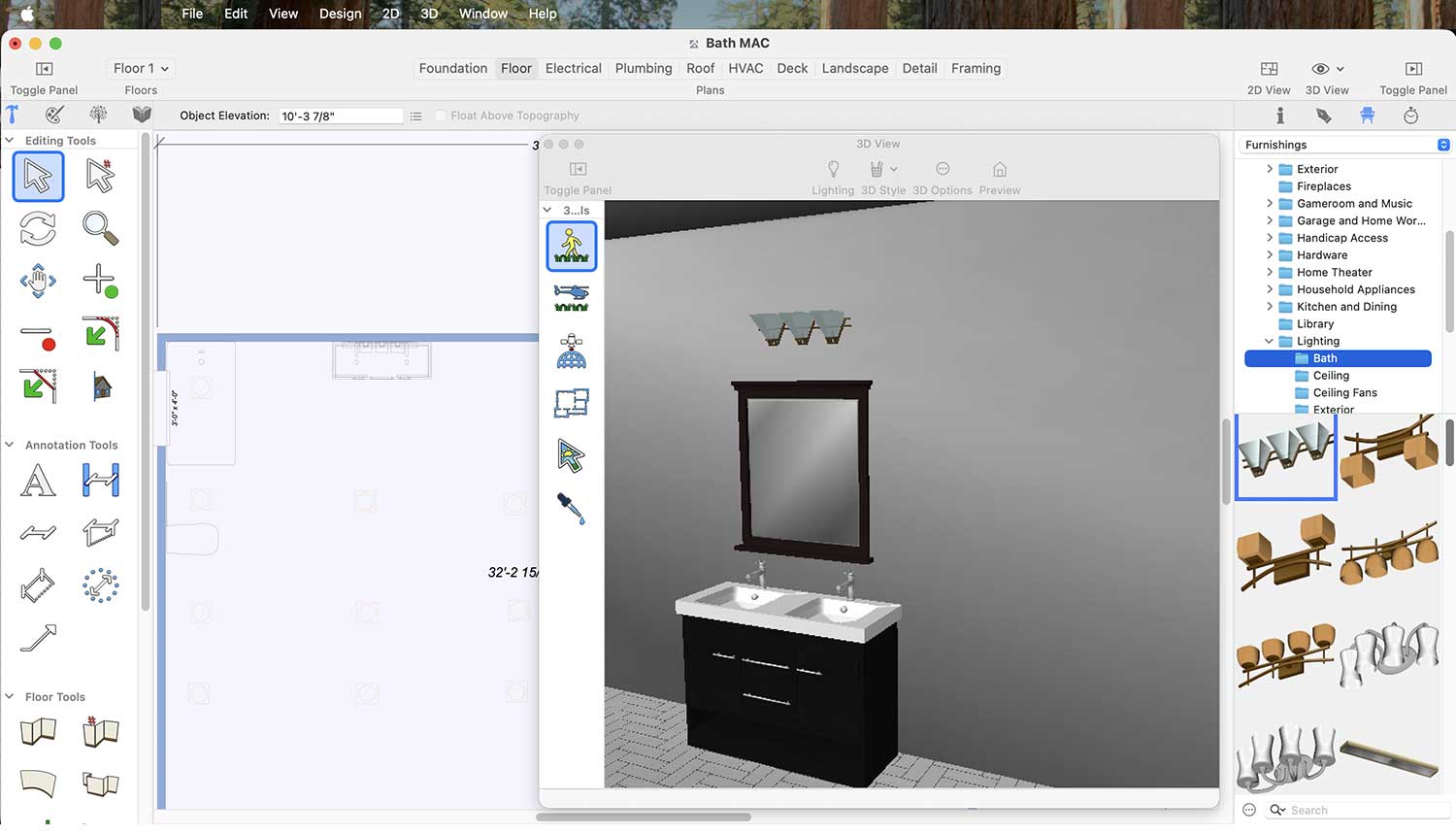
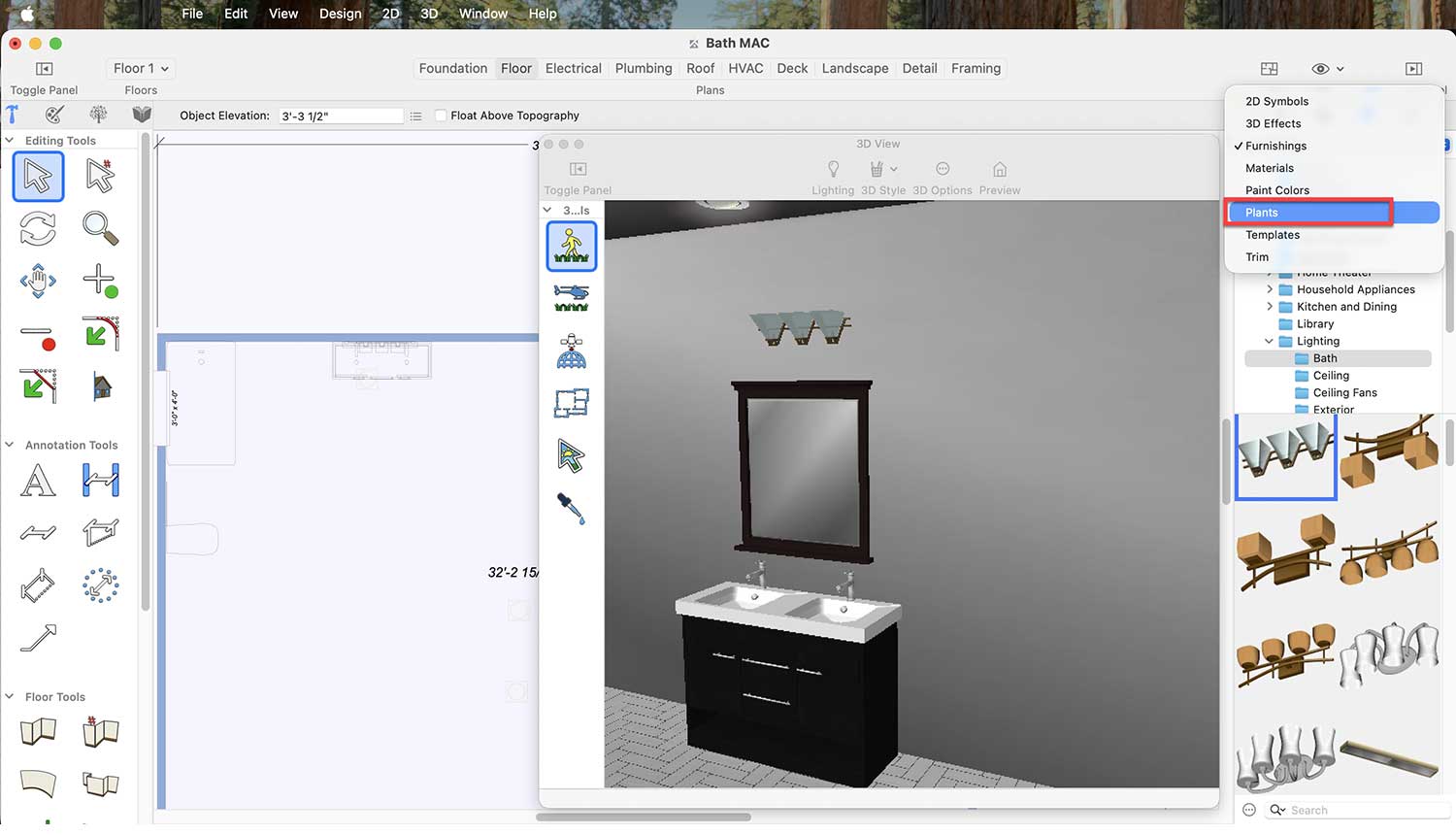
Wall Light Collection
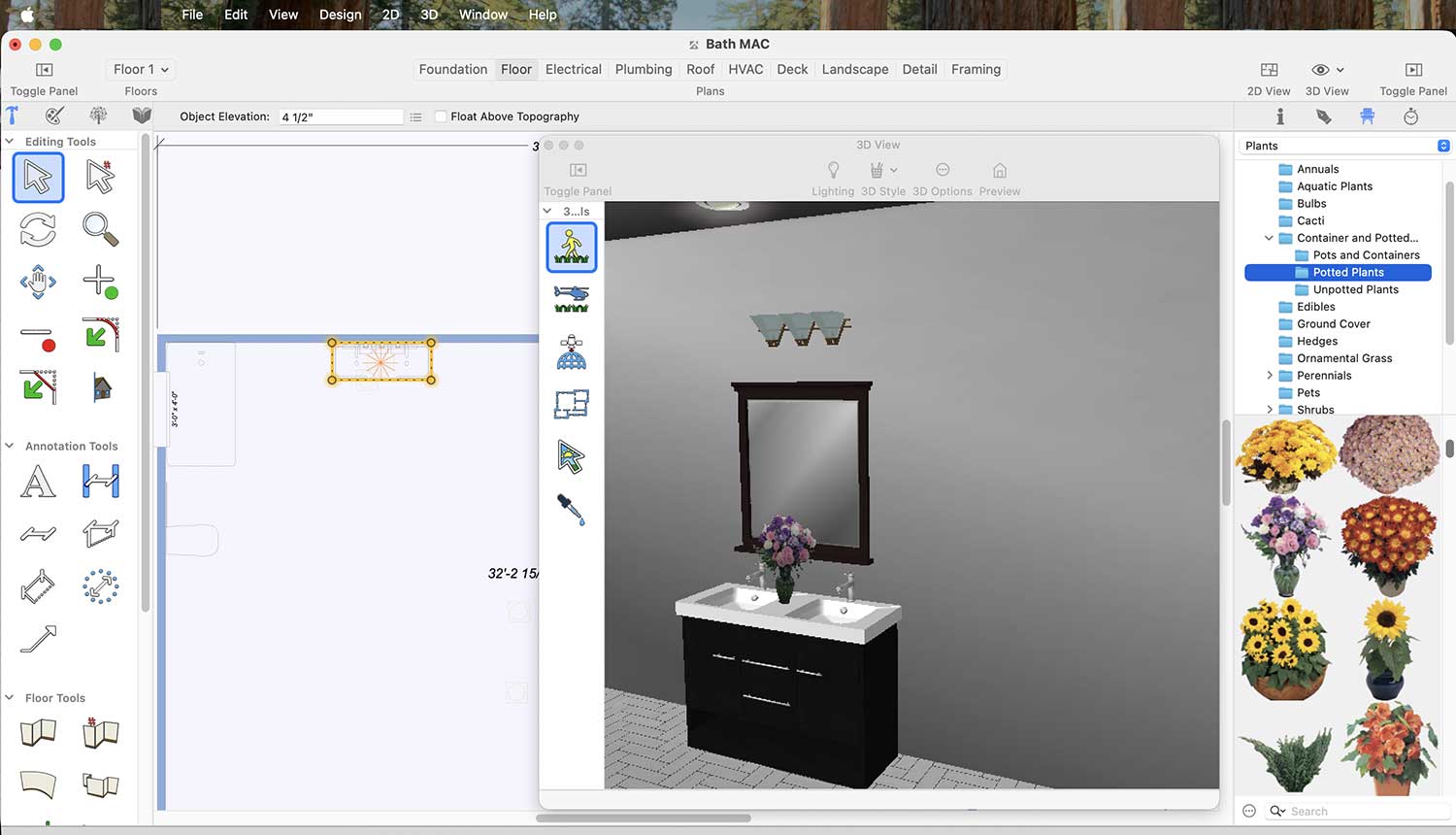
Potted Plants Collection
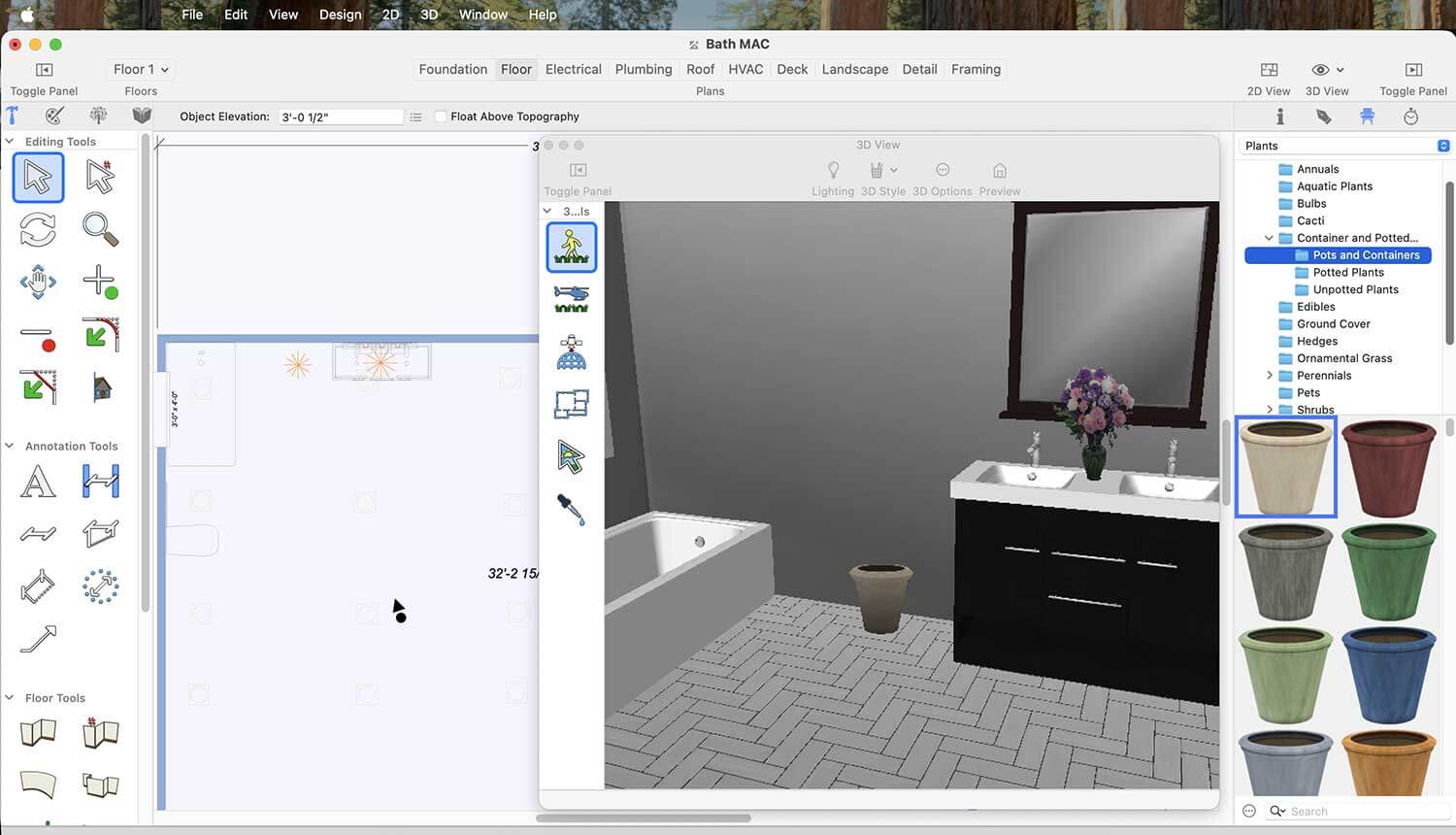
Pot and Container Collection
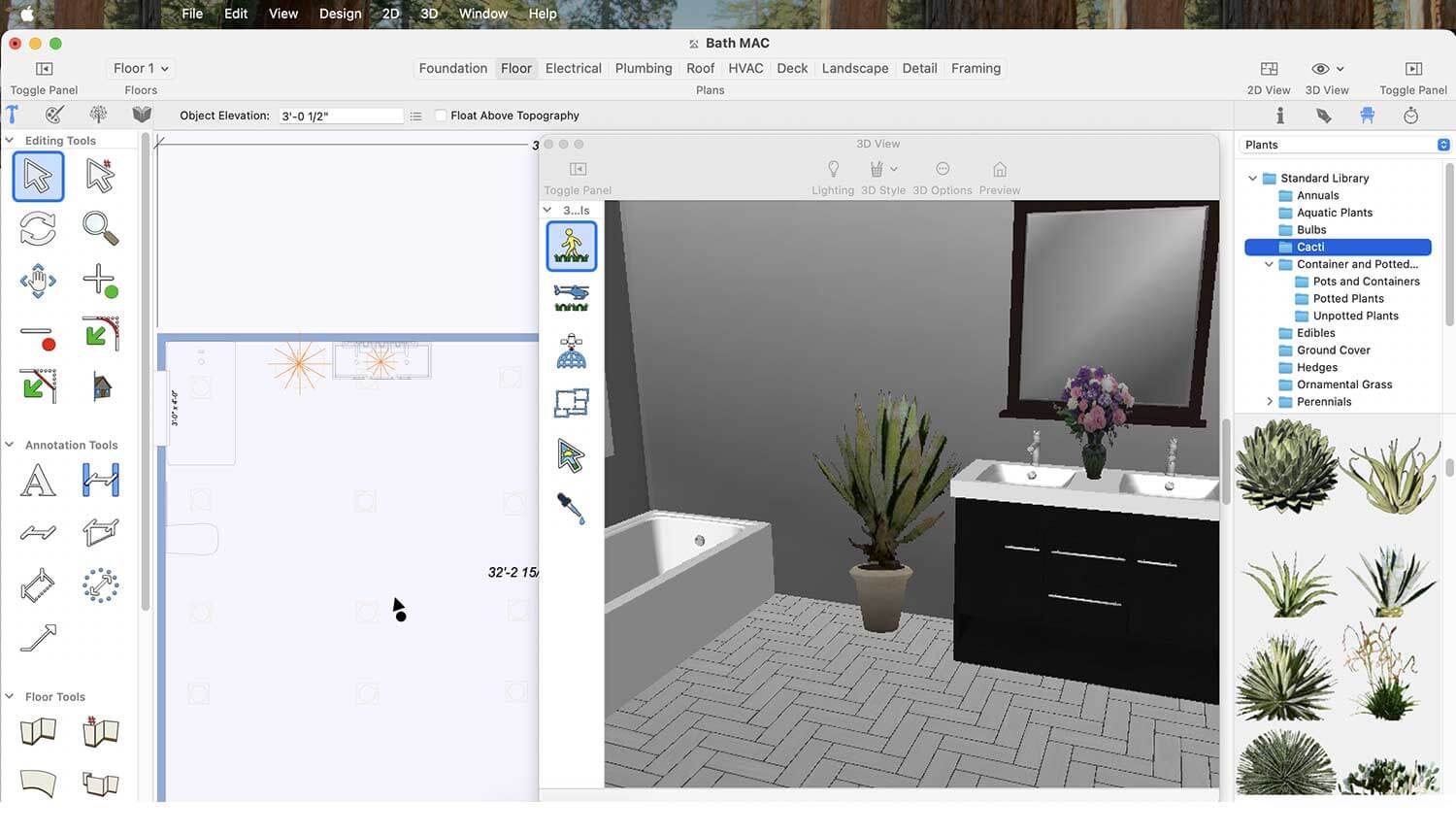
Pot Flower Collection
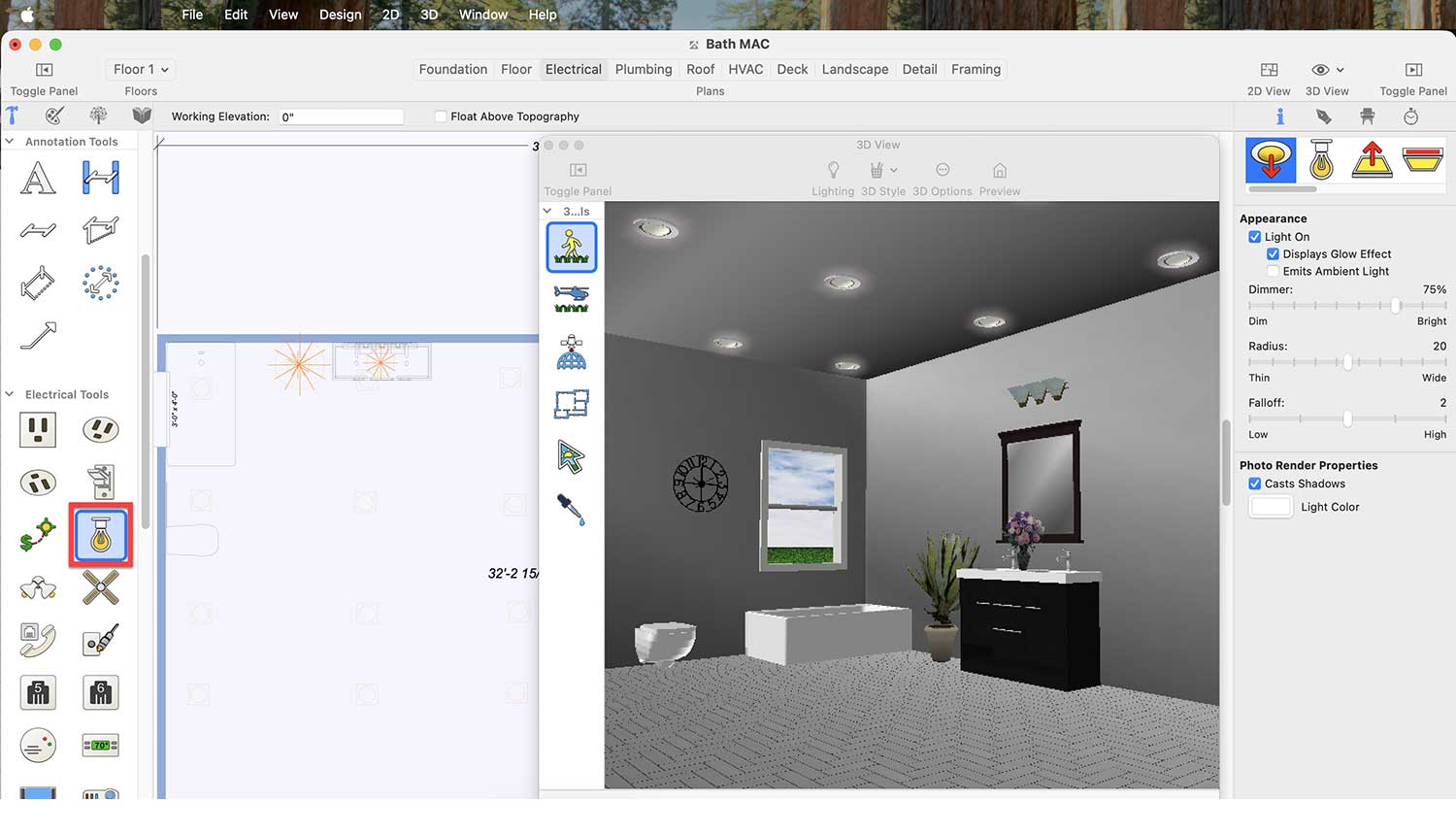
Ceiling Light Designs
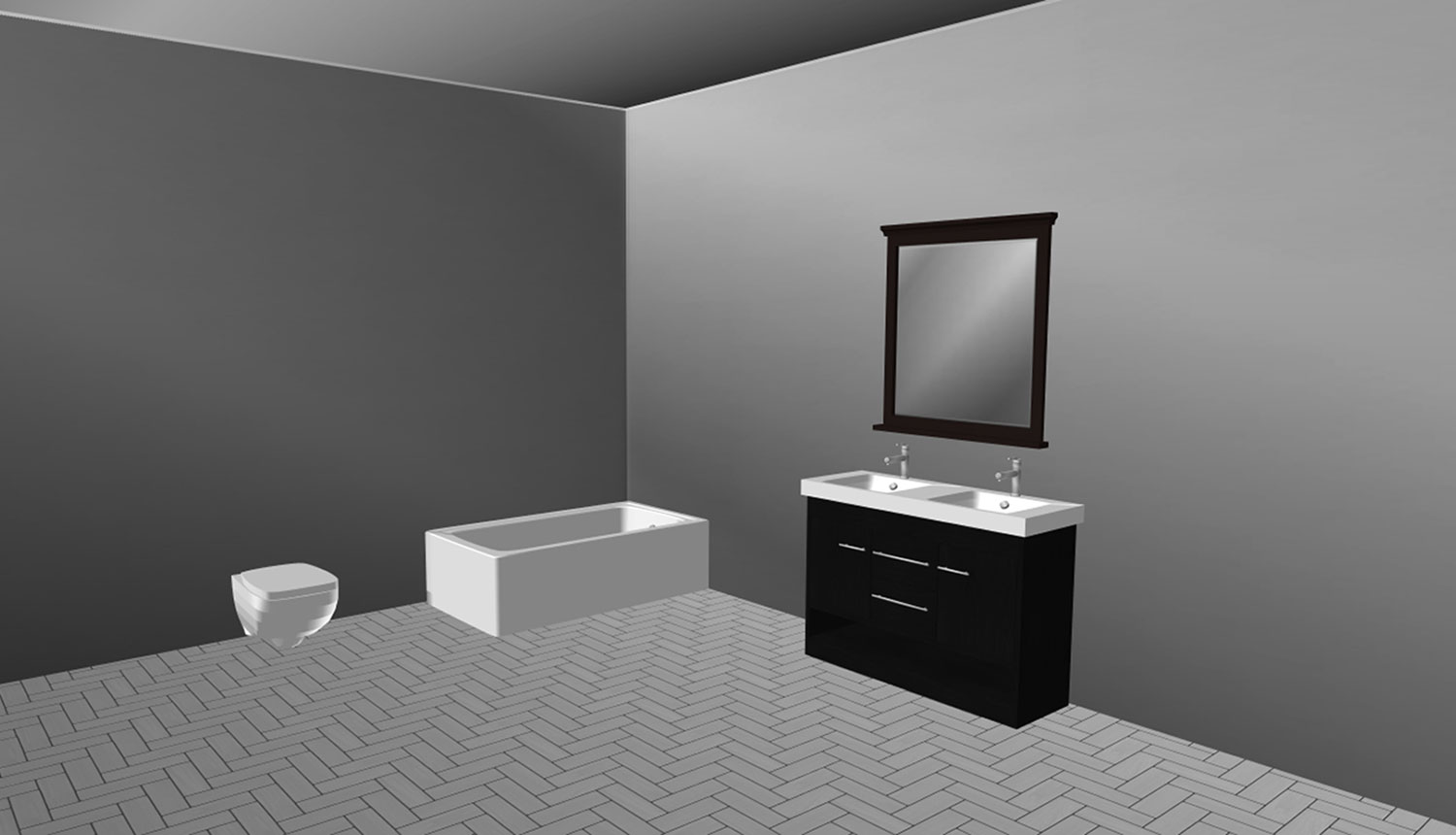
Bathroom Appearance Without Accessories
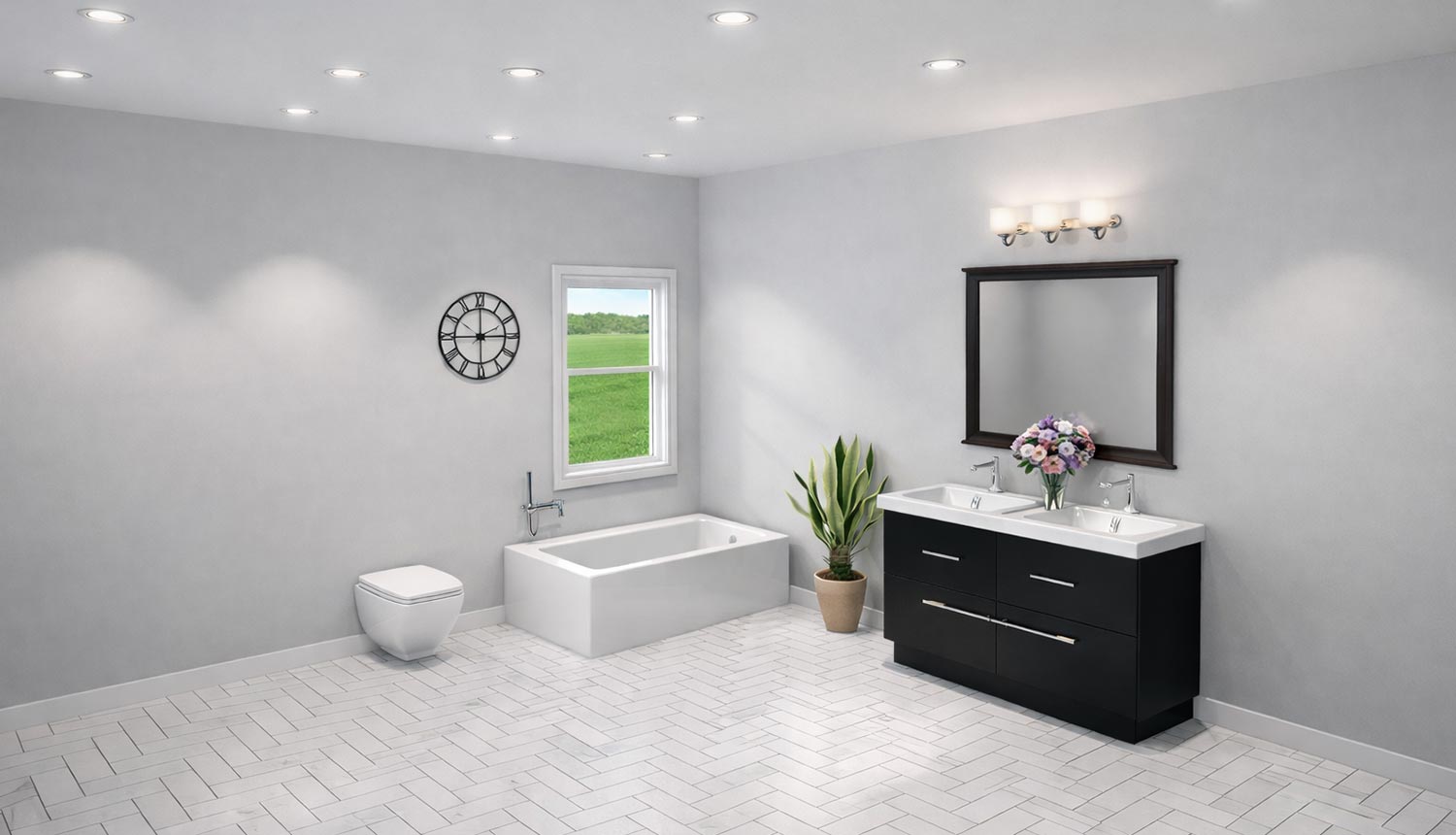
Bathroom Appearance After Accessory Placement
Now it’s your turn: to redesign your bathroom and enjoy the comfort, elegance, and functionality of your design every day.
NOVATO, Calif. July 31, 2026 – IMSI® Design, a leading software developer of Home Design and CAD titles for more than 30 years, is proud to announce the launch of FloorPlan® 2026, newest generation of its award‑winning Home & Landscape Design software suite. Now available on www.turbocadpro.com or www.imsidesign.com, FloorPlan® 2026 introduces refined tools, improved visualization options, and expanded rendering capabilities for architects, designers, and DIY creators.
FloorPlan® 2026 combines the strengths of the existing platform with a new set of intelligent tools inspired by the latest advances in visualization and design assistance.
“FloorPlan® 2026 brings a new level of creative power to home design,” says Syed Gilani, President of IMSI Design. “With AI‑powered rendering, design exploration, custom asset generation, and a more capable SketchUp import, users can develop ideas in ways that simply weren’t possible before. It marks a clear shift in what the software can deliver.”
“The updated interface sets the stage for what Copilot can do,” adds Rita Buschmann, Vice President of Product Management, CAD & Home Design. “With new icons, clearer panels, and a more organized layout, the software feels easier to navigate. And once Home Design Copilot steps in, the jump from a simple view to a high‑quality rendering is immediate and striking.”
Check the New Features section here for video demonstrations highlighting these exciting new features.
Availability and Pricing
The FloorPlan® 2026 for Windows product line is now available for purchase directly from www.turbocadpro.com or www.imsidesign.com:
All variants are also available as 1‑year and 3‑year term licenses.
All variants of this release include Home Design Copilot. Usage requires a Copilot term license, available as a 1‑year plan for $99.99 USD or a 3‑year plan for $299.99 USD, each offering a monthly credit allowance for AI‑based visualization, asset generation, and design guidance.
Note: Feature availability varies by variant. For a detailed overview of included tools and capabilities, please refer to the feature and file format comparisons.

IMSI Design is a global leader in mechanical and architectural CAD (Computer-Aided Design) and a pioneer in mobile solutions for the AEC (Architectural Engineering and Construction) industry. Since 1988, IMSI Design has distributed its products to over 20 million users worldwide, including the award-winning TurboCAD®, DesignCAD™, FloorPlan®, TurboViewer®, TurboReview®, and TurboSite®—a diverse suite of precision design applications for both desktop and mobile. Please visit www.turbocadpro.com or www.imsidesign.com for more information.
Contact:
IMSI Design
+1 415-483-8000
This email address is being protected from spambots. You need JavaScript enabled to view it.
© 2026 IMSI Design LLC. All rights reserved. FloorPlan, TurboCAD, and IMSI are registered trademarks of IMSI Design LLC. All other identifiable marks are the property of their respective owners.
Spring is the ideal season to breathe new life into your garden. With warmer temperatures and longer days, it’s the perfect time to design layouts, choose plants, and refresh your outdoor space. Whether you’re envisioning a vibrant flower bed, a fresh vegetable patch, or a peaceful retreat, thoughtful spring planning lays the foundation for a garden that thrives all year. With the right mix of creativity and preparation, your outdoor space can truly flourish.
Designing a Flower Bed – Color for Every Season
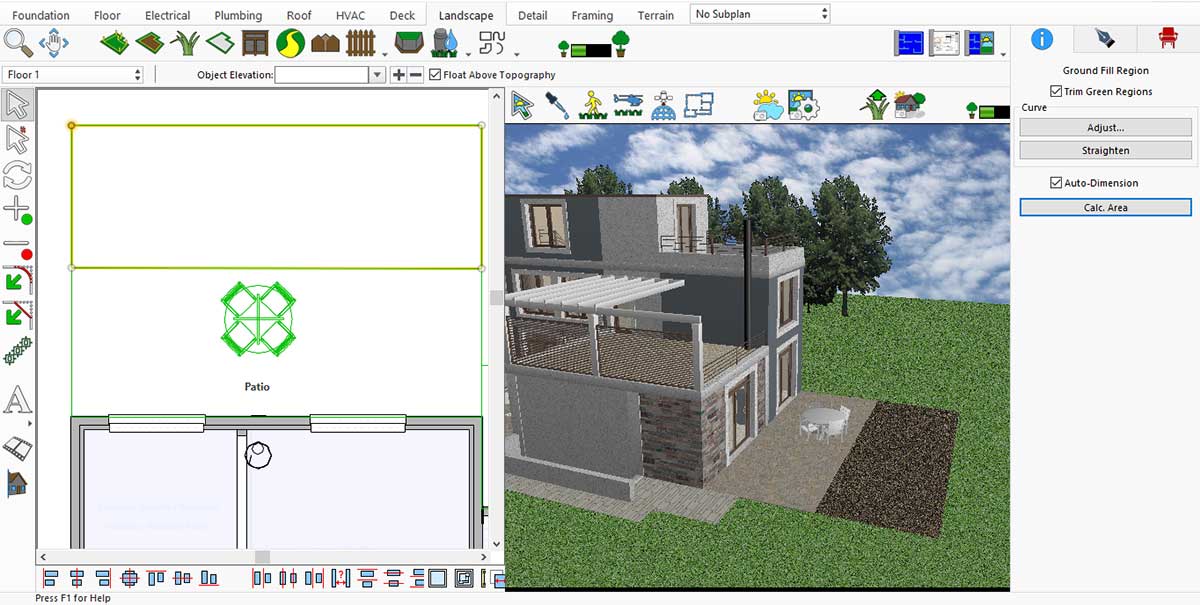
Use the Ground Fill Region tool in the Landscape tab to define your flower bed. Plants, trees, and shrubs can be added easily via drag-and-drop. With the Visual Array feature, you can place multiple elements at once—far more efficient than adding them individually.
First, drag the Ground Fill Region into the workspace.
Select the plant you want.
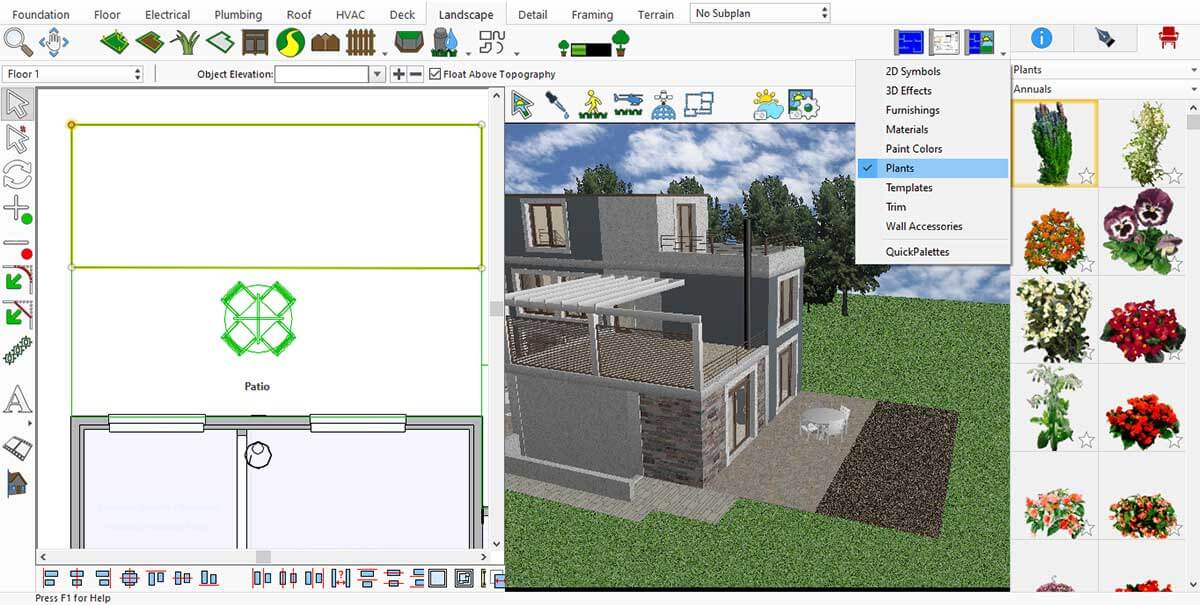
Drag and drop the plant to the Ground Fill Region, and it will appear instantly.
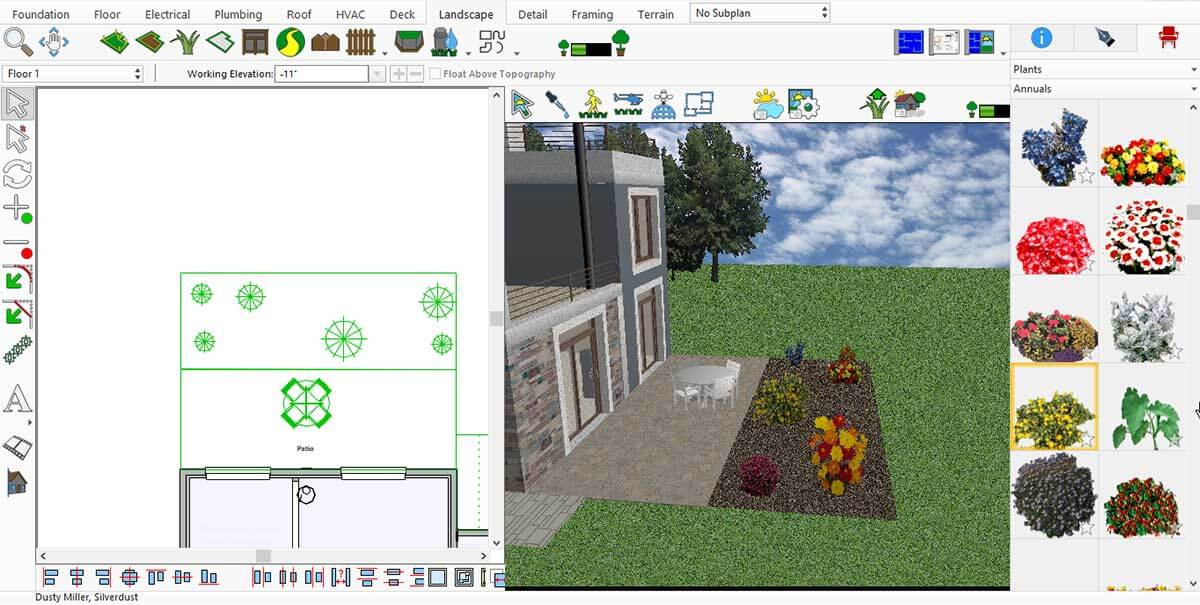
For row plantings, use the Visual Array Tool.
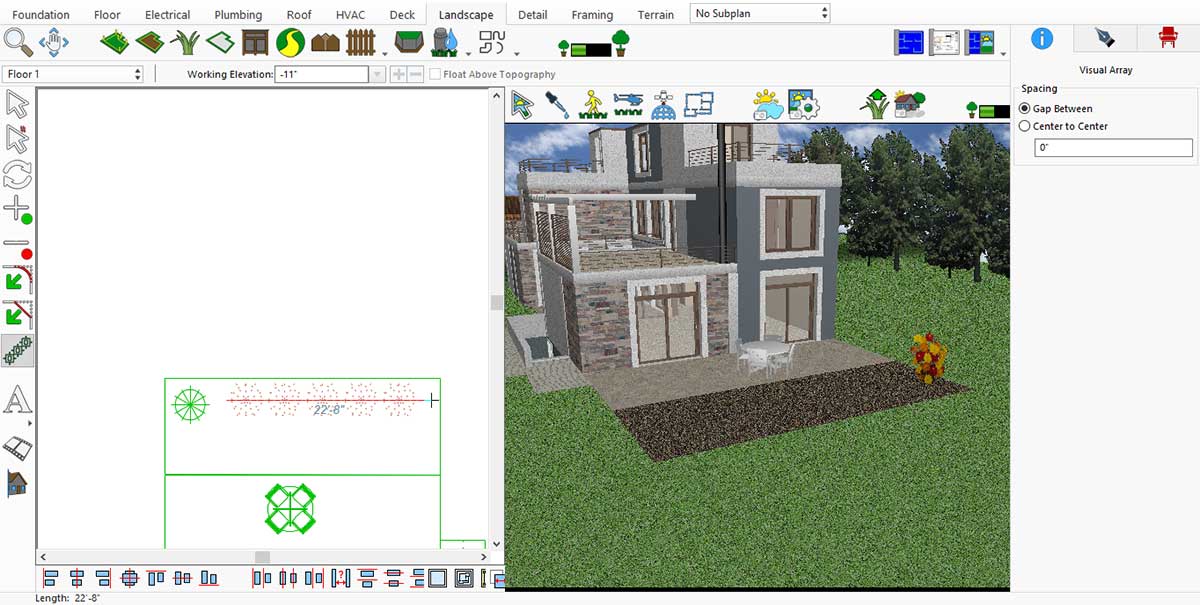
After selecting the Visual Array Tool
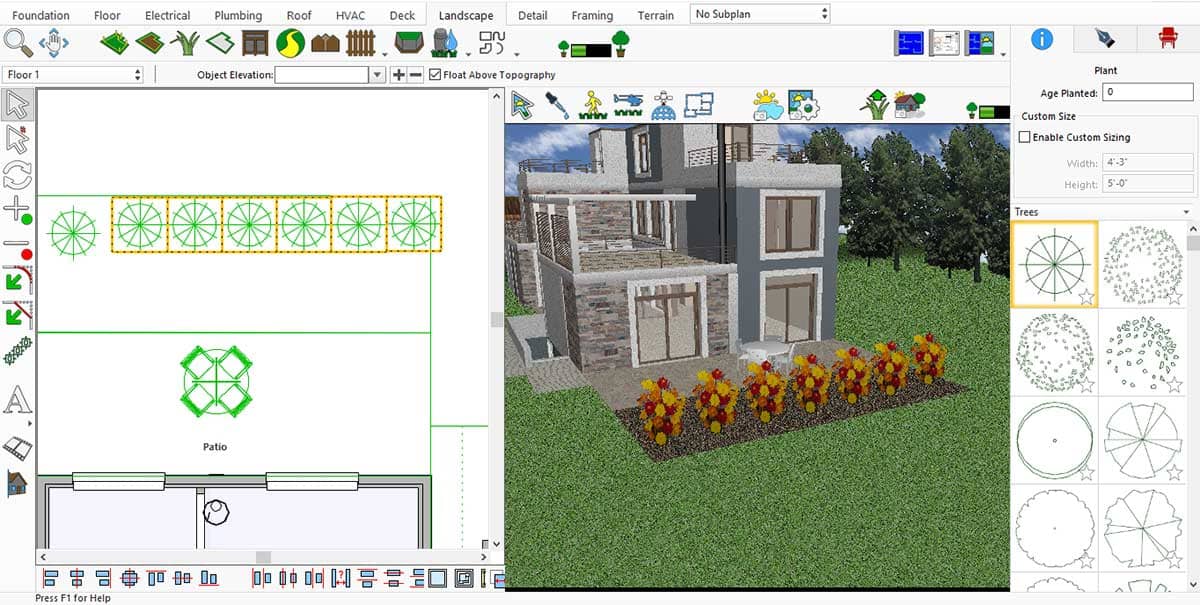
After applying the Visual Array Feature plants appear in a balanced,
appealing flower bed ready to bloom
You can use the same method with trees and shrubs in your Ground Fill Region to achieve a more appealing design.
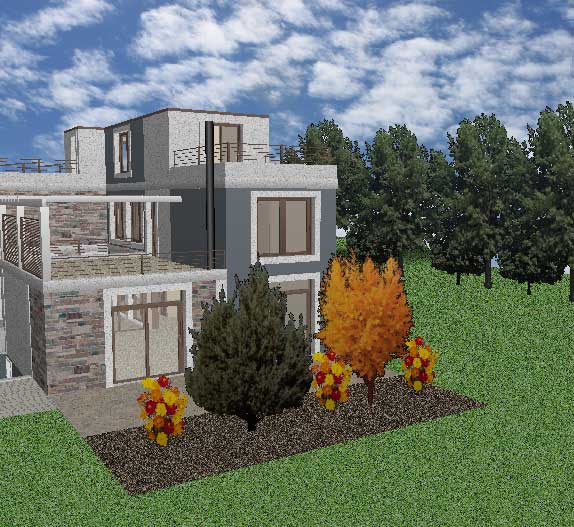
Inserting Trees and Shrubs
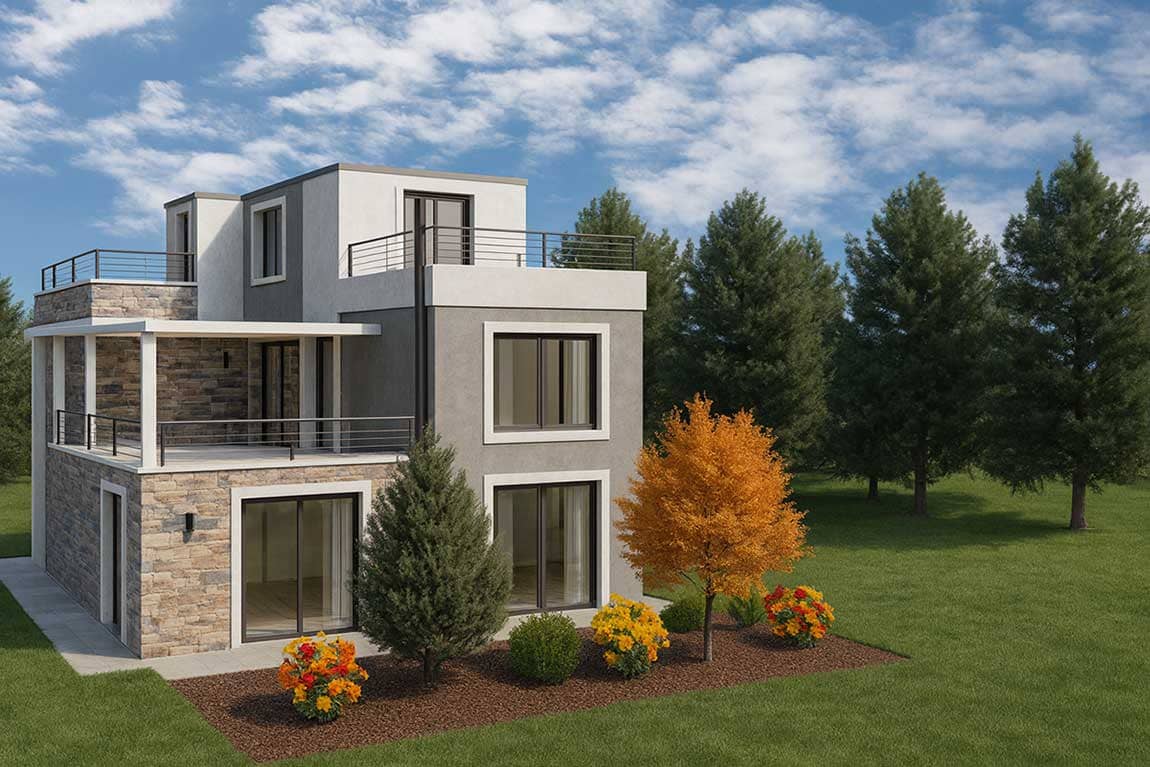
Final Result After Rendering
Planning Your Deck – A New Favorite Spot Outdoors
A deck is one of the most impactful upgrades: it increases property value, extends your living space, and creates room to relax, entertain, and enjoy nature.
Our powerful deck-design tools make the process simple and enjoyable. Create stunning decks with or without railings, trace outlines instantly with the smart auto-design feature, and customize every detail with railing and step options.
Select the Deck Tool and place the deck in your desired area.
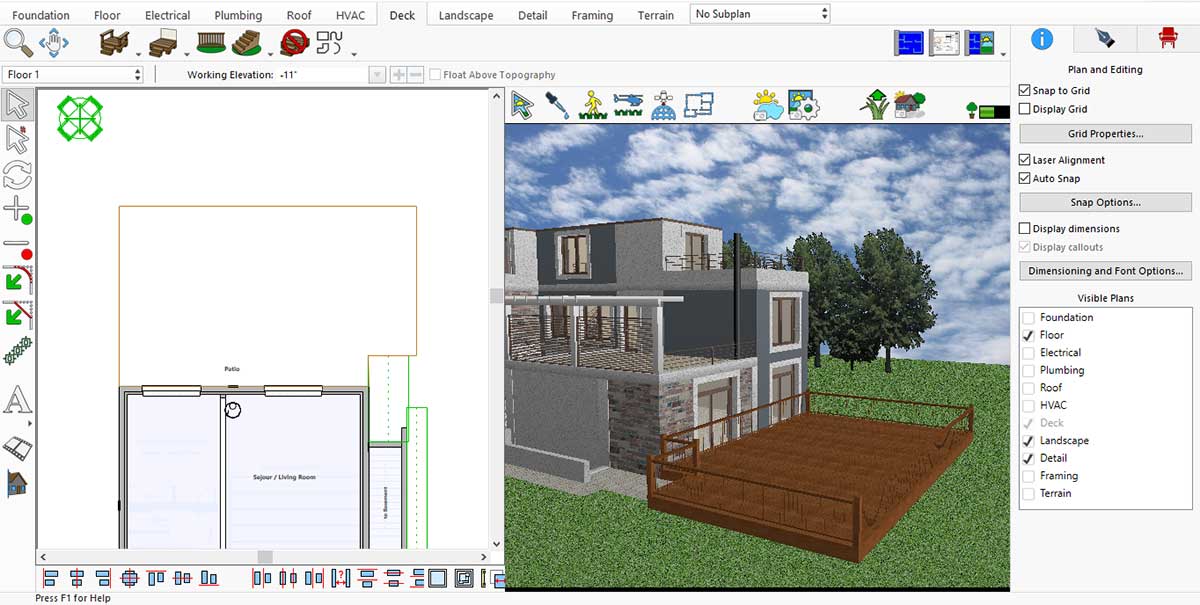
Adjust the design and railing style as you wish.
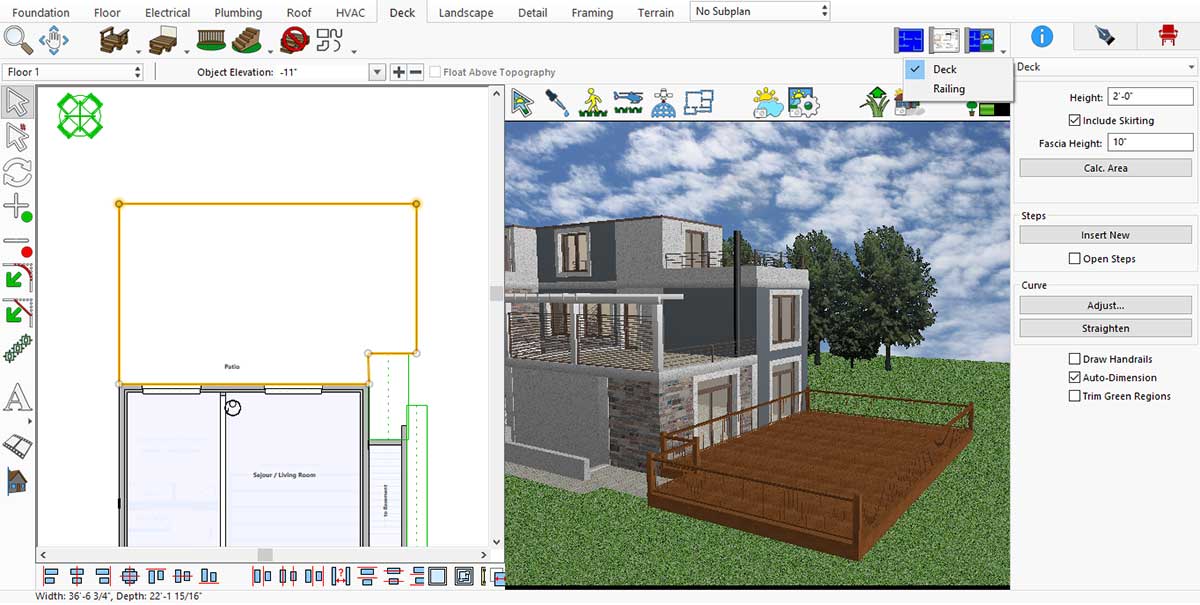
You may also put the steps or railings to your Deck.
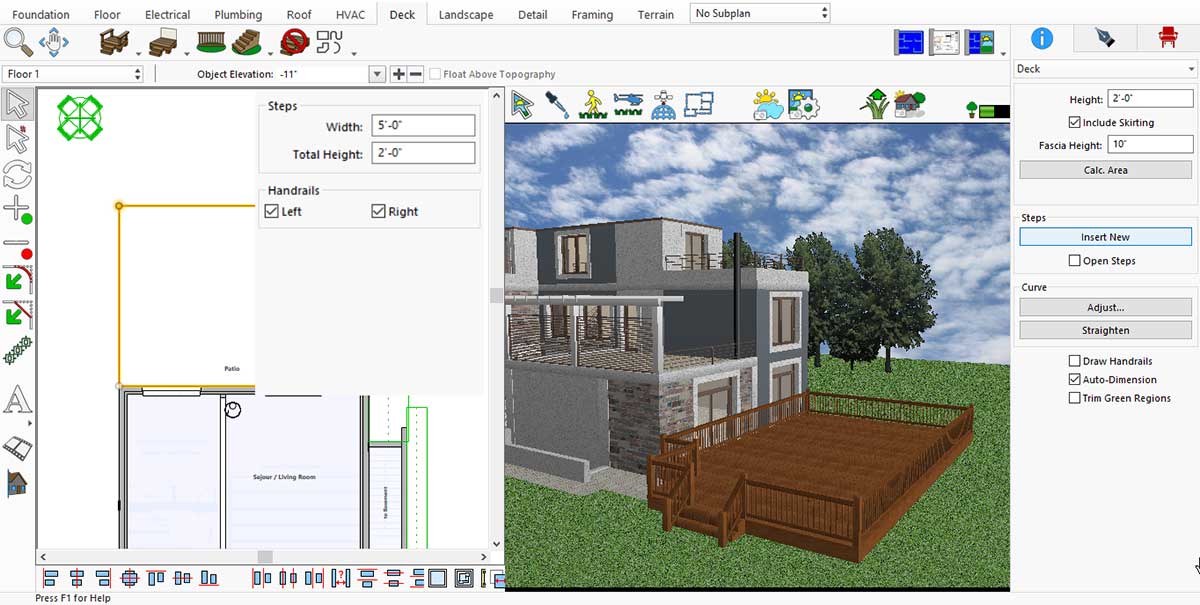
You may place outdoor furniture to complete the inviting look.
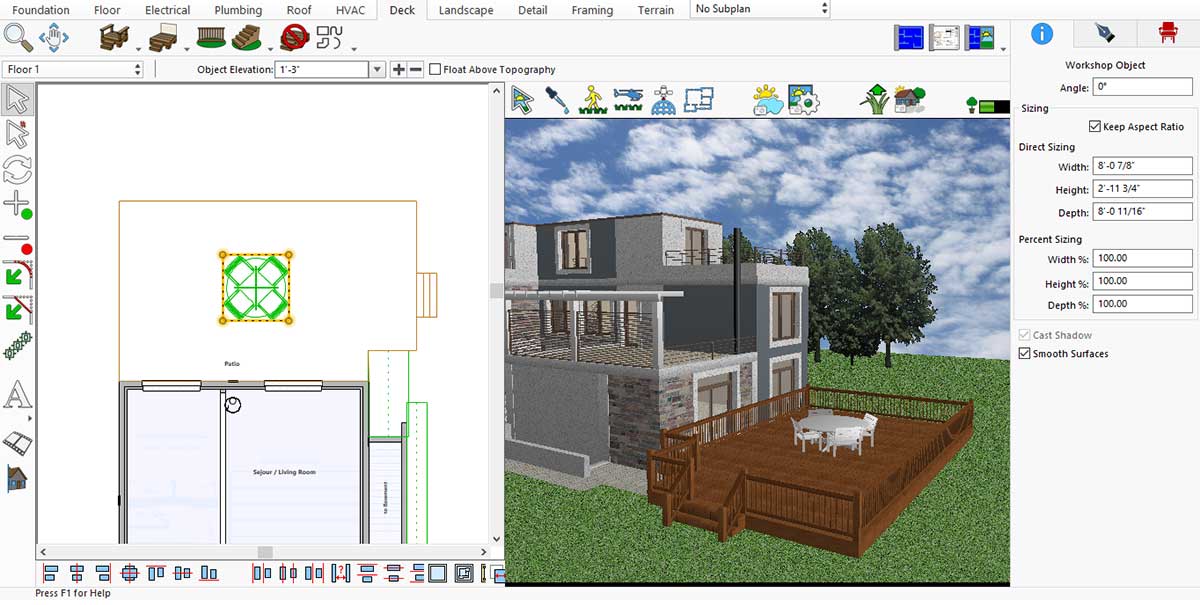
Inserting Outdoor Furniture
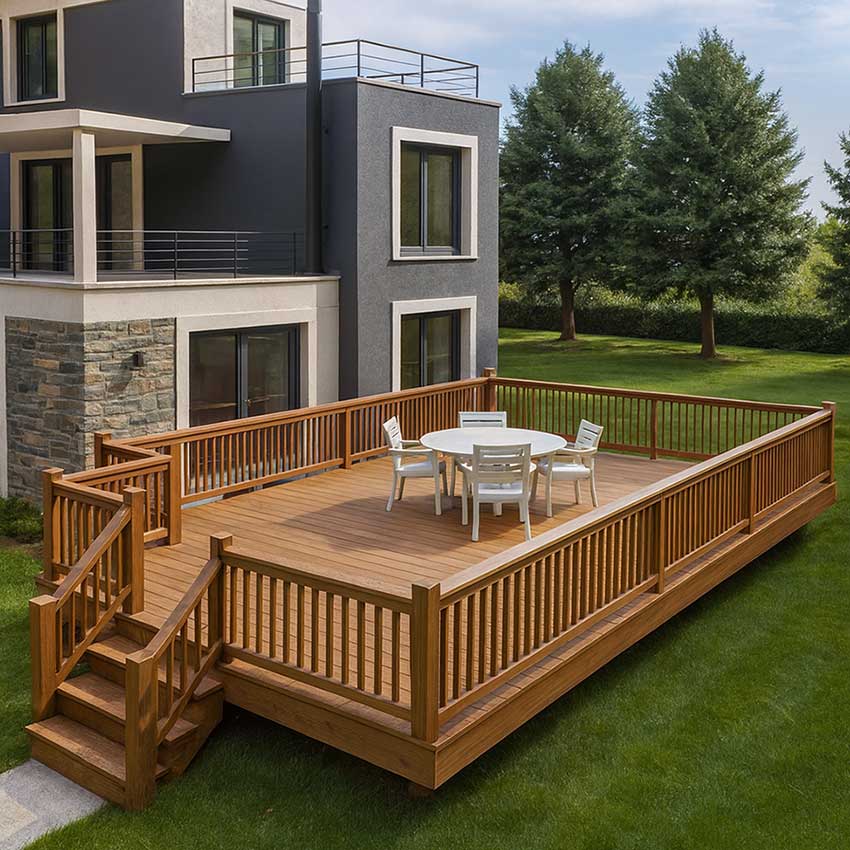
Rendering result: A stylish, functional deck that blends seamlessly with your home.
Setting Up an Outdoor Kitchen – Dining Under the Open Sky
An outdoor kitchen transforms your backyard into a functional, inviting living space. Cooking, dining, and entertaining merge in one open-air environment, letting you enjoy fresh air while preparing meals. With features like a built-in grill, countertop space, and weather-resistant materials, it adds both convenience and style.
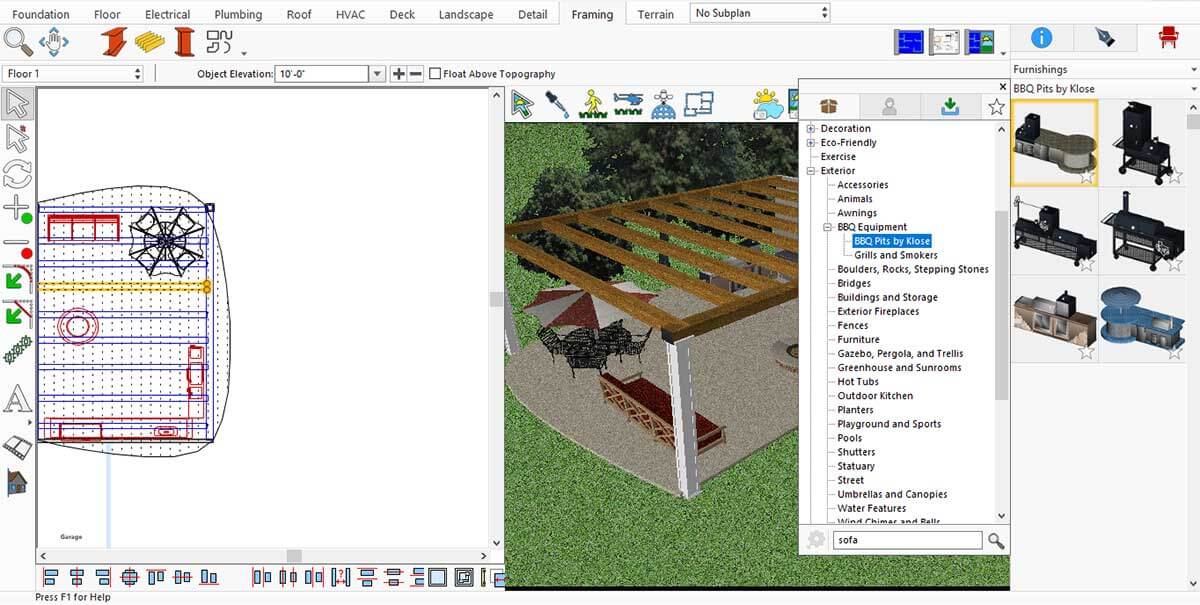
This application offers a wide range of BBQ equipment that can enhance the functionality and visual appeal of any outdoor kitchen.
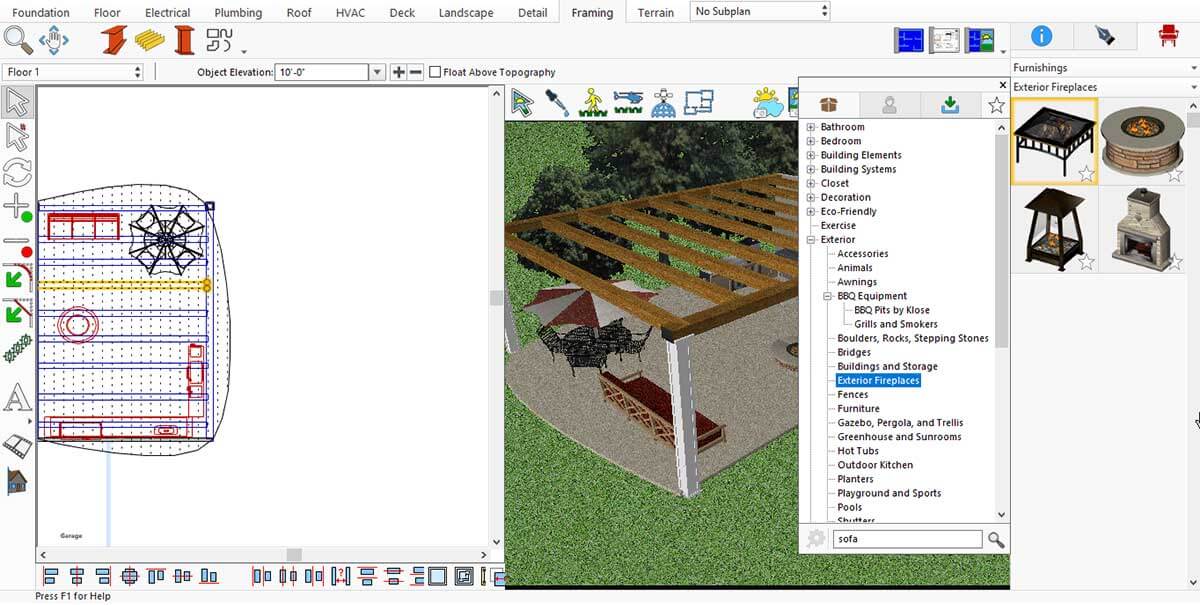
Similarly, the application includes a wide selection of exterior fireplaces that can elevate the atmosphere of your outdoor kitchen, making the space warmer, more inviting, and visually appealing.
One of the key elements of a great outdoor kitchen is having a well-designed, premade setup. This application offers a range of ready-made outdoor kitchen designs that can instantly enhance the look, functionality, and overall appeal of your outdoor space.
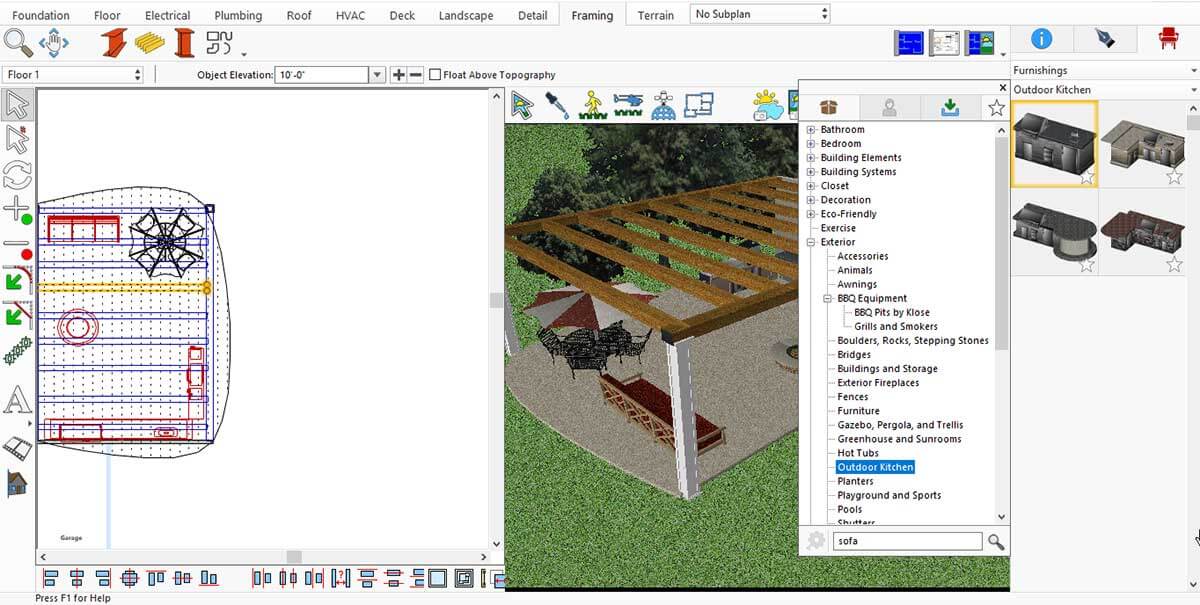
When designing an outdoor kitchen, a full roof covering the entire area can sometimes feel bulky or out of place. In many cases, exposed beams create a more open, stylish, and natural look. This application offers a variety of roofing options - including beams and trusses - that help us to build a beautiful and well-structured cover for our outdoor kitchen.
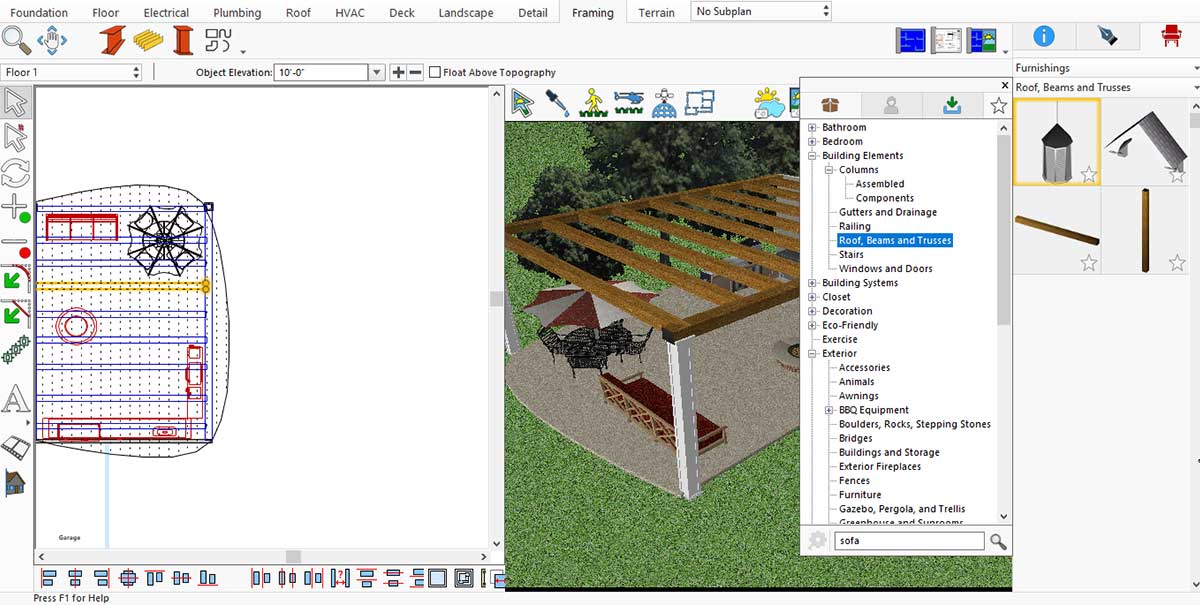
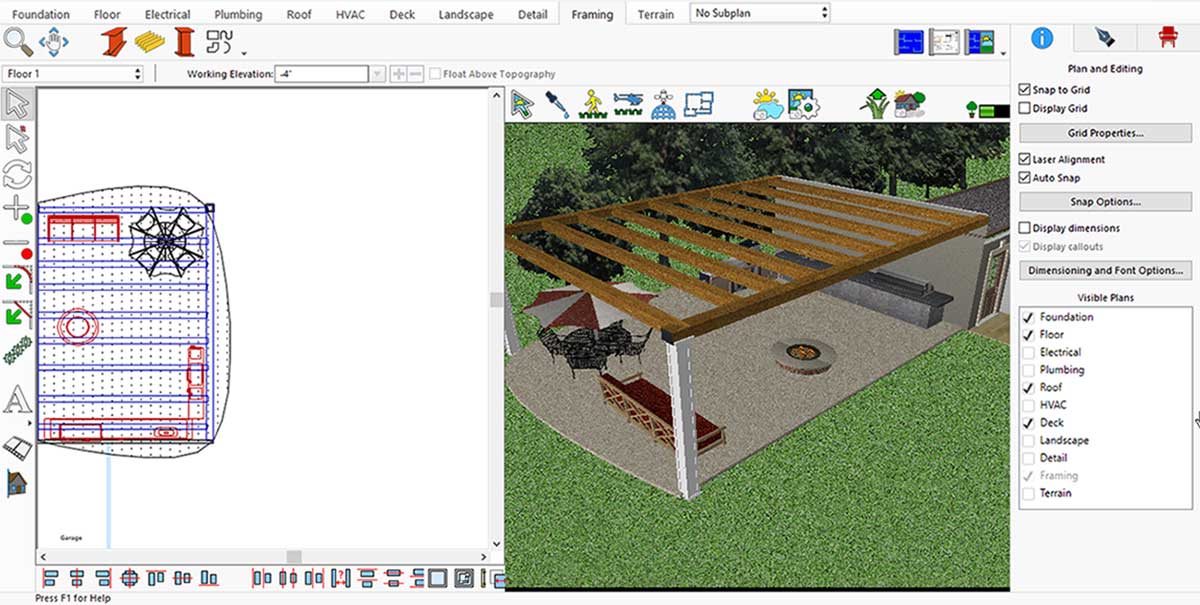
Once we add beams as the roof for our outdoor kitchen, the space immediately feels more open, stylish, and naturally integrated with the outdoor environment.
Here is the final look after rendering the project, showcasing the complete outdoor kitchen design in its finished form.
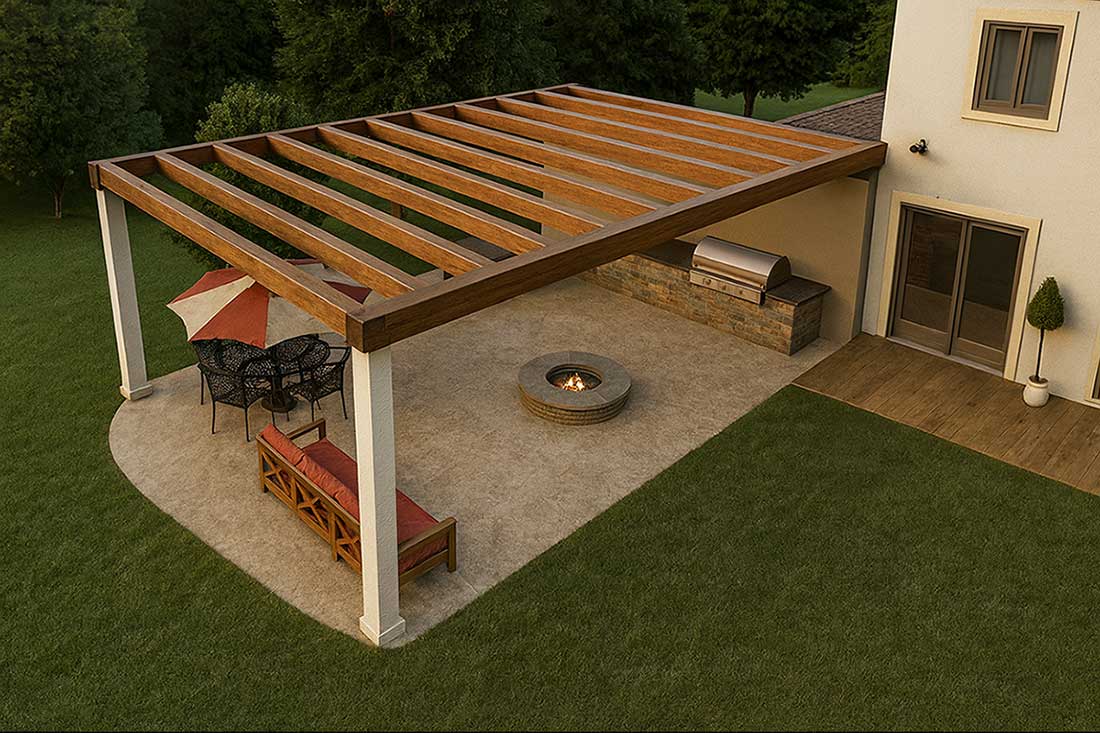
Rendering result: A complete outdoor kitchen design, open,
stylish, and ready for gatherings
Whether it’s a flower bed, deck, or outdoor kitchen, the right tools and creative ideas help you transform your outdoor space step by step into a harmonious, functional, and inspiring paradise. Spring is the perfect opportunity to try new designs and refresh existing areas.
With every plant, detail, and design choice, your garden becomes a reflection of your personality—a place to relax, enjoy, and share with others all year long.
Now it’s your turn: bring your green paradise to life and enjoy the rewards of your planning in every season.
A well-organized kitchen is essential for creating a modern and stylish home. When items are properly arranged and clutter is reduced, the kitchen feels more open, calm, and visually appealing. Modern kitchen organization focuses on simplicity, functionality, and clean design, helping the space look elegant while remaining practical for everyday use.
Minimalism plays a key role in achieving a modern kitchen look. Keeping countertops clear and storing unnecessary items inside cabinets instantly improves the appearance of the space. Smart storage solutions such as drawer dividers, pull-out shelves, and organized cabinets make it easier to access kitchen essentials while maintaining a neat and seamless design.
Using coordinated storage, neutral colors, and proper lighting further enhances the modern feel of the kitchen. Matching containers, labeled jars, and consistent materials create visual harmony, while good lighting highlights clean surfaces and organized areas. With thoughtful planning and organization, any kitchen can be transformed into a clean, modern, and functional space.
For example, we began with a basic kitchen layout that had no essential equipment. There were no oven, sink, refrigerator, or built-in appliances, giving us a blank space to design and organize from scratch.
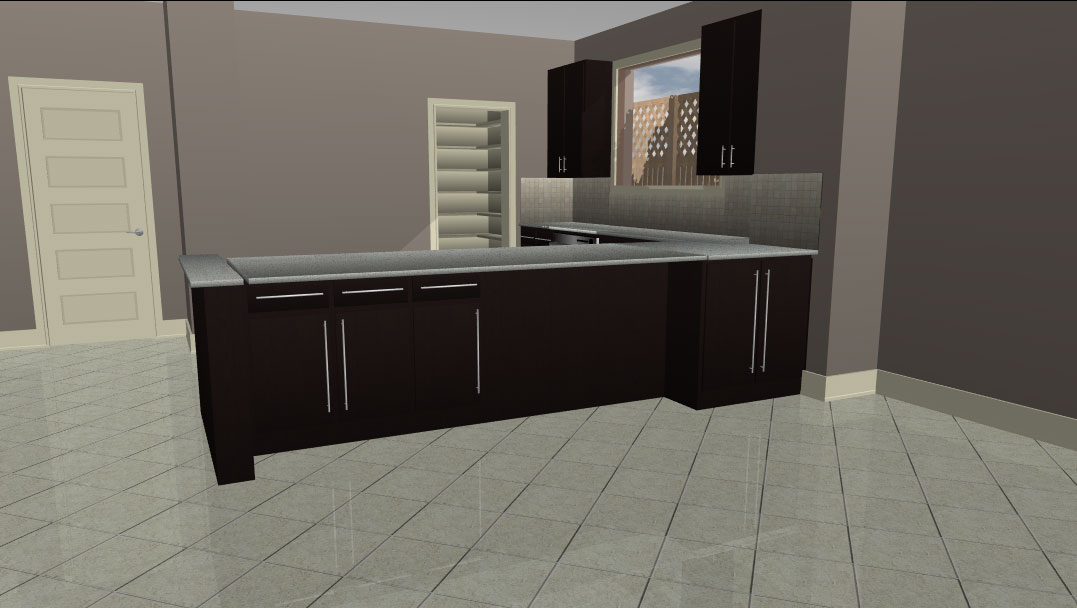
Now, step by step, we will transform our kitchen into a modern space after installing all the essential kitchen equipment.
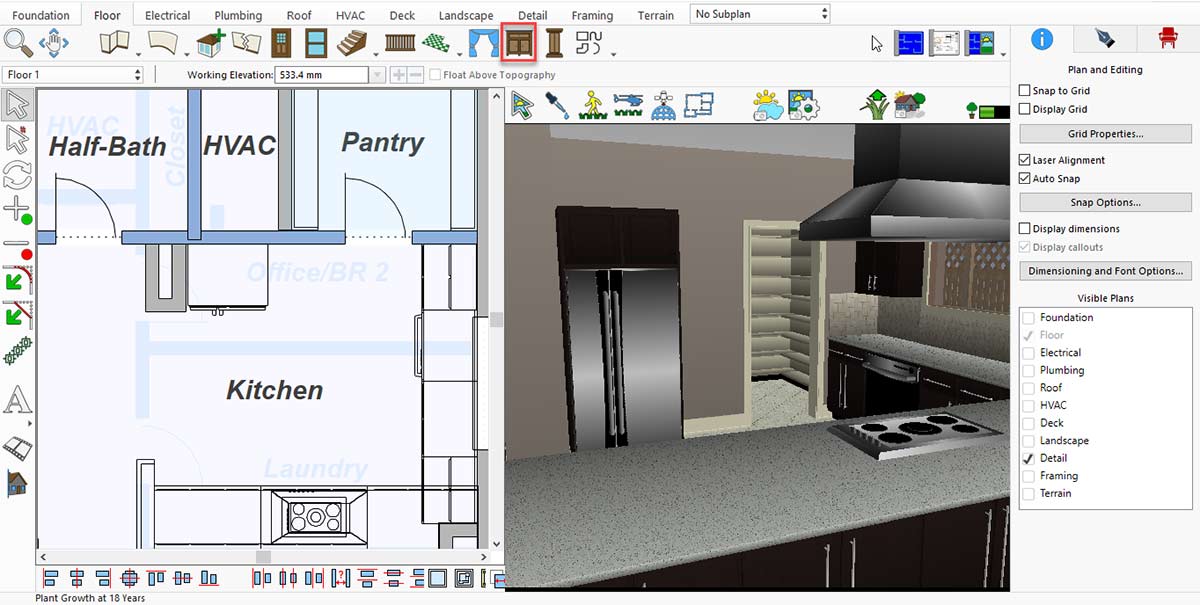
First, we will place the base cabinet. To do this, click on the Cabinet icon in the Floor menu.
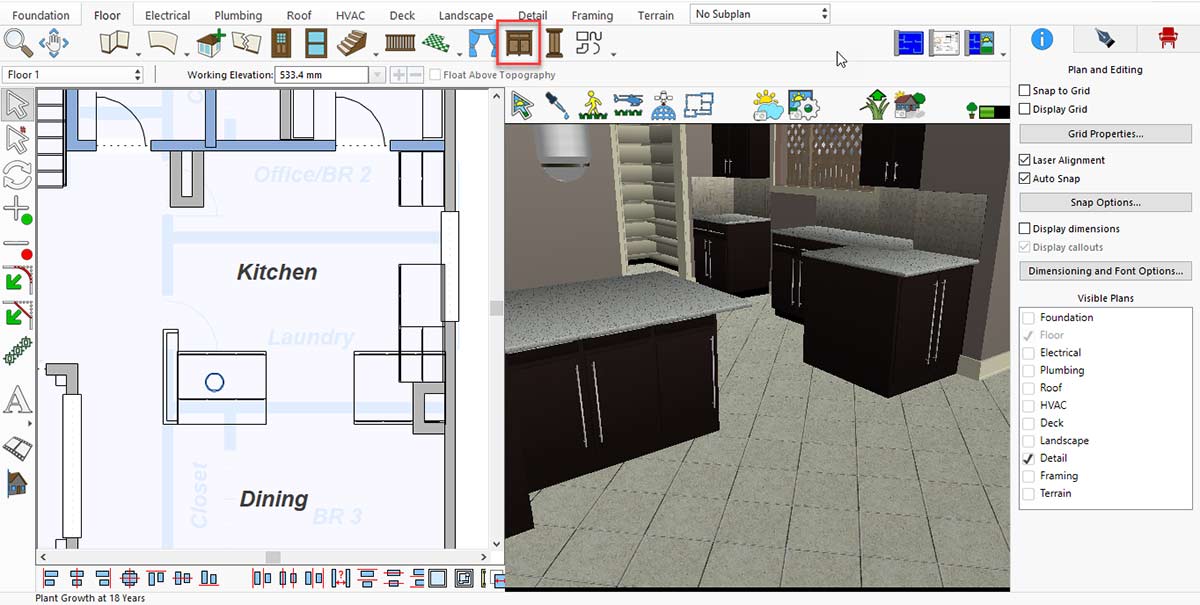
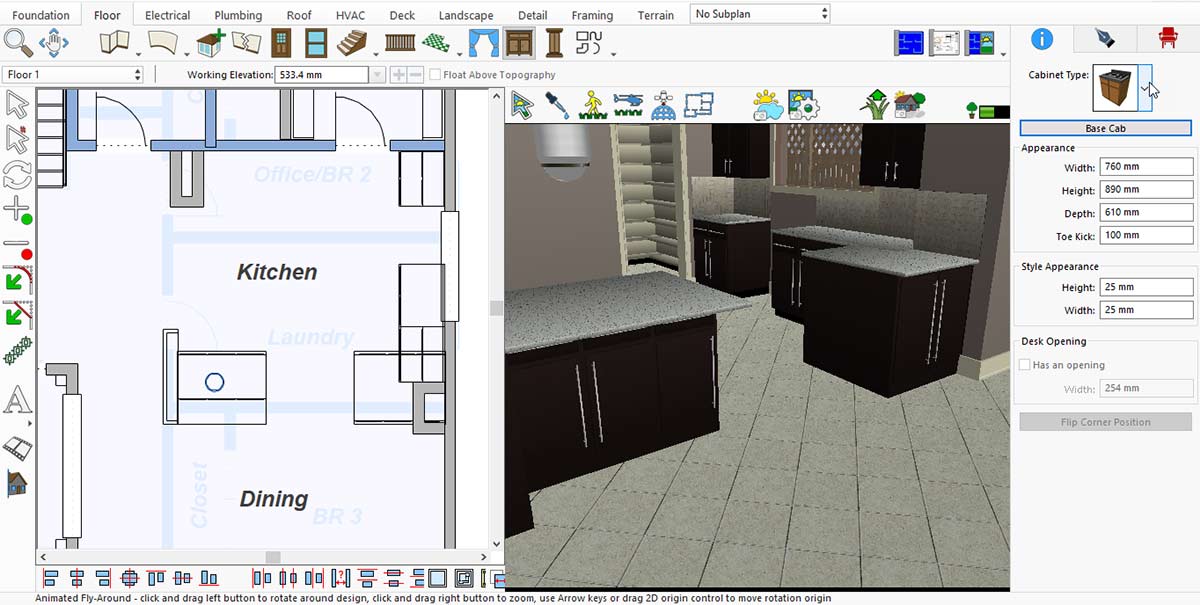
After clicking the Cabinet icon, the cabinet-related options will appear on the right side. Simply click the Cabinet Type drop-down icon to explore the available options.
After clicking on the cabinet type, you will see a list of cabinet options—choose the one that best suits your kitchen space and design.
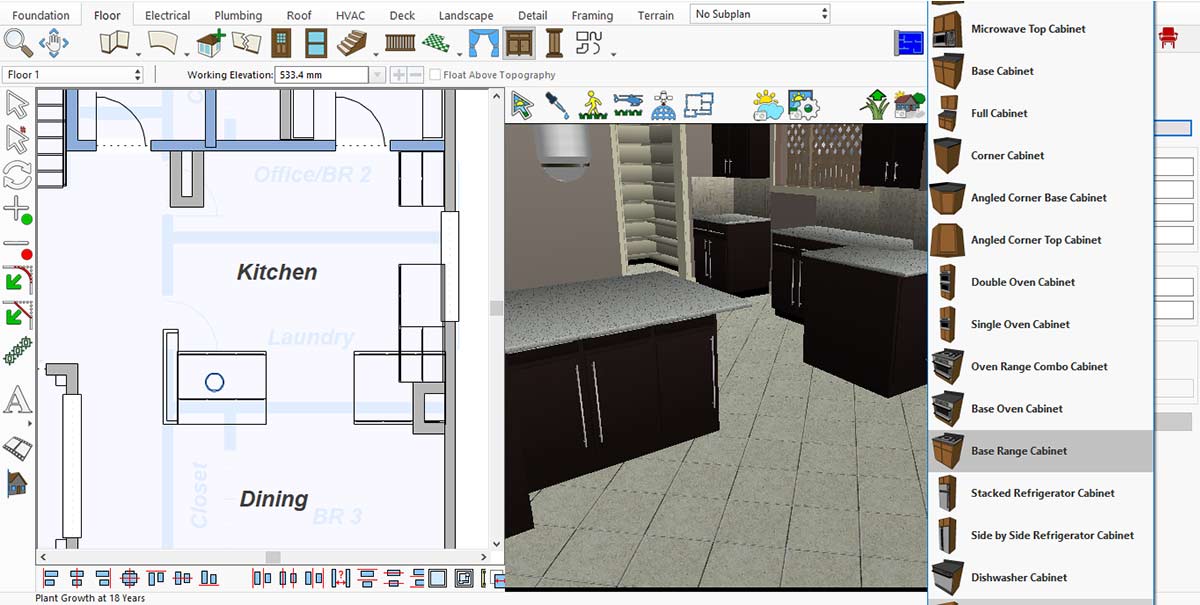
Range Cabinet Collection for the Kitchen
After selecting a cabinet for your kitchen, it will appear in the area where you place it.
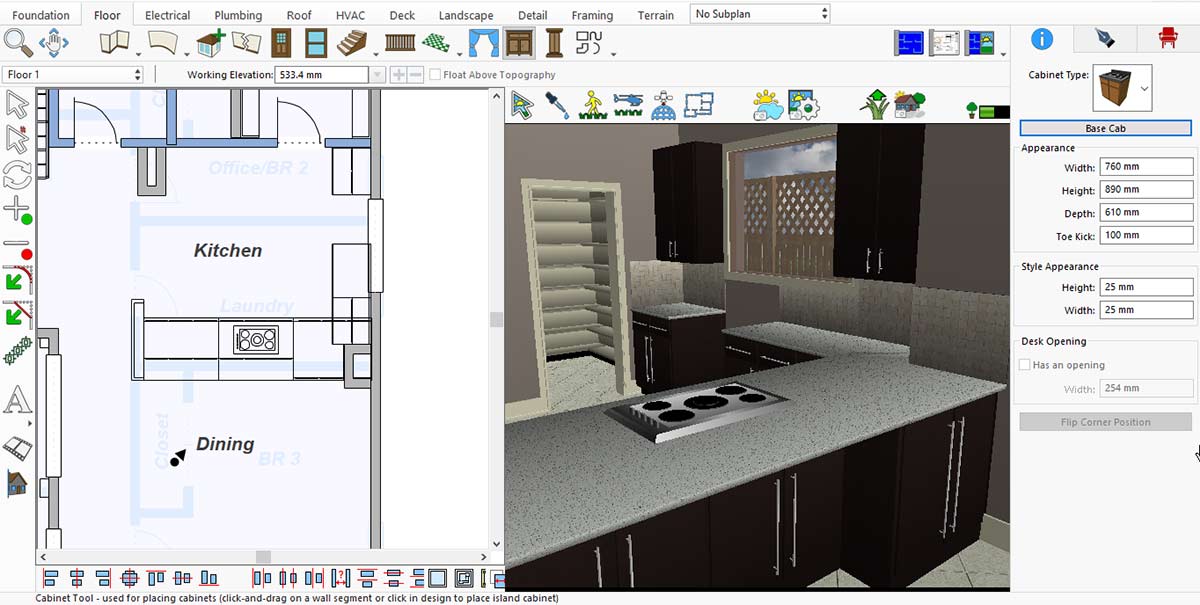
Now it’s time to place the range hood above the cooking range. To do this, go to Display Stock Library Items > Kitchen and Dining > Appliances > Range Hoods.
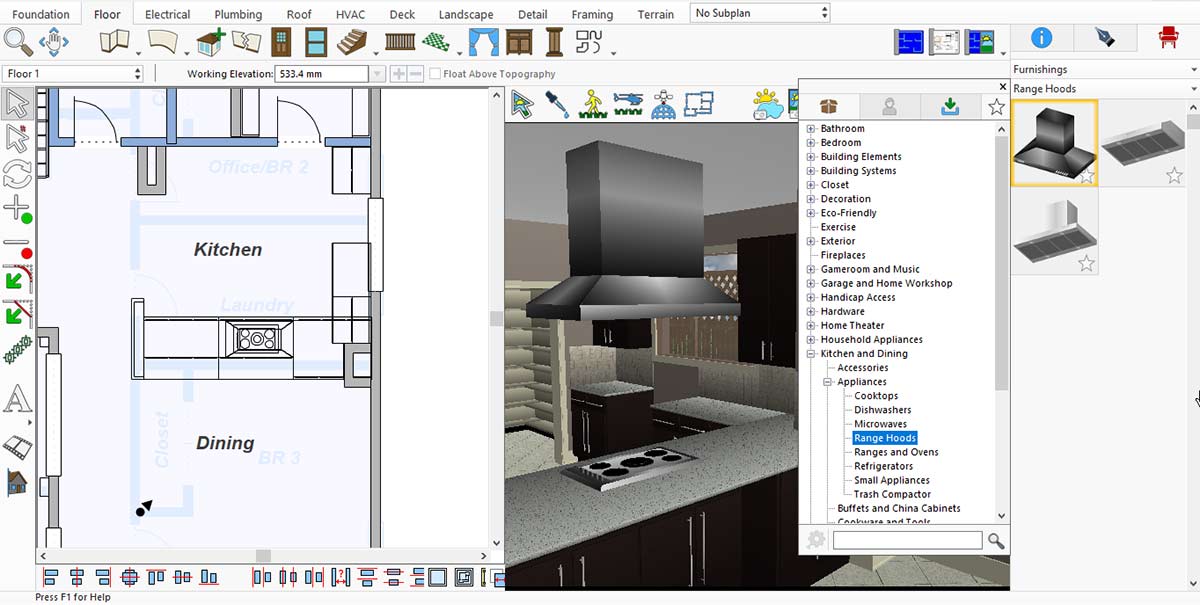
Range Hoods Collection for the Kitchen
In the same way, we can place an oven in our kitchen. For this, go to Display Stock Library Items > Kitchen and Dining > Appliances > Ranges and Ovens.
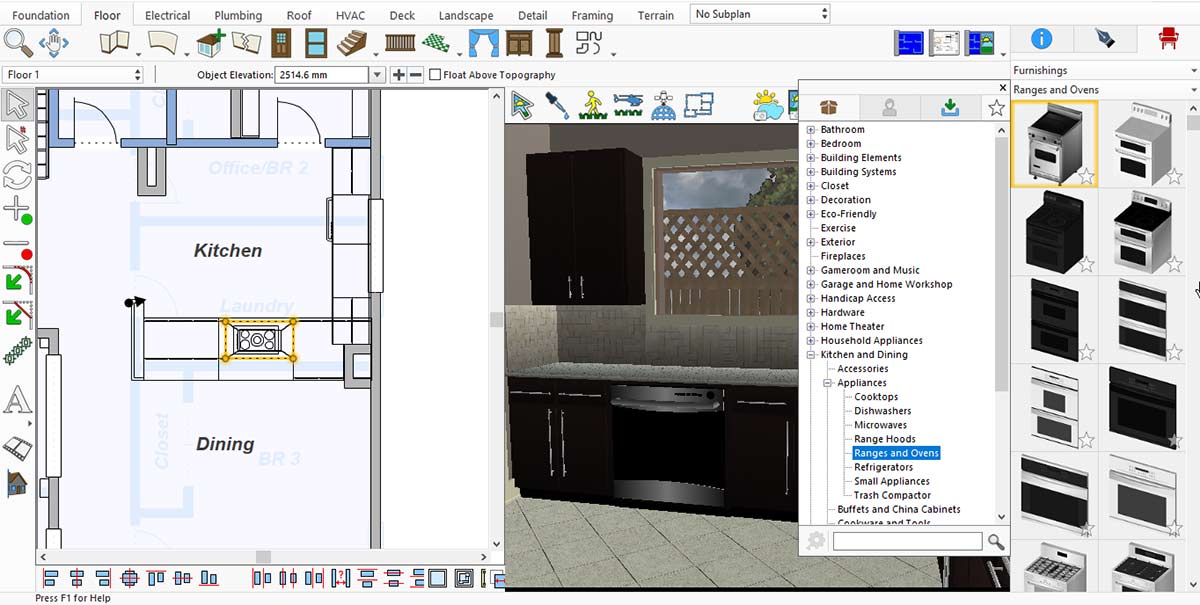
Range and Oven Collection for the Kitchen
A modern kitchen is incomplete without a refrigerator. To place one, go to Display Stock Library Items > Kitchen and Dining > Appliances > Refrigerators.
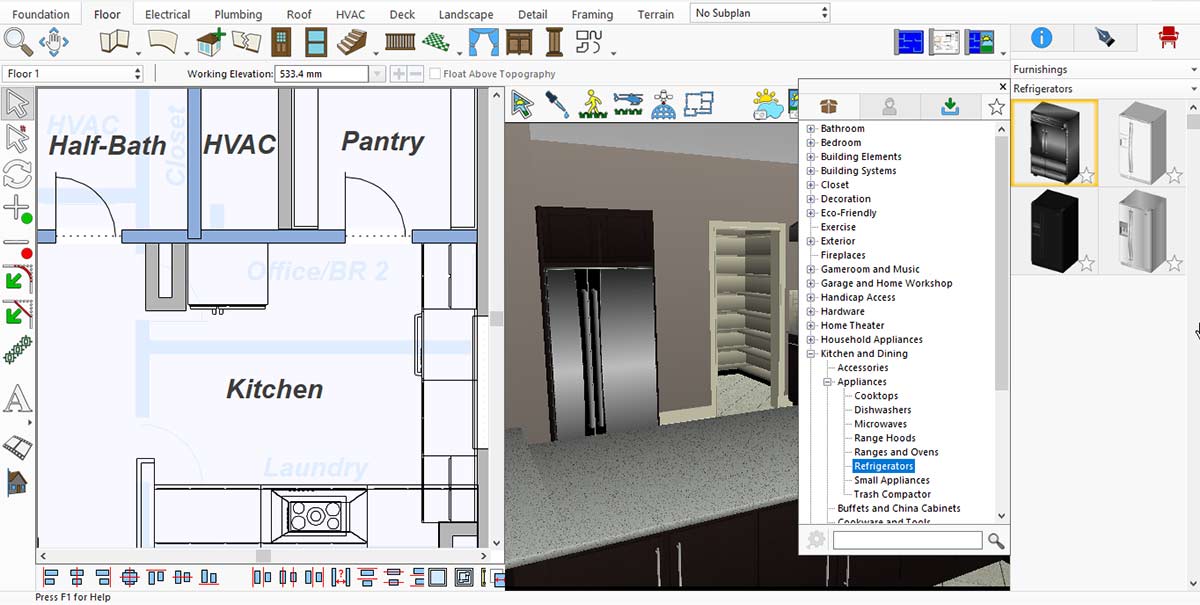
Kitchen Refrigerator Collection for the Kitchen
Now, to place a cabinet oven in your kitchen, first go to the Cabinet option in the Floor menu.
After clicking on the cabinet type, a list of cabinet ovens will appear—choose the one that best fits your kitchen space and design.
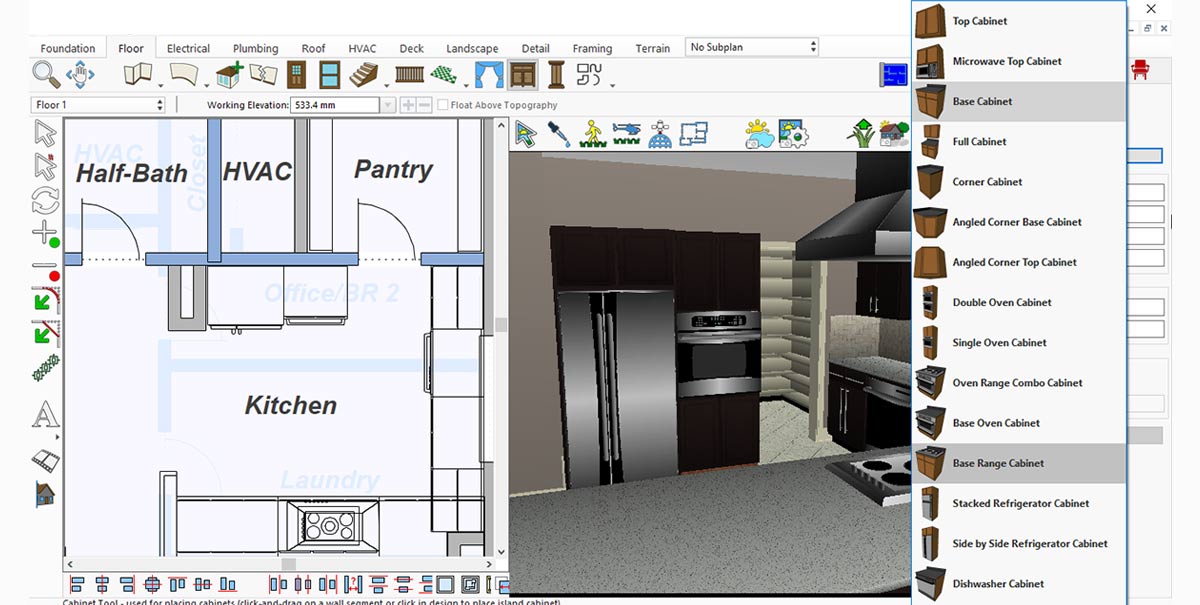
Cabinet Oven Collection for the Kitchen
Lighting is essential in a modern kitchen. To add modern lights, go to Display Stock Library Items > Lighting > Hanging.
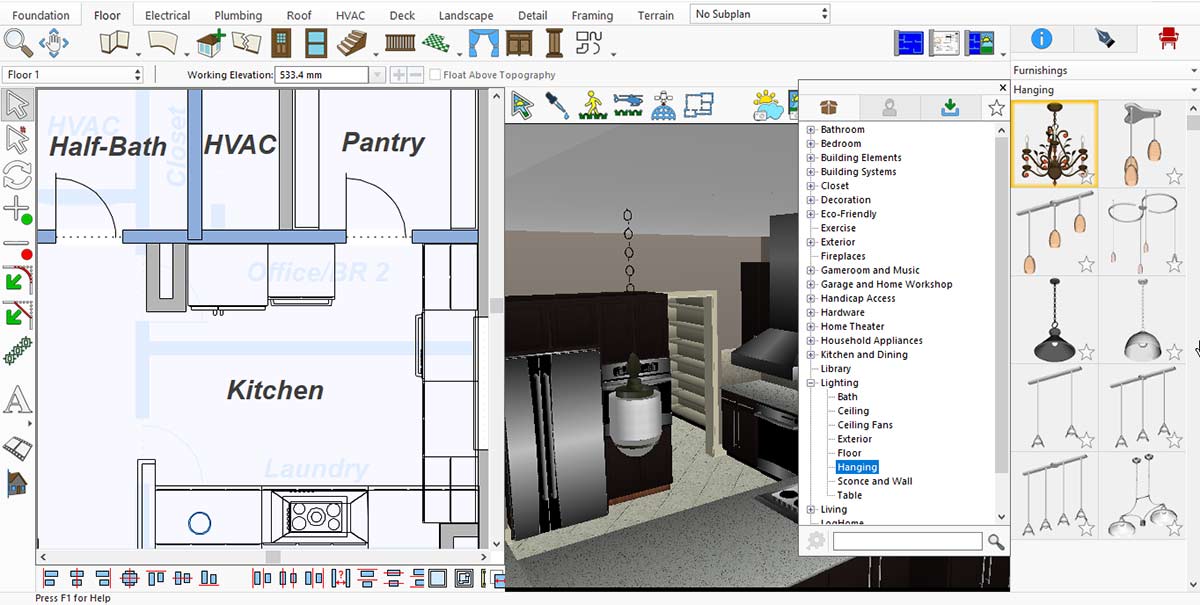
Kitchen Hanging Light Collection for the Kitchen
A modern kitchen is incomplete without a stylish sink. To place one, go to Display Stock Library Items > Kitchen and Dining > Sinks.
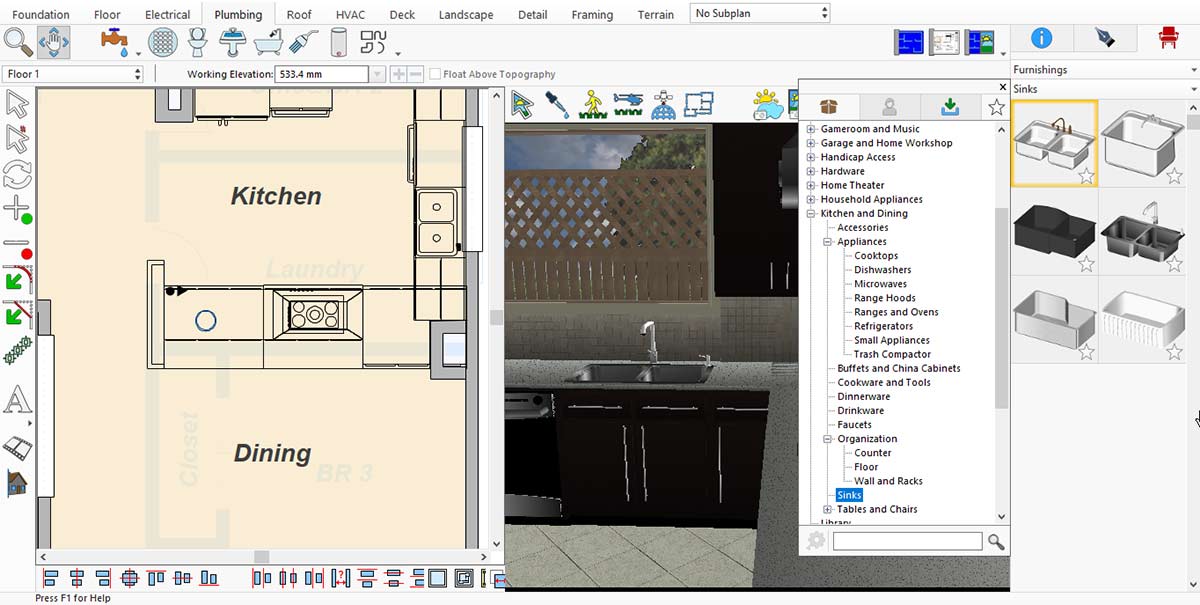
Kitchen Sink Collection for the Kitchen
Furniture is also an important element in a modern kitchen. To add modern pieces like chairs, go to Display Stock Library Items > Kitchen and Dining > Tables and Chairs > Chairs.
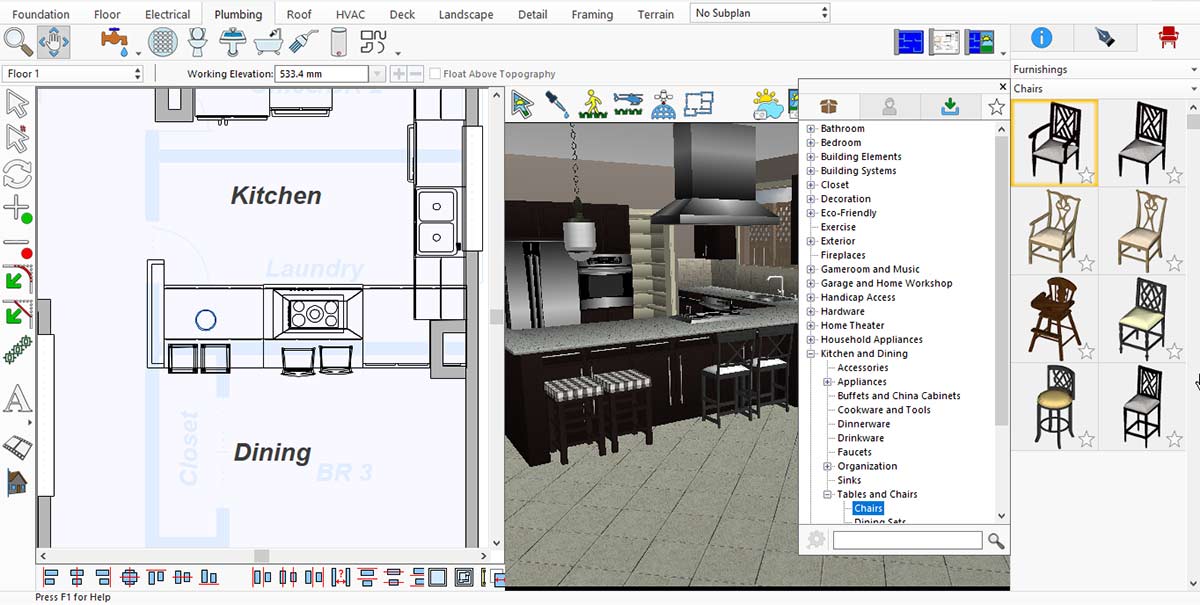
Kitchen Chairs Collection for the Kitchen
Adding a carpet can enhance the appeal of your kitchen. To place one, go to Display Stock Library Items > Decoration > Karastan Rugs.
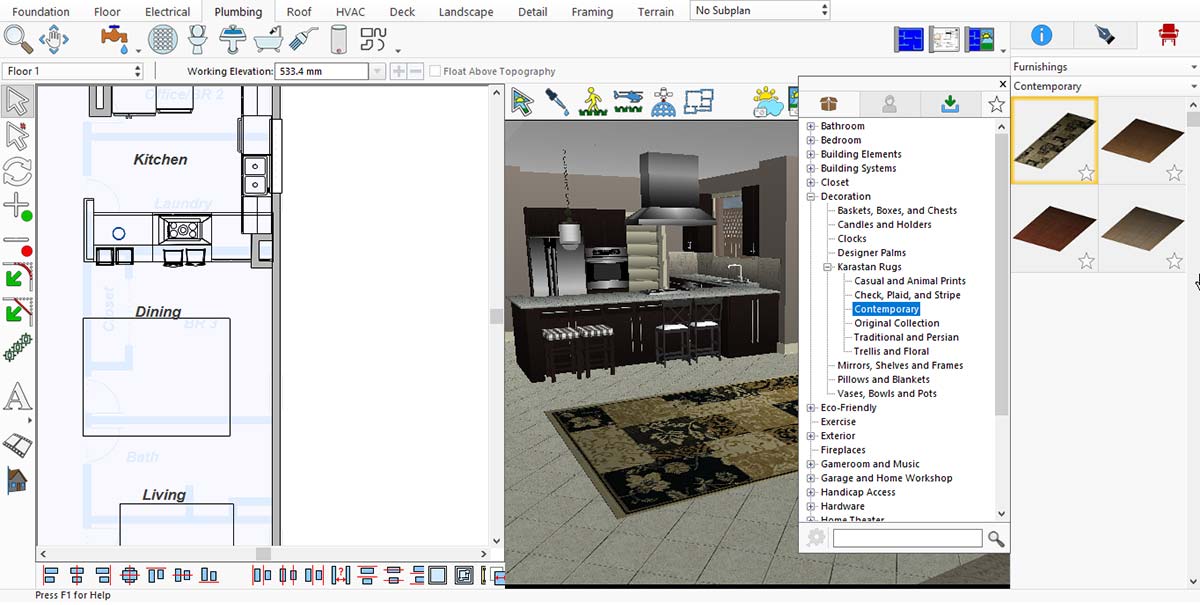
More Designs of Carpets for the Kitchen
Fancy wall lights also play an important role in giving a modern look to your kitchen. To place them, go to Display Stock Library Items > Lighting > Sconce and Wall.
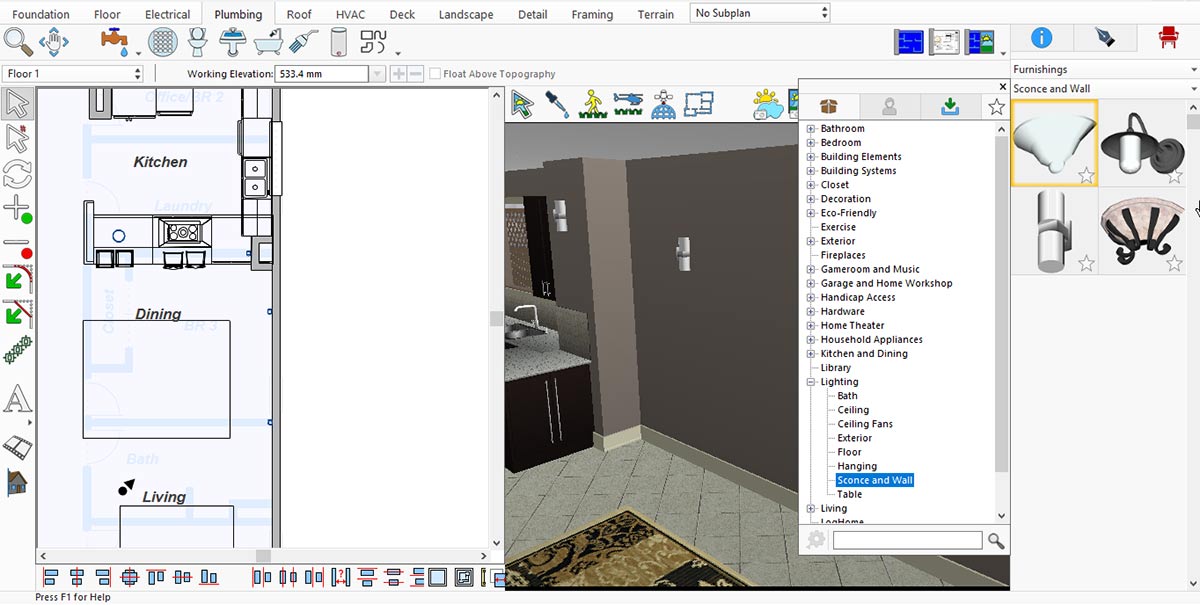
Wall Light Collection for the Kitchen
Similarly, framed images on the walls contribute to a modern kitchen look. To place them, go to Display Stock Library Items > Decoration > Mirrors, Shelves, and Frames.
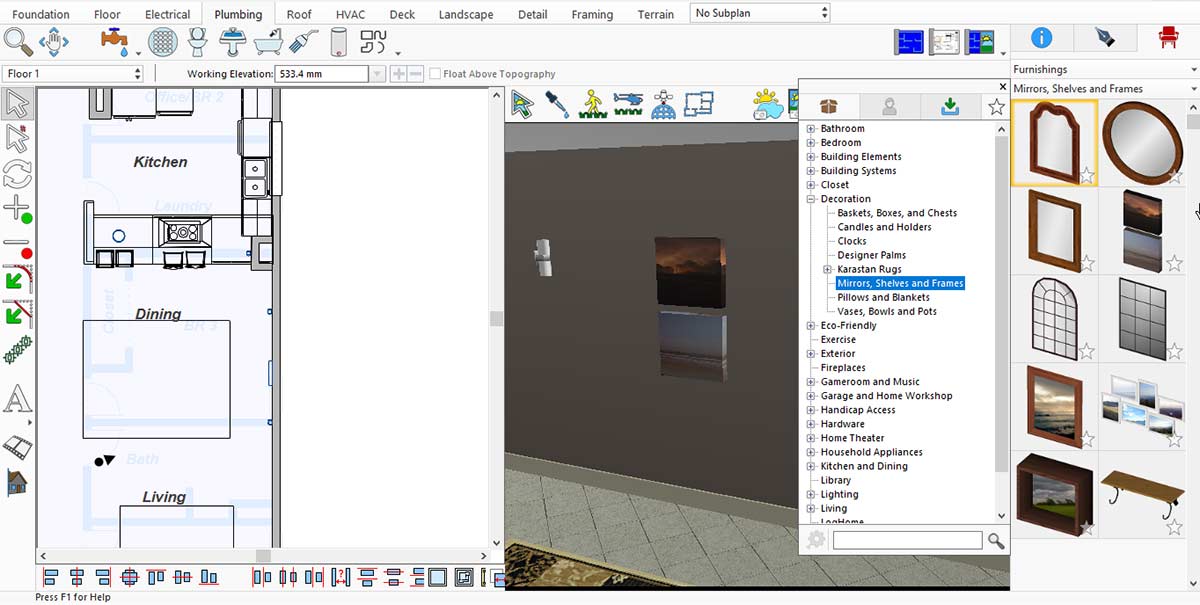
Framed Image collection for the Kitchen
A kitchen feels incomplete without a flower pot. This app offers a wide range of flowers with pots, but if none meet your needs, you can place an empty pot and add flowers later. To place a pot in your kitchen, go to Plants > Display Stock Library Items > Container and Potted Plants > Pots and Containers.
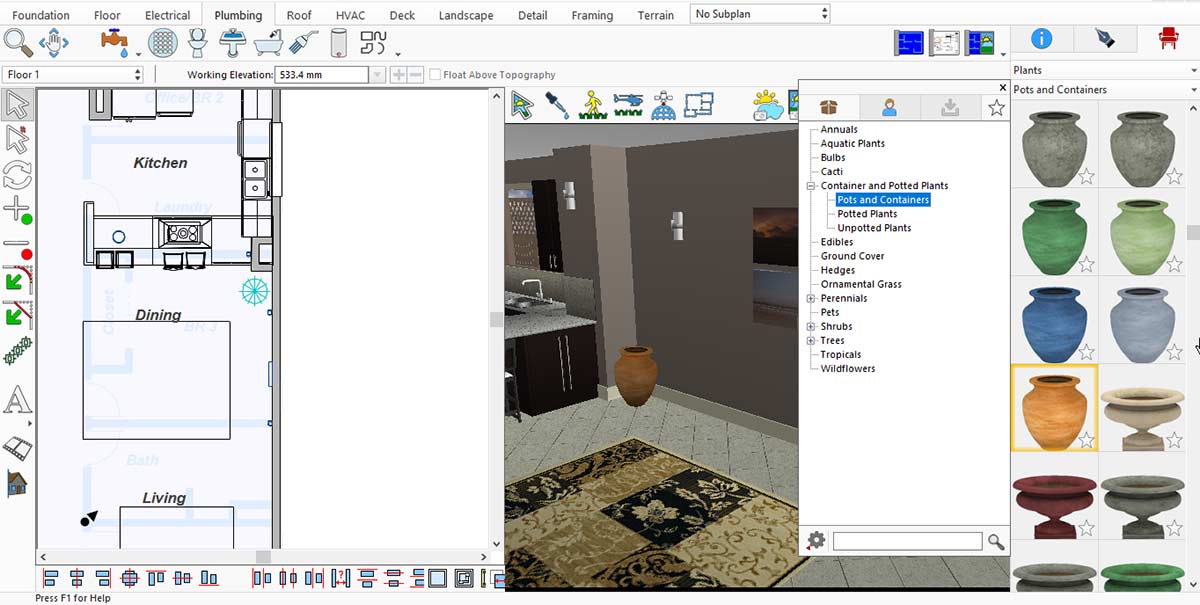
Pot and Container collection for the Kitchen
Now it’s time to add flowers to the pot. To do this, go to Plants > Display Stock Library Items > Annuals.
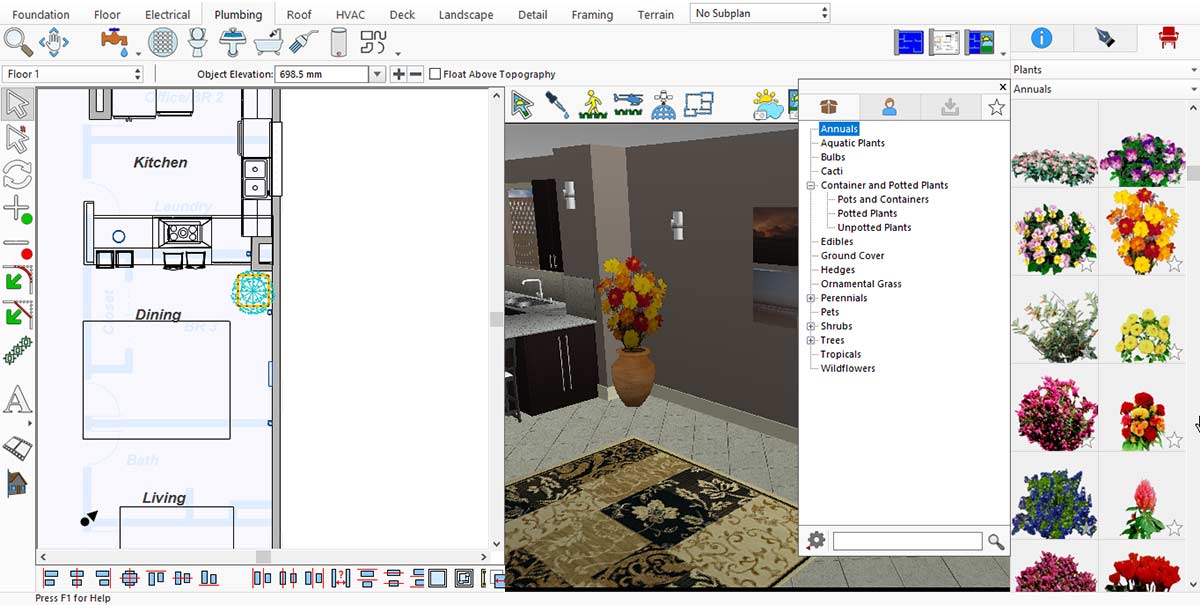
Pot Flower collection for the Kitchen
After placing all the equipment in the kitchen, you need to render it to see the final results.
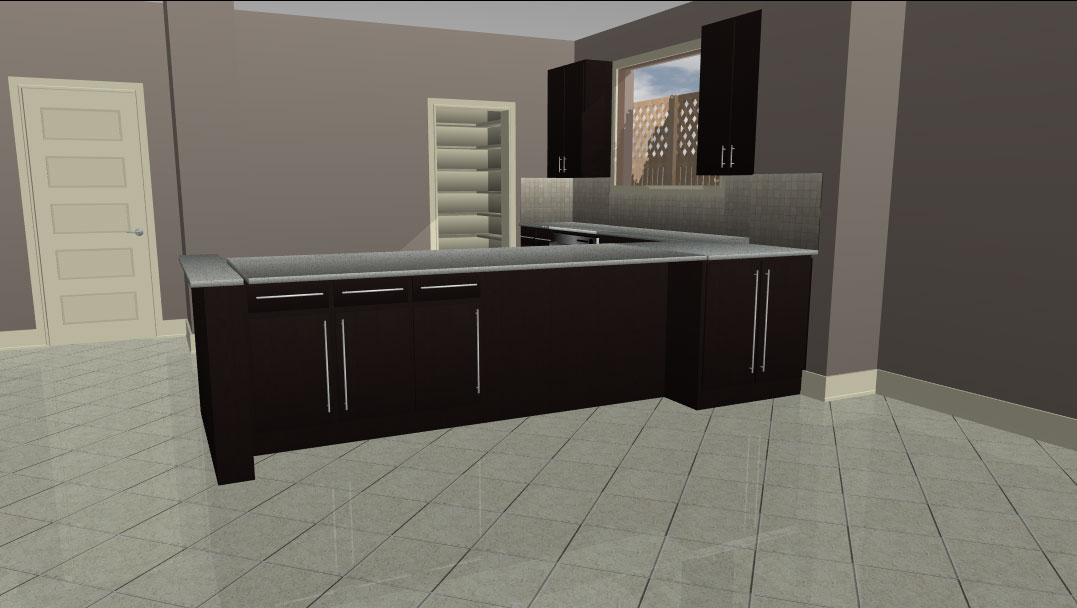
Before adding equipment, the look of the Kitchen
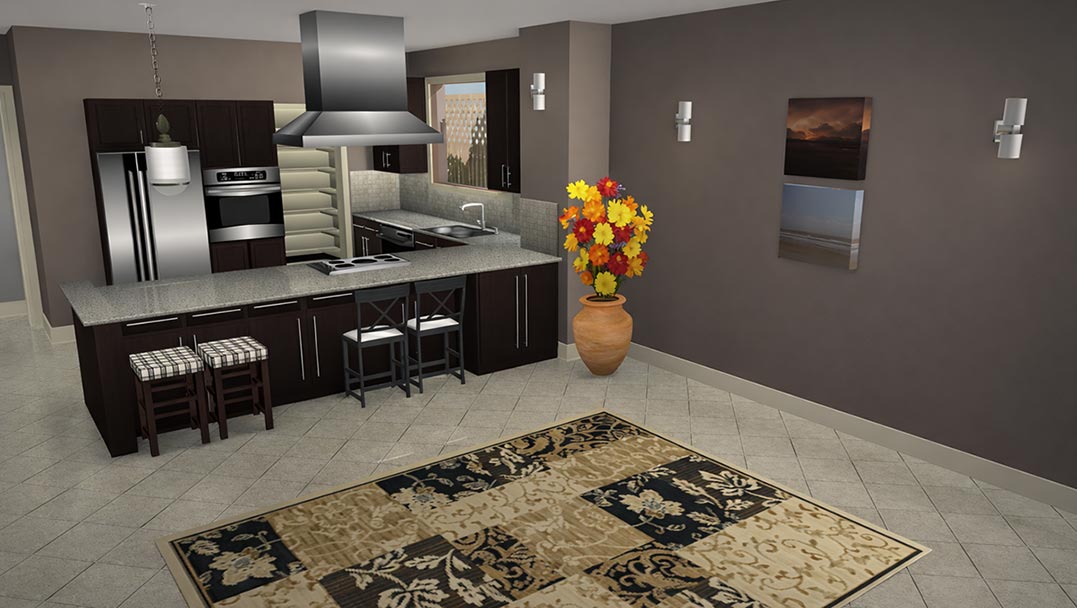
After adding equipment, the look of the Kitchen
Designing a kitchen using the right tools and essential elements makes the entire process creative, flexible, and enjoyable. From selecting cabinets, countertops, appliances, doors, and windows to adding lighting, backsplashes, and smart storage solutions, each detail plays an important role in creating a functional and attractive kitchen. The use of default and downloaded libraries offers a wide range of design options, making it easy to customize the space to suit personal preferences. The final rendered view clearly demonstrates how thoughtful choices and proper placement can transform a kitchen into a well-organized, stylish, and welcoming space.
Now it’s your turn: to redesign your kitchen and enjoy the results every day.
IMSI Design is a maker of CAD (Computer-Aided Design) and home design software for Windows and Mac, as well as mobile solutions for the AEC (Architectural, Engineering, and Construction) industry.
Founded in 1983, IMSI is a leader in feature-rich, yet affordable, general-purpose CAD (Computer Aided Design) and home design desktop software, and a pioneer in mobile solutions for the AEC (Architectural, Engineering, and Construction) industry.