Disclaimer: The features described in this blog require the Home Design Copilot Add‑On. You can purchase the add‑on here: Home Design Copilot
Home Design Copilot Image Studio gives you precise control over how closely AI-generated images follow your original design through the Design Preservation feature. This setting determines how much of the source image or project layout is retained during image generation, allowing you to choose between preserving the existing design or giving the AI more creative freedom.
The Design Preservation drop-down menu offers four options: Strict, Relaxed, Redesign, and None. Each option applies a different level of design preservation, making it suitable for different design scenarios. Whether you want to maintain the exact layout of your project, introduce subtle improvements, completely reimagine the design, or generate a result without preserving the original structure, these options provide the flexibility to achieve your desired outcome.
In this article, we’ll explore each Design Preservation option in detail, explain how it affects AI image generation, and demonstrate when to use each setting to achieve the best results for your home design projects.
Step-by-Step Guide to Apply Design Preservation Options
To apply these options, first open a sample project that you want to use for rendering with reference images. Once the project is open, navigate to the 3D View and adjust the view to capture the area you want to transform.
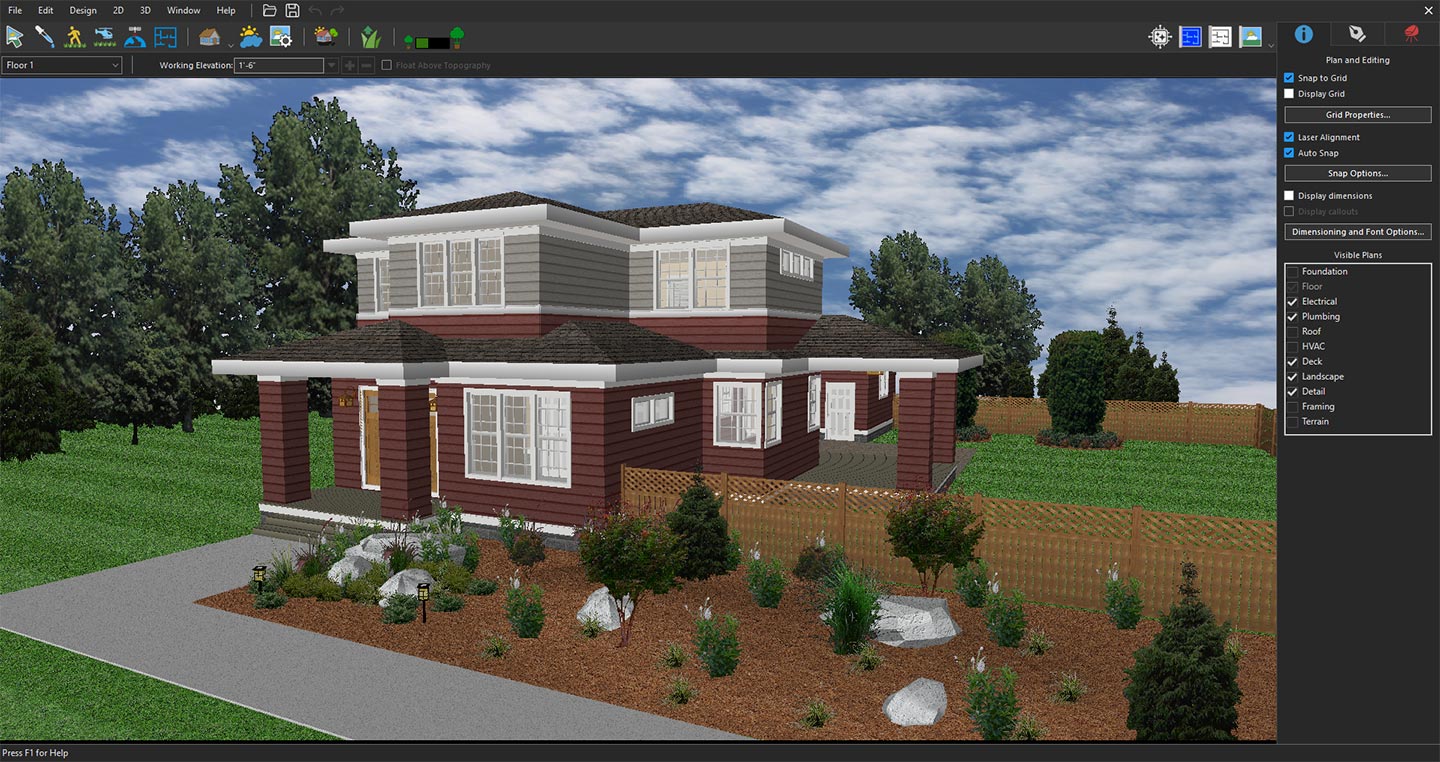
3D view prepared for reference rendering
Next, click the Copilot icon to open Copilot.
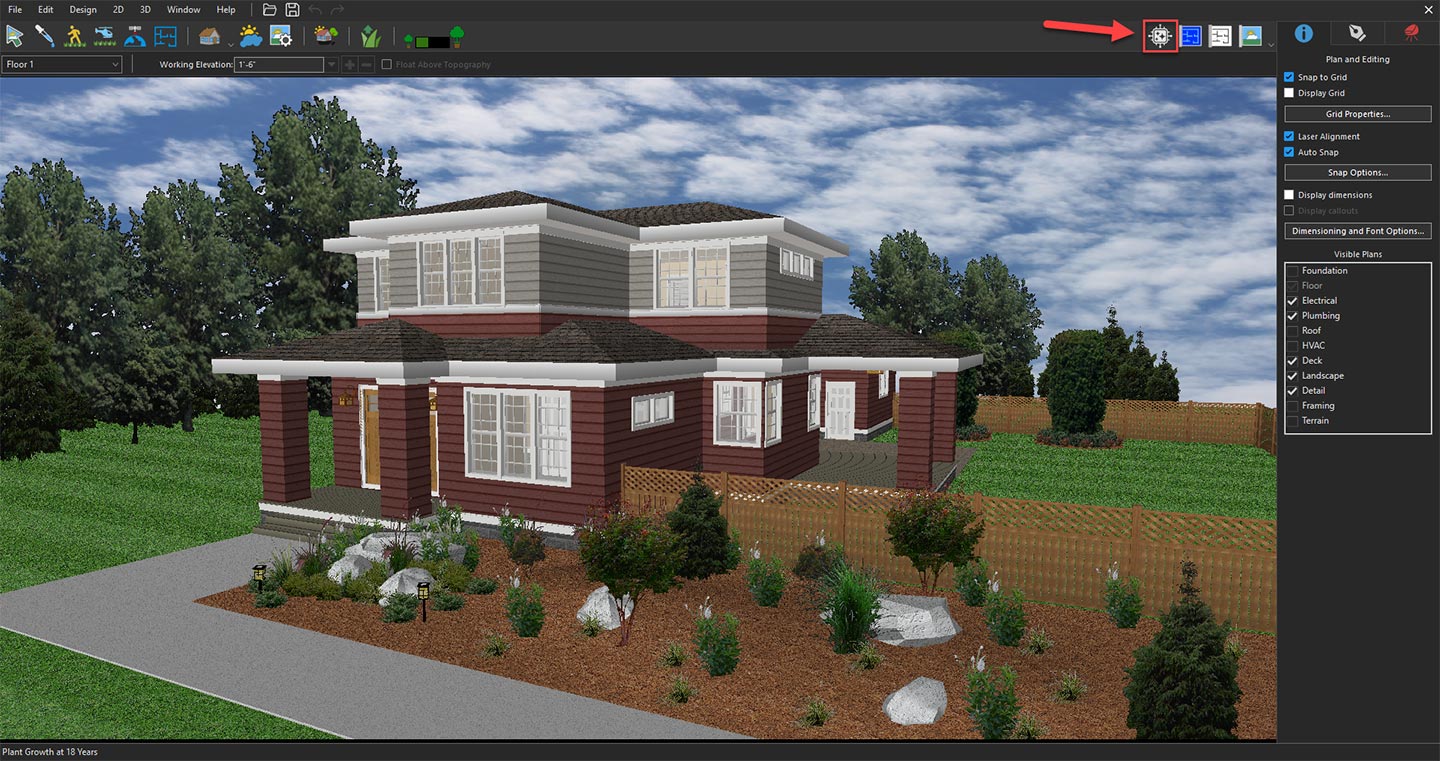
Opening Copilot to explore AI design features
From the available options, select Image Studio from the drop-down menu, and then click the Prompt button.
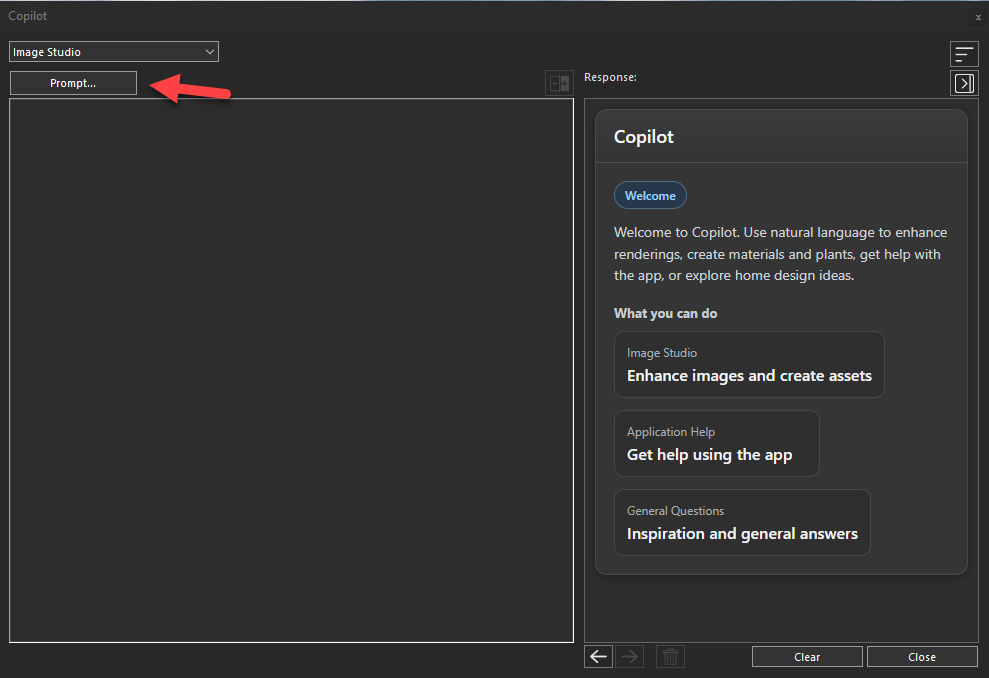
Clicking the Prompt button to access and explore the available Design Preservation options in Image Studio
In the next window, expand the Input drop-down menu and select the Current 3D view.
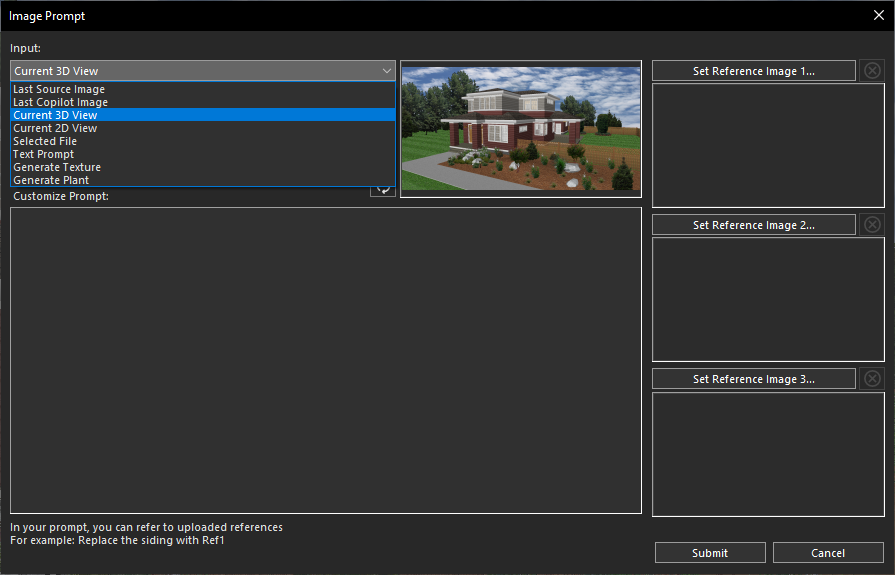
Selecting the Current 3D View option from the Input drop-down menu
In the same window, you’ll find all the available Design Preservation Options by opening the Design Preservation drop-down menu. The available options include Strict, Relaxed, Redesign and None.
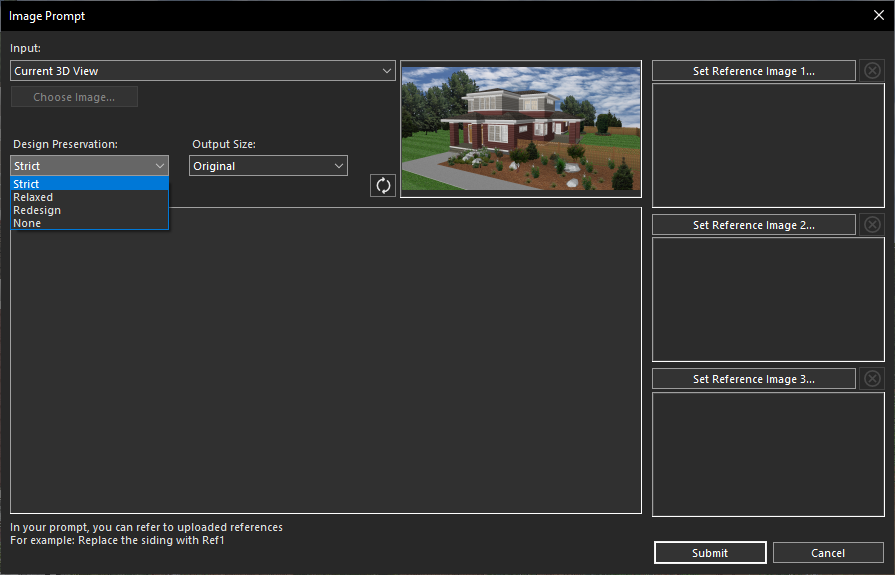
Opening the Design Preservation drop-down menu to view the available preservation options
Each Design Preservation option offers a different level of control over how closely the AI-generated image follows the original design. In the following sections, we’ll explore each option in detail, explaining how it influences the final result, when it should be used, and how it differs from the other settings so you can choose the most appropriate level of design preservation for your project.
Strict
The Strict option preserves the original design as closely as possible, ensuring that the overall layout, structure, and key design elements remain unchanged. The AI focuses primarily on enhancing the visual quality by applying improved materials, lighting, textures, and realistic rendering while maintaining the original design intent. To use this option, first enter a descriptive prompt in the Customize Prompt field.
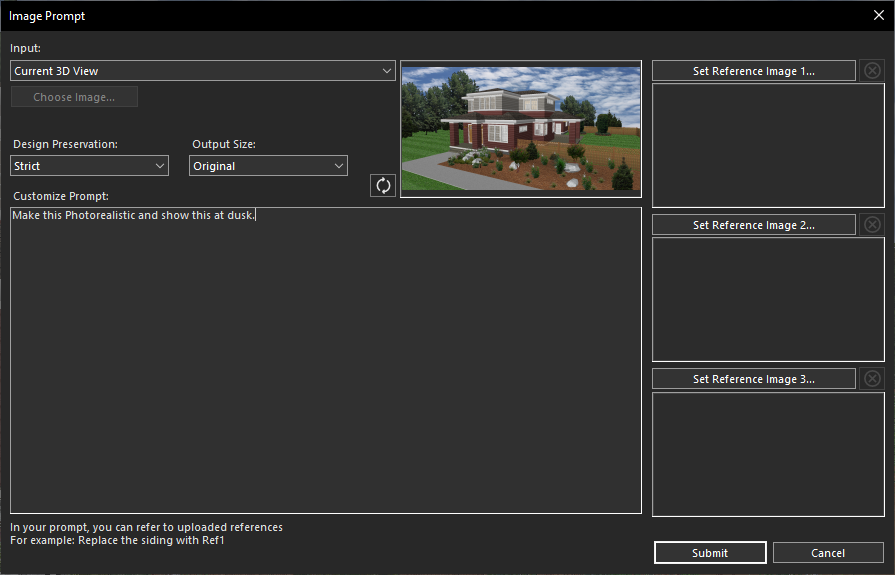
Providing a text prompt to generate an AI-enhanced image
Then select Strict from the Design Preservation drop-down menu.
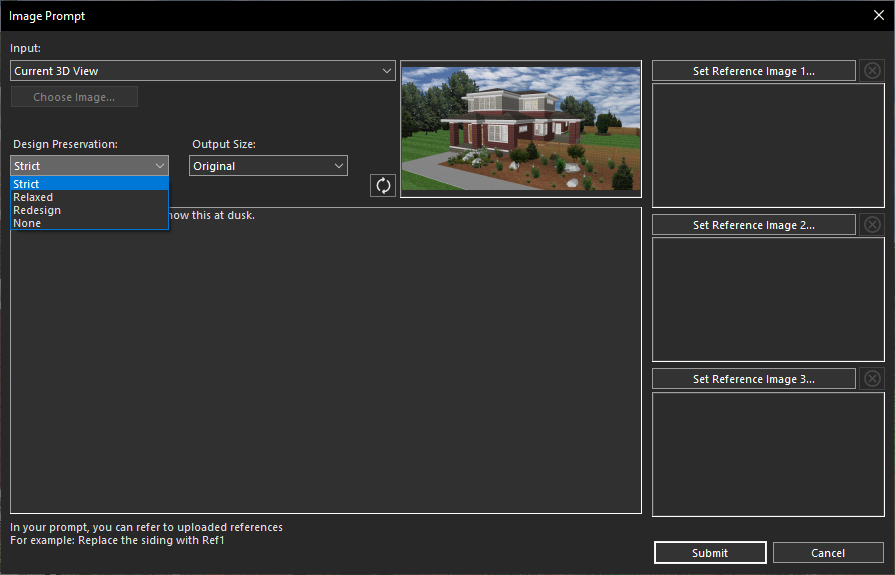
Selecting the Strict option from the Design Preservation drop-down menu
After this click the Submit button to generate the AI-enhanced result based on your selected design preservation setting. So, after clicking on Submit, and within a few seconds, Copilot will generate a high-quality rendered image based on your prompt.
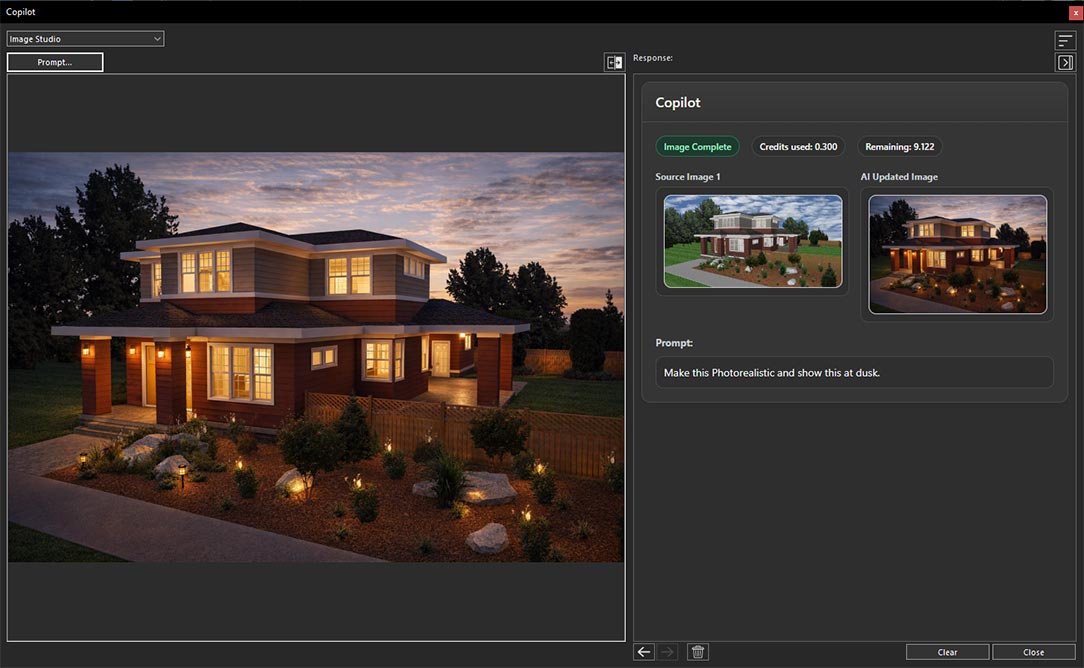
AI-generated image created from the provided text prompt
Relaxed
The Relaxed option retains the core layout and major design features but gives the AI more flexibility to introduce moderate stylistic enhancements. It may refine architectural details, materials, colors, furnishings, or landscaping to create a more polished and visually appealing result while still staying true to the original design. To apply this option, first click on the Prompt button again.
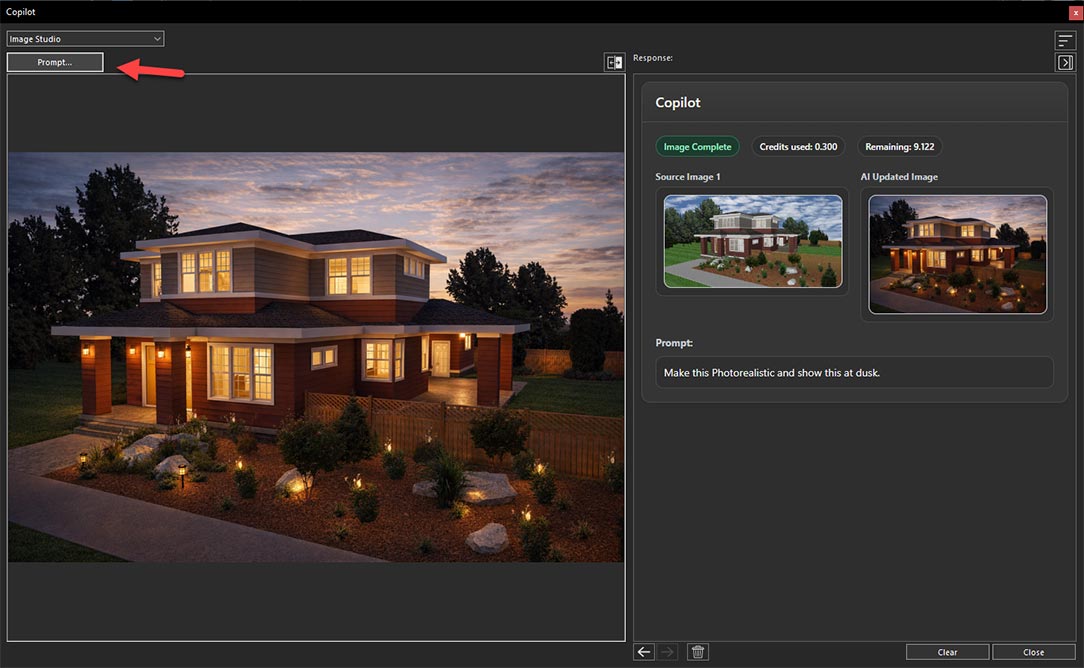
Clicking the Prompt button to apply the next Design Preservation option
And enter the same prompt in the Customize Prompt field that was used previously to ensure a clear and consistent comparison of the generated results.
Entering the same text prompt to ensure a fair comparison of the Design Preservation options
Then select Relaxed from the Design Preservation drop-down menu.
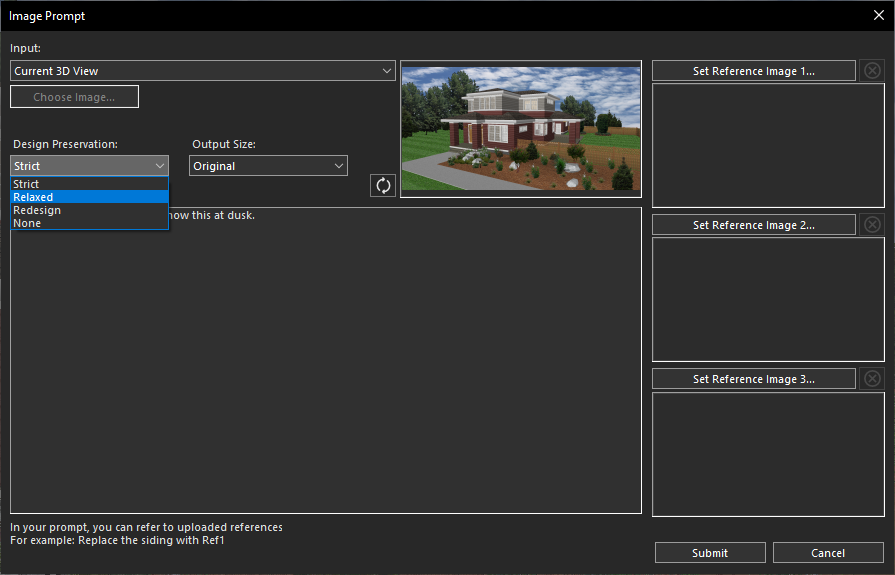
Selecting the Relaxed option from the Design Preservation drop-down menu
And finally, click the Submit button to generate the image. So, after clicking on Submit, and within a few seconds, Copilot will generate a high-quality rendered image based on your prompt.
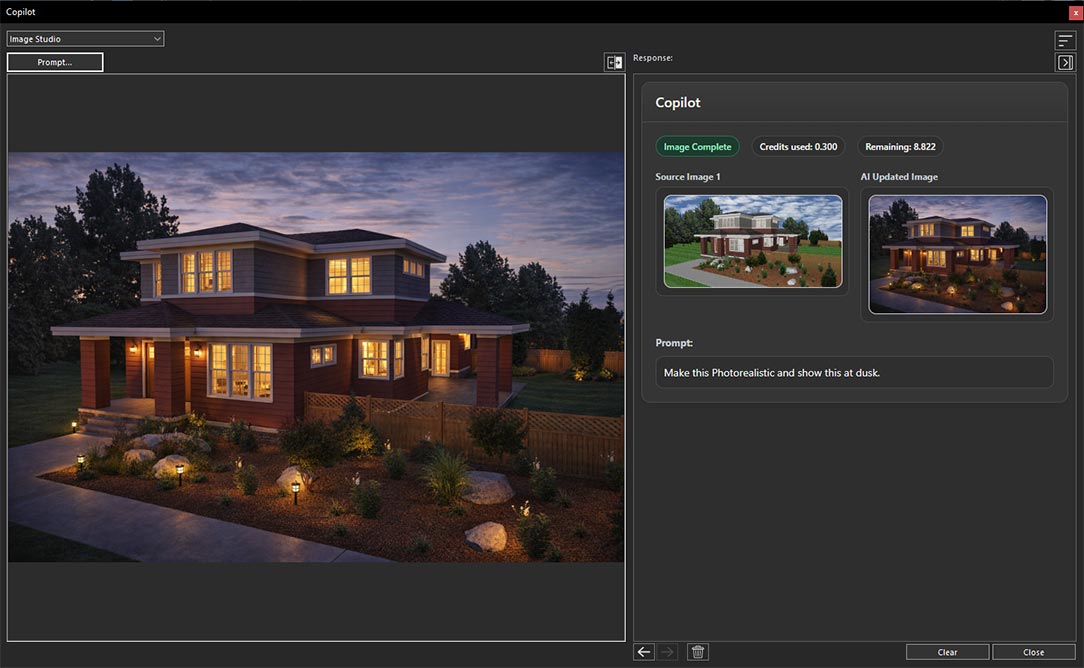
AI-generated image created from the provided text prompt
Redesign
The Redesign option uses the original image as a reference rather than a strict blueprint, allowing the AI to significantly transform the design. It can modify the architectural style, exterior details, materials, and overall appearance to produce a fresh interpretation while preserving only the general concept of the original project. To apply this option, first click on the Prompt button again.
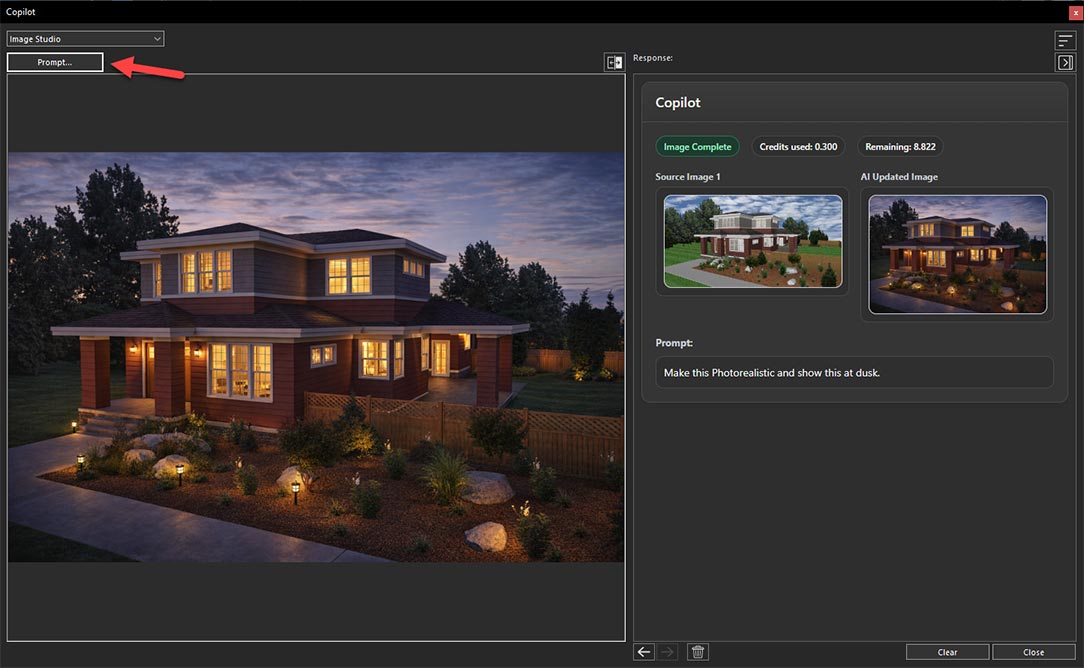
Clicking the Prompt button to apply the next Design Preservation option
And enter the same prompt in the Customize Prompt field that was used previously to ensure a clear and consistent comparison of the generated results.
Entering the same text prompt to ensure a fair comparison of the Design Preservation options
Then select Redesign from the Design Preservation drop-down menu.
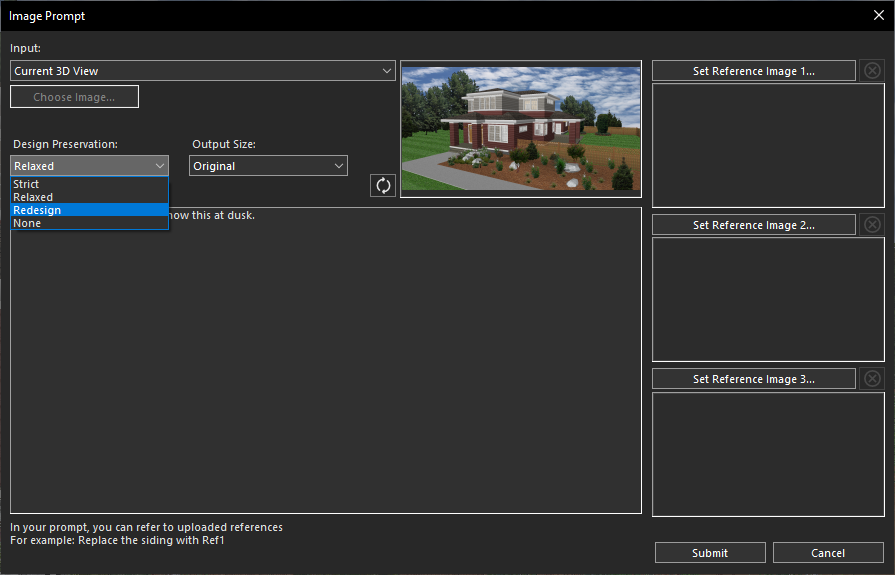
Selecting the Redesign option from the Design Preservation drop-down menu
And finally, click the Submit button to generate the image. So, after clicking on Submit, and within a few seconds, Copilot will generate a high-quality rendered image based on your prompt.
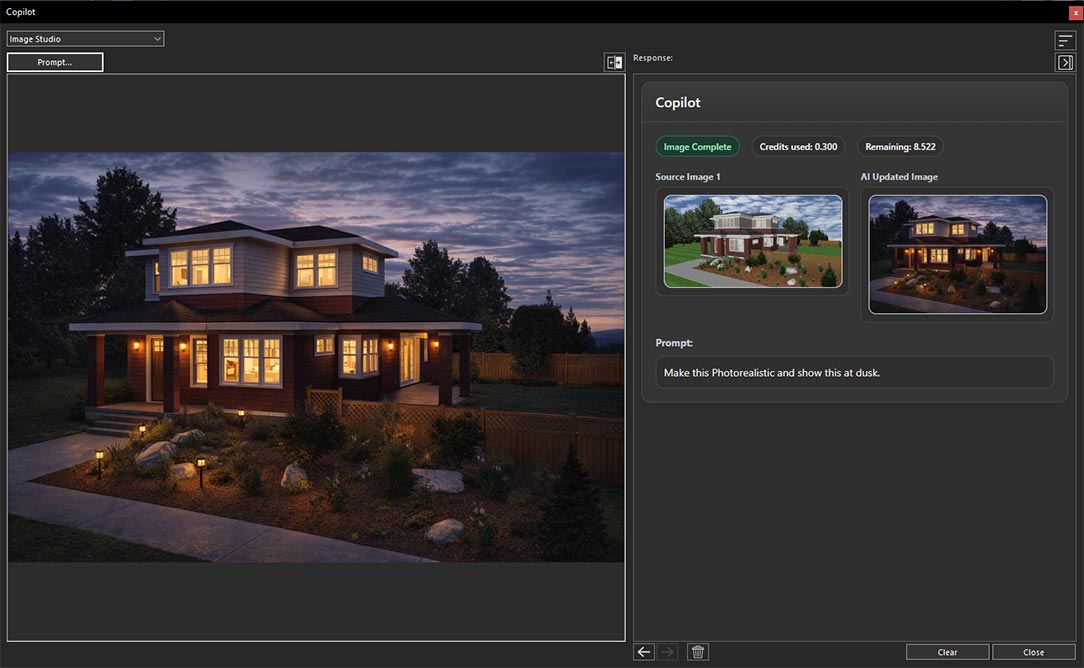
AI-generated image created from the provided text prompt
None
The None option disables design preservation entirely, giving the AI complete creative freedom. Instead of following the original design, the generated result is based primarily on the provided text prompt and other selected inputs, making it ideal for creating entirely new concepts and exploring different design ideas. To use this option, first click on the Prompt button again.
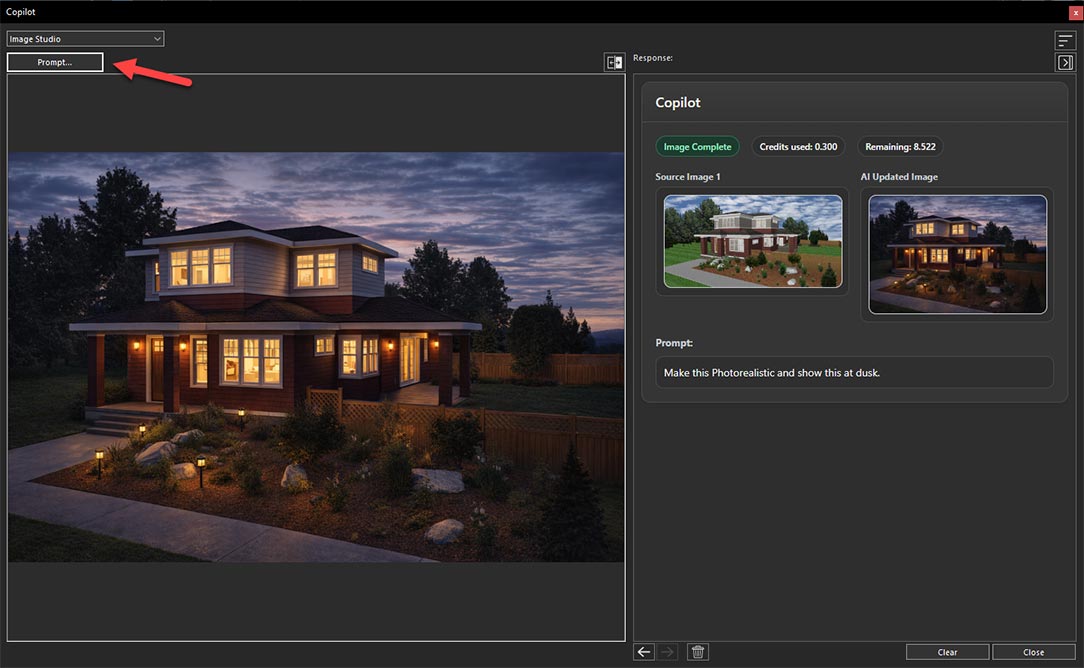
Clicking the Prompt button to apply the next Design Preservation option
And enter the same prompt in the Customize Prompt field that was used previously to ensure a clear and consistent comparison of the generated results.
Entering the same text prompt to ensure a fair comparison of the Design Preservation options
Then select None from the Design Preservation drop-down menu.
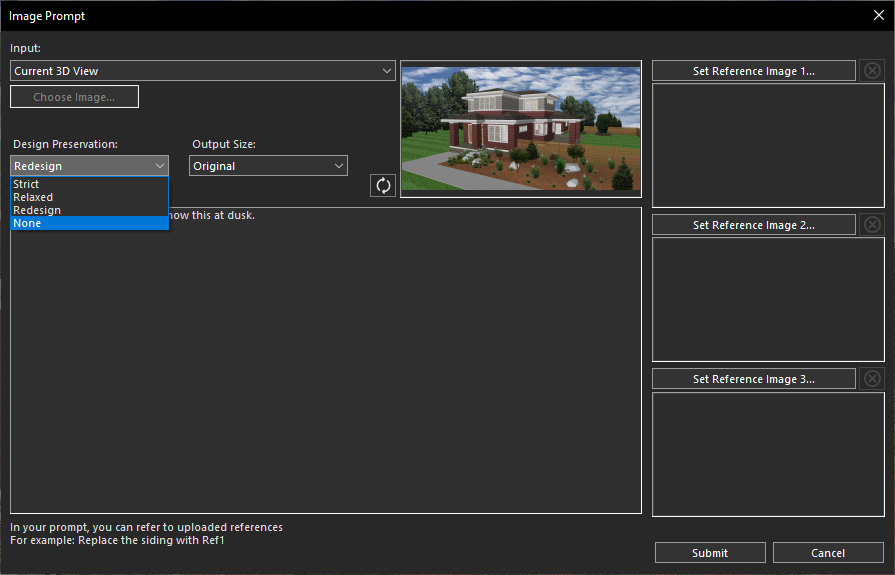
Selecting the None option from the Design Preservation drop-down menu
And finally, click the Submit button to generate the image. So, after clicking on Submit, and within a few seconds, Copilot will generate a high-quality rendered image based on your prompt.
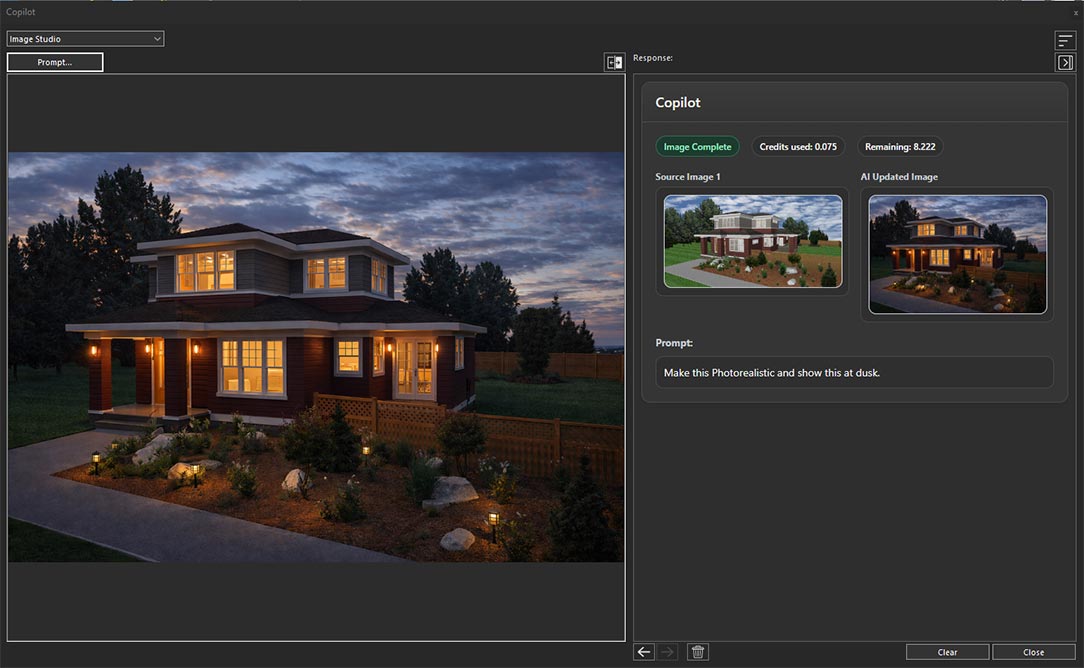
AI-generated image created from the provided text prompt
Conclusion
The Design Preservation options in Home Design Copilot Image Studio provide the flexibility to control how closely AI-generated images adhere to your original design. Whether you want to preserve the existing layout with minimal changes, allow moderate creative enhancements, significantly redesign the project, or generate a completely new concept, each option is tailored to support a different design objective.
By understanding the purpose and behavior of the Strict, Relaxed, Redesign, and None settings, you can choose the most appropriate level of design preservation for your workflow. Experimenting with these options will help you strike the perfect balance between maintaining your original vision and leveraging the AI’s creative capabilities to produce realistic, high-quality design visualizations.
Copilot Render Showcase
Also check out our Copilot Render Showcase by clicking the banner below.