

Bringing your designs to life is now faster and more intuitive with Copilot Render. This powerful feature generates conceptual visualizations directly from your CAD drawings using natural language prompts. Simply describe the style, materials, lighting, or environment you envision, and Copilot Render creates a concept image that overlays your existing drawing.
Because the underlying geometry remains unchanged, you can continue refining your design while exploring different visual directions and presentation styles.
Transform Ideas into Visual Concepts
Copilot Render works seamlessly with both 3D models and 2D drawings, making it a versatile tool for designers, engineers, architects, and product developers. Whether you're creating early-stage design concepts, preparing for client reviews, or developing presentation materials, Copilot Render helps communicate design intent quickly and effectively.
You can also use reference images to guide the rendering process. These references can influence materials, textures, color palettes, environments, and overall visual style, helping you achieve results that closely align with your vision.
Flexible Creative Control
Beyond simple text prompts, Copilot Render offers additional controls that provide greater influence over the generated results.
You can:
- Control how closely the render follows the original CAD geometry.
- Allow more artistic interpretation for conceptual or stylized presentations.
- Use reference images to define materials, textures, backgrounds, and visual themes.
- Leverage notes stored within your project to help maintain design intent across multiple render variations.
These capabilities make it easy to explore a wide range of visual styles—from photorealistic product renders and architectural visualizations to sketch-style concepts, material studies, and creative design explorations.
Getting Started with Copilot Render
Follow these simple steps to generate conceptual visualizations from your TurboCAD project.
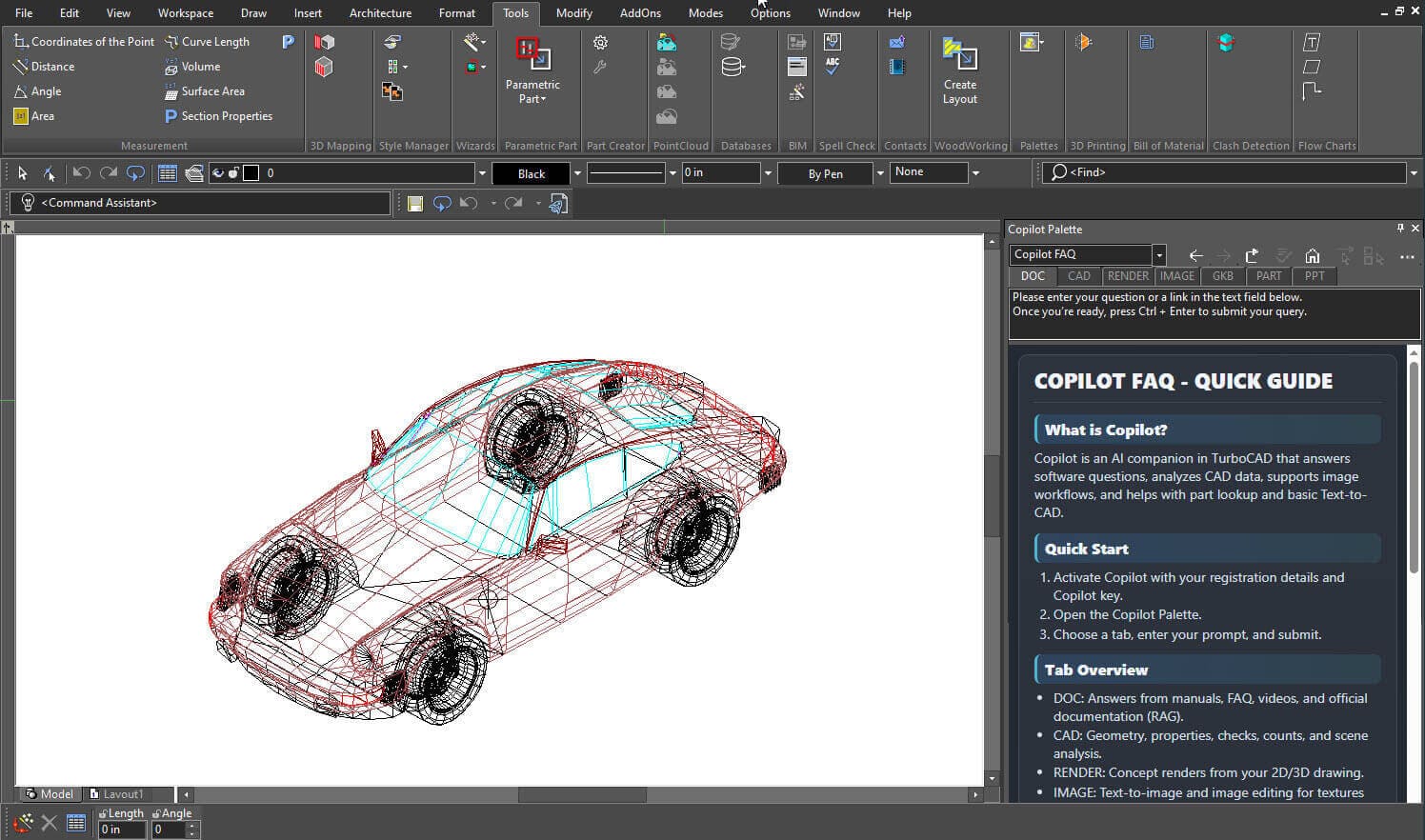
Step 1: Open the Copilot Palette
From the Tools menu, open the Palettes menu and select Copilot Palette.
Step 2: Create a Draft Rendering
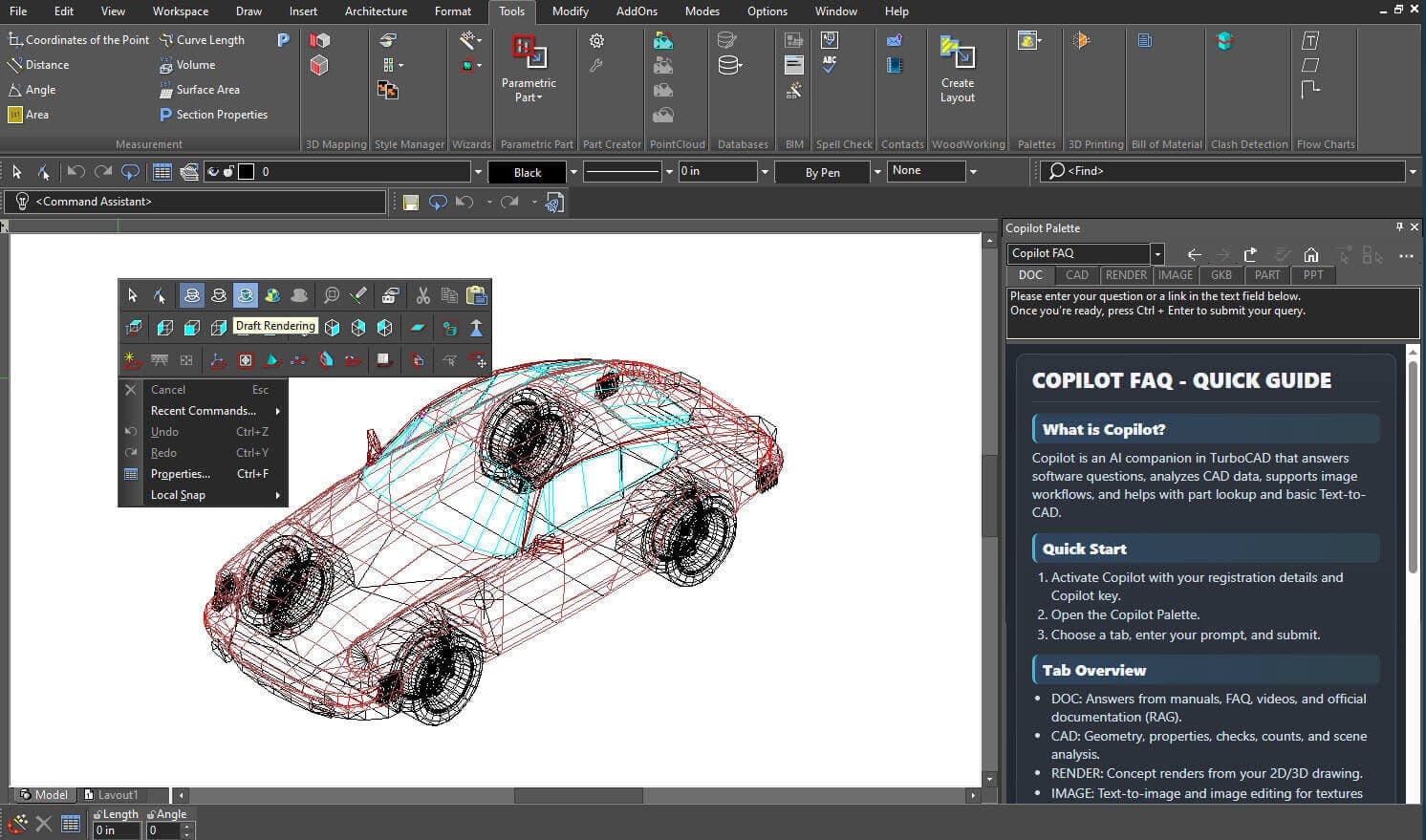
Right-click anywhere on the drawing canvas and select Draft Rendering.
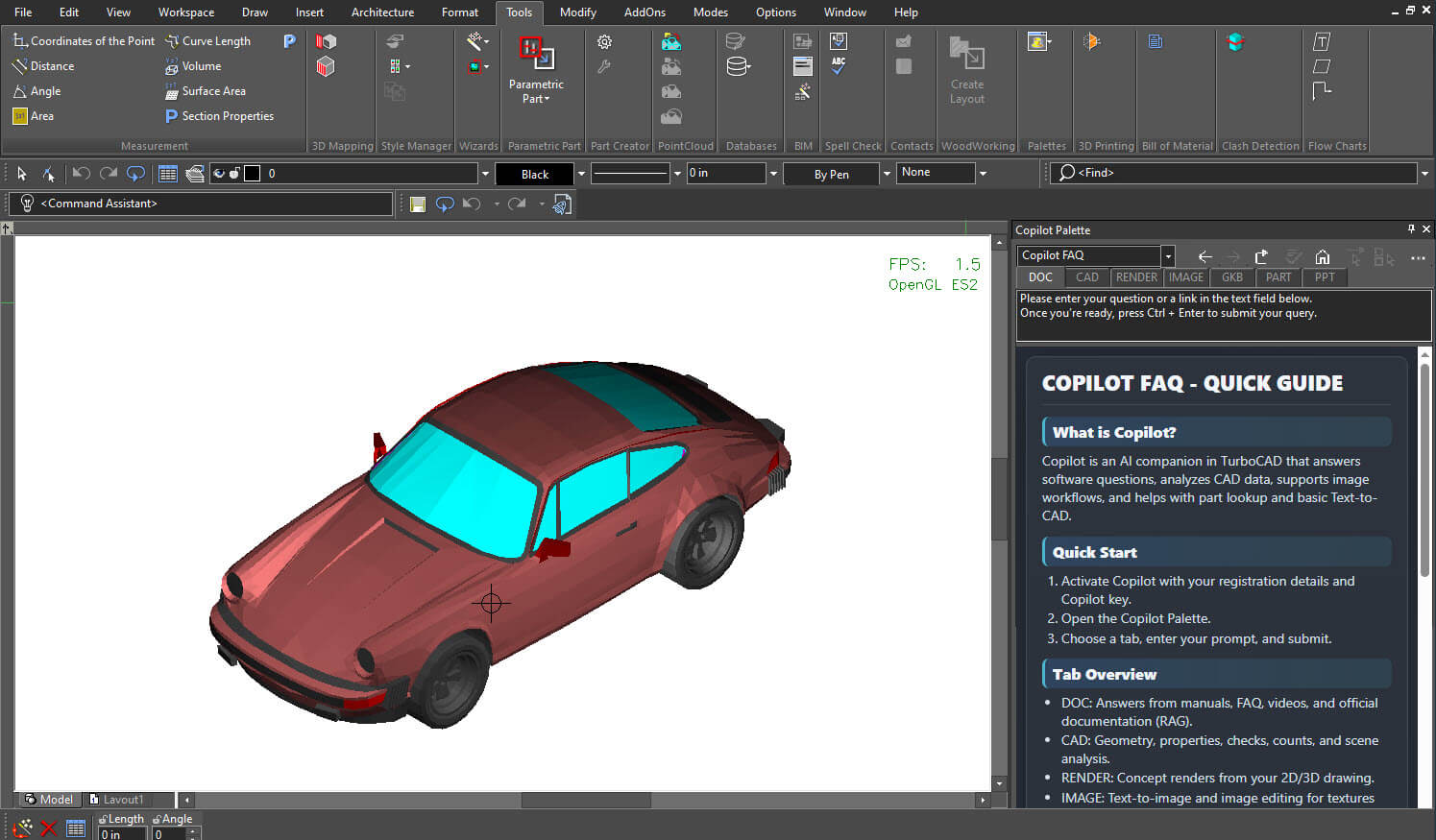
After a few moments, TurboCAD will generate a draft rendering of your project.
Step 3: Open the Render Tab
Within the Copilot Palette, click the Render tab.
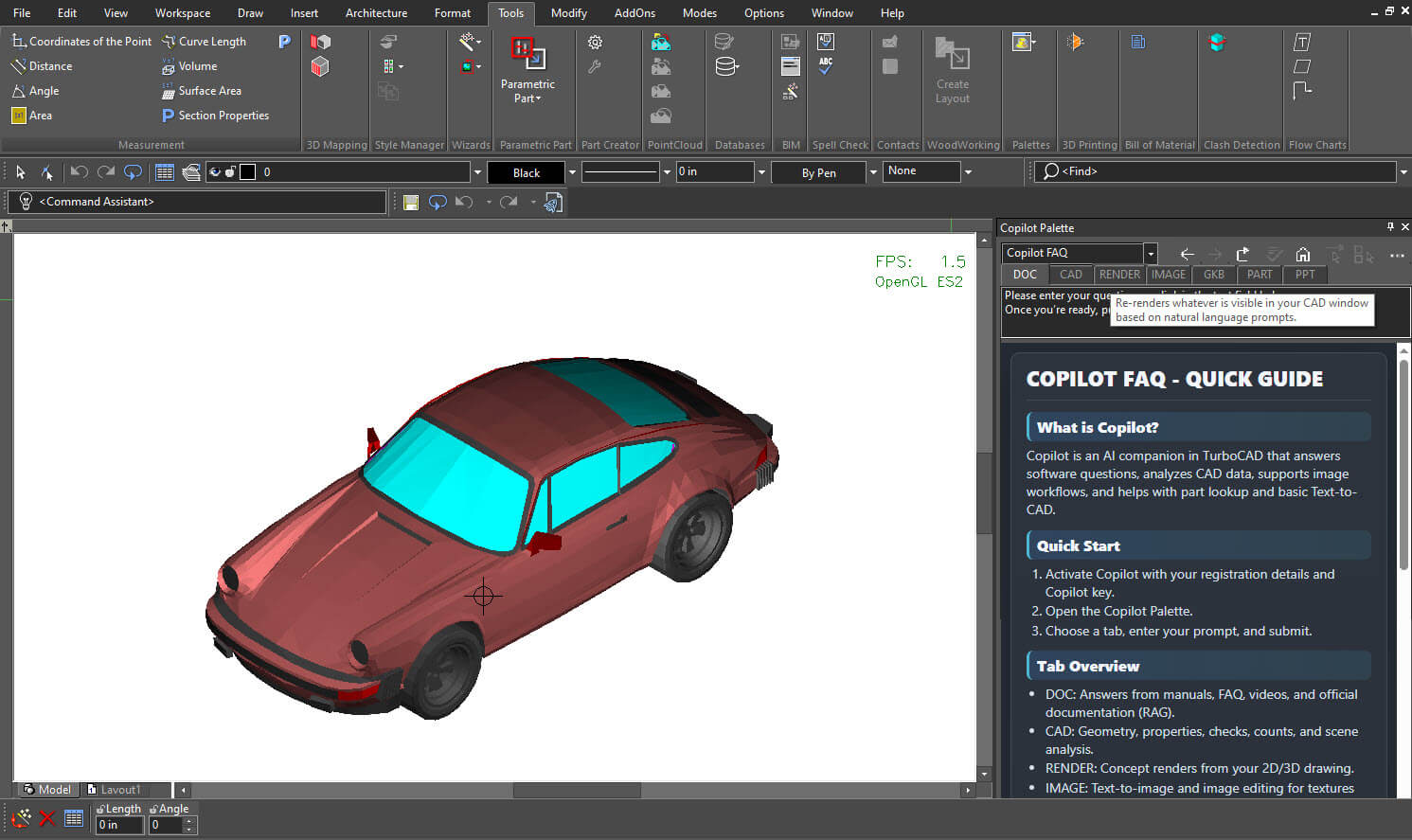
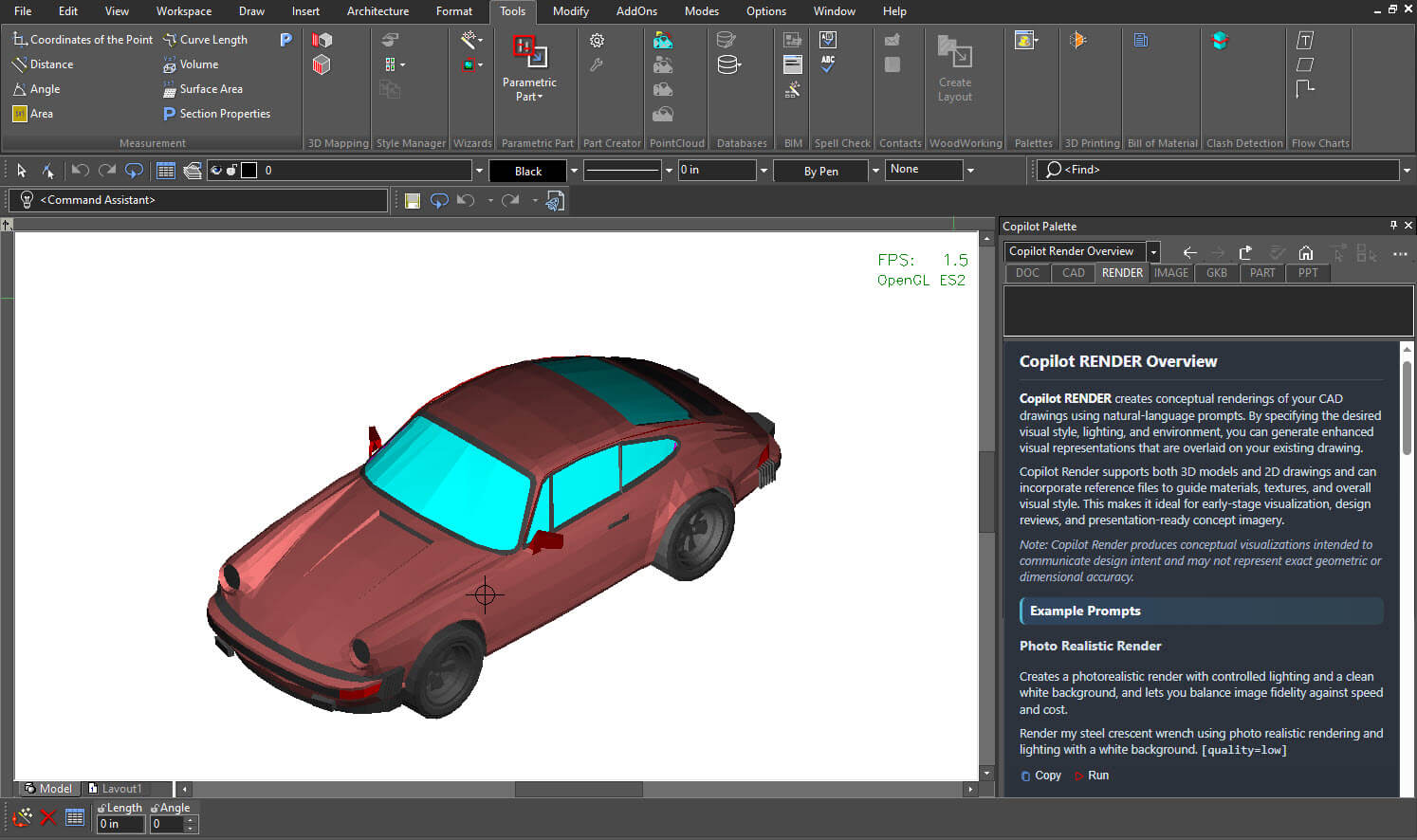
Step 4: View Render Overview and Examples
Click the mouse scroll wheel while the Render tab is active to access the Copilot Render Overview and Examples. These examples can help you create more effective prompts and achieve better rendering results.
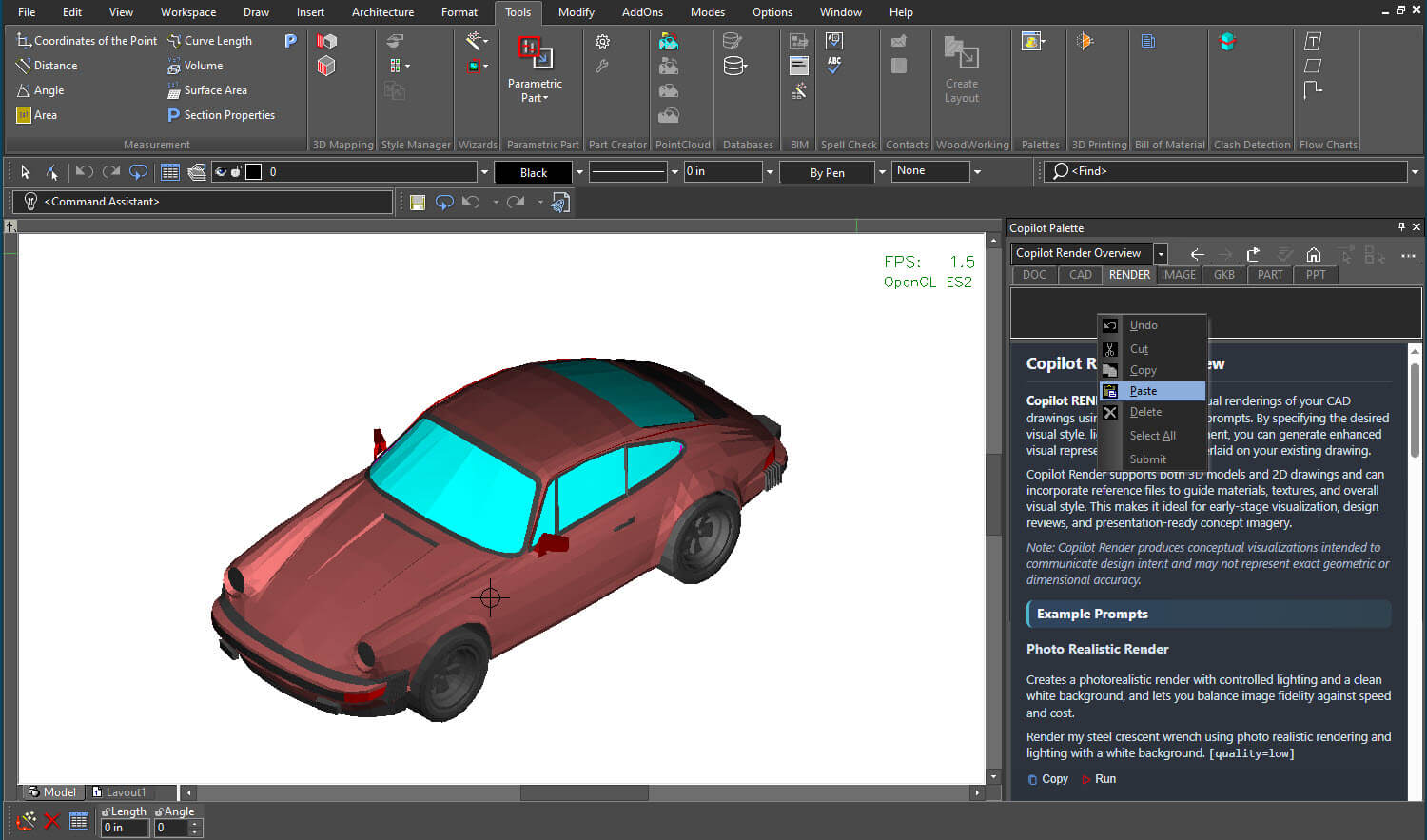
Step 5: Enter Your Prompt
Type or paste your desired rendering prompt into the prompt field and click Submit.
For example:
"Photorealistic render of a luxury sports car with deep metallic burgundy paint, studio lighting, realistic reflections, and premium materials."
Step 6: Wait for Processing
Copilot Render will process your request and generate the visualization based on your prompt.
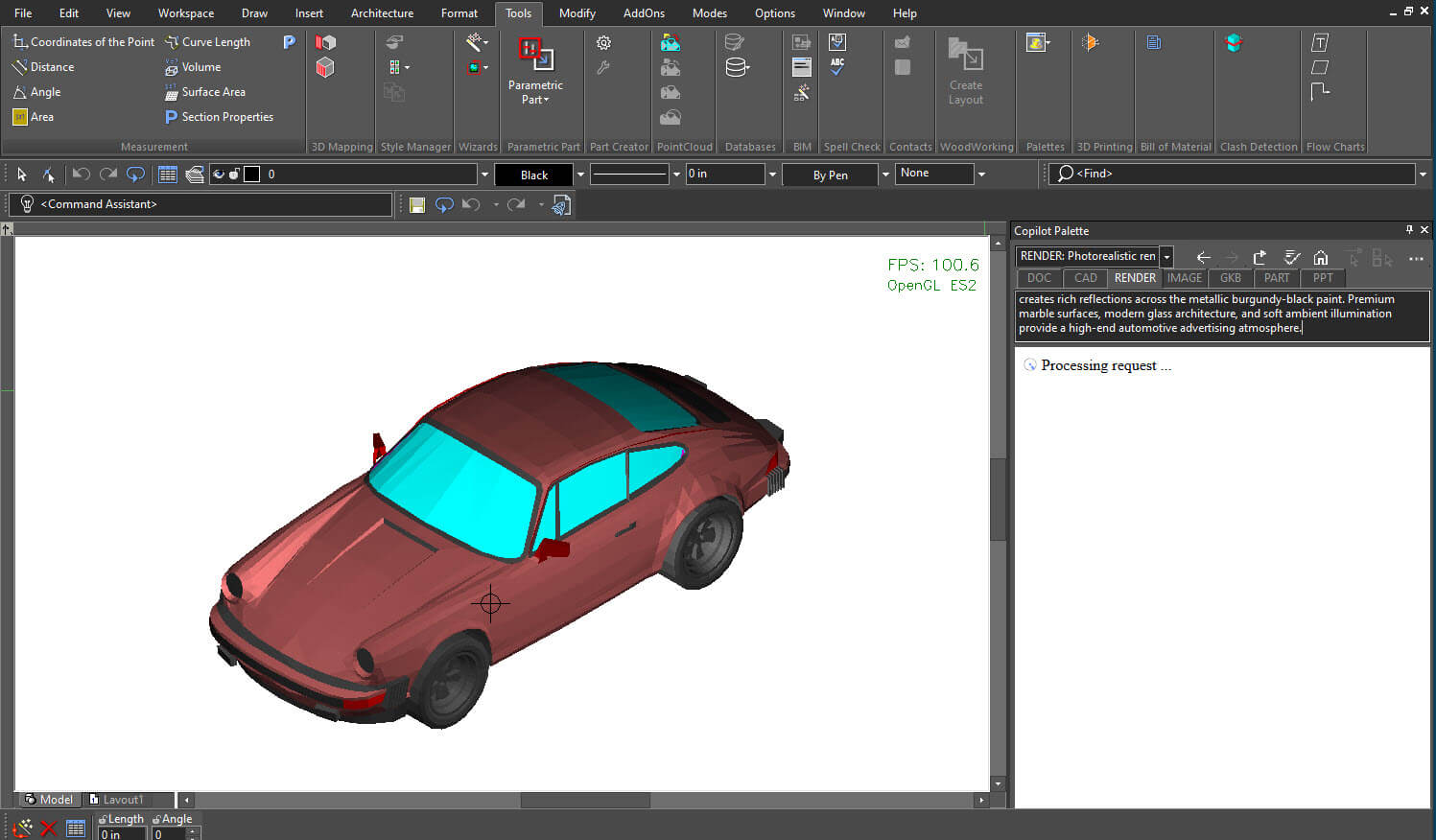
Processing time may vary depending on project complexity and render settings.
Step 7: Review the Rendered Result
Once rendering is complete, the generated visualization will appear directly on the TurboCAD canvas.
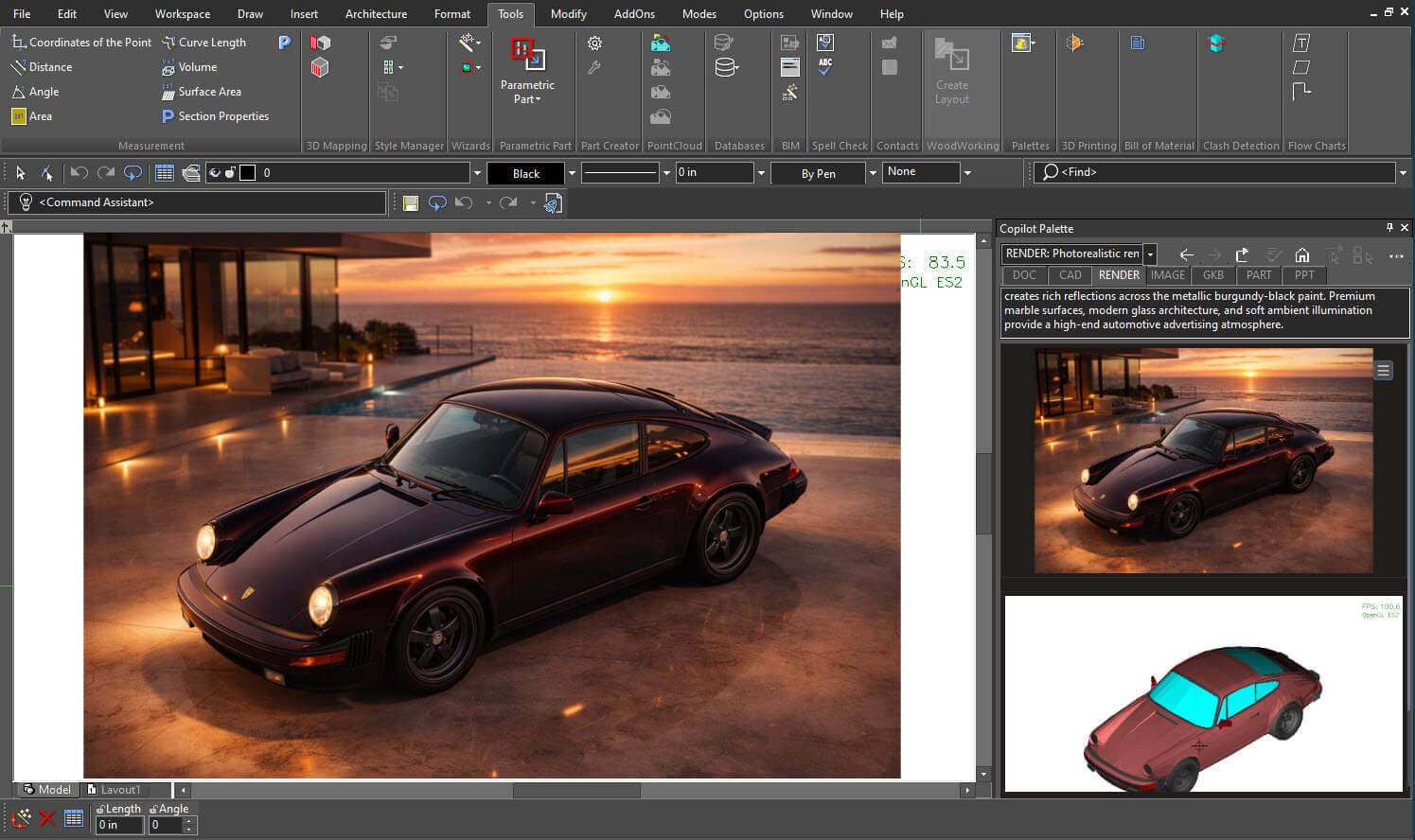
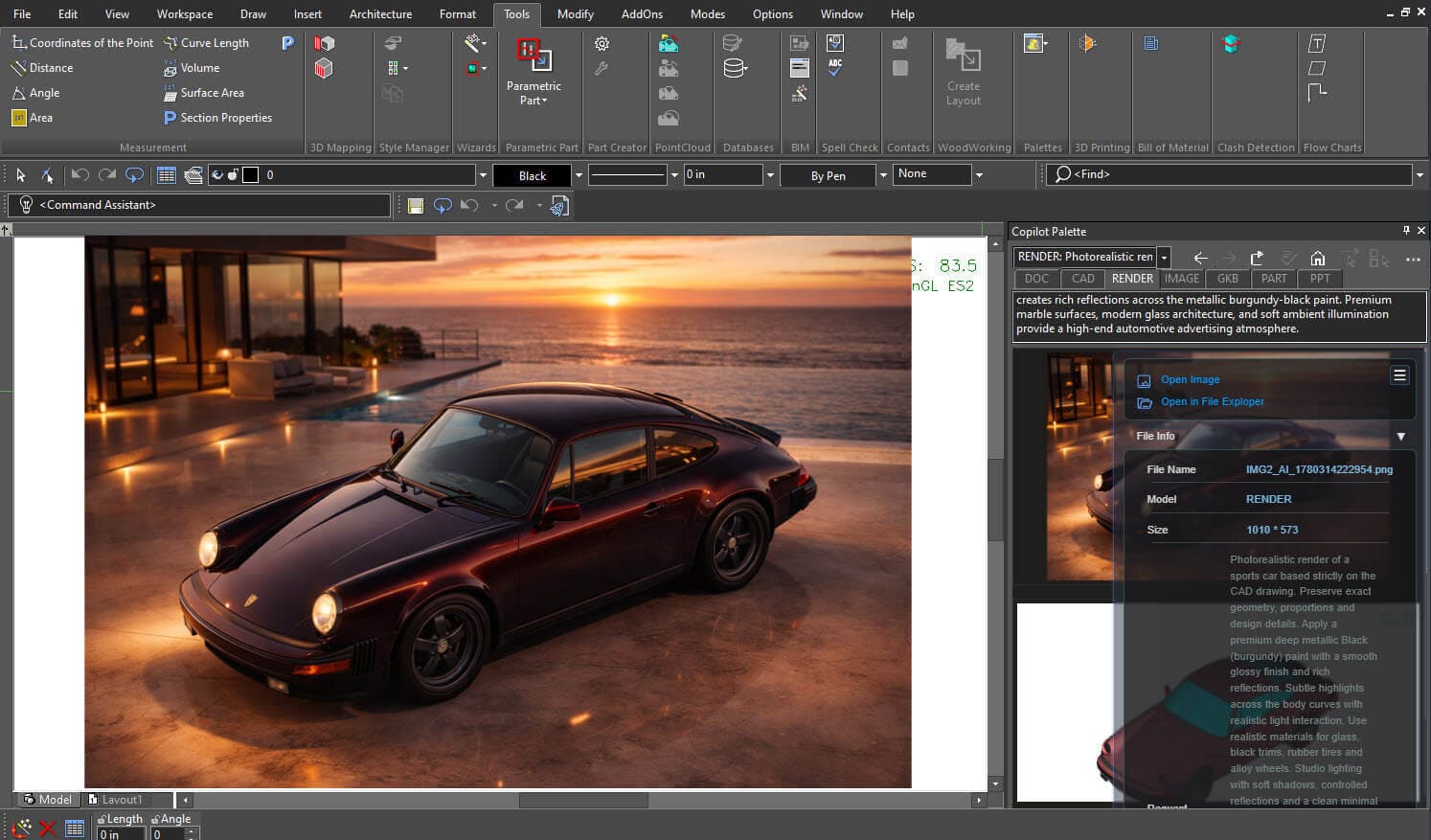
Step 8: Explore Project Details
Additional project and rendering information can be viewed through the Toggle Panel View, allowing you to review render details and manage generated content.
Copilot Render makes it easier to transform CAD designs into compelling visual concepts without disrupting your workflow. By combining AI-powered rendering with natural language prompts, you can quickly explore different styles, materials, and environments directly within TurboCAD. Whether you're refining ideas, presenting concepts, or gathering feedback, Copilot Render helps bring your vision to life faster and more effectively.